Have you ever sent a text on your iPhone, glanced at the screen, and noticed the words “Sent as Text Message” underneath it? If yes, you’re definitely not alone. Many people see this message and immediately wonder if something went wrong. They often ask whether the other person blocked them, whether iMessage stopped working, or whether the message reached its destination.
Fortunately, the answer is usually much simpler. In most situations, “Sent as Text Message” simply means your iPhone switched from iMessage to a standard SMS to make sure your message still went through. Instead of waiting for an internet connection or an available iMessage service, your phone chooses the faster backup option and sends the message through your mobile carrier.
In this guide, you’ll learn exactly what does sent as text message mean, why it happens, whether your message was delivered successfully, and what steps you can take if you want to use iMessage instead. Along the way, we’ll also clear up several common myths so you can understand this status with confidence.
What Does “Sent as Text Message” Mean?
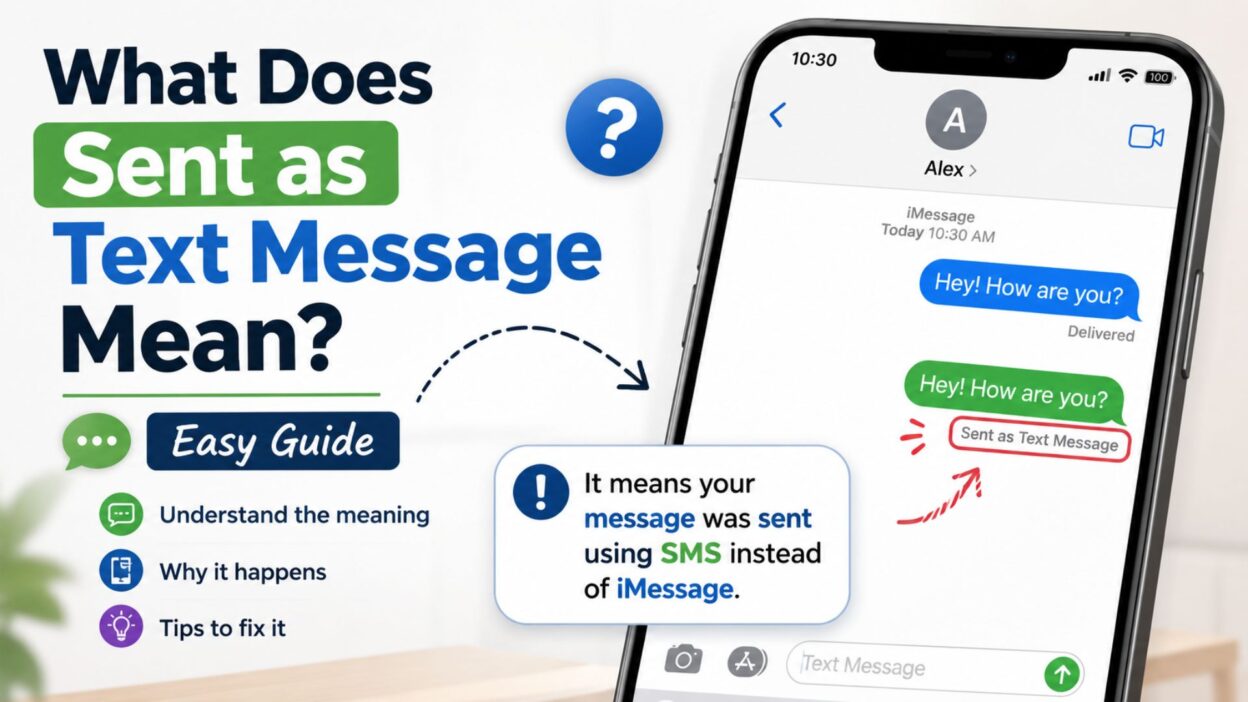
When your iPhone displays “Sent as Text Message,” it tells you that your phone sent the message through SMS (Short Message Service) instead of iMessage.
Unlike iMessage, which relies on an internet connection, SMS travels through your mobile carrier’s cellular network. As a result, your message can still reach the recipient even if iMessage isn’t available.
- 📱 Your iPhone sent the message as an SMS instead of an iMessage.
- 📶 Usually, this happens because iMessage isn’t available at that moment.
- ✅ In most cases, your message still reaches the recipient successfully.
- 🌐 SMS works without a Wi-Fi connection.
- 💬 On an iPhone, SMS messages appear in green bubbles.
- 🔵 By comparison, iMessages appear in blue bubbles.
- 📡 Your mobile carrier handles SMS delivery.
- ⚡ Therefore, SMS serves as a reliable backup whenever iMessage can’t connect.
- 📩 The recipient can receive the message as long as they have cellular service.
- ✔️ Most importantly, “Sent as Text Message” doesn’t usually indicate a problem.
What Does Sent as Text Message Mean? Easy Guide
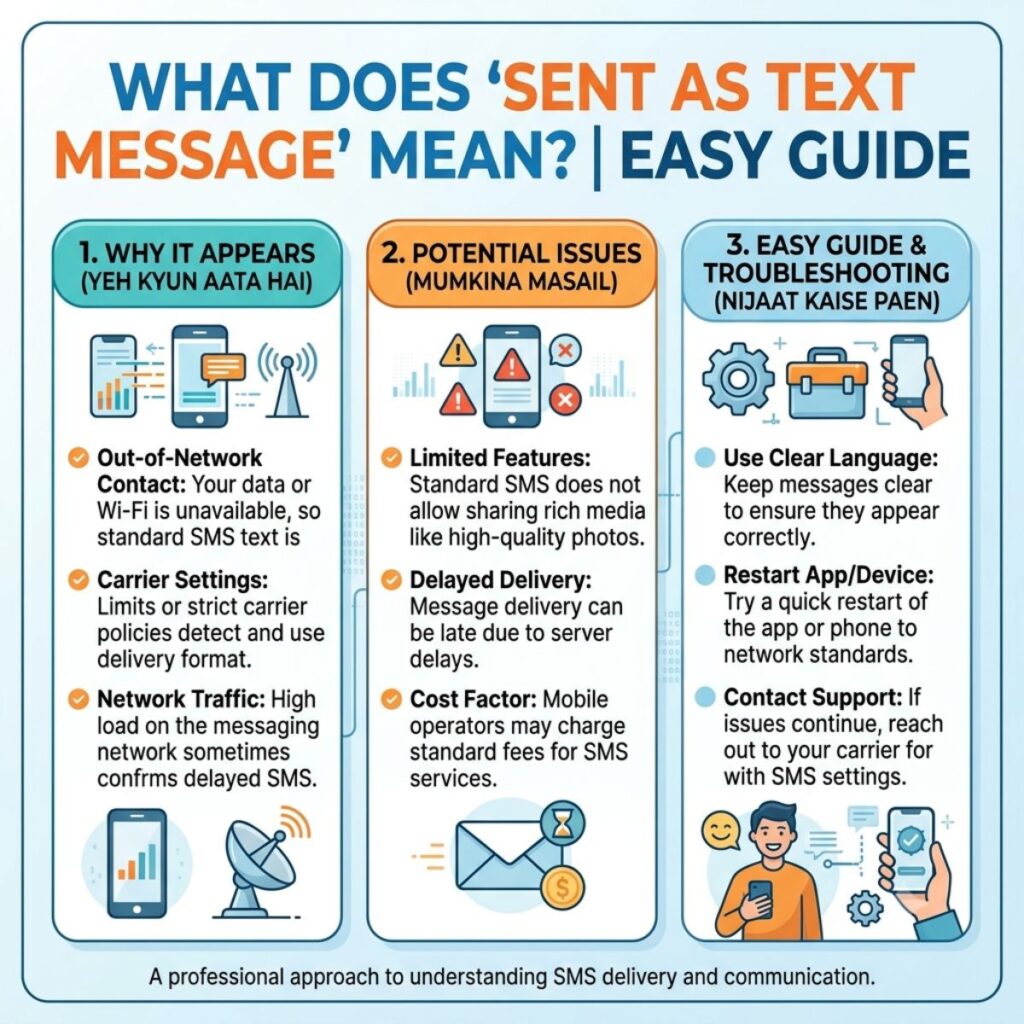
Your iPhone can switch to SMS for several different reasons. In most situations, it simply tries to deliver your message without delay.
- 📶 Your internet connection is weak or unavailable.
- 📡 Your Wi-Fi disconnects while you’re sending the message.
- 📱 Your mobile data connection isn’t working properly.
- 🔧 Apple’s iMessage service experiences a temporary interruption.
- 🚫 You turned off iMessage in your settings.
- 📲 The person you’re messaging uses an Android phone.
- 🔄 The recipient disabled iMessage on their device.
- ✈️ Airplane Mode interrupted your connection.
- 📵 A temporary network issue affected your phone.
- ⚙️ You enabled the Send as SMS option in your iPhone settings.
- 🔋 Your phone automatically chooses SMS because it can’t connect to iMessage.
- 🌍 You’re in an area with limited internet coverage.
- 📞 Your cellular network remains available even though your internet connection doesn’t.
- 🔄 Your iPhone is still activating iMessage.
- 📲 You’re sending a message to a device that doesn’t support iMessage.
Does “Sent as Text Message” Mean the Message Was Delivered?
Many people worry when they notice this status. However, there’s usually no reason to panic.
In most situations, your iPhone successfully sends the message through SMS. Although SMS doesn’t always show a delivery confirmation, the message still has a good chance of reaching the recipient.
- ✅ Usually, your carrier sends the message successfully.
- 📨 However, SMS doesn’t always display a Delivered status.
- 📱 Instead, your mobile carrier handles the delivery process.
- 🌐 SMS doesn’t require an internet connection.
- 📶 Delivery depends on the recipient’s cellular signal.
- 📩 If their phone has service, they’ll usually receive the message.
- ✔️ Therefore, this status doesn’t automatically mean the message failed.
- 💬 Likewise, a green message bubble doesn’t indicate an error.
- 📡 SMS follows different delivery rules than iMessage.
- 📲 As a result, the recipient may never notice that your phone switched from iMessage to SMS.
Does “Sent as Text Message” Mean Someone Blocked You?
Many users immediately assume they’ve been blocked when they see this message. However, that’s one of the biggest misconceptions about iMessage.
In reality, your iPhone switches to SMS for many normal reasons. Therefore, this message alone cannot tell you whether someone blocked your number.
- ❌ It doesn’t automatically mean someone blocked you.
- ✅ More often, a network issue causes the switch.
- 📱 Sometimes iMessage simply isn’t available.
- 🌐 A weak internet connection can also trigger SMS.
- 🔄 Your iPhone automatically uses SMS when necessary.
- 📶 Temporary Apple server issues may interrupt iMessage.
- 📩 The recipient may have turned off iMessage.
- 📡 Their phone might be offline or out of service.
- ✔️ Consequently, SMS acts as a built-in backup feature.
- 💬 You cannot confirm a block based only on this status.
iMessage vs. SMS
Understanding the difference between iMessage and SMS makes this status much easier to understand.
Although both services send text messages, they work in different ways.
- 🔵 iMessage uses Wi-Fi or mobile data.
- 🟢 SMS uses your mobile carrier’s network.
- 🔵 iMessages appear in blue chat bubbles.
- 🟢 SMS messages appear in green chat bubbles.
- 🔵 iMessage supports read receipts when enabled.
- 🟢 SMS generally doesn’t include read receipts.
- 🔵 iMessage lets you send higher-quality photos and videos.
- 🟢 SMS has stricter size limits for media.
- 🔵 iMessage works only between Apple devices.
- 🟢 SMS works with almost every mobile phone worldwide.
How to Switch Back to iMessage
If your iPhone keeps sending SMS instead of iMessage, don’t worry. In most cases, you can fix the issue with a few simple checks.
- 📶 Connect to a stable Wi-Fi network.
- 📱 Turn on mobile data if Wi-Fi isn’t available.
- ⚙️ Go to Settings > Apps > Messages and make sure iMessage is enabled.
- 🔄 Turn iMessage off, wait a few seconds, and then turn it back on.
- 📡 Check whether your carrier has a network outage.
- 🍎 Make sure Apple’s iMessage servers are working properly.
- 📲 Ask the recipient to confirm that iMessage is enabled on their iPhone.
- ✈️ Turn Airplane Mode on for a few seconds, then switch it off.
- 🔁 Restart your iPhone to refresh the connection.
- 📲 Update your iPhone to the latest version of iOS.
Why Does My iPhone Automatically Send SMS?
Your iPhone tries to deliver your message as quickly as possible. Therefore, if iMessage can’t send it, the phone may automatically switch to SMS.
Here are the most common reasons:
- 📶 Your internet connection drops unexpectedly.
- 🌐 Wi-Fi becomes unstable while you’re sending a message.
- 📱 Mobile data isn’t working correctly.
- 🔄 iMessage temporarily becomes unavailable.
- ⚙️ The Send as SMS feature is enabled.
- 📡 Apple’s servers experience a temporary issue.
- 📲 The recipient no longer uses iMessage.
- 📴 The recipient’s phone is switched off.
- 🌍 You’re in an area with poor internet coverage.
- ✅ Your iPhone chooses SMS so your message still reaches the recipient.
Can You Turn Off “Send as SMS”?
Yes. Apple allows you to disable this feature if you prefer using only iMessage.
Follow these simple steps:
- ⚙️ Open Settings.
- 📱 Tap Apps.
- 💬 Select Messages.
- 🔄 Find Send as SMS.
- ❌ Turn the switch off.
After you disable this option, your iPhone won’t automatically switch to SMS if iMessage isn’t available. Instead, it will wait until iMessage can send the message.
Is “Sent as Text Message” a Problem?
In most situations, the answer is no. Instead, it simply shows that your iPhone used another method to deliver your message.
Here are a few things to remember:
- ✅ Most of the time, everything works normally.
- 📶 Your phone simply couldn’t use iMessage at that moment.
- 📱 SMS remains a reliable backup option.
- 🌐 Internet problems often trigger this status.
- 📡 Temporary server issues can also cause it.
- 💬 Green message bubbles don’t indicate an error by themselves.
- ✔️ Your recipient can usually read the message without any issues.
- 🔄 Once iMessage starts working again, future messages typically return to blue bubbles.
- 📩 In most cases, you don’t need to do anything.
- 😊 There’s usually no reason to worry.
Common Myths About “Sent as Text Message”
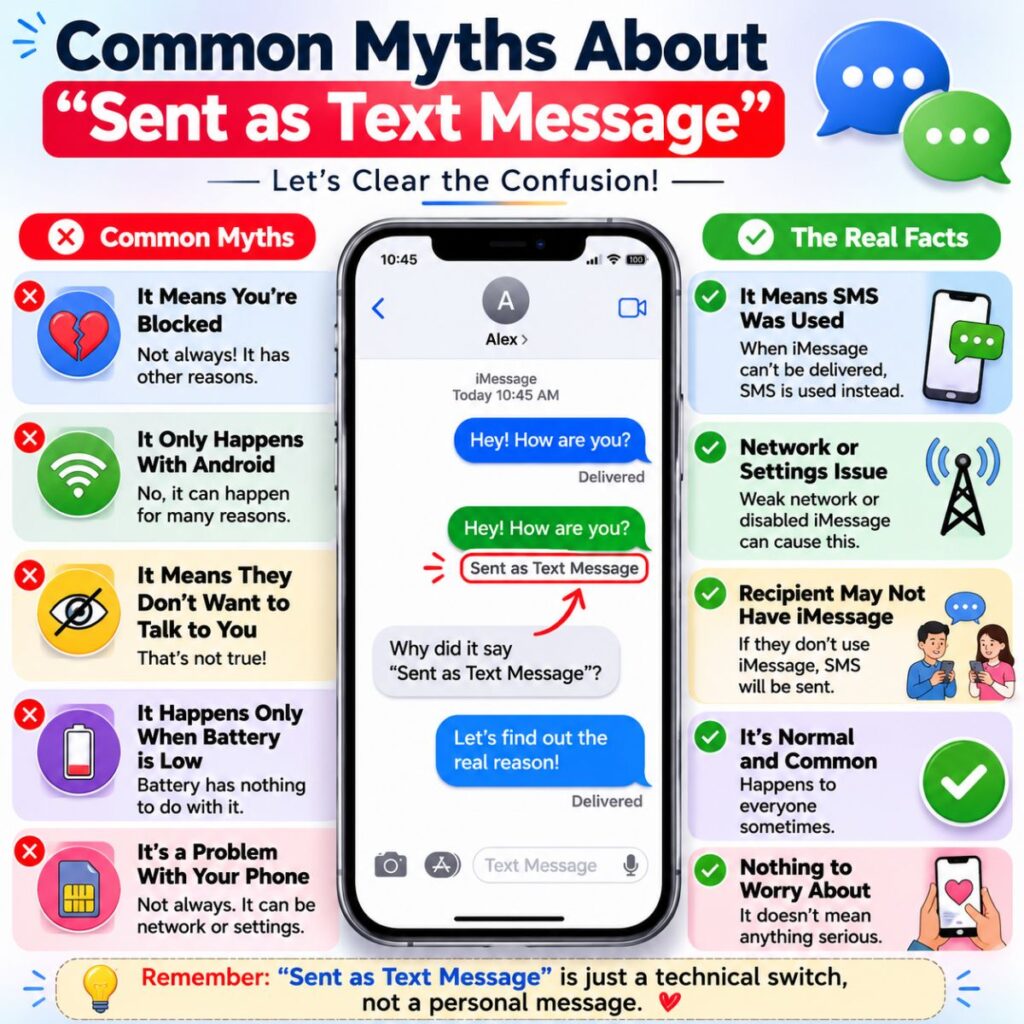
Many people misunderstand this message. However, separating myths from facts makes it much easier to understand.
Myth: It Means Someone Blocked Me
This is one of the most common misconceptions.
- ❌ Fact: Network issues, internet problems, or iMessage outages are much more likely causes.
Myth: The Message Failed
Many users assume the message never reached the other person.
- ✅ Fact: In most cases, your carrier successfully delivers the SMS.
Myth: Green Messages Always Mean Something Is Wrong
Some people think green bubbles always signal a problem.
- ✅ Fact: Green simply means the message traveled through SMS instead of iMessage.
Myth: SMS Is Less Reliable
People often believe SMS doesn’t work as well as iMessage.
- ✅ Fact: SMS has delivered text messages reliably for decades and continues to work even without internet access.
Myth: My Phone Is Broken
Some users worry that their iPhone has developed a fault.
- ✅ Fact: Your iPhone automatically switches between iMessage and SMS to help ensure your message gets delivered.
Quick Troubleshooting Checklist
Before you assume there’s a bigger issue, try these simple fixes.
- ✔️ Check your internet connection.
- ✔️ Verify that iMessage is turned on.
- ✔️ Restart your iPhone.
- ✔️ Toggle Airplane Mode on and off.
- ✔️ Update iOS if an update is available.
- ✔️ Confirm your mobile carrier has service.
- ✔️ Ask the recipient whether iMessage is enabled.
- ✔️ Try sending another message after a few minutes.
- ✔️ Check Apple’s System Status page if iMessage seems unavailable.
- ✔️ Reset your network settings if the problem continues.
Frequently Asked Questions
What does “Sent as Text Message” mean on iPhone?
It means your iPhone sent the message as a standard SMS through your mobile carrier instead of using iMessage. This usually happens when iMessage isn’t available or your internet connection is weak.
Does “Sent as Text Message” mean I’m blocked?
No. This status alone doesn’t mean someone blocked your number. More often, it appears because of a poor internet connection, a temporary iMessage issue, or because the recipient isn’t using iMessage.
Was my message delivered if it says “Sent as Text Message”?
In most cases, yes. Your carrier sends the message through SMS, and the recipient usually receives it if their phone has cellular service. However, SMS doesn’t always display a delivery confirmation.
Why did my blue iMessage turn green?
A blue bubble turns green when your iPhone sends the message as SMS instead of iMessage. This can happen if your internet connection drops, iMessage is unavailable, or you’re texting someone who doesn’t use an Apple device.
Can I stop my iPhone from sending SMS?
Yes. Open Settings > Apps > Messages, then turn off Send as SMS. After that, your iPhone won’t automatically switch to SMS if iMessage can’t send the message.
Final Thoughts
If you’ve ever wondered what does sent as text message mean, the answer is usually simple and nothing to worry about. In most situations, your iPhone switches from iMessage to SMS to make sure your message reaches the other person without unnecessary delays. Rather than waiting for an internet connection or an available iMessage service, it uses your mobile carrier as a reliable backup.
Although seeing a green message bubble can feel surprising, it doesn’t automatically mean your message failed or that someone blocked you. More often, the change happens because of a weak internet connection, temporary iMessage issues, or the recipient’s device settings.
Hopefully, this guide has answered your questions and helped you understand why your iPhone displays “Sent as Text Message.” Keep this article bookmarked for future reference, and feel free to share it with anyone who has the same question. A clear understanding of this message can save time, reduce confusion, and help you troubleshoot messaging issues with confidence.

Awais Bilal is the author of Messagesfy, sharing simple and meaningful messages, quotes, and wishes to help people express their feelings easily.