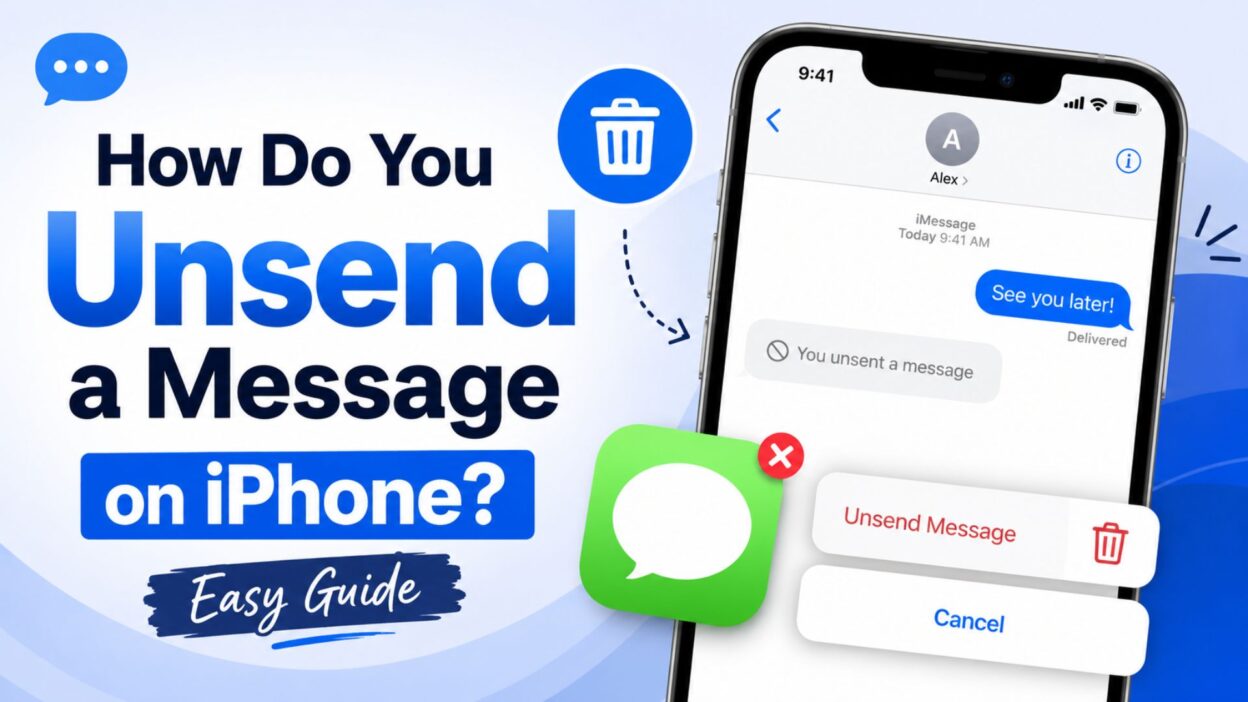
We’ve all been there—you send a text, immediately realize there’s a typo, send it to the wrong person, or simply wish you could take it back. If you’ve ever wondered, “How do you unsend a message on iPhone?”, you’re not alone. It’s one of the most common questions iPhone users ask after hitting the Send button too quickly.
The good news is that Apple now lets you unsend messages in the Messages app. However, this feature only works under certain conditions. Both you and the recipient must use iMessage, and you only have a limited amount of time to remove the message. If those requirements aren’t met, the message can’t be unsent.
In this guide, you’ll learn exactly how to unsend a message on an iPhone, when the feature works, what happens after you unsend a message, and what to do if the option doesn’t appear. We’ll also explain the difference between Unsend and Edit, along with several helpful tips to avoid messaging mistakes in the future.
How Do You Unsend a Message on iPhone?
If your iPhone supports the feature, you can remove a recently sent iMessage in just a few taps.
Follow these simple steps:
- 📱 Open the Messages app.
- 💬 Find the conversation containing the message.
- 👆 Touch and hold the message you want to remove.
- 📋 A menu will appear on the screen.
- ❌ Tap Undo Send.
- ⏳ Complete the action within the allowed time limit.
- ✅ The message disappears from the conversation for supported devices.
- 🔔 Both participants may see that a message was unsent.
- 📲 This feature works only with iMessage.
- 🍎 Make sure your iPhone runs a compatible version of iOS.
Requirements to Unsend a Message
Before you try to unsend a message, make sure these requirements are met.
- 📱 Your iPhone must support iOS 16 or later.
- 🍎 The Messages app must use iMessage.
- 🔵 The message should appear in a blue bubble.
- ⏰ You must act within Apple’s time limit.
- 📶 Your iPhone needs an internet connection.
- 📲 The recipient should also use iMessage for the best results.
- 🔄 Keep your device updated to the latest iOS version.
- ⚙️ iMessage must be enabled in your settings.
- 📩 The message must still be eligible for removal.
- ✅ If these conditions are met, you’ll usually see Undo Send.
When Can You Unsend a Message?
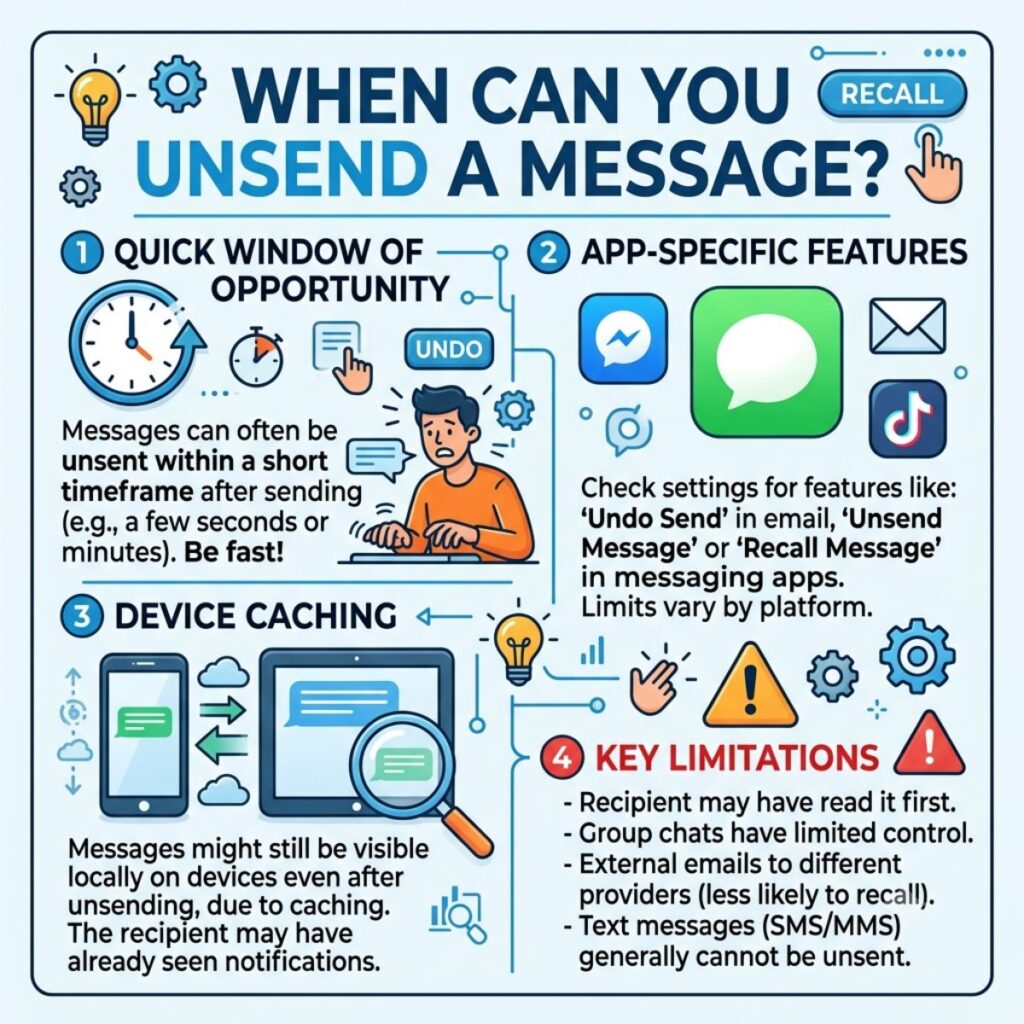
Apple limits how long you have to remove a message. Therefore, acting quickly is important.
Here are the situations where Undo Send works.
- ⏱️ Shortly after sending the message.
- 📱 Before the time limit expires.
- 🔵 Only for iMessages.
- 🌐 While your device stays connected to the internet.
- 📲 When both devices support the feature.
- 🍎 After updating to a compatible version of iOS.
- 💬 In one-on-one conversations.
- 👥 It also works in supported group iMessage chats.
- ✅ As long as the message still qualifies for removal.
- 🔄 Before the unsend window closes.
What Happens After You Unsend a Message?
Many people wonder what the other person actually sees after a message is removed.
Here’s what usually happens:
- 🗑️ Your iPhone removes the message from the conversation.
- 📲 Compatible Apple devices remove it as well.
- 🔔 The chat may show that a message was unsent.
- 📱 Older devices may still display the original message.
- ⚠️ Screenshots taken before removal remain unchanged.
- 💬 Notification previews may already have shown the message.
- 🌐 Internet access helps sync the change.
- 📩 Both conversations update when supported.
- 🍎 Apple designed the feature to reduce messaging mistakes.
- ✅ The sooner you act, the better the results.
Unsend vs Edit on iPhone
Apple offers two different tools for correcting messages. Understanding the difference helps you choose the right option.
- 🗑️ Undo Send removes the message.
- ✏️ Edit changes the text after sending.
- 🗑️ Unsend works only within the allowed time.
- ✏️ Edit also has its own time limit.
- 🗑️ Unsend removes the original message from supported devices.
- ✏️ Edit updates the existing message instead.
- 🗑️ Use Unsend for accidental messages.
- ✏️ Use Edit for spelling mistakes or small corrections.
- 📱 Both features require compatible iOS versions.
- ✅ Both work only with iMessage conversations.
Why Can’t I Unsend a Message on iPhone?
If you don’t see the Undo Send option, don’t worry. Several common reasons can prevent the feature from appearing.
Here are the most likely causes:
- 📱 Your iPhone isn’t running iOS 16 or later.
- ⏰ The time limit for unsending the message has already expired.
- 🟢 You sent a regular SMS instead of an iMessage.
- 📲 The recipient doesn’t use an Apple device.
- ⚙️ iMessage is turned off on your iPhone.
- 🌐 Your internet connection is unavailable or unstable.
- 🍎 Your device needs a software update.
- 📩 You’re trying to remove a message that no longer qualifies.
- 🔄 The Messages app hasn’t finished syncing.
- ✅ Updating your device and checking your settings usually resolves the issue.
How to Check If You’re Using iMessage
Before trying to unsend a message, confirm that you’re using iMessage instead of SMS.
Look for these signs:
- 🔵 The message bubble is blue.
- 🟢 Green bubbles indicate SMS or MMS.
- ⚙️ Open Settings > Apps > Messages.
- 📱 Make sure iMessage is turned on.
- 🌐 Connect to Wi-Fi or mobile data.
- 📲 The recipient should also have iMessage enabled.
- 🍎 Sign in with your Apple Account if necessary.
- 🔄 Wait for iMessage activation if you recently changed devices.
- 📡 Check that your internet connection is stable.
- ✅ Once iMessage is active, you’ll be able to use supported features.
Can You Unsend SMS Messages?
Many users assume they can unsend every text message. However, that’s not how SMS works.
Here are the key facts:
- ❌ Apple can’t unsend standard SMS messages.
- 🟢 Green bubbles represent SMS or MMS.
- 📡 Your mobile carrier delivers SMS messages immediately.
- 📱 The Undo Send feature works only with iMessages.
- 🌐 SMS doesn’t support Apple’s message recall feature.
- 📩 Once an SMS leaves your phone, you can’t remove it.
- ⚠️ Double-check the recipient before sending an SMS.
- 💬 Consider using iMessage whenever possible.
- 🔵 Blue bubbles indicate iMessage conversations.
- ✅ Always confirm the message type before you press Send.
Tips to Avoid Sending the Wrong Message
Although the Undo Send feature is helpful, preventing mistakes is even better.
Try these simple habits:
- 👀 Read your message before tapping Send.
- 📱 Confirm you’re texting the correct contact.
- ⏳ Pause for a few seconds before sending important messages.
- ✍️ Review names in group conversations carefully.
- 📎 Double-check photos and attachments.
- 😊 Make sure autocorrect didn’t change your words.
- 📶 Verify your internet connection if you’re using iMessage.
- 🔕 Avoid texting while distracted.
- 💡 Use the Edit feature for small corrections when available.
- ✅ Slow down for important or sensitive conversations.
Common Myths About Unsend on iPhone
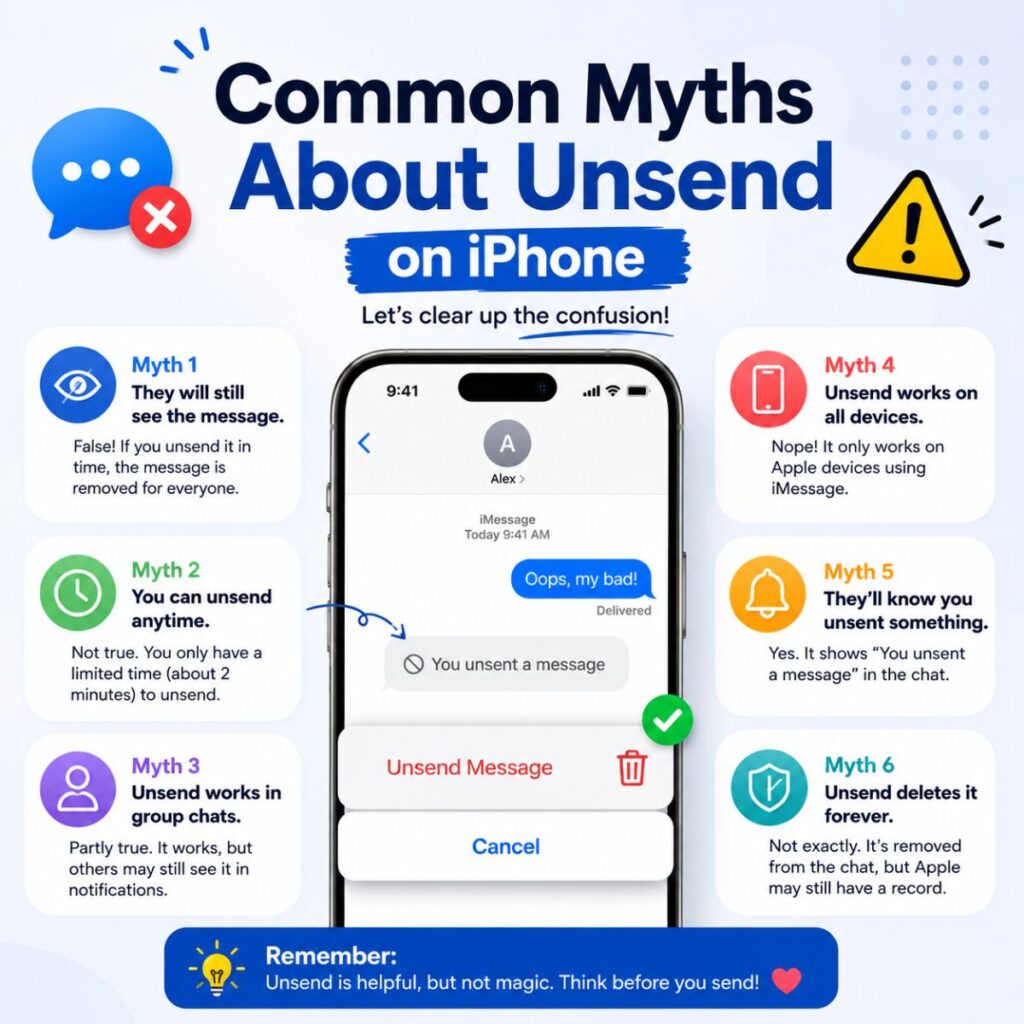
Many rumors about the Undo Send feature aren’t true. Understanding the facts helps avoid confusion.
Myth: You Can Unsend Any Message
Many people believe every text message can be removed.
- ✅ Fact: Only eligible iMessages support the Undo Send feature.
Myth: The Recipient Never Knows
Some users think the other person won’t notice.
- ✅ Fact: Compatible devices usually show that a message was unsent.
Myth: You Have Unlimited Time
It’s easy to assume you can remove a message whenever you want.
- ✅ Fact: Apple allows you to unsend messages only within a limited time window.
Myth: SMS Messages Can Be Recalled
Many users expect the same feature for green-bubble texts.
- ✅ Fact: Standard SMS messages can’t be unsent after your carrier delivers them.
Myth: Unsend Removes Screenshots
Some people think removing a message also deletes screenshots.
- ✅ Fact: If someone already captured a screenshot or viewed a notification preview, unsending the message won’t remove that information.
Quick Troubleshooting Checklist
If Undo Send isn’t working, go through this checklist before trying again.
- ✔️ Update your iPhone to the latest version of iOS.
- ✔️ Confirm that you’re using iMessage.
- ✔️ Make sure the message bubble is blue.
- ✔️ Check your Wi-Fi or mobile data connection.
- ✔️ Verify that iMessage is enabled in Settings.
- ✔️ Restart your iPhone if the problem continues.
- ✔️ Try again before the unsend time limit expires.
- ✔️ Ask the recipient if they’re also using iMessage.
- ✔️ Check Apple’s system status if iMessage appears unavailable.
- ✔️ Send a new test message to confirm the feature works.
Frequently Asked Questions
How do you unsend a message on iPhone?
Open the Messages app, find the conversation, touch and hold the message, then tap Undo Send. You must do this within Apple’s allowed time limit, and the message must be an iMessage.
Can you unsend a text message after it’s delivered?
You can unsend an iMessage within the supported time window. However, you can’t recall a standard SMS or MMS message after your carrier delivers it.
Why don’t I see the “Undo Send” option?
The option may be missing because your iPhone isn’t running a compatible version of iOS, the message was sent as SMS, or the time limit for unsending has already expired.
Does the other person know I unsent a message?
Yes. In most iMessage conversations, the chat shows that a message was unsent. Although the content disappears on supported devices, the recipient may still notice that a message was removed.
Can I unsend a message sent to an Android phone?
No. The Undo Send feature works only with iMessages between compatible Apple devices. If you send a green-bubble SMS to an Android phone, you can’t recall it.
Final Thoughts
If you’ve ever asked yourself how do you unsend a message on iPhone, the process is actually simple—as long as you meet Apple’s requirements. The Undo Send feature lets you remove an iMessage shortly after sending it, making it much easier to fix accidental texts or messages sent to the wrong person.
Even so, it’s important to remember that this feature doesn’t work for every message. Standard SMS messages can’t be unsent, and you only have a limited amount of time to remove an eligible iMessage. For that reason, it’s always a good idea to double-check your message before tapping Send.
We hope this guide answered your questions and helped you understand how the feature works. Save this article for future reference, and share it with friends or family who might also want to know how do you unsend a message on iPhone. A few simple steps can save you from an embarrassing texting mistake.

Awais Bilal is the author of Messagesfy, sharing simple and meaningful messages, quotes, and wishes to help people express their feelings easily.