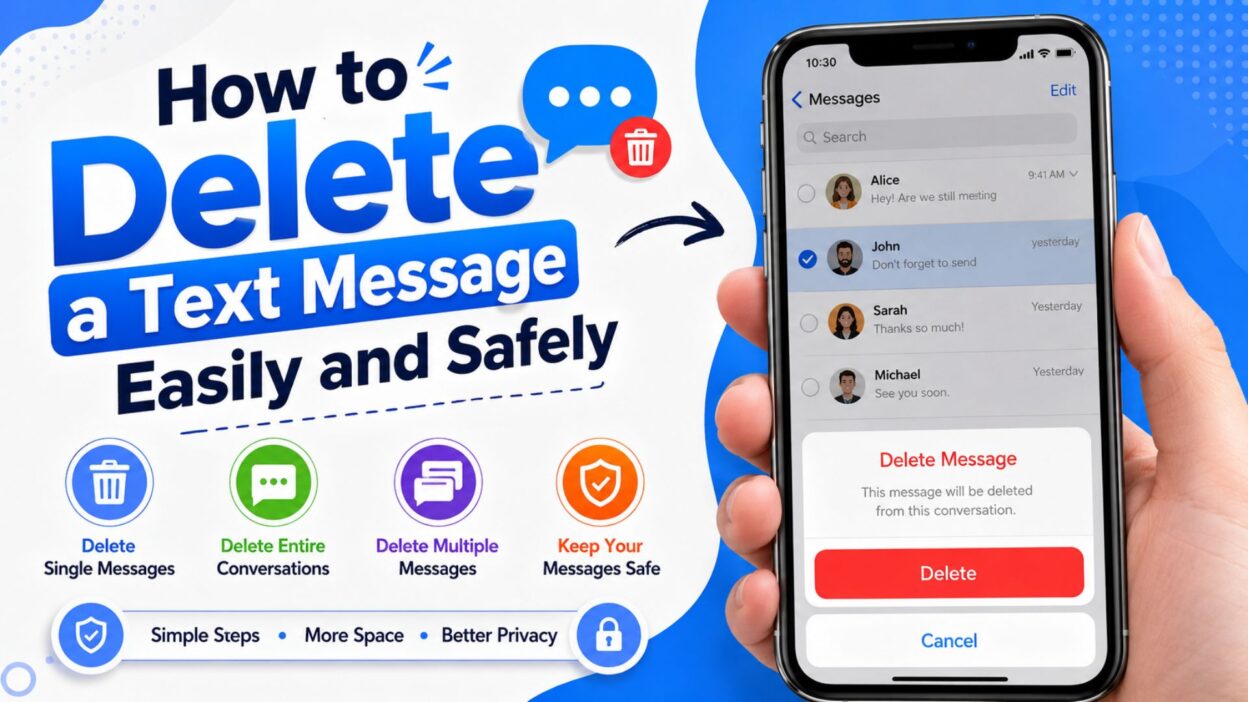
Have you ever sent a text, looked at your inbox, and thought, “I really don’t need this message anymore”? You’re not alone. Whether you’re clearing old conversations, protecting your privacy, freeing up storage, or simply organizing your messages, knowing how to delete a text message is a useful skill.
The good news is that deleting text messages only takes a few taps on most smartphones. However, the exact steps depend on whether you’re using an iPhone or an Android device. It’s also important to understand that deleting a message from your phone usually does not delete it from the recipient’s device unless you’re using an app with an unsend feature.
In this guide, you’ll learn the easiest ways to delete individual messages, entire conversations, and multiple texts at once. We’ll also answer common questions so you can manage your messages with confidence.
Top Ways on How to Delete a Text Message
Whether you’re deleting one message or cleaning up hundreds, these are the most common methods people use every day.
Delete a Single Text Message
A single message can usually be removed without deleting the whole conversation.
- Open your Messages app.
- Open the conversation containing the text.
- Press and hold the message.
- Tap Delete or the trash can icon.
- Confirm when prompted.
Delete an Entire Conversation
If you no longer need a conversation, deleting the whole thread is faster.
- Open your Messages app.
- Find the conversation.
- Press and hold it.
- Select Delete Conversation.
- Confirm your choice.
Delete Multiple Conversations
Cleaning up your inbox becomes much easier when you remove several chats together.
- Open the Messages app.
- Tap Edit or Select (varies by phone).
- Choose multiple conversations.
- Tap the trash icon.
- Confirm deletion.
Delete Messages Automatically
Some phones let you remove old texts automatically.
- Open your messaging settings.
- Look for storage or message history options.
- Enable automatic deletion if available.
- Choose how long messages should be kept.
Short Tips for How to Delete a Text Message
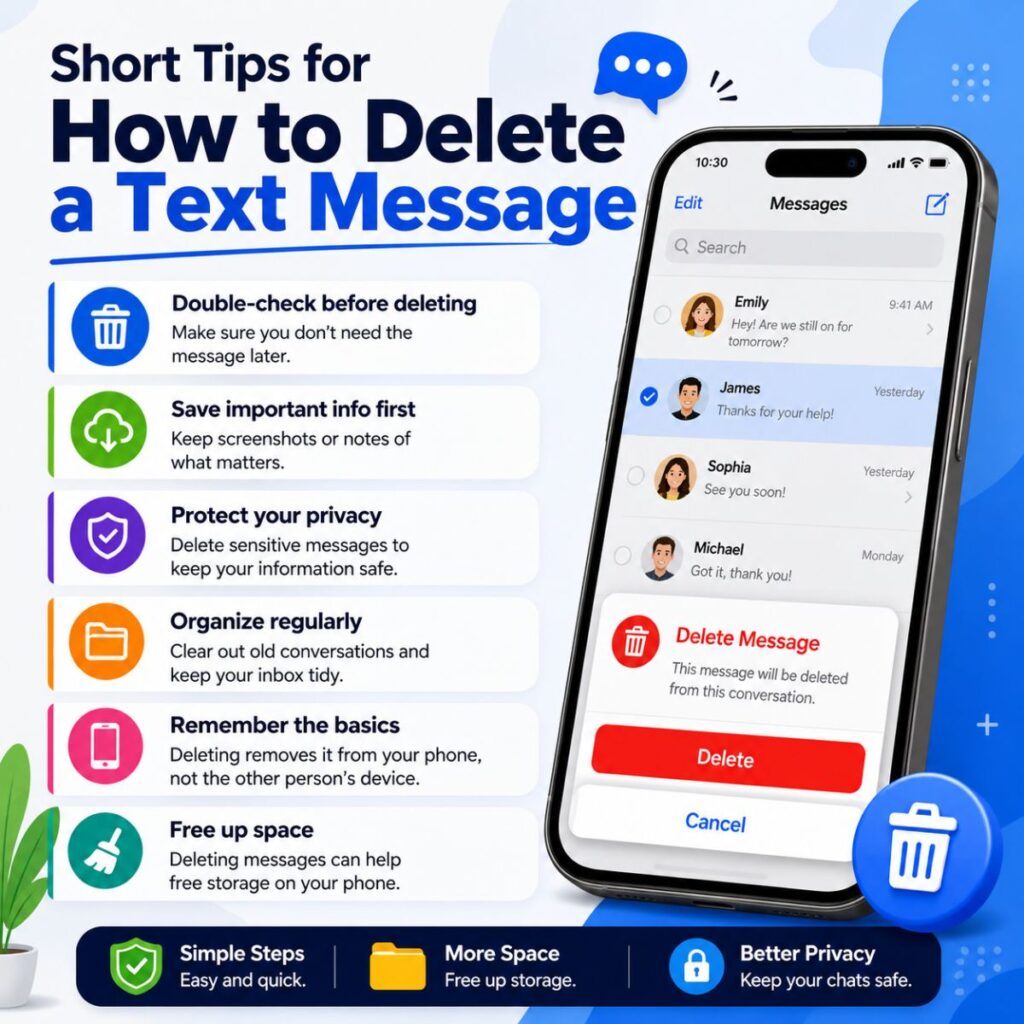
These quick tips can help you avoid mistakes while deleting messages.
- Double-check before deleting important texts.
- Back up valuable conversations first.
- Remember that deleted texts usually can’t be recovered without a backup.
- Deleting from your phone doesn’t remove the message from another person’s device.
- Archive conversations if you may need them later.
- Keep screenshots of important information before deleting.
- Regularly clean old conversations to stay organized.
- Delete spam messages as soon as possible.
- Empty recently deleted folders if your phone has one.
- Update your messaging app for the latest features.
Best Ways to Delete Text Messages on Different Devices
Different phones have slightly different steps, but the goal is always the same.
iPhone
These tips are designed for Apple’s Messages app.
- Open Messages.
- Tap the conversation.
- Touch and hold the message.
- Tap More.
- Select the trash icon.
- Confirm deletion.
Android
Most Android messaging apps follow similar steps.
- Open the Messages app.
- Open the conversation.
- Press and hold the message.
- Tap Delete.
- Confirm your selection.
Samsung Galaxy
Samsung devices include their own Messages app, although many also use Google Messages.
- Open Samsung Messages.
- Select the conversation.
- Hold the message.
- Tap Delete.
- Confirm when asked.
Google Messages
Google Messages is one of the most popular Android messaging apps.
- Open Google Messages.
- Open the chat.
- Press and hold the message.
- Tap the trash icon.
- Confirm deletion.
Common Reasons to Delete a Text Message
People delete texts for many different reasons. Here are some of the most common.
- Clear phone storage.
- Remove spam messages.
- Protect personal information.
- Organize conversations.
- Delete accidental messages.
- Remove outdated reminders.
- Keep the inbox tidy.
- Protect work-related information.
- Delete verification codes.
- Reduce message clutter.
Best Ways to Delete a Text Message for Everyday Situations
No matter why you’re deleting a message, these practical tips can help you manage your inbox more efficiently. Use the method that best fits your situation and device.
- Delete unwanted promotional texts as soon as they arrive.
- Remove old conversations you no longer need.
- Delete sensitive messages after saving important details elsewhere.
- Clear one-time passwords after you’ve used them.
- Remove duplicate conversations to keep your inbox organized.
- Delete spam before interacting with unknown links.
- Review messages before deleting to avoid losing important information.
- Back up valuable conversations regularly.
- Use your phone’s search feature to find messages before deleting them.
- Empty the Recently Deleted folder if your phone supports it.
- Delete media-heavy conversations to free up storage faster.
- Keep only conversations that still have value.
- Remove outdated delivery notifications.
- Delete expired event reminders.
- Clear conversations after completing a project.
- Delete temporary group chats you no longer use.
- Remove verification codes once they’re no longer needed.
- Delete old appointment confirmations after the visit.
- Clear shopping updates after receiving your order.
- Remove unnecessary screenshots shared through text.
- Delete repeated forwarded messages.
- Clean your inbox every few weeks.
- Archive conversations if you might need them later.
- Delete accidental duplicate texts.
- Remove old greetings that no longer matter.
One-Line Tips for How to Delete a Text Message
Sometimes the simplest reminders are the most helpful.
- Delete only after confirming you no longer need the message.
- Save important information before removing a conversation.
- Keep your inbox organized with regular cleanup.
- Delete spam immediately.
- Protect your privacy by removing sensitive texts.
- Remember that deleting is usually permanent without a backup.
- Back up your phone regularly.
- Review before tapping Delete.
- Keep only conversations that matter.
- Clean your inbox one conversation at a time.
- Remove clutter to make important texts easier to find.
- Delete expired alerts regularly.
- Keep storage available by clearing unnecessary messages.
- Organize your conversations monthly.
- Remove messages that no longer serve a purpose.
- Delete duplicate conversations.
- Stay mindful before deleting sentimental messages.
- Clear promotional texts often.
- Keep your messaging app neat and easy to navigate.
- Make deleting old texts part of your digital routine.
Best Tips for Sharing
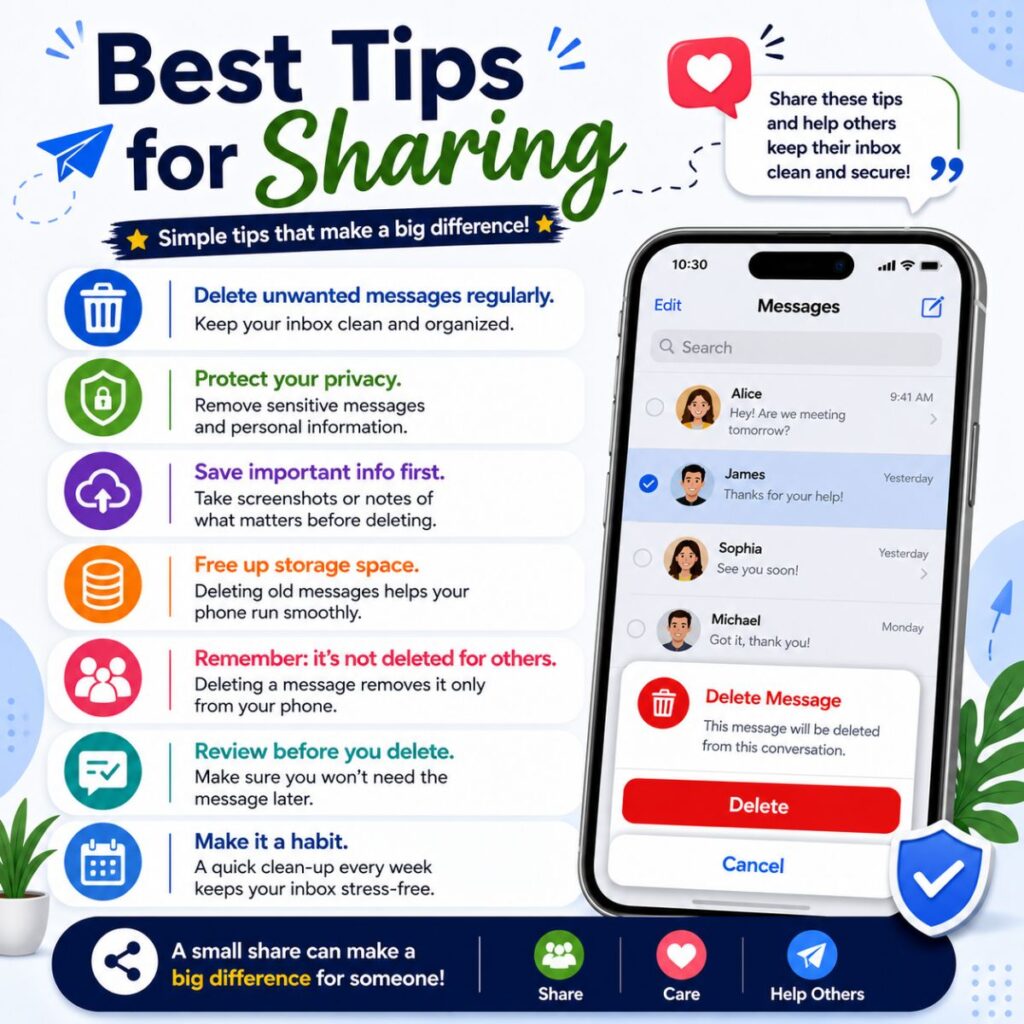
These short tips are perfect for sharing with friends or family who need quick help.
- Need more space? Delete old text conversations you no longer need.
- Cleaning your inbox takes only a few taps.
- Always back up important messages before deleting them.
- Deleting a text from your phone usually doesn’t remove it from someone else’s.
- Remove spam texts instead of letting them pile up.
- A cleaner inbox makes finding important messages much easier.
- Don’t delete messages until you’ve saved important information.
- Review twice before deleting important conversations.
- Delete old verification codes to keep your inbox tidy.
- Small cleanups today save time later.
- Make inbox organization a monthly habit.
- Keep only the conversations you actually use.
- Delete outdated reminders once they’re no longer needed.
- Organize messages just like you organize your photos.
- A clutter-free inbox feels surprisingly refreshing.
Best Captions
These captions work well for social media posts, blogs, or tech tips.
- 📱 A clean inbox starts with a few simple taps.
- ✨ Less clutter, more peace of mind.
- 📩 Delete what you don’t need and keep what matters.
- 🔒 Protect your privacy one message at a time.
- 📲 Small cleanup, big difference.
- 🧹 Time to give your messages a fresh start.
- 💬 Organized messages make life easier.
- 🚀 Declutter your inbox today.
- 📂 Keep your conversations simple and organized.
- ✔️ Smart phone habits begin with a clean inbox.
Copy-Paste Ready Tips
Need quick advice? These ready-to-use lines are easy to share.
- Always save important information before deleting text messages.
- Delete spam messages as soon as they arrive.
- Clean your inbox regularly to stay organized.
- Removing old conversations can help free up storage space.
- Deleted messages usually can’t be recovered without a backup.
- Deleting a message from your phone doesn’t normally delete it for the other person.
- Keep your messaging app updated for the latest features.
- Archive conversations if you’re unsure about deleting them.
- Review messages carefully before removing them.
- A tidy inbox makes finding important conversations much easier.
- Back up your device before making large deletions.
- Delete only what you’re certain you no longer need.
- Remove old alerts and notifications regularly.
- Organize your messages to improve productivity.
- Keep your personal information protected by deleting sensitive texts.
Frequently Asked Questions
Can I delete a text message for both me and the other person?
In most cases, no. Deleting a text message from your phone only removes it from your device. The recipient will still have the message unless you’re using a messaging app that supports an unsend feature, such as iMessage (within the allowed time), WhatsApp, or Messenger.
Can I recover a deleted text message?
Sometimes. If you have a recent backup through iCloud, Google Backup, or another backup service, you may be able to restore deleted messages. Without a backup, recovery is often difficult or impossible.
How do I delete multiple text messages at once?
Most messaging apps let you select several conversations or messages simultaneously.
- Open your Messages app.
- Tap Edit, Select, or press and hold a conversation.
- Choose the messages or conversations you want to remove.
- Tap the Delete or Trash icon.
- Confirm your selection.
Does deleting text messages free up storage?
Yes. Removing conversations—especially those containing photos, videos, GIFs, and voice messages—can free up storage space on your phone.
Is deleting a text message permanent?
Usually, yes. Once you confirm deletion, the message is permanently removed unless your phone has a Recently Deleted folder or you’ve created a backup that can restore it.
Common Mistakes to Avoid
Deleting messages is simple, but these mistakes are easy to make.
- Deleting important conversations without creating a backup.
- Accidentally deleting an entire conversation instead of one message.
- Assuming the recipient’s copy is deleted too.
- Forgetting to save photos or attachments first.
- Ignoring backup settings before clearing your inbox.
- Deleting verification codes before they’re used.
- Removing work-related conversations too early.
- Forgetting to check the Recently Deleted folder when available.
- Deleting sentimental messages you’ll want later.
- Rushing through the deletion process without reviewing selections.
Pro Tips for Managing Your Messages
Keep your messaging app organized with these simple habits.
- Delete spam messages weekly.
- Archive conversations you may need later.
- Back up your phone regularly.
- Organize important chats by pinning them when supported.
- Save important photos before deleting conversations.
- Review old messages every month.
- Remove unnecessary media files regularly.
- Turn on automatic backups.
- Keep your messaging app updated.
- Create a routine for inbox cleanup.
Final Thoughts
Learning how to delete a text message is a small skill that can make a big difference in keeping your phone organized, protecting your privacy, and reducing unnecessary clutter. Whether you’re removing a single text, clearing an old conversation, or cleaning your entire inbox, the process is quick and easy once you know the correct steps.
Before deleting anything, take a moment to make sure you won’t need the message later. If it contains important information, photos, or memories, creating a backup is always a smart idea. Regularly managing your messages also helps improve organization and can even free up valuable storage space on your device.
Now that you know how to delete a text message, you can confidently manage your conversations, protect your personal information, and keep your messaging app clean and easy to use. Save this guide for future reference or share it with someone who could use a little help organizing their inbox.

Awais Bilal is the author of Messagesfy, sharing simple and meaningful messages, quotes, and wishes to help people express their feelings easily.