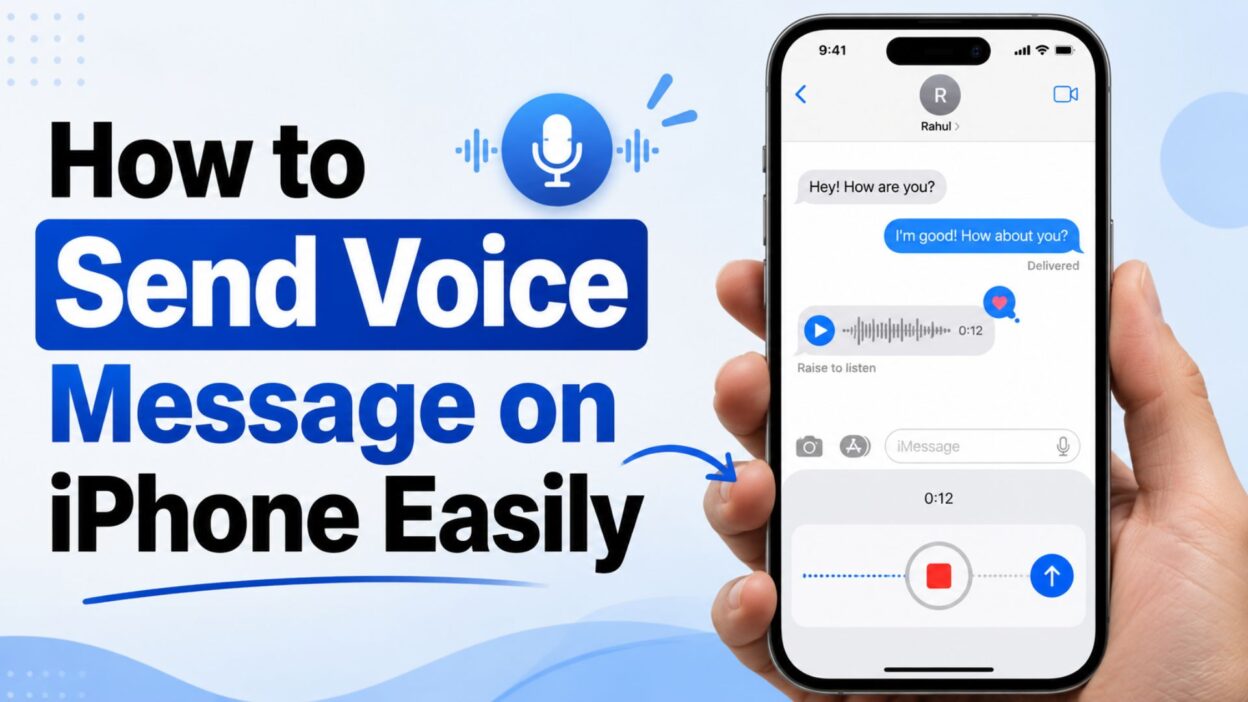
Sending a voice message can feel more personal than typing a long text. Whether you’re sharing exciting news, giving quick instructions, or simply want your loved ones to hear your voice, knowing how to send voice message on iPhone can make communication faster and more meaningful.
Many iPhone users don’t realize how easy it is to record and send audio messages directly from their device. Instead of spending time typing, you can capture your thoughts naturally and send them within seconds. Voice messages are especially useful when you’re busy, on the move, or when a message carries more emotion than text ever could.
In this guide, you’ll learn different ways to send voice messages on your iPhone, along with helpful tips to make the process smooth and hassle-free. Whether you’re new to iPhone or just looking for a quick refresher, this article has everything you need.
Top Ways to Send Voice Message on iPhone
There are several ways to send voice messages from your iPhone depending on the app you’re using. Here are some of the most common methods.
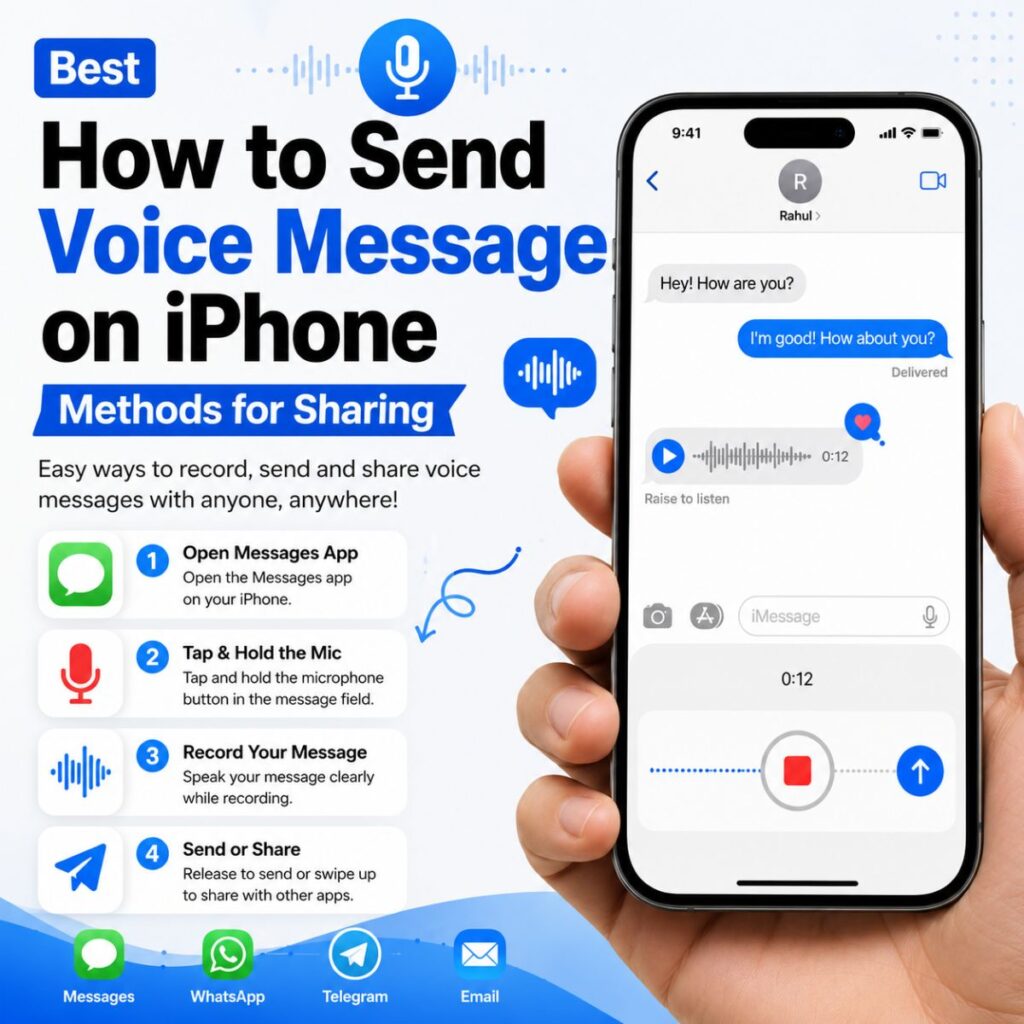
- Open the Messages app and select a conversation.
- Tap and hold the audio message button.
- Record your message clearly.
- Release the button when finished.
- Tap send to deliver the recording.
- Open WhatsApp and choose a chat.
- Press and hold the microphone icon.
- Speak your message naturally.
- Release to send instantly.
- Launch Messenger and open a conversation.
- Hold the microphone icon.
- Record your voice note.
- Release when done.
- Open Telegram and select a contact.
- Press the microphone button.
- Speak your message.
- Send it with one tap.
- Use voice messages when typing feels inconvenient.
- Send quick updates without writing long texts.
- Share emotions more naturally through your voice.
- Save time during busy days.
- Communicate details more clearly.
- Voice messages work great for family conversations.
- They’re useful for work-related updates.
- Friends often appreciate hearing your actual voice.
- They can reduce misunderstandings.
- They make conversations feel more personal.
Short How to Send Voice Message on iPhone Tips
If you’re looking for quick answers, these short tips can help you send voice messages faster.
- Open a chat before recording.
- Speak close to the microphone.
- Record in a quiet environment.
- Keep messages concise.
- Review before sending when available.
- Hold your phone comfortably.
- Avoid covering the microphone.
- Check your internet connection.
- Update messaging apps regularly.
- Use headphones if needed.
- Keep background noise minimal.
- Speak naturally and clearly.
- Pause briefly before starting.
- End your message before releasing the button.
- Verify the message was delivered.
- Use Wi-Fi for smoother sending.
- Make sure microphone permissions are enabled.
- Restart the app if recording fails.
- Check storage space on your iPhone.
- Keep iOS updated.
- Test voice messages with a friend first.
- Learn each app’s recording controls.
- Use voice notes for quick reminders.
- Record important details slowly.
- Avoid rushing through messages.
Best How to Send Voice Message on iPhone Methods for Sharing
Different situations call for different voice messaging methods. Here are some of the best ways to share your voice quickly and effectively.
- Use iMessage for fellow Apple users.
- Use WhatsApp for international contacts.
- Use Messenger for Facebook friends.
- Use Telegram for larger groups.
- Use Signal for privacy-focused communication.
- Send voice notes when driving is not involved.
- Share greetings in your own voice.
- Explain complex information verbally.
- Record thoughtful responses quickly.
- Add personality to everyday conversations.
- Send birthday wishes through voice messages.
- Share travel updates instantly.
- Record quick work instructions.
- Communicate urgent information clearly.
- Stay connected with distant family members.
- Use voice messages for storytelling.
- Share exciting news naturally.
- Send encouragement to friends.
- Express gratitude personally.
- Capture spontaneous thoughts.
- Replace long text paragraphs with voice notes.
- Make communication more human.
- Save time during busy schedules.
- Improve clarity in conversations.
- Keep important chats engaging.
One-Line How to Send Voice Message on iPhone Messages
These simple one-line reminders make sending voice messages easy to remember.
- Open the chat and tap the audio icon.
- Hold the microphone button to record.
- Release the button to send instantly.
- Speak clearly for the best results.
- Keep your message short and focused.
- Record in a quiet location.
- Check microphone access if recording fails.
- Update your apps regularly.
- Make sure you have an internet connection.
- Use voice notes when typing is inconvenient.
- Practice recording for smoother delivery.
- Stay close to your iPhone microphone.
- Speak naturally and confidently.
- Review recordings when possible.
- Send meaningful messages with your voice.
- Use iMessage for Apple-to-Apple messaging.
- WhatsApp voice notes work worldwide.
- Messenger supports quick audio recordings.
- Telegram offers simple voice sharing.
- Signal provides secure voice messaging.
- Voice messages save time and effort.
- Audio messages feel more personal.
- Your voice adds emotion to communication.
- Recording is often faster than typing.
- Voice notes help explain details clearly.
Best How to Send Voice Message on iPhone Messages for Sharing
Whether you’re helping someone learn the feature or sharing quick instructions, these ready-to-use messages make it easy.
- To send a voice message on iPhone, open a chat, hold the audio button, speak, and send.
- Recording a voice note takes just a few seconds and feels more personal than texting.
- Voice messages are perfect when you’re too busy to type.
- Open Messages, tap the audio icon, record your message, and send it instantly.
- A voice message lets people hear your tone and emotion.
- Sending audio messages can make conversations more natural.
- Voice notes are a great way to explain something quickly.
- If typing takes too long, record your thoughts instead.
- Your iPhone makes voice messaging simple and convenient.
- Voice messages help avoid misunderstandings in text conversations.
- Speak clearly and keep your message short for the best experience.
- Audio messages are useful for both personal and professional chats.
- A quick voice note can save several minutes of typing.
- Hearing someone’s voice creates a stronger connection.
- Voice messages are excellent for sharing detailed information.
- You can send voice notes through Messages, WhatsApp, Messenger, and Telegram.
- Recording a message is often faster than writing a long paragraph.
- Voice notes are helpful when you’re walking or multitasking.
- Audio messages add personality to everyday conversations.
- A simple voice recording can express emotions better than text.
- Voice messages work well for quick updates.
- Sharing your voice makes communication more authentic.
- You can explain complicated topics more easily through audio.
- Voice notes are becoming one of the most popular messaging features.
- Audio messages feel more human and engaging.
One-Line How to Send Voice Message on iPhone Messages
Looking for short, shareable lines? These one-liners are simple and effective.
- Open the chat and hold the microphone button.
- Speak your message and release to send.
- Voice notes are faster than long texts.
- Let your voice do the talking.
- Send audio messages in seconds.
- Record, release, and send.
- Make conversations more personal with voice notes.
- Share your thoughts naturally.
- Talk instead of type.
- Turn words into voice instantly.
- Audio messages save time.
- Voice notes feel more genuine.
- Speak clearly and send confidently.
- Stay connected through your voice.
- Recording is quick and easy.
- Add emotion to every message.
- Voice messaging keeps conversations real.
- Say more with less effort.
- Let friends hear your excitement.
- Share updates with a simple recording.
- A voice note can brighten someone’s day.
- Speak naturally and communicate better.
- Audio messages create stronger connections.
- Make every message feel personal.
- Your voice says what text sometimes can’t.
More One-Line How to Send Voice Message on iPhone Messages
- Open, record, and send within seconds.
- Voice messages are perfect for busy moments.
- Skip the typing and start talking.
- Audio notes make communication effortless.
- Express yourself naturally with voice recordings.
- Share important details quickly.
- Use voice messages for clear communication.
- Speak once instead of typing twice.
- Save time with audio messages.
- Let your personality shine through your voice.
- Voice notes bring conversations to life.
- Recording a message is incredibly simple.
- Make your texts more meaningful.
- Send quick updates without typing.
- Voice messages add warmth to conversations.
- Communicate clearly and efficiently.
- Keep your messages authentic.
- Use your voice to create stronger connections.
- Audio notes help conversations feel more natural.
- Share moments exactly as you feel them.
Best Messages for Captions
These caption-style lines are perfect for social media posts related to voice messaging.
- Sometimes your voice says it better than text. 🎙️
- One voice note can say a thousand words.
- Talk, record, send, repeat.
- Keeping conversations personal, one voice note at a time.
- Let your voice carry the message.
- Real emotions sound better than they type.
- Audio messages make every conversation feel closer.
- Speak your thoughts, don’t just type them.
- Voice notes make communication effortless.
- A simple recording can make a big difference.
- Sharing moments through voice feels special.
- Communication is better when it sounds real.
- Let people hear the smile behind your words.
- Voice messages create genuine connections.
- Talk naturally and stay connected.
- Turn everyday conversations into meaningful moments.
- Some messages deserve a voice.
- Speak from the heart.
- Voice notes make every message memorable.
- Let your words be heard.
Copy-Paste Ready Messages
Use these ready-made messages when explaining how to send a voice message on iPhone.
- Open the Messages app, select a conversation, tap and hold the audio button, record your message, then send it.
- To send a voice note on iPhone, simply hold the microphone icon in your chat and start speaking.
- Voice messaging on iPhone is easy—record your message, review if needed, and tap send.
- If you don’t want to type, use the voice message feature for faster communication.
- Voice notes are a quick and personal way to stay connected.
- Open your preferred messaging app and use the microphone icon to record.
- Audio messages help you communicate clearly and naturally.
- Sending a voice note takes only a few seconds.
- Voice messaging is one of the easiest features on iPhone.
- Let people hear your message exactly the way you intended.
Best Copy-Paste Ready Messages
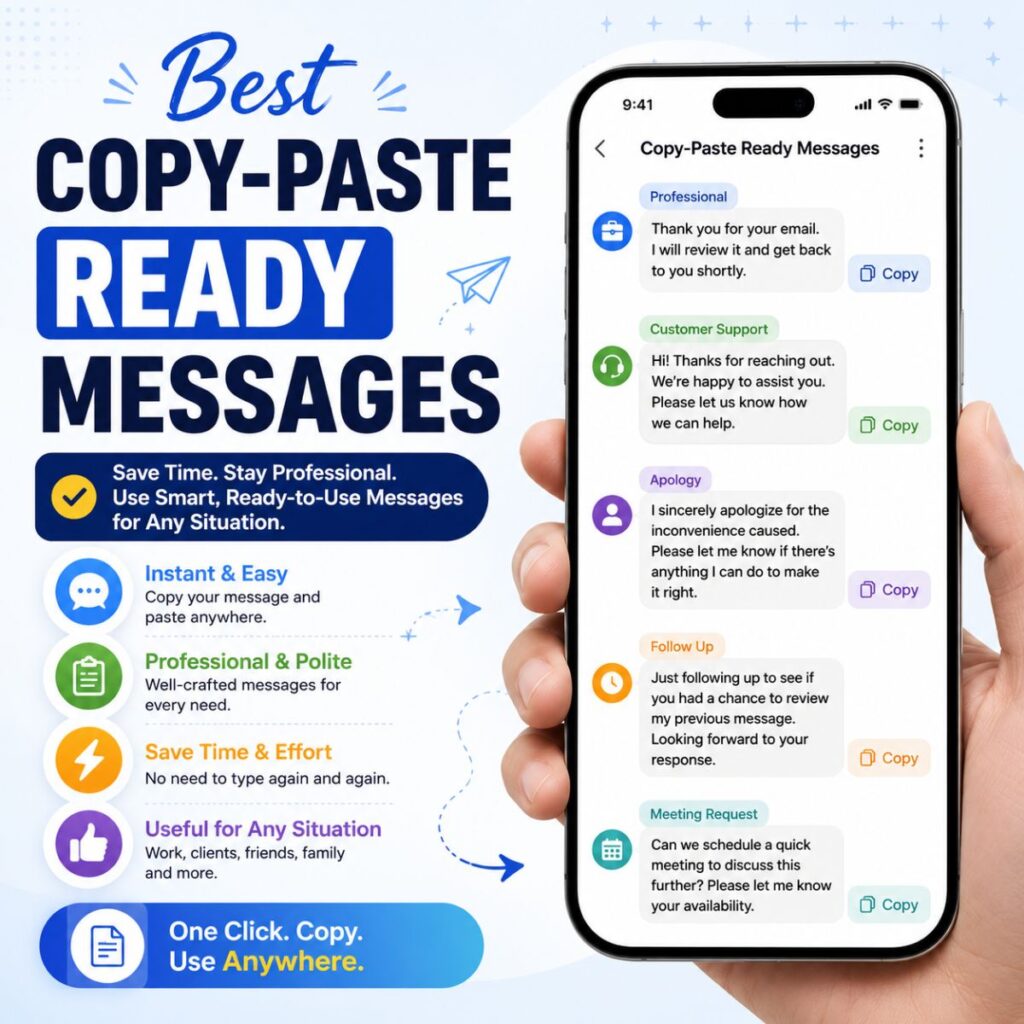
Need quick text you can share with others? These copy-paste ready messages explain how to send a voice message on iPhone in a simple way.
- Open your Messages app, choose a conversation, tap and hold the audio button, record your message, and send it.
- Sending a voice message on iPhone is as easy as holding the microphone icon and speaking.
- Voice notes are perfect when you want to communicate quickly without typing.
- If you’re short on time, record a voice message instead of writing a long text.
- A voice message lets the other person hear your tone and emotion.
- Record your thoughts naturally and send them instantly.
- Voice messages make conversations feel more personal and engaging.
- Use audio messages when you need to explain something clearly.
- Speaking often feels faster and easier than typing.
- Voice notes are great for sharing updates, reminders, and greetings.
- Open the chat, tap the audio feature, speak, and send.
- Audio messaging helps you stay connected in a more natural way.
- A quick voice note can save time and add personality to your message.
- Voice messages are ideal for busy days when typing isn’t convenient.
- Let your voice do the communicating for you.
Frequently Asked Questions
What is the easiest way to send a voice message on iPhone?
- Open the Messages app.
- Select a conversation.
- Tap and hold the audio message icon.
- Record your message.
- Release and send.
Can I send voice messages using apps other than iMessage?
- Yes, you can send voice messages through apps like WhatsApp, Messenger, Telegram, and Signal.
Why can’t I record a voice message on my iPhone?
- Check that microphone permissions are enabled.
- Make sure your app is updated.
- Verify that your microphone is working properly.
- Restart the app or your iPhone if needed.
Do voice messages disappear on iPhone?
- Some voice messages in iMessage may expire after a period of time depending on your settings.
- You can often choose to keep important audio messages.
Are voice messages better than text messages?
- Voice messages are often faster.
- They convey emotion and tone more effectively.
- They can make conversations feel more personal and natural.
Conclusion
Learning how to send voice message on iPhone is a simple skill that can completely change the way you communicate. Instead of spending time typing long messages, you can record your thoughts naturally and share them in seconds. Voice messages add personality, emotion, and clarity that text alone sometimes cannot provide.
Whether you’re using iMessage, WhatsApp, Messenger, Telegram, or another messaging app, sending audio messages is quick, convenient, and user-friendly. From sharing important updates to sending heartfelt greetings, voice notes help create more meaningful conversations.
The tips, examples, and ready-to-use messages in this guide are designed to make voice messaging easier for everyone. Save this article for future reference and share it with friends or family who want to learn how to send voice message on iPhone quickly and confidently.
Your voice is powerful—sometimes the simplest way to connect is to let people hear it.

Awais Bilal is the author of Messagesfy, sharing simple and meaningful messages, quotes, and wishes to help people express their feelings easily.