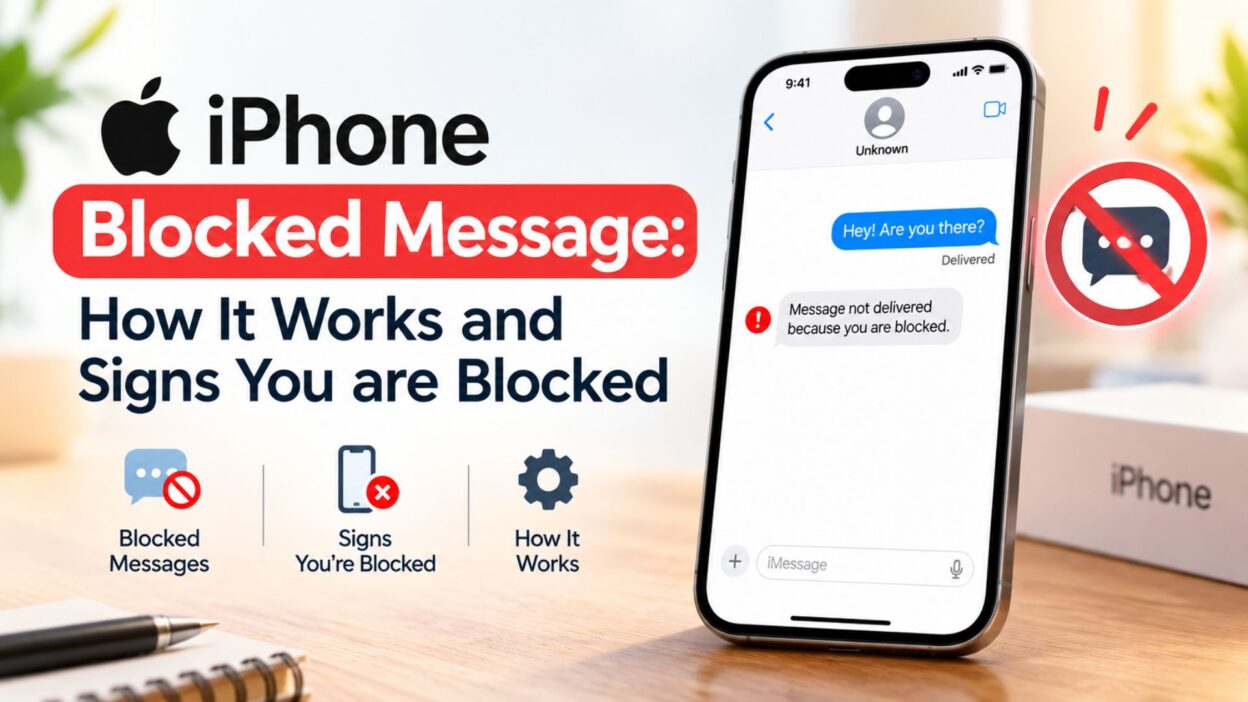
Few things cause as much confusion as sending a text message that receives no response. Consequently, many smartphone users wonder whether their text simply went unread or if the recipient actually blocked their phone number. Understanding the exact behavior of an iphone blocked message helps you determine your current contact status without unnecessary guesswork.
When someone blocks your contact on iOS, Apple handles the situation with complete visual privacy. Therefore, the Messages app will never send you a direct notification or warning banner confirming the block. Instead, subtle technical changes occur within your chat thread that reveal what happened behind the scenes.
This complete guide explains how Apple manages blocked text messages across both iMessage and SMS channels. Moreover, you will learn the exact signs to look for, how device settings affect delivery, and how to manage your own blocked list easily.
What Happens When You Send an iPhone Blocked Message?
Apple designs its iOS privacy features to protect user boundaries without triggering unnecessary confrontation. For this reason, the system silently discards incoming communications from blocked phone numbers at the network level.
Understanding this subtle system requires looking at both the sender’s screen and the recipient’s device. Both devices handle the underlying data stream very differently once a block takes effect.
What the Sender Sees on Screen
When you send a text to someone who blocked you, the message leaves your device normally. In fact, your Messages app shows your text bubble appearing in the thread just as it always does.
However, the critical difference lies directly below the message bubble. If you use iMessage, the standard blue bubble will not display the usual “Delivered” status text beneath it.
What Happens on the Recipient’s Device
On the recipient’s side, Apple completely suppresses every form of notification. Consequently, their iPhone will not ring, vibrate, or display a lock screen banner when your text arrives.
Furthermore, the operating system routes the incoming message into an invisible system filter. The recipient will never see your text inside their active message list or spam folder.
Primary Signs Your iMessage Has Been Blocked
While Apple keeps block status private, several technical patterns consistently appear when a block occurs. Monitoring these specific indicators inside your chat thread provides a clear picture of your status.
Absence of the Delivered Status
Under normal circumstances, sending a blue iMessage generates a small “Delivered” notice almost instantly. This confirmation proves that Apple’s servers successfully routed the packet to the destination device.
However, if the recipient blocked your number, that confirmation label will never appear. The space beneath your blue message bubble simply remains completely blank indefinitely.
Sudden Shift from Blue to Green Bubbles
Apple uses blue bubbles for internet-based iMessages and green bubbles for cellular SMS texts. If your messages suddenly shift from blue to green after repeated delivery failures, your iPhone is trying to resend the text via SMS.
- Your iPhone attempts to route the message through your cellular carrier instead of Apple’s servers.
- The green SMS bubble may display a “Sent as Text Message” status directly below it.
- Despite the green status, the recipient’s phone still silences and discards the incoming SMS payload automatically.
- Carrier networks process the text, but the receiving iOS device blocks the content from entering the inbox.
Phone Call Behavior When Messages Are Blocked
Text message delivery connects directly to phone call routing on iOS devices. Therefore, checking how your phone call behaves offers immediate secondary evidence alongside your text status.
The Single Ring and Voicemail Redirect
When you place a phone call to someone who blocked your number, the call will not ring repeatedly. Instead, you will typically hear exactly one brief ring before the system redirects you directly to voicemail.
While you can still leave a recorded message, Apple places that audio file into a hidden folder. The recipient’s phone stores it inside a special “Blocked Messages” section at the bottom of their voicemail menu.
Comparing Blocked Calls to Do Not Disturb Mode
It remains important to distinguish a true block from temporary focus modes like Do Not Disturb. When a user turns on Do Not Disturb, your call might go straight to voicemail without ringing at all.
However, Do Not Disturb allows subsequent calls to break through if you call twice in rapid succession. Conversely, a true block consistently redirects your call after a single ring every single time.
Top Signs of an iPhone Blocked Message
Observing multiple system behaviors gives you the most accurate answer regarding your delivery status. Here are the primary signs that indicate your text message faces a contact block:
- The blue iMessage bubble completely lacks a “Delivered” or “Read” status label below it.
- Your phone calls consistently go to voicemail after ringing only one single time.
- Sent iMessages eventually attempt to resend as green SMS text messages repeatedly.
- The recipient does not reply across multiple messaging platforms over an extended period.
- Automated FaceTime calls fail instantly or disconnect without making a ringing sound.
Common Reasons for Unresponsive Messages That Are Not Blocks
Before assuming someone blocked your phone number, consider alternative technical issues that mimic block behavior. Network outages, dead phone batteries, and travel often cause identical delivery symptoms.
Dead Battery or Powered-Off Device
If the recipient’s iPhone is turned off or out of battery, Apple cannot deliver your iMessage immediately. Consequently, your message bubble will not display a “Delivered” status right away.
However, once the recipient powers their phone back on, Apple delivers the queued message immediately. At that exact moment, the “Delivered” label instantly appears below your original text.
Airplane Mode and Poor Cellular Coverage
Travelers frequently turn on Airplane Mode or lose cellular coverage while passing through rural areas. During these coverage gaps, incoming texts remain paused on Apple’s delivery servers.
Similarly, weak Wi-Fi connections prevent the receiving device from updating its message status labels properly. Therefore, waiting a few hours helps rule out simple coverage problems.
How iMessage and SMS Blocking Works on iPhone
Understanding how iOS handles blocked communications helps clarify what happens to messages, calls, and delivery statuses when a block is active.
Key Signs of Being Blocked on iMessage
- Missing “Delivered” Status: Blue iMessage bubbles will not display the standard “Delivered” text underneath.
- Fallback to Green SMS: If iMessage fails to route, your device may attempt to resend the message as a standard green SMS text.
- Call Routing: Phone calls to a contact who has blocked you typically ring once before routing directly to voicemail.
- Voicemail Storage: Any voicemail left from a blocked number goes into a separate “Blocked Messages” folder at the bottom of the recipient’s voicemail list, without generating a notification.
Alternative Reasons for Unresponsive Messages
Before concluding that a block has occurred, consider that other common scenarios produce identical delivery indicators:
ScenarioBehaviorResolutionFocus / Do Not DisturbMessages show as sent; calls go straight to voicemail or silent notifications.Delivered immediately once Focus mode ends.Device Powered Off“Delivered” status does not appear while the phone is off.Status updates to “Delivered” upon powering back on.No Network / Airplane ModeiMessages fail to send or remain in transit without delivery confirmation.Delivers automatically when connection is restored.
How to Block or Unblock Contacts on iPhone
To Block a Contact:
- Open Settings on your iPhone.
- Select Apps > Messages (or Phone).
- Tap Blocked Contacts.
- Tap Add New… and select the contact from your list.
To Unblock a Contact:
- Go to Settings > Apps > Messages > Blocked Contacts.
- Swipe left on the contact or number you wish to remove.
- Tap Unblock.
Managing iPhone Blocked Messages and Settings
Understanding how to manage your block list or verify delivery issues directly in iOS settings gives you total control over incoming and outgoing communications.
Managing Your Blocked Contacts List
You can quickly review, add, or remove numbers from your blocked list using the Settings app.
- To Add a Blocked Contact:
- Open Settings > Apps > Messages (or Phone).
- Tap Blocked Contacts.
- Select Add New… and choose the contact from your address book.
- To Unblock a Contact:
- Go to Settings > Apps > Messages > Blocked Contacts.
- Swipe left on the contact or phone number you wish to unblock.
- Tap Unblock.
Frequently Asked Questions
Does an iPhone user get notified when they receive a blocked message?
No. Apple keeps blocking completely private. The blocked sender receives no warning banner, and the recipient receives no ringtone, banner notification, or inbox entry when a blocked text arrives.
Do blocked voicemails still reach the recipient?
Yes. Calls from a blocked number usually ring once before redirecting to voicemail. The recorded audio goes into a separate “Blocked Messages” folder at the bottom of the recipient’s Voicemail tab without generating a notification.
Why did my iMessage bubble turn green instead of blue?
A green bubble indicates the message was sent as an SMS text rather than through iMessage. While this can happen when a number is blocked, it also occurs if the recipient has no internet connection, turned off iMessage, or switched to an Android device.
Can I retrieve messages sent while a contact was blocked?
No. iOS discards all incoming messages sent from a blocked number in real time. Once you unblock a contact, you will only receive new texts sent after the unblocking occurred; previous texts cannot be recovered.
Conclusion
Navigating an iphone blocked message comes down to recognizing specific communication patterns rather than looking for a direct system notification. While a missing “Delivered” tag or a single-ring voicemail route suggests a potential block, temporary factors like flat batteries, poor cellular reception, and Focus modes often produce identical delivery signs.
By ruling out coverage issues and checking device settings, you can accurately assess your text status without unnecessary guesswork. Managing your own blocked list inside iOS remains straightforward, giving you full control over your digital privacy whenever needed.

Awais Bilal is the author of Messagesfy, sharing simple and meaningful messages, quotes, and wishes to help people express their feelings easily.