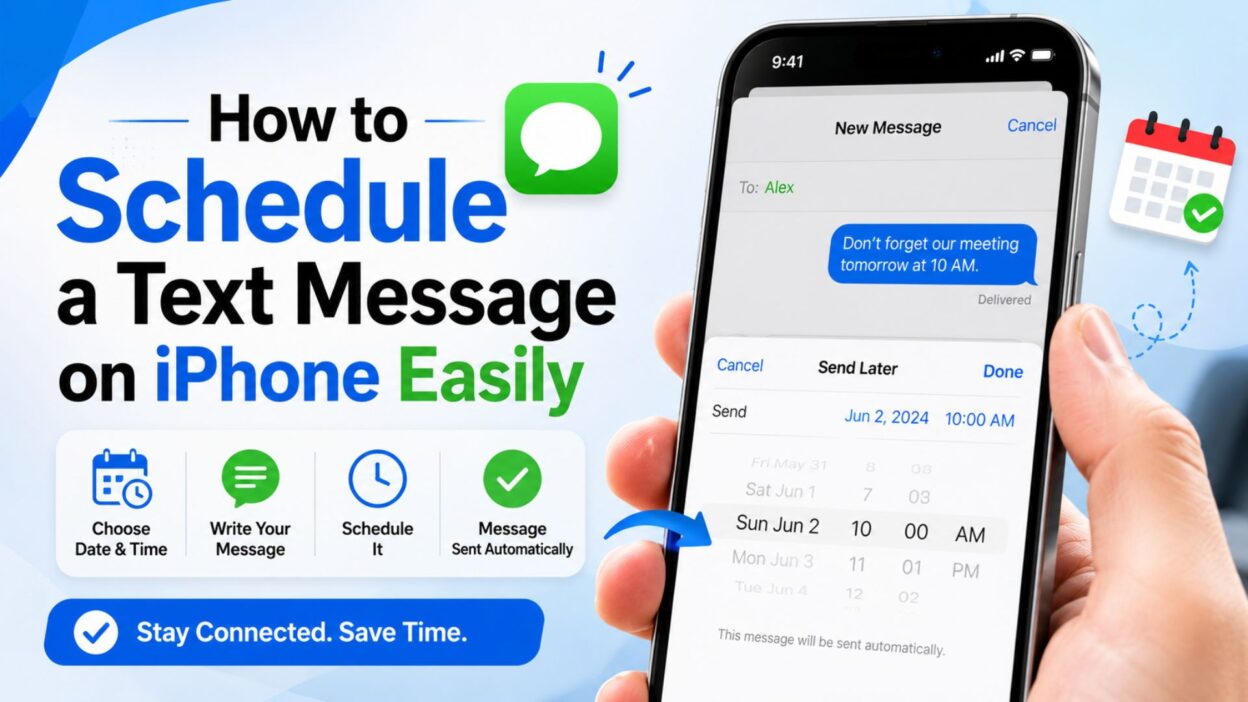
Have you ever remembered an important text at the worst possible time? Maybe you wanted to wish someone a happy birthday at midnight, send a work reminder early in the morning, or make sure a message reaches someone while you’re busy. That’s where learning how to schedule a text message on iPhone becomes incredibly useful.
Many iPhone users assume message scheduling is built directly into the Messages app, only to discover there isn’t a traditional “schedule send” button like some email apps offer. The good news is that iPhone provides practical ways to automate messages using built-in tools and features. Once you know the process, scheduling texts can save time, reduce stress, and help you stay organized.
In this guide, you’ll discover the easiest methods for scheduling messages on iPhone, along with helpful tips, quick solutions, and ready-to-use examples. Whether you’re sending personal texts, business reminders, or special occasion messages, this article will walk you through everything you need to know.
Top How to Schedule a Text Message on iPhone Tips
Before scheduling messages, it’s helpful to understand a few key points that can make the process smoother and more reliable.
- Use the Shortcuts app for message automation.
- Keep your iPhone updated to the latest iOS version.
- Double-check the recipient before creating an automation.
- Review scheduled automations regularly.
- Use clear and concise message text.
- Test the process with your own number first.
- Ensure Messages permissions are enabled.
- Keep your device charged when the automation is due.
- Turn on notifications for automation reminders.
- Use repeating automations for recurring messages.
- Schedule birthday greetings in advance.
- Automate work-related reminders.
- Create separate automations for different contacts.
- Name your shortcuts clearly for easy management.
- Review message timing before saving.
- Avoid scheduling sensitive information unnecessarily.
- Keep message wording professional when needed.
- Use location-based automation when appropriate.
- Combine reminders with scheduled texts.
- Check automation settings after iOS updates.
Short How to Schedule a Text Message on iPhone Guide
If you’re looking for a quick answer, these short tips can help you get started immediately.
- Open the Shortcuts app.
- Tap Automation.
- Select Create Personal Automation.
- Choose a time of day.
- Set the desired schedule.
- Tap Next.
- Select Send Message.
- Enter your text.
- Choose the recipient.
- Save the automation.
- Review all details carefully.
- Confirm the scheduled time.
- Allow required permissions.
- Keep the automation active.
- Monitor successful delivery.
- Edit when plans change.
- Delete outdated automations.
- Use repeating schedules when needed.
- Test before important events.
- Enjoy hands-free messaging.
Best How to Schedule a Text Message on iPhone Methods for Sharing
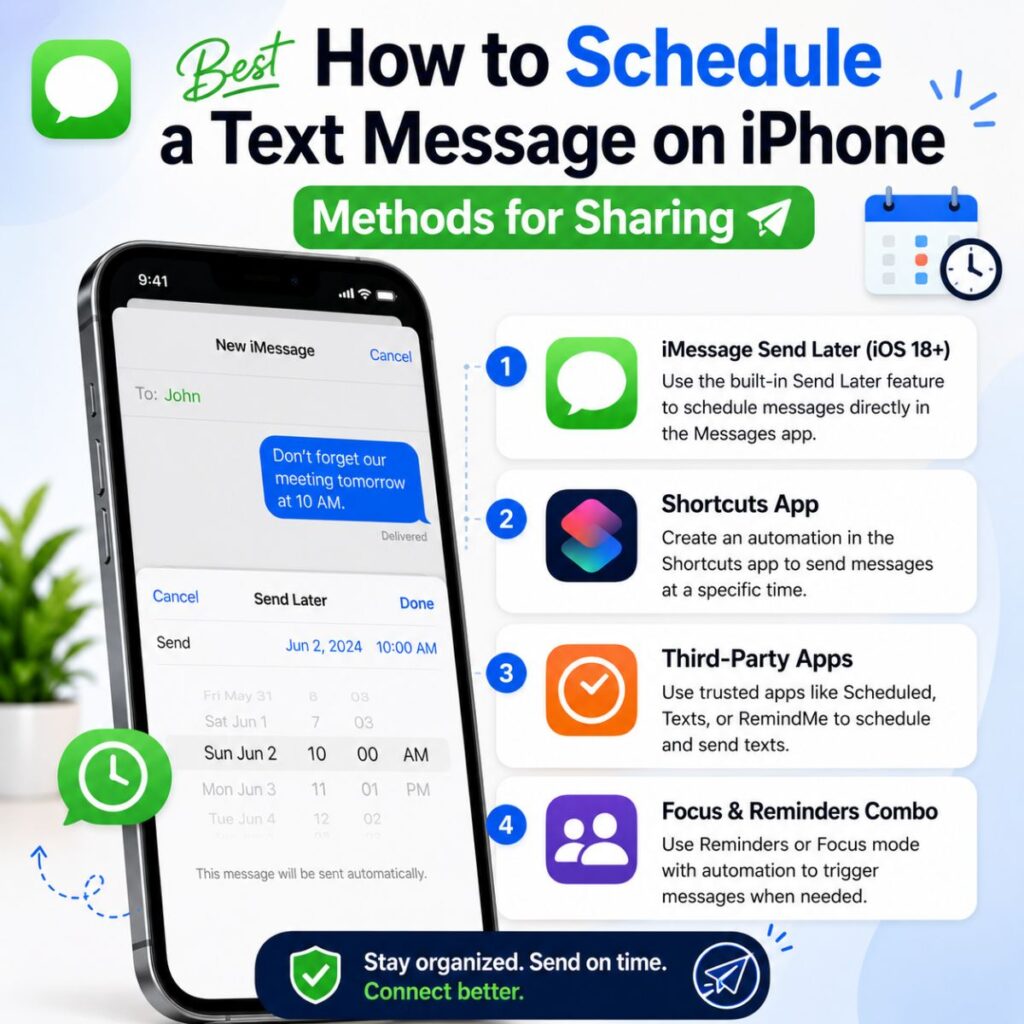
Different situations call for different scheduling methods. Here are some of the most useful approaches iPhone users rely on.
Using the Shortcuts App
This is Apple’s most common built-in method for scheduling texts.
- Open Shortcuts and tap Automation.
- Create a new personal automation.
- Select Time of Day.
- Choose the exact send time.
- Add the Send Message action.
- Enter your message.
- Select a contact.
- Save the automation.
- Verify settings before exiting.
- Check the automation list afterward.
Using Reminder-Based Scheduling
Some users prefer reminders when automatic sending isn’t necessary.
- Create a reminder with the message text.
- Set a due date and time.
- Add the recipient’s name.
- Include message details.
- Receive a notification when it’s time.
- Send the text manually.
- Perfect for important conversations.
- Reduces the chance of forgetting.
- Easy to edit later.
- Useful for one-time messages.
Using Third-Party Apps
Some apps offer additional scheduling features.
- Compare app reviews carefully.
- Verify privacy settings.
- Read permission requirements.
- Check subscription costs.
- Test with non-essential messages.
- Review reliability ratings.
- Keep software updated.
- Avoid sharing sensitive data.
- Confirm message delivery options.
- Follow app-specific instructions.
One-Line How to Schedule a Text Message on iPhone Tips
These quick one-liners are easy to remember and share.
- Schedule today so you don’t forget tomorrow.
- Automation saves time and effort.
- A planned message is better than a missed one.
- Let your iPhone remember for you.
- Smart scheduling keeps communication consistent.
- Set it once and relax.
- Perfect timing starts with preparation.
- Never miss an important greeting.
- Automate routine texts effortlessly.
- Stay organized with scheduled messaging.
- Save time through automation.
- Keep important conversations on track.
- Plan messages around your schedule.
- Reduce last-minute stress.
- Make every message arrive on time.
- Let technology handle the timing.
- Schedule ahead for peace of mind.
- Simplify your daily communication.
- Stay connected even when busy.
- Send thoughtful messages at the perfect moment.
How to Schedule a Text Message on iPhone Easily
In the first part, we covered the basics of how to schedule a text message on iPhone and explored the most common methods. Now let’s continue with practical examples, sharing ideas, and copy-friendly tips that make scheduled messaging even more useful in everyday life.
Best How to Schedule a Text Message on iPhone Examples for Sharing
These examples show common situations where scheduling a text can save time and help you stay thoughtful and organized.
- Schedule birthday wishes days before the celebration.
- Set anniversary messages in advance.
- Prepare morning greetings the night before.
- Schedule meeting reminders for coworkers.
- Send appointment reminders automatically.
- Plan holiday greetings ahead of busy seasons.
- Schedule study group reminders.
- Set check-in messages for family members.
- Plan travel arrival updates.
- Schedule workout accountability texts.
- Send event reminders to friends.
- Prepare thank-you messages in advance.
- Schedule client follow-up texts.
- Plan weekly team reminders.
- Set monthly bill payment reminders.
- Schedule medication reminder messages.
- Prepare school-related notifications.
- Send congratulations messages at the right time.
- Plan special occasion greetings early.
- Schedule recurring motivational messages.
Everyday Personal Uses
Scheduled texting can make daily communication much easier.
- Wish friends good luck before an important event.
- Remind family about upcoming gatherings.
- Schedule a good morning message before a busy day.
- Plan a thoughtful message for a loved one.
- Send reminders about dinner plans.
- Schedule pickup reminders.
- Prepare vacation updates.
- Set recurring family check-ins.
- Plan holiday countdown messages.
- Send supportive texts during important moments.
Professional Uses
Scheduling messages can also improve productivity and communication at work.
- Send meeting reminders.
- Follow up with clients.
- Share project deadlines.
- Notify teams about schedule changes.
- Send training reminders.
- Schedule event announcements.
- Remind employees about important tasks.
- Share presentation updates.
- Send onboarding information.
- Plan recurring workplace communications.
Best Messages for Captions
If you’re sharing tips about how to schedule a text message on iPhone on social media, these captions can help.
- Never forget an important text again 📱
- Smart scheduling makes life easier.
- A little planning goes a long way.
- Send messages exactly when they matter most.
- Stay organized with scheduled texts.
- Perfect timing starts today.
- Let your iPhone do the remembering.
- Thoughtful messages delivered on time.
- Work smarter, not harder.
- Communication made simple.
- Schedule it once and stay stress-free.
- Make every message count.
- Stay ahead of your busy schedule.
- Automated doesn’t mean less personal.
- Keep important conversations on track.
- Technology that saves time.
- Small feature, big convenience.
- Plan now, thank yourself later.
- Better communication starts with preparation.
- Smart tools create smoother days.
Copy-Paste Ready Messages
Need sample texts to schedule? These are ready to use immediately.
Friendly Messages
- Hey! Just wanted to wish you an amazing day ahead. 😊
- Hope everything goes well today. You’ve got this!
- Thinking of you and hoping you’re doing great.
- Don’t forget about our plans later today!
- Have a wonderful morning and an even better day.
Birthday Messages
- Happy Birthday! Wishing you happiness, success, and lots of great memories.
- Hope your special day is filled with laughter and joy.
- Wishing you an incredible year ahead. Happy Birthday!
- May today bring you everything you’ve been hoping for.
- Enjoy your day and celebrate every moment.
Work Messages
- Just a reminder about our meeting today.
- Looking forward to speaking with you later.
- Please let me know if you have any questions.
- Friendly reminder regarding today’s deadline.
- Thank you for your time and support.
Motivational Messages
- Believe in yourself and keep moving forward.
- Every small step counts toward your goals.
- Today is another opportunity to grow.
- Stay focused and trust the process.
- Your effort today shapes your success tomorrow.
More One-Line How to Schedule a Text Message on iPhone Tips
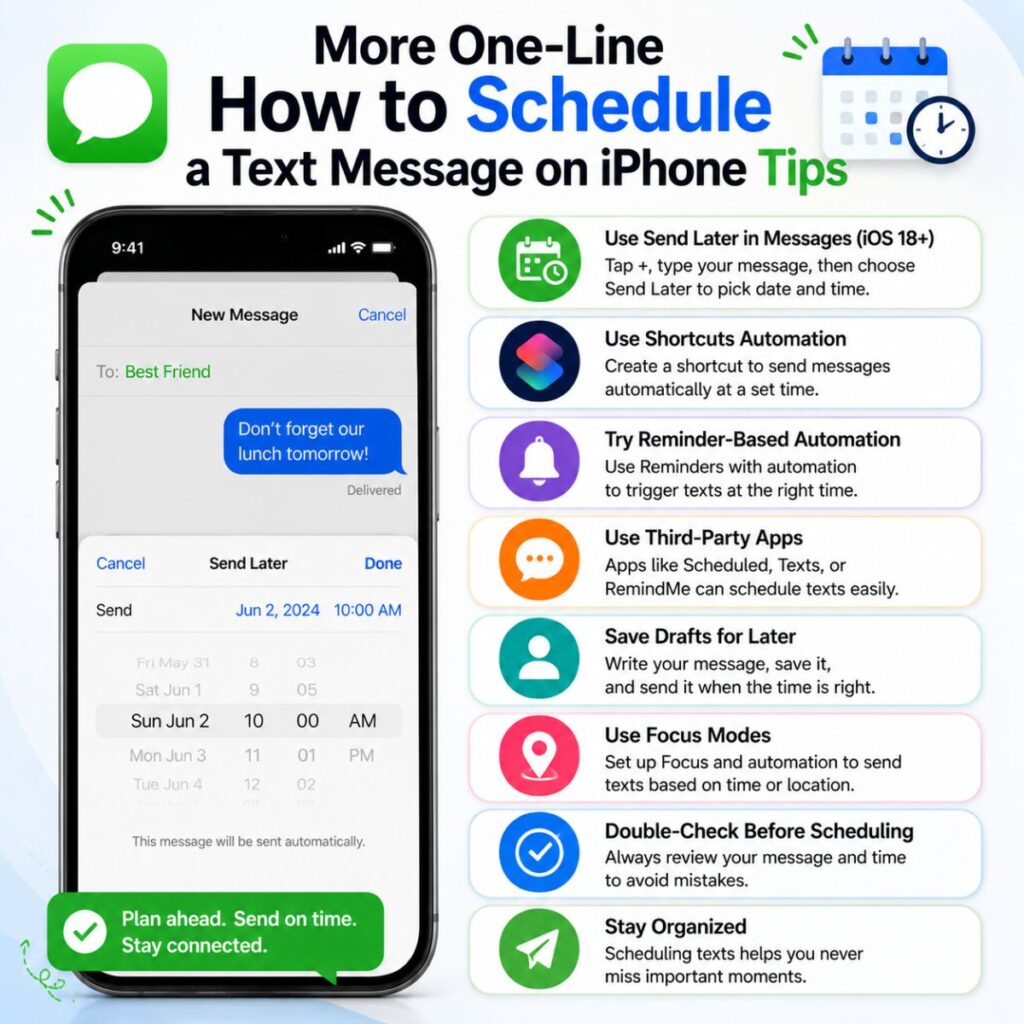
These short lines are perfect for quick reference and sharing.
- Scheduling prevents forgotten messages.
- Good timing creates better communication.
- Automate routine conversations easily.
- Stay connected even during busy days.
- A scheduled text can brighten someone’s day.
- Organization starts with simple habits.
- Plan ahead and communicate better.
- Smart messaging saves valuable time.
- Keep your commitments on schedule.
- Let automation handle the details.
- Timely messages leave a lasting impression.
- Never miss an important reminder.
- Schedule once, benefit repeatedly.
- Consistency builds stronger communication.
- A little planning reduces stress.
- Thoughtful texts don’t have to be last-minute.
- Stay one step ahead every day.
- Technology can make kindness easier.
- Keep life organized with smart tools.
- Every scheduled message has a purpose.
How to Schedule a Text Message on iPhone Easily
We’ve covered the basics, practical uses, and plenty of helpful examples. To finish this guide on how to schedule a text message on iPhone, let’s answer some common questions and wrap everything up with key takeaways you can use right away.
More Copy-Paste Ready Messages
These additional messages are perfect for scheduling in advance.
Good Morning Messages
- Good morning! Wishing you a productive and positive day ahead.
- Rise and shine! Today is full of new opportunities.
- Hope your day starts with a smile and ends with success.
- Sending positive vibes for a wonderful day.
- Good morning! Make today count.
Good Night Messages
- Good night! Rest well and recharge for tomorrow.
- Wishing you peaceful dreams and a relaxing night.
- Sleep well and wake up refreshed.
- May your night be calm and your morning bright.
- Good night! Tomorrow is a brand-new start.
Reminder Messages
- Just a quick reminder about our appointment today.
- Don’t forget the event starts in an hour.
- Friendly reminder to complete your task today.
- Remember our meeting this afternoon.
- Just checking in with a reminder for today’s plans.
Appreciation Messages
- Thank you for always being there when needed.
- I appreciate your help and support.
- Your kindness means a lot to me.
- Thanks for everything you do.
- Grateful for your time and encouragement.
Frequently Asked Questions
Can you schedule a text message directly in the iPhone Messages app?
- Currently, the Messages app does not offer a traditional built-in “schedule send” feature like some email apps.
- Most users schedule messages using the Shortcuts app and automation features available on iPhone.
Is the Shortcuts app free on iPhone?
- Yes.
- The Shortcuts app is included with iOS and can be used without additional cost.
Will a scheduled message send automatically?
- Depending on your iOS version and automation settings, messages can be sent automatically or may require confirmation.
- Always test important automations before relying on them.
Can I schedule recurring text messages?
- Yes.
- The Shortcuts app allows daily, weekly, and other recurring automations for repeated messages.
Can I edit or delete a scheduled text?
- Yes.
- Open the Shortcuts app, go to Automation, and modify or remove the automation whenever needed.
Final Thoughts on How to Schedule a Text Message on iPhone
Learning how to schedule a text message on iPhone is one of those simple skills that can make a surprisingly big difference in daily life. Whether you’re planning birthday wishes, sending work reminders, checking in with family, or staying organized with recurring messages, scheduling helps ensure important texts are delivered at the right moment.
Instead of worrying about forgetting a message or trying to remember it at the perfect time, you can prepare it in advance and focus on other priorities. That’s the real value of scheduled messaging—less stress, better organization, and more consistent communication.
The best part is that you don’t need advanced technical knowledge to get started. With Apple’s Shortcuts app and a few simple steps, you can create reliable message automations that fit your personal or professional needs.
Save this guide for future reference, share it with other iPhone users, and start using scheduled messages to make everyday communication easier, smarter, and more efficient.
A well-timed message can make someone’s day—and scheduling helps make sure it arrives exactly when it should.

Awais Bilal is the author of Messagesfy, sharing simple and meaningful messages, quotes, and wishes to help people express their feelings easily.