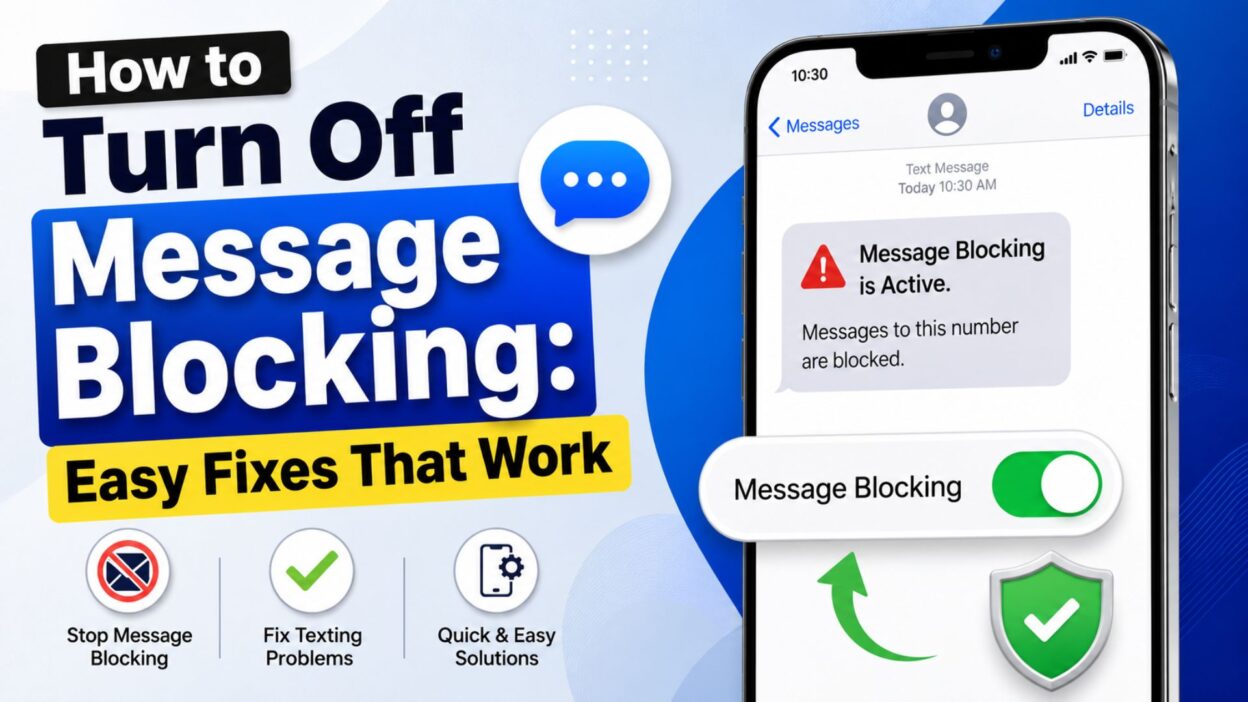
Have you ever tried to send a text only to see the frustrating message, “Message Blocking is Active”? It can happen without warning and leave you wondering whether the problem is with your phone, your carrier, or the person you’re trying to contact.
The good news is that, in most cases, message blocking can be turned off with a few simple steps. Whether you’re using an Android phone or an iPhone, understanding what causes message blocking is the first step toward fixing it. Sometimes it’s as simple as removing a blocked contact, while other times you may need to adjust your messaging settings or contact your mobile carrier.
In this guide, you’ll learn how to turn off message blocking using easy, beginner-friendly methods. We’ll cover the most common causes, practical fixes, and helpful tips so you can get back to sending messages without unnecessary stress.
Top Ways to Turn Off Message Blocking
If you’re seeing a message blocking error, start with these proven fixes. One of them often solves the problem in just a few minutes.
- Restart your phone to refresh your network connection.
- Turn Airplane Mode on for 30 seconds, then turn it off.
- Make sure your mobile plan includes SMS messaging.
- Check that your SIM card is properly inserted.
- Verify that your phone has a strong cellular signal.
- Remove the contact from your blocked list if necessary.
- Update your phone to the latest software version.
- Enable SMS and MMS in your messaging settings.
- Disable Do Not Disturb if it affects message notifications.
- Reset your network settings if messaging suddenly stopped working.
- Make sure your messaging app is set as the default SMS app.
- Clear the cache of your messaging application.
- Confirm that your carrier account is active.
- Check whether your carrier is experiencing an outage.
- Turn Wi-Fi Calling off temporarily and test again.
- Reinsert your SIM card after restarting your phone.
- Try sending a message to another contact.
- Check if the recipient’s phone number is entered correctly.
- Ensure international messaging is enabled if texting abroad.
- Contact your carrier if none of the basic fixes work.
Short How to Turn Off Message Blocking Tips
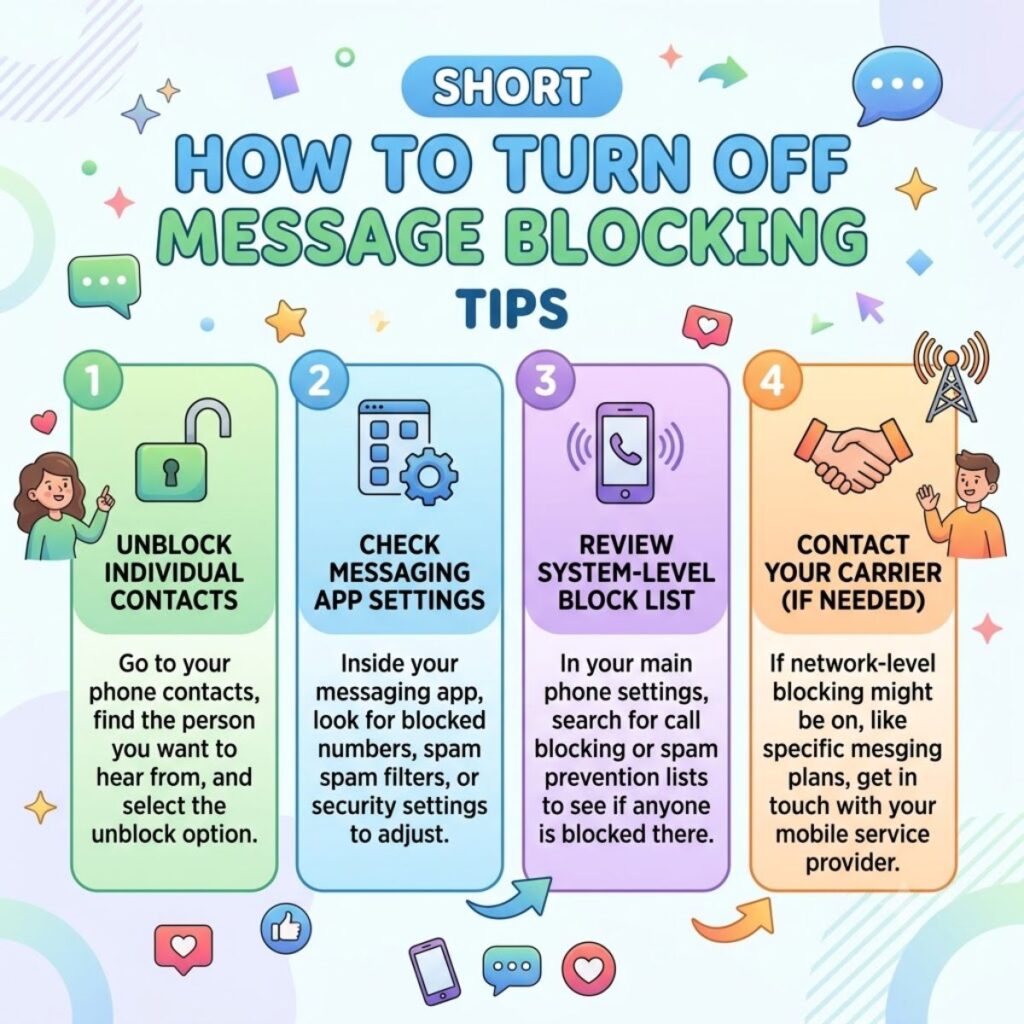
These quick tips are perfect when you need a fast solution without spending much time troubleshooting.
- Restart your device first.
- Check your carrier service.
- Remove blocked contacts.
- Update your messaging app.
- Reset network settings.
- Verify your phone number.
- Enable SMS permissions.
- Check your SIM card.
- Turn off Airplane Mode.
- Update your phone software.
- Use your default messaging app.
- Test with another contact.
- Disable VPN if you’re using one.
- Confirm your account is active.
- Check for unpaid bills.
- Refresh your mobile network.
- Reinsert your SIM card.
- Enable mobile data if required.
- Review parental control settings.
- Contact customer support if the issue continues.
How to Turn Off Message Blocking on Android
Android devices may display the “Message Blocking is Active” error because of carrier settings, blocked contacts, or messaging app issues. Try these solutions one by one.
- Open Settings and confirm your SIM is active.
- Check that Google Messages is your default texting app.
- Remove any blocked contacts.
- Clear the cache for your Messages app.
- Update Android to the latest version.
- Restart your phone after making changes.
- Reset network settings if messages still fail.
- Verify SMS permissions are enabled.
- Disable battery optimization for the Messages app.
- Check your carrier account for messaging restrictions.
- Turn off any third-party messaging filters.
- Make sure your phone isn’t in Airplane Mode.
- Test your SIM in another compatible phone.
- Try another messaging app temporarily.
- Contact your carrier if the error persists.
How to Turn Off Message Blocking on iPhone
If you’re using an iPhone, the issue may be related to iMessage, SMS settings, or your carrier.
- Go to Settings > Messages and ensure SMS is enabled.
- Turn iMessage off and back on.
- Restart your iPhone.
- Check your blocked contacts list.
- Update to the latest version of iOS.
- Reset network settings.
- Confirm your carrier supports SMS.
- Remove and reinsert your SIM card.
- Disable Focus Mode temporarily.
- Verify your phone number under Messages settings.
- Test by sending a message to another contact.
- Check for carrier settings updates.
- Ensure your account is active.
- Turn off VPN if you’re using one.
- Contact your carrier for additional support.
Best How to Turn Off Message Blocking Fixes for Sharing
If the basic steps did not work, these fixes help solve the issue in more specific situations. Many users find the solution here when the error keeps coming back.
- Check if your carrier has suspended outgoing texts.
- Make sure your number is not restricted by parental controls.
- Disable spam protection temporarily in your messaging app.
- Remove old messaging app updates and reinstall them.
- Verify that your contact has not blocked your number.
- Check if group messages are causing the error.
- Enable MMS if picture messages fail.
- Turn off RCS chats temporarily on Android.
- Sign out and back into your Google account.
- Reset APN settings if mobile services are unstable.
- Update carrier settings when prompted.
- Remove any call or text barring settings.
- Check dual SIM settings if you use two SIM cards.
- Switch the preferred SIM for messaging.
- Test messaging with mobile data turned on.
- Disable data-saving mode for the Messages app.
- Make sure your device date and time are correct.
- Remove any message scheduling apps.
- Check whether your carrier blocks premium SMS.
- Ask your carrier to refresh your account from their side.
One-Line How to Turn Off Message Blocking Tips
These one-line fixes are easy to remember and quick to try.
- Restart your phone and try again.
- Remove the contact from the blocked list.
- Enable SMS in your message settings.
- Update your phone software.
- Reset network settings.
- Check your carrier account.
- Turn off Airplane Mode.
- Reinsert your SIM card.
- Use the default messaging app.
- Disable RCS temporarily.
- Check for carrier updates.
- Verify the phone number.
- Turn off VPN services.
- Enable MMS messaging.
- Test another contact.
- Clear the Messages app cache.
- Disable spam filters.
- Refresh your mobile network.
- Check parental controls.
- Contact carrier support.
Best Messages for Captions
If you are sharing a tech tip or helping friends online, these short caption-style lines work well for social media or blogs.
- Finally fixed the “Message Blocking is Active” error.
- Texting works again after a few simple changes.
- The easiest way to turn off message blocking on Android and iPhone.
- A quick fix that saved me from a messaging headache.
- If your texts won’t send, try these steps first.
- One setting can stop message blocking instantly.
- Simple troubleshooting that actually works.
- Don’t panic when message blocking appears.
- Most message blocking issues are easier to fix than you think.
- A few minutes can restore your texting service.
- Helpful fixes for Android and iPhone users.
- Save this guide for the next texting problem.
- Messaging problems solved step by step.
- A practical fix for a very common error.
- Back to sending texts without frustration.
Copy-Paste Ready Fix Messages
These are useful if you want to send quick help to a friend or family member.
- “Go to your blocked contacts and remove the number, then restart your phone.”
- “Enable SMS and MMS in your message settings and try again.”
- “Reset network settings; it often fixes message blocking errors.”
- “Check whether your carrier account is active and not restricted.”
- “Turn off Airplane Mode and refresh your mobile network.”
- “Clear the cache of your Messages app and reopen it.”
- “Update your phone software and carrier settings.”
- “Disable RCS chats temporarily and test a regular SMS.”
- “Reinsert your SIM card and restart the device.”
- “If none of these work, contact your carrier and ask them to refresh your messaging service.”
Why Message Blocking Happens
Understanding the cause makes the fix much easier. The error usually appears for one of these reasons:
- The contact is blocked on your phone.
- Your carrier has restricted messaging.
- SMS or MMS is disabled.
- Network settings are corrupted.
- The SIM card is not working properly.
- A third-party app is interfering with messages.
- RCS or iMessage is causing a conflict.
- Your account has a billing or activation issue.
- Parental controls or content filters are active.
- Carrier outages are affecting messaging services.
Quick Android Troubleshooting Checklist
Use this checklist when messages fail on Android.
- Signal bars are available.
- Mobile network is connected.
- SMS permission is allowed.
- Default Messages app is selected.
- Blocked contacts reviewed.
- Cache cleared.
- RCS turned off for testing.
- Network settings reset.
- Software updated.
- Carrier account checked.
Quick iPhone Troubleshooting Checklist
Use this checklist when messages fail on iPhone.
- SMS enabled.
- iMessage toggled off and on.
- Blocked contacts reviewed.
- Focus mode disabled.
- Carrier settings updated.
- Network settings reset.
- SIM card checked.
- iOS updated.
- Correct phone number selected.
- Carrier account active.
Frequently Asked Questions
How do I turn off message blocking on my phone?
Start by restarting your phone, checking your blocked contacts, and making sure SMS messaging is enabled. If the problem continues, reset your network settings and contact your mobile carrier to confirm there are no account restrictions.
Why does my phone say “Message Blocking is Active”?
This message usually appears because of a blocked contact, carrier restrictions, an inactive mobile plan, incorrect messaging settings, or temporary network issues. Identifying the exact cause will help you fix it faster.
Can message blocking be caused by my mobile carrier?
Yes. Your carrier may block outgoing messages if your account is suspended, your plan doesn’t include SMS, there’s an unpaid balance, or there’s a temporary service outage. Contacting your carrier can quickly confirm whether this is the issue.
Will resetting network settings remove my personal data?
No. Resetting network settings only removes saved Wi-Fi networks, Bluetooth pairings, and cellular network configurations. Your photos, messages, apps, and other personal files will remain safe.
How do I know if someone blocked my number?
There’s no guaranteed way to know. If only one person isn’t receiving your messages while everyone else does, it’s possible they’ve blocked your number. However, the issue could also be caused by network problems or their phone settings.
Final Tips Before Contacting Your Carrier
If you’ve tried every solution in this guide and still can’t send text messages, go through this quick checklist one more time.
- Restart your phone after making changes.
- Confirm your mobile plan includes SMS messaging.
- Check your blocked contacts list.
- Verify that your SIM card is active and properly inserted.
- Update your phone and messaging app.
- Enable SMS and MMS settings.
- Reset network settings.
- Try sending a message to another contact.
- Disable VPN or third-party security apps temporarily.
- Contact your carrier for account-specific troubleshooting.
These simple checks solve the majority of message blocking issues without requiring a phone repair.
Conclusion
Running into the “Message Blocking is Active” error can be frustrating, especially when you need to send an important text. Fortunately, learning how to turn off message blocking is usually much easier than it seems. In many cases, the problem can be fixed by reviewing your messaging settings, removing blocked contacts, updating your device, or refreshing your network connection.
If the basic fixes don’t work, don’t panic. Carrier restrictions, account issues, or temporary network outages can also prevent messages from being sent. Working through the troubleshooting steps one by one will help you identify the cause and get your messaging service working again.
Save this guide so you can refer back to it whenever the problem returns. If you found it helpful, consider sharing it with friends or family who may also run into the same issue. A few simple steps can save a lot of time and frustration—and keep your conversations flowing without interruption.

Awais Bilal is the author of Messagesfy, sharing simple and meaningful messages, quotes, and wishes to help people express their feelings easily.