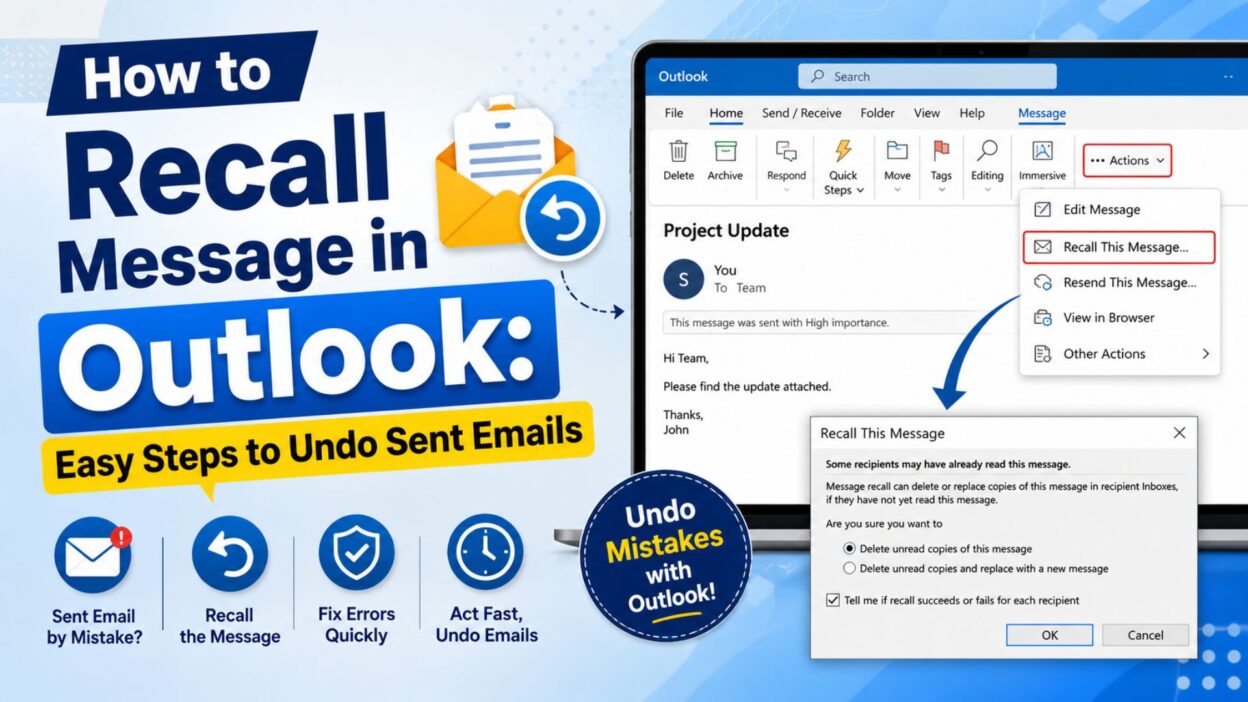
We’ve all had that sinking feeling. You click Send, and a second later you notice a typo, attach the wrong file, or even send the email to the wrong person. It’s a common mistake, but fortunately, Microsoft Outlook offers a feature that can help in certain situations.
If you’re wondering how to recall message in Outlook, you’re in the right place. The recall feature allows you to attempt to remove an email from the recipient’s inbox before they open it. While it doesn’t work in every situation, understanding how it works can save you from embarrassing mistakes and unnecessary follow-up emails.
In this guide, you’ll learn exactly how to recall an email in Outlook, when the feature works, why it sometimes fails, and what to do if the recall isn’t successful. Whether you’re using Outlook for work or personal communication, these simple steps will help you handle accidental emails with confidence.
Top Ways to Recall a Message in Outlook
Before trying advanced troubleshooting, start with these proven methods for recalling an email in Outlook.
- Open Outlook and go to your Sent Items folder.
- Double-click the email you want to recall.
- Select the Message tab.
- Click Actions or More Move Actions.
- Choose Recall This Message.
- Select Delete unread copies of this message.
- Or choose Delete unread copies and replace with a new message.
- Check the box to receive recall status notifications.
- Click OK to begin the recall process.
- Edit the replacement email if needed.
- Send the updated version immediately.
- Wait for Outlook to process the recall request.
- Check your inbox for recall success notifications.
- Confirm the recipient hasn’t already opened the email.
- Follow up manually if the recall fails.
Short How to Recall Message in Outlook Tips
These quick tips can improve your chances of a successful email recall.
- Act as quickly as possible.
- Recall works best before the email is opened.
- Use the Outlook desktop app.
- Keep Outlook updated.
- Double-check recipients before sending.
- Verify both users are on Microsoft Exchange.
- Use the same organization whenever possible.
- Read recall notifications carefully.
- Replace the email if corrections are needed.
- Test the feature before relying on it.
- Don’t assume every recall succeeds.
- Use clear subject lines.
- Avoid recalling emails repeatedly.
- Contact the recipient if necessary.
- Review the sent message before taking action.
- Save important drafts first.
- Enable Outlook updates.
- Check mailbox permissions.
- Stay connected to the internet.
- Be prepared with a follow-up email.
How to Recall a Message in Outlook Desktop
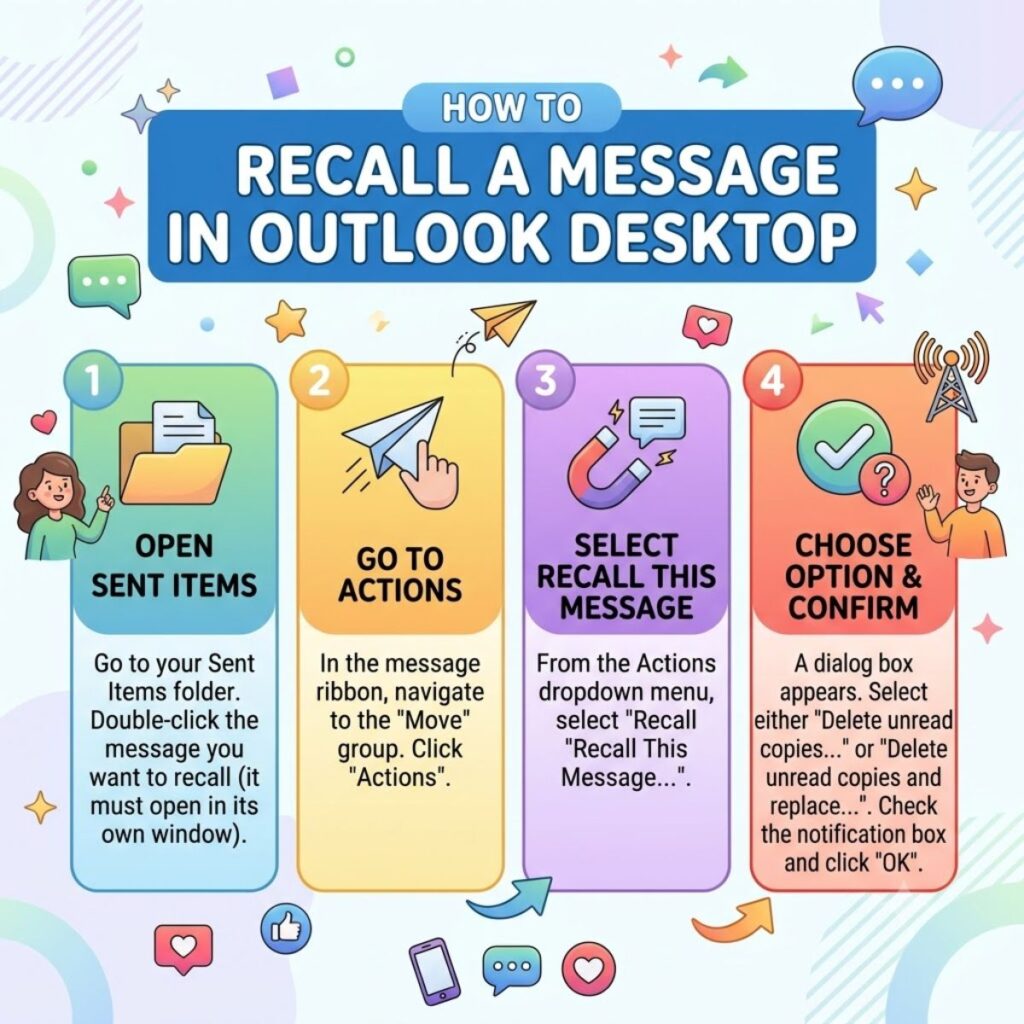
The recall feature is available only in certain versions of Outlook and works best within Microsoft Exchange or Microsoft 365 environments.
- Open Sent Items.
- Double-click the email.
- Select Message from the ribbon.
- Choose Actions.
- Click Recall This Message.
- Select your preferred recall option.
- Choose whether to receive status notifications.
- Confirm the recall request.
- Edit the replacement email if required.
- Send the corrected version.
- Monitor recall results.
- Follow up if Outlook reports failure.
- Verify recipient eligibility.
- Keep Outlook open during processing.
- Save confirmation emails for reference.
When Does Outlook Message Recall Work?
Knowing the requirements can prevent confusion and help you understand why a recall succeeds—or doesn’t.
- Both sender and recipient use Microsoft Exchange or Microsoft 365 in the same organization.
- The recipient hasn’t opened the original email.
- The email remains in the recipient’s Inbox.
- No rules have moved the message to another folder.
- The recipient uses Outlook as their email client.
- The mailbox is connected and active.
- The recall request reaches the server before the email is read.
- The recipient hasn’t disabled Outlook processing rules.
- Your Outlook profile is functioning correctly.
- The recall feature is supported by your organization’s settings.
- The message wasn’t sent to external email providers like Gmail.
- Both accounts have synchronized successfully.
- The original message still exists.
- Network connectivity is stable.
- Outlook can communicate with the Exchange server.
Why Outlook Message Recall Fails
Even if you follow every step correctly, Outlook message recall doesn’t always work. Understanding the most common reasons can save you time and help you choose the right solution.
- The recipient already opened the email.
- The message was sent to an external email address.
- The recipient doesn’t use Microsoft Outlook.
- You’re using a POP or IMAP email account.
- The email has already been moved from the Inbox.
- Outlook rules automatically sorted the message.
- Your organization has disabled message recall.
- The recipient is using Outlook on the web or another unsupported client.
- The recall request reached the recipient too late.
- There are synchronization delays with Exchange.
- Cached Exchange Mode caused a delay.
- The original email was permanently deleted.
- The recipient has multiple mail devices.
- A server issue interrupted the recall.
- Network connectivity affected the request.
Best Ways to Recall a Message in Outlook
If a recall is possible, these best practices can increase the chances of success.
- Recall the email immediately after sending.
- Replace the original email with a corrected version.
- Keep the subject line clear and relevant.
- Double-check attachments before resending.
- Read the recall status notifications carefully.
- Stay connected to the internet during the process.
- Avoid sending multiple recall requests.
- Verify the recipient is within your organization.
- Use the Outlook desktop application.
- Update Outlook to the latest version.
- Confirm your Microsoft Exchange account is active.
- Test the recall feature before using it for important emails.
- Follow up if the recall is unsuccessful.
- Save important communications for future reference.
- Review your email carefully before clicking Send.
One-Line Outlook Recall Tips
These quick reminders can help prevent email mistakes and improve recall success.
- Act fast after sending the email.
- Recall works only under specific conditions.
- Open the message from Sent Items.
- Use the Outlook desktop app.
- Replace the email if corrections are needed.
- Check recall notifications.
- Confirm the recipient uses Outlook.
- Verify Exchange compatibility.
- Don’t rely on recall for external emails.
- Review attachments before sending.
- Proofread every email.
- Use delayed delivery for important emails.
- Keep Outlook updated.
- Send a correction if recall fails.
- Stay professional in follow-up emails.
- Test recall in your workplace first.
- Save drafts for important messages.
- Verify recipients before sending.
- Learn Outlook’s recall limitations.
- Use “Undo Send” when available.
Best Messages for Captions

These caption-style lines are perfect for sharing Outlook tips on social media or your website.
- Sent an email by mistake? Outlook might help.
- Learn how to recall a message in Outlook in minutes.
- A simple guide to undoing sent emails.
- Save yourself from email mistakes with these tips.
- Outlook recall is easier than you think.
- Fix accidental emails before they’re read.
- Every Outlook user should know this feature.
- A quick solution for common email mistakes.
- Master Outlook’s recall feature today.
- Helpful email tips for work and everyday life.
- Don’t panic after clicking Send.
- Discover when Outlook recall actually works.
- Learn the limits of email recall.
- One guide that can save your workday.
- Avoid embarrassing email mistakes with confidence.
Copy-Paste Ready Follow-Up Messages
If message recall doesn’t work, sending a polite follow-up is often the best solution.
- “Please disregard my previous email. It included incorrect information. Here’s the updated version.”
- “I apologize for the earlier message. Please refer to this corrected email instead.”
- “The previous email was sent by mistake. Kindly ignore it and use the information below.”
- “Sorry for the confusion. I’ve attached the correct document in this email.”
- “Please accept my apologies for the earlier error. Thank you for your understanding.”
- “The attachment in my last email was incorrect. Please use the attached file instead.”
- “I noticed a mistake after sending my previous email. Here’s the corrected information.”
- “Kindly ignore my earlier email and refer to this updated message.”
- “Thank you for your patience. This email contains the correct details.”
- “I appreciate your understanding. Please disregard the previous version.”
Tips to Avoid Recalling Emails
The best recall is the one you never need. These habits can reduce sending mistakes.
- Proofread every email before sending.
- Confirm the recipient list carefully.
- Check every attachment twice.
- Use delayed delivery for important emails.
- Preview formatting before sending.
- Keep emails short and clear.
- Avoid sending messages in a hurry.
- Save drafts for later review.
- Double-check links and files.
- Pause before clicking Send.
Frequently Asked Questions
Can I recall an email in Outlook after it has been opened?
Usually, no. Once the recipient opens the email, Outlook message recall is unlikely to succeed. In that case, sending a corrected follow-up email is the best option.
Does Outlook message recall work for Gmail or Yahoo recipients?
No. The recall feature generally works only within Microsoft Exchange or Microsoft 365 environments in the same organization. It does not work for emails sent to Gmail, Yahoo Mail, or most other external providers.
How do I know if my Outlook message recall was successful?
If you selected the option to receive notifications, Outlook will send you a status message indicating whether the recall succeeded or failed for each recipient.
Can I replace an email instead of just recalling it?
Yes. Outlook allows you to delete unread copies of the original email and replace them with a corrected version, provided the recall requirements are met.
What should I do if Outlook message recall fails?
If the recall isn’t successful, send a polite correction email as soon as possible. Explain the mistake clearly, provide the correct information, and apologize if necessary.
Final Tips for Successful Outlook Message Recall
Before trying to recall an email, keep these best practices in mind.
- Recall the message immediately after sending.
- Confirm the recipient hasn’t opened the email.
- Use the Outlook desktop application.
- Verify both accounts use Microsoft Exchange or Microsoft 365.
- Enable recall status notifications.
- Send a corrected replacement email when needed.
- Review all attachments before resending.
- Follow up professionally if the recall fails.
- Keep Outlook updated.
- Proofread important emails before clicking Send.
These simple habits can reduce email mistakes and improve the chances of a successful recall.
Conclusion
Accidentally sending an email happens to everyone, whether it’s the wrong attachment, a typo, or an unintended recipient. Fortunately, learning how to recall message in Outlook gives you a chance to correct those mistakes before they create bigger problems. While Outlook’s recall feature isn’t guaranteed to work in every situation, understanding its requirements and limitations helps you use it more effectively.
If the recall doesn’t succeed, don’t worry. A prompt and professional follow-up email can often resolve the situation just as well. The most important thing is to act quickly, communicate clearly, and learn from the experience.
Save this guide for future reference so you’ll know exactly what to do the next time you need to recall a sent email. With the right approach, you can handle email mistakes confidently and keep your professional communication on track.

Awais Bilal is the author of Messagesfy, sharing simple and meaningful messages, quotes, and wishes to help people express their feelings easily.