Sending a message to the wrong person can create one of those instant “Oh no!” moments. Maybe you noticed a typo, shared something too quickly, or simply realized that the message was never meant to leave your phone. Thankfully, the unsend message iPhone feature gives you a short window to take it back.
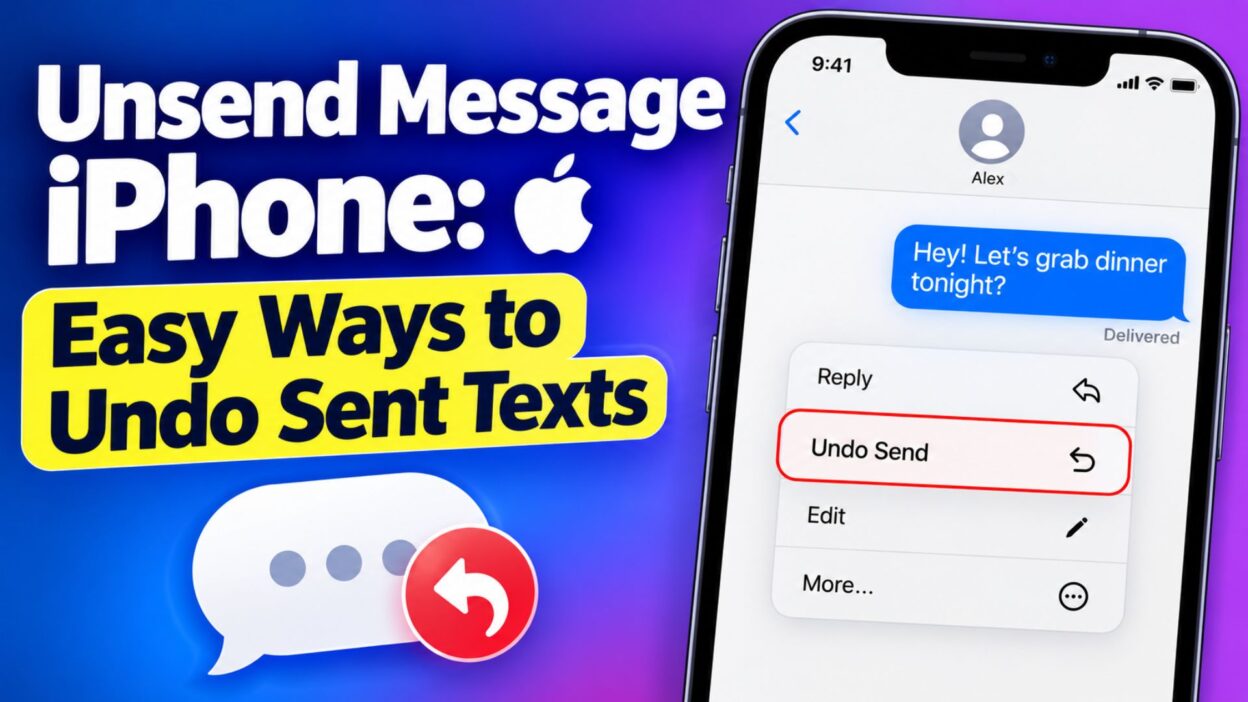
Apple introduced Undo Send for iMessage, allowing you to remove a recently sent message from the conversation. However, there are a few important limits to understand before relying on it. The feature works with iMessage and gives you only 2 minutes to unsend a message after sending it.
So, if you just sent something you regret, don’t panic. Open the conversation, act quickly, and use the Undo Send option. Below, you’ll find simple guidance and practical message ideas to help you understand what to do when a text goes out too soon.
Top Unsend Message iPhone Tips
These quick tips can help you understand when and how to use the iPhone’s Undo Send feature before the short time limit expires.
- Act quickly because you only have 2 minutes to unsend an iMessage.
- Open the same conversation where you sent the message.
- Touch and hold the message bubble you want to remove.
- Tap Undo Send when the option appears.
- The message will disappear from the conversation when the feature works successfully.
- A notice appears in the conversation showing that a message was unsent.
- Undo Send is designed for recently sent iMessages rather than ordinary SMS, MMS, or RCS messages.
- Both people in the conversation can see a notice that a message was unsent.
- Make sure you are using a compatible version of iOS and iMessage.
- If you wait longer than the available window, the Undo Send option will no longer be available.
- Unsend is different from simply deleting a message from your own iPhone.
- Deleting a message from your conversation does not automatically remove it from another person’s conversation.
- If you accidentally texted the wrong person, check the message immediately and use Undo Send if it is still available.
- If the message contains a simple typo, consider using Edit instead of removing the entire message.
- Apple allows recently sent iMessages to be edited up to five times within 15 minutes.
- Remember that unsending does not guarantee the recipient never saw the message.
- A recipient may have already read the message or seen its notification before you unsent it.
- The safest approach is to use Undo Send as soon as you realize a mistake.
- If you do not see Undo Send, check whether the message is actually an iMessage.
- Keep your iPhone updated so you can access the latest Messages features supported by your device.
- For sensitive messages, double-check the recipient before pressing Send in the future.
Short Unsend Message iPhone Messages
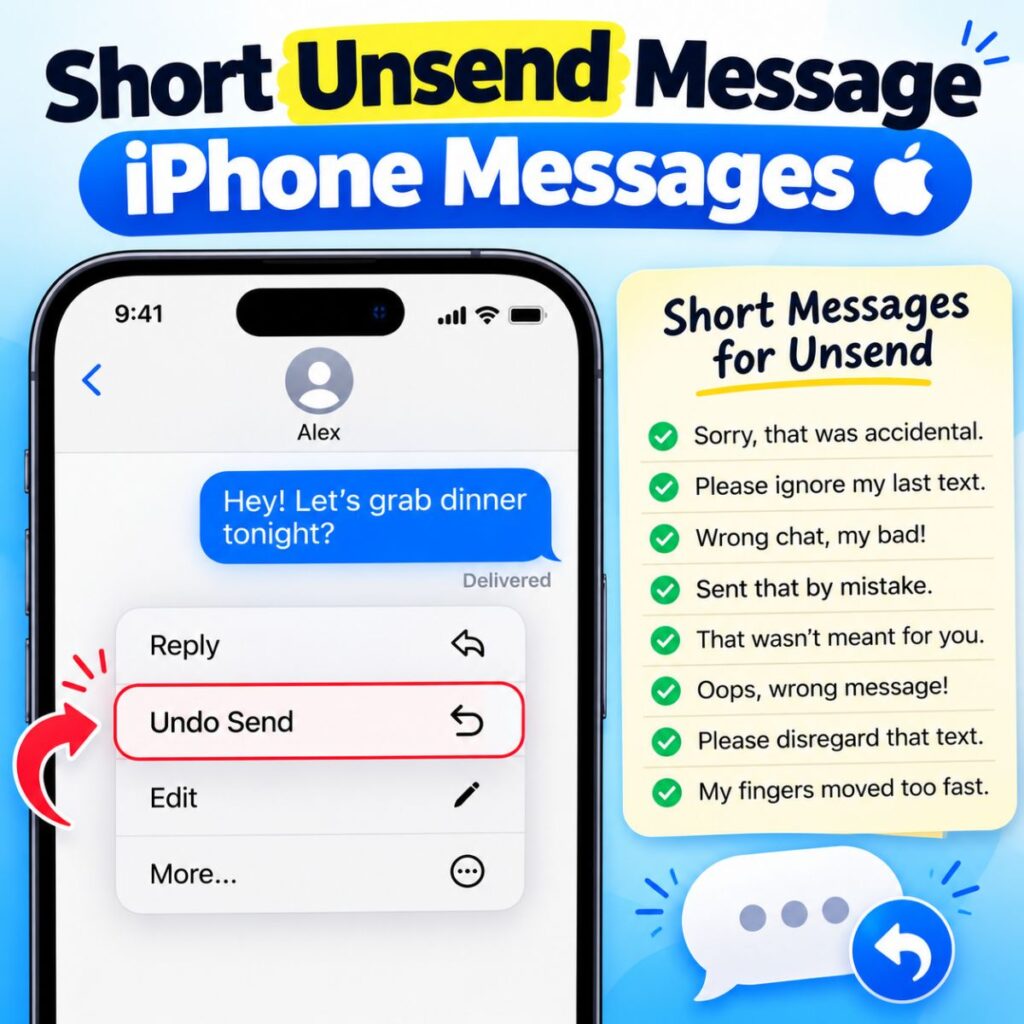
Sometimes you need a quick message to explain why you removed something. These short lines are useful when you want to keep the situation simple and natural.
- Sorry, that message was sent by mistake.
- I sent that to the wrong person.
- Please ignore my previous message.
- Wrong chat—sorry about that!
- I meant to send that somewhere else.
- Oops, that wasn’t meant for you.
- Please disregard the message I just sent.
- Sorry, accidental send.
- That message was not intended for this conversation.
- My mistake—please ignore it.
- Wrong person, sorry!
- I caught my mistake a little too late.
- Please ignore the last message.
- That was meant for another chat.
- Sorry about that accidental message.
- I didn’t mean to send that yet.
- Let’s pretend that message never happened.
- My fingers moved faster than my brain.
- Sorry, I sent that too quickly.
- That was definitely an accidental send.
- Wrong conversation—my bad!
- I’ll resend the correct message.
- Please ignore what I just sent.
- Sorry for the confusion.
- That message was sent accidentally.
Best Unsend Message iPhone Messages for Sharing
If you want to explain an unsent message without making the situation awkward, choose something honest and relaxed. A simple explanation usually works better than a long excuse.
- I accidentally sent that before I was ready.
- Sorry, I realized that message wasn’t meant for this chat.
- I noticed a mistake and decided to remove it.
- That message went out before I could check it properly.
- Sorry about that—I sent the wrong version.
- I meant to edit it before sending, but it slipped through.
- That was meant for someone else. My mistake!
- I caught the error and fixed it before sending again.
- Sorry for the random message earlier.
- I accidentally tapped send. Please ignore it.
- That message definitely wasn’t ready for an audience.
- I sent that too quickly without checking the recipient.
- Sorry, I was trying to send something different.
- My mistake. I’ll send the correct message shortly.
- That was an accidental message, nothing to worry about.
- I realized immediately that I had sent the wrong text.
- Sorry for the confusion—wrong conversation.
- I removed it because I noticed a mistake.
- That message was supposed to stay in my drafts.
- Apparently, my phone decided it was time to send it.
- I should have checked the chat before pressing Send.
- Sorry, that was not intended for you.
- I made a quick messaging mistake.
- Please ignore the earlier text; I’ll explain properly.
- Wrong message, right person—just sent it too soon.
One-Line Unsend Message iPhone Messages
These short messages are perfect when you want to explain an accidental text without turning it into a big conversation.
- Wrong message, please ignore.
- Oops, wrong chat!
- Sorry, that was accidental.
- Please ignore my last text.
- Sent that by mistake.
- Wrong person, my bad.
- That wasn’t meant for you.
- I sent that too soon.
- Sorry, accidental message.
- Pretend you didn’t see that.
- Wrong conversation—sorry!
- I meant to send something else.
- That message was a mistake.
- Please disregard that text.
- My bad, wrong message.
- I caught my mistake.
- Sorry about that!
- That was definitely accidental.
- Ignore the previous message.
- I sent the wrong text.
- Sorry, that wasn’t ready.
- Wrong chat, right phone.
- I didn’t mean to send that.
- Please forget that message.
- My fingers betrayed me.
- Sent too early—sorry!
- That was not intentional.
- Let’s pretend that never happened.
- Sorry for the confusion.
- I’ll send the correct one.
- Accidental send—my mistake.
- That message was meant elsewhere.
- Ignore that one, please.
- I pressed send too quickly.
- Sorry, wrong conversation.
- That wasn’t the message I meant.
- Mistake on my end.
- Please disregard it.
- I sent that accidentally.
- Let’s start that message again.
How to Unsend a Message on iPhone
If you have just sent an iMessage and immediately regret it, the process is quick. The important thing is to act before the available Undo Send window closes.
- Open the Messages app on your iPhone.
- Open the conversation containing the message.
- Find the message you want to remove.
- Touch and hold the message bubble.
- Look for the Undo Send option.
- Tap Undo Send.
- The message will be removed from the conversation.
- A notification will indicate that the message was unsent.
- Remember that the feature is intended for supported iMessage conversations.
- If the option is unavailable, the message may no longer be eligible for unsending.
Apple currently gives users up to 2 minutes to unsend a recently sent iMessage. After that period, the Undo Send option is no longer available for that message.
It is also important to understand the difference between unsending and deleting. When you delete a message, you are generally removing it from your own conversation view. Undo Send, when available, is designed to remove a recently sent iMessage from the conversation for everyone involved.
However, unsending is not a time machine. If someone already read the message, saw it in a notification, or otherwise viewed its contents before you removed it, you cannot make that memory disappear.
When Should You Unsend a Message?
Not every message needs to be unsent. Sometimes editing or sending a quick correction is easier. However, certain situations make Undo Send particularly useful.
- You sent the message to the wrong person.
- You accidentally shared private information.
- You noticed a serious typo immediately.
- You sent an unfinished message.
- You accidentally sent a personal conversation to a work contact.
- You sent a message before checking the recipient.
- You changed your mind immediately after sending.
- You accidentally sent the wrong photo or attachment.
- You sent a draft that was not ready.
- You pressed Send while still writing.
- You sent information that contained an obvious mistake.
- You accidentally pasted the wrong text.
- You sent a message intended for a different group.
- You noticed that the message could be misunderstood.
- You want to replace an incomplete message with a clearer version.
When the mistake is minor, Edit may be a better choice. For example, if you wrote “I’ll meat you at 7” instead of “I’ll meet you at 7,” correcting the typo can be more natural than removing the entire message.
Best Messages for Captions
If you are creating a social media post about accidental texting, these caption ideas can add a little humor and personality.
- When you hit Send before your brain catches up. 😅
- That awkward moment when the wrong message leaves your phone.
- One tiny tap can create a whole story.
- Sent it. Regretted it. Unsent it.
- The Undo Send button deserves an award.
- Sometimes your phone needs a rewind button.
- Me pretending that accidental message never happened.
- When “Oops” becomes your entire personality.
- Wrong chat, wrong moment, instant panic.
- Thank goodness for Undo Send.
- That message had a very short career.
- Some texts are better left unsent.
- My phone and I clearly need to communicate better.
- Sent with confidence, unsent with panic.
- One accidental tap and suddenly everything feels dramatic.
- The message disappeared, but the embarrassment stayed.
- When autocorrect is not the problem—the Send button is.
- A reminder to check the recipient twice.
- Sometimes deleting the evidence feels necessary.
- Today’s lesson: slow down before pressing Send.
- That awkward text that almost became a permanent memory.
- The fastest way to regret a message? Send it too soon.
- Mistakes happen. Luckily, some texts can be undone.
- One message, one mistake, one quick rescue.
- If only every mistake had an Undo button.
Copy-Paste Ready Messages
These messages are written so you can quickly copy them after accidentally sending something. They keep the explanation natural without making the situation more uncomfortable.
- Sorry, I accidentally sent that message before I finished writing it. Please ignore it.
- That message was sent by mistake. I was trying to send something else.
- Sorry about the earlier message. It went to the wrong conversation.
- I noticed an error in my message and decided to remove it. I’ll send the correct version.
- Please ignore my previous text. I sent it before I had a chance to check it.
- Sorry, that message wasn’t intended for you. My mistake!
- I accidentally pressed Send, so please disregard the message I just removed.
- That was meant for another chat. Sorry for the confusion!
- I sent that too quickly without checking the recipient. My apologies.
- Sorry about that random message. It was completely accidental.
- I realized immediately that I had sent the wrong message. Please ignore it.
- That text wasn’t ready to be sent yet. Sorry about the accidental message.
- My mistake—I meant to send a different message.
- Please disregard the previous message. I’ll send the correct information shortly.
- Sorry, I was switching between conversations and sent that to the wrong person.
- I caught the mistake right after sending it. Sorry about that!
- That message was accidental, so I removed it. Please ignore it.
- I didn’t mean to send that message yet. I’ll send the finished version soon.
- Sorry for the confusion. I accidentally sent an unfinished message.
- Wrong chat! Please ignore the message I just sent.
Unsend vs. Delete: What’s the Difference?
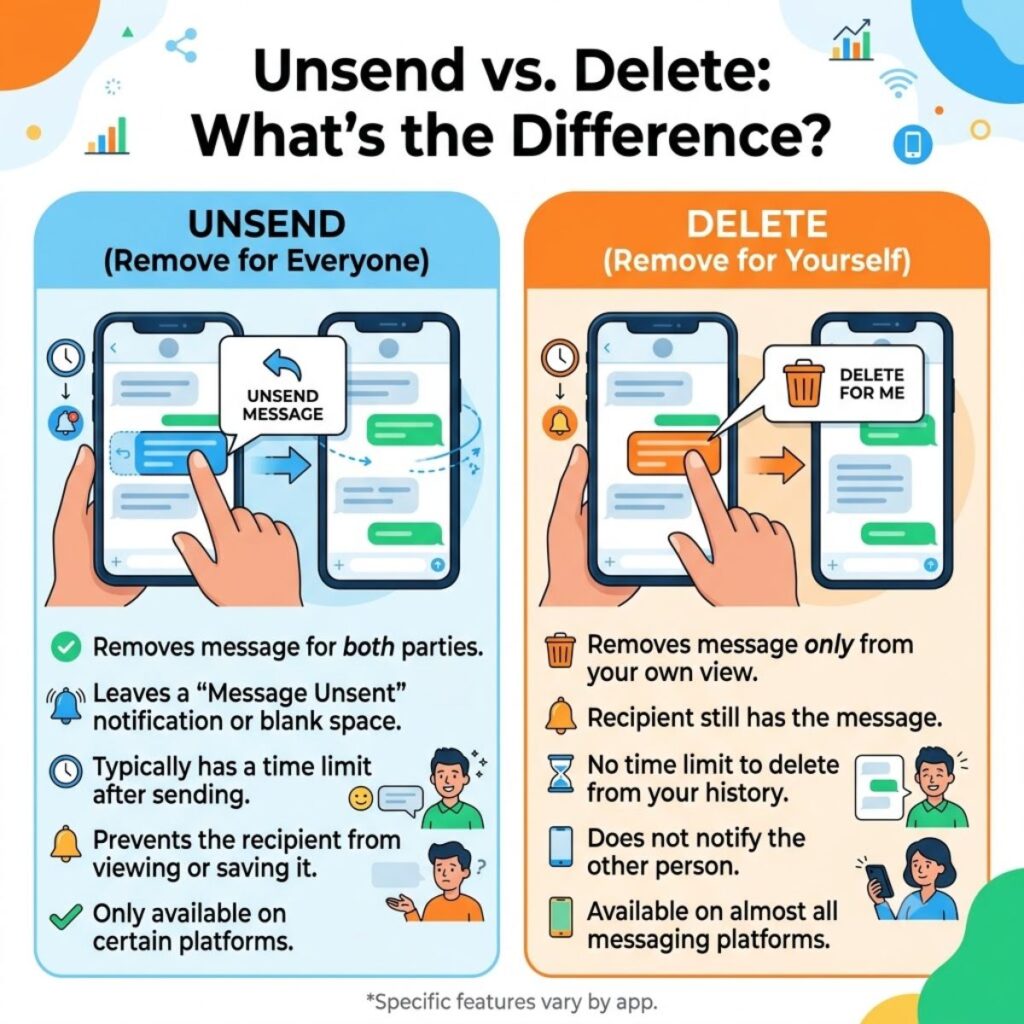
Understanding this difference can save you from assuming that deleting a message has removed it from someone else’s phone.
- Undo Send is designed to retract a recently sent supported iMessage.
- Delete removes a message from your Messages experience, but it does not work the same way as unsending.
- Undo Send has a short time limit.
- Deleting does not give you the same ability to retract a message from another person’s conversation.
- If you want to retract an eligible iMessage, use Undo Send as soon as possible.
- If you simply want to clean up your own conversation, deleting may be sufficient.
- If you made a small spelling mistake, Edit may be the easiest solution.
The key takeaway is simple: if you want to unsend an iMessage, do it quickly. Waiting can mean losing the option entirely.
A Few Things to Remember
Before relying on the iPhone’s Undo Send feature, keep these practical points in mind.
- Do not assume every text message can be unsent.
- Check whether you are using iMessage.
- Act quickly after making a mistake.
- Remember that the recipient may have already seen the message.
- Do not use Undo Send as a guarantee that nobody saw your text.
- Use Edit when a simple correction is enough.
- Double-check sensitive messages before sending them.
- Always verify the recipient when sharing personal information.
- Keep your iPhone software updated for supported Messages features.
- If Undo Send is missing, check whether the message is still within the allowed time window.
A quick reaction can make a big difference when a message goes to the wrong person. But even when you cannot unsend it, a simple and honest follow-up can often make an awkward situation feel much smaller.
Unsend Message iPhone: Final Tips, FAQ & Guide
Sometimes, the most stressful part of sending a message is realizing your mistake a second too late. Fortunately, the unsend message iPhone feature can help you pull back an eligible iMessage before the situation gets worse.
Apple currently allows you to unsend a recently sent iMessage for up to 2 minutes. You simply touch and hold the message and select Undo Send. However, the feature requires compatible Apple software and iMessage. SMS, MMS, and RCS messages cannot be unsent using this feature.
It is also worth remembering that unsending does not erase the fact that someone may have already seen the message. If the recipient was looking at the conversation or saw a notification before you removed it, they may already know what you sent.
The good news is that most accidental texts are easier to handle than they first seem. Act quickly, keep your explanation simple, and avoid making a small mistake feel bigger than it really is.
What Happens After You Unsend a Message?
Knowing what happens after tapping Undo Send can make the feature much less confusing.
- The selected eligible iMessage disappears from the conversation.
- A notice appears indicating that a message was unsent.
- The recipient also sees an indication that a message was unsent.
- You cannot unsend a message after the 2-minute window has passed.
- SMS, MMS, and RCS messages cannot be unsent through this feature.
- If the recipient is using an older Apple operating system, they may still be able to see the original message.
- Unsending does not guarantee that the recipient never saw the original message.
- If privacy matters, remember that a message may have been viewed before you removed it.
- The feature works best when you notice your mistake immediately.
- If you only need to correct a typo, editing may be more appropriate.
What If Undo Send Is Missing?
It can be frustrating when you touch and hold a message but do not see Undo Send. Usually, there is a straightforward reason.
- The message may be older than 2 minutes.
- The message may have been sent as SMS, MMS, or RCS instead of iMessage.
- Your conversation may not be using iMessage.
- The recipient may be using an incompatible or older Apple software version.
- Your iPhone may not support the required software version.
- The message may no longer qualify for the Undo Send feature.
- You may be trying to delete the message rather than unsend it.
- Your iMessage settings may need to be checked.
- Updating your Apple software can help ensure you have supported Messages features.
- If the message is outside the allowed period, there is no way to bring back the Undo Send option for that message.
Apple says unsending requires iMessage with compatible software, including iOS 16 or later on iPhone. Apple also notes that recipients using older software may still see the original message.
Unsend vs. Edit a Message on iPhone
Sometimes you do not need to completely remove a message. If the problem is just a typo or small mistake, Edit can be a better option.
- Use Undo Send when you want to pull back a recently sent eligible iMessage.
- Use Edit when the message is basically correct but needs a change.
- You can edit a recently sent iMessage up to five times within 15 minutes.
- Edited messages are marked as edited in the conversation.
- Recipients can see the edit history on supported software.
- Undo Send has a shorter 2-minute window.
- Edit gives you more time to fix wording or spelling.
- Neither feature works like a universal recall system for every type of text message.
- SMS, MMS, and RCS messages cannot be unsent using Apple’s Undo Send feature.
For example, if you accidentally write “I’ll meet you their” instead of “I’ll meet you there,” editing makes more sense. But if you sent a private message to the wrong person, Undo Send may be the better choice if it is still available.
FAQ About Unsend Message iPhone
Can I unsend a message on iPhone?
Yes. You can unsend a recently sent iMessage by opening the conversation, touching and holding the message, and selecting Undo Send. Apple currently allows this for up to 2 minutes after sending.
How long do I have to unsend an iMessage?
You have 2 minutes from the time you send the message. After that, the Undo Send option is no longer available for that message.
Can I unsend a regular text message?
No. Apple’s Undo Send feature does not work with SMS, MMS, or RCS messages. It is designed for supported iMessage conversations.
Will someone know that I unsent a message?
Yes. A notice appears in the conversation showing that a message was unsent. The recipient may also have already seen the original message before you removed it.
Can I unsend a message after 2 minutes?
No. Once the 2-minute window has passed, Apple’s Undo Send option is no longer available for that message. If it is a minor mistake, you may still be able to edit it within Apple’s editing window if the message qualifies.
Final Thoughts on Unsend Message iPhone
A message can take only a second to send, but realizing you made a mistake can leave you worried for much longer. Thankfully, the unsend message iPhone feature gives you a useful second chance when you act quickly.
The most important thing to remember is simple: Undo Send is available for eligible iMessages for up to 2 minutes. Touch and hold the message, choose Undo Send, and check that the message has been removed. Keep in mind that the recipient may have already seen it, and older software can affect how unsending works.
If your mistake is only a spelling error, use Edit instead. If you sent something to the wrong person, act immediately. And if the message cannot be unsent, do not panic. A short, honest explanation is often enough.
Most texting mistakes are not as disastrous as they feel in the moment. Check twice, send carefully, and when needed, use Undo Send quickly.

Awais Bilal is the author of Messagesfy, sharing simple and meaningful messages, quotes, and wishes to help people express their feelings easily.