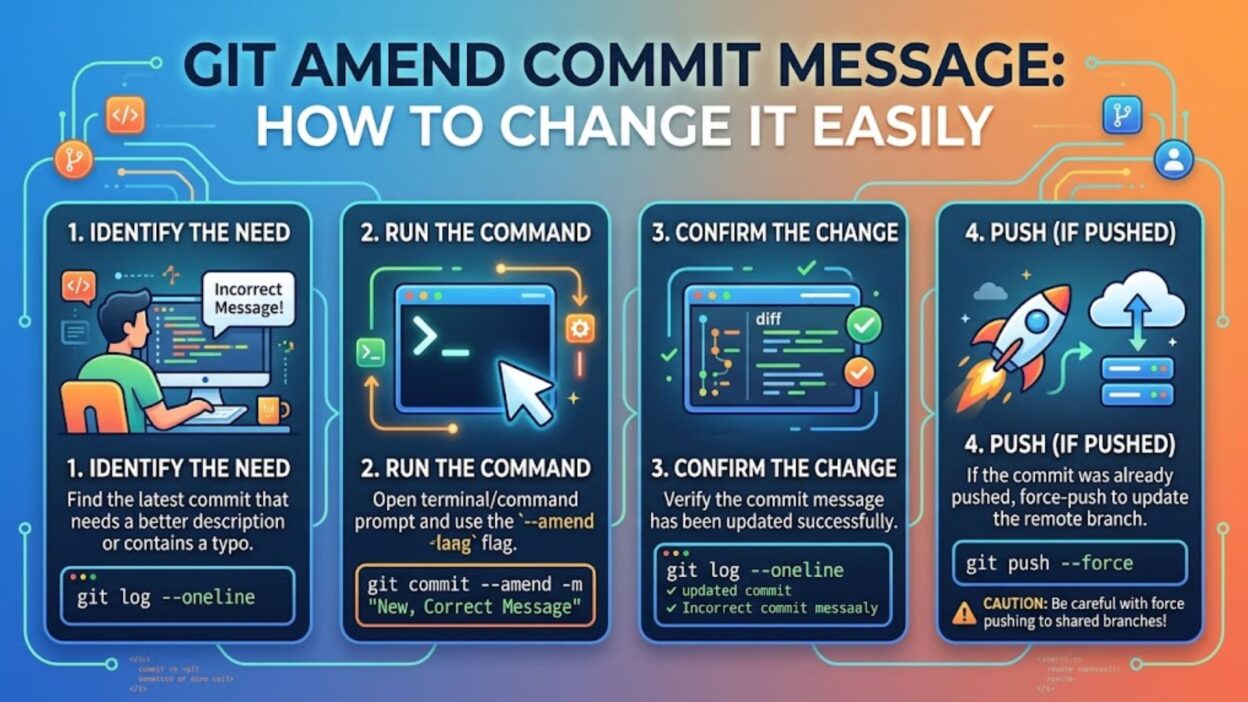
Made a typo in your latest Git commit message? Or perhaps the message no longer describes the changes clearly. Fortunately, you usually do not need to create another commit just to fix the wording.
The git amend commit message process is straightforward when you want to edit the most recent commit. Git provides the –amend option specifically for modifying the latest commit, including its message and, when needed, its content.
This guide explains the main commands, shows practical examples, and covers what changes when you have already pushed the commit to a remote repository. It also explains how to handle older commit messages, so you can choose the right approach instead of changing your Git history blindly.
What Does Git Amend Commit Message Mean?
When developers search for git amend commit message, they usually want to change the message attached to their most recent commit without creating a new commit.
Git treats a commit as a snapshot with information such as the author, timestamp, parent commit, and commit message. When you amend the latest commit, Git creates a replacement commit rather than editing the existing object in place.
For example, suppose your latest commit says:
git commit -m “Fix login bug”
You later notice that the message should say:
Fix login validation bug
Instead of adding another commit called “Update commit message,” you can amend the latest one.
How to Change the Latest Commit Message
The simplest command is:
git commit –amend -m “Fix login validation bug”
This command replaces the latest commit with a new commit that uses your new message. Your working files do not need additional changes if you only want to correct the wording.
Change Only the Message
If you have already committed the correct files and only need to fix the message, this command works well:
git commit –amend -m “Add user authentication”
Git keeps the committed changes while applying the new message.
Alternatively, you can open your configured editor:
git commit –amend
Git then opens the current commit message. Edit the text, save the file, and close the editor to create the amended commit.
Why Use –amend?
The –amend option helps keep your history clean. Instead of creating a second commit that only explains a correction, you can fix the latest commit directly.
For example, this history can become unnecessarily cluttered:
Add login feature Fix commit message
With an amendment, you can keep a single, clearer commit:
Add login feature
That approach makes sense when the original commit has not become an important shared part of your team’s history.
Amend the Commit Message Without Changing Files
A common concern involves accidentally adding new changes while fixing the message. If your working directory contains unrelated modifications, you should take care before running an amend command.
The basic command:
git commit –amend -m “Better commit message”
updates the latest commit. However, Git also considers staged changes when it creates the amended commit.
Check Your Staged Changes First
Before amending, run:
git status
This shows which files Git has staged or left unstaged.
If you only want to change the message, make sure you have not staged unrelated changes. Otherwise, Git may include those staged changes in the amended commit.
You can also inspect the latest commit with:
git show –stat
That gives you a quick view of the files associated with the commit.
Example: Correcting a Typo
Imagine your history currently contains:
Update user profile settngs
The word “settings” contains a typo. You can fix it with:
git commit –amend -m “Update user profile settings”
Afterward, check the result:
git log -1
You should see the corrected commit message.
For a more detailed view, use:
git show –stat HEAD
This lets you verify the amended commit and its affected files.
Amend the Latest Commit With an Editor
Some developers prefer an editor because longer commit messages often need more than one line.
Run:
git commit –amend
Git opens the commit message in your configured editor. You can then modify the subject, body, or both.
For example:
Improve profile validation Add validation for missing profile fields and return clearer error messages.
This method works particularly well when you want to improve the explanation rather than make a quick typo correction.
What Happens to the Commit ID?
Amending a commit changes its contents or metadata, so Git generates a new commit ID.
That detail matters because the amended commit is not the same Git object as the original one. Even if you only change one word in the message, the commit hash can change.
Therefore, avoid treating an amended commit as unchanged history when other people may already have based their work on it.
Local Commits Are Usually Simple
If you have not pushed the commit yet, amending it usually requires little extra work. You can change the message, inspect the result, and continue working.
For example:
git commit –amend -m “Improve password validation” git log -1 –oneline
The second command confirms the latest commit message and its new short hash.
What If You Already Pushed the Commit?
This situation requires more care.
Suppose you already ran:
git push
and then amend the commit locally. Your local branch and remote branch will now have different commit histories.
A normal push may fail because Git sees the amended commit as different from the remote version.
You may need:
git push –force-with-lease
The –force-with-lease option provides a safer form of force pushing because Git checks that the remote branch still matches the expected state before replacing it.
Why Force Pushing Can Be Risky
Force pushing rewrites the remote branch history. If teammates have already pulled the original commit, your change can create confusion or require them to reconcile their local history.
For that reason, avoid rewriting shared history unless you understand the consequences and your team agrees with the workflow.
For a private branch or a commit that nobody else has pulled, amending followed by git push –force-with-lease can make sense.
Quick Command Reference
Here are the most useful commands from this section:
# Change the latest commit message git commit –amend -m “New commit message” # Open the editor and change the message git commit –amend # Check your working tree git status # View the latest commit git log -1 # View the latest commit with changed files git show –stat HEAD # Safely force-push an amended shared branch when appropriate git push –force-with-lease
The key idea is simple: use git commit –amend when you need to replace the message of your latest commit. Before you continue, check whether the commit remains local or already exists on a shared remote branch.
How to Amend a Commit Message in Git
Once you understand the basic git commit –amend command, the next step is knowing which situation you actually have. The command works best for the latest commit, while older commits require a different approach.
Before changing history, check your branch and recent commits. A quick git log –oneline can show you exactly where the commit sits in your history.
View Recent Commit Messages
Run:
git log –oneline –decorate -5
You might see:
8fd21ab Add payment validation 31c8e90 Update checkout page 5ac72d1 Create checkout form
If 8fd21ab is your latest commit, git commit –amend can change its message directly.
However, if you need to rename 31c8e90, Git needs an interactive rebase because that commit is no longer the current HEAD.
How to Amend an Older Commit Message
You cannot normally use git commit –amend to edit an older commit. Instead, use interactive rebase.
For example, if you want to change a commit within your last three commits, run:
git rebase -i HEAD~3
Git opens a list similar to:
pick 8fd21ab Add payment validation pick 31c8e90 Update checkout page pick 5ac72d1 Create checkout form
Find the commit whose message you want to change. Then replace pick with reword:
pick 8fd21ab Add payment validation reword 31c8e90 Update checkout page pick 5ac72d1 Create checkout form
Save and close the editor. Git will then pause at the selected commit and ask you to edit its message.
Using reword
The reword command tells Git that you want to keep the commit’s changes but modify its message.
When Git opens the message, replace:
Update checkout page
with something clearer, such as:
Improve checkout page layout
Save the message and let the rebase finish.
You can check the result with:
git log –oneline -3
Amend an Older Commit With edit
Interactive rebase also supports edit, although it does more than reword.
For example:
git rebase -i HEAD~4
Then change the target line:
pick 7ab12cd Add product model edit 31c8e90 Update checkout page pick 8fd21ab Add payment validation pick 4ce21aa Add checkout tests
Git stops at that commit. At this point, run:
git commit –amend -m “Improve checkout page layout”
Then continue the rebase:
git rebase –continue
For a message-only change, reword usually feels simpler. Use edit when you also need to modify the commit itself.
What If You Make a Mistake During Rebase?
Do not panic if an interactive rebase does not go as expected. Git provides commands that help you inspect or cancel the operation.
If you want to stop the current rebase and return to the previous state, run:
git rebase –abort
Git will cancel the rebase and restore the branch to its earlier state.
If Git reports a conflict, resolve the affected files first. Then stage the resolved files:
git add .
Afterward, continue:
git rebase –continue
Check the Rebase Status
When you are unsure about what Git expects next, run:
git status
Git usually tells you whether the rebase is waiting for a conflict resolution, a commit message, or another command.
Changing the Latest Commit Message From Your Editor
Some developers prefer not to place the new message directly in the command. In that case, use:
git commit –amend
Your configured Git editor opens with the current message.
This method helps when you want to write a detailed commit body, for example:
Improve checkout validation Validate missing billing information before submission. Show clearer feedback when required fields remain empty.
A descriptive message can make future debugging and code reviews easier.
Amend the Message While Keeping the Current Commit Content
Suppose you staged a commit and then noticed that its message needs improvement. If you do not have additional changes to include, use:
git commit –amend –no-edit
The –no-edit option keeps the existing commit message. Developers commonly use this option when they want to amend the commit’s content rather than rewrite its message.
For example:
git add login.js git commit –amend –no-edit
This adds the staged login.js change to the latest commit while keeping its current message.
–no-edit vs -m
The two options serve different purposes:
git commit –amend –no-edit
Keeps the current message.
Meanwhile:
git commit –amend -m “Improve login validation”
Replaces the current message with the text you provide.
Therefore, choose –no-edit when the message already works and -m when you want to rewrite it.
Can You Amend an Empty Commit?
Yes. Git can create commits without file changes when you intentionally use the empty-commit option.
For example:
git commit –allow-empty -m “Start deployment marker”
If you later want to change that message, you can use:
git commit –amend -m “Add deployment marker”
The command changes the latest commit’s message while keeping the commit itself empty.
Git Amend Commit Message in a Practical Workflow
Imagine you finish a feature and run:
git add . git commit -m “add feature”
After reviewing the history, you decide that the message lacks useful detail.
Instead of creating another commit, run:
git commit –amend -m “Add customer profile validation”
Then inspect your history:
git log -1 –oneline
If everything looks correct, continue your normal workflow.
A Good Commit Message
A useful commit message tells another developer what changed without forcing them to inspect the entire diff.
Compare:
fix stuff
with:
Fix missing validation in customer profile form
The second version gives future readers much more context. Therefore, amending a vague message can improve the usefulness of your project’s history.
Common Mistakes to Avoid
Changing a commit message looks simple, but a few mistakes can cause unnecessary trouble.
Amending the Wrong Commit
Always inspect your recent history before changing anything:
git log –oneline -5
This prevents you from assuming that the commit you want sits at HEAD.
Accidentally Including Staged Changes
If you only want to change the message, check:
git status
before running the amend command. Staged changes can become part of the amended commit.
Force Pushing Without Checking
After amending a pushed commit, avoid immediately using a blind force push. First consider whether another person has updated the remote branch.
When you genuinely need to rewrite the remote history, prefer:
git push –force-with-lease
rather than:
git push –force
The former adds a useful safety check.
Git Amend Commit Message: Which Command Should You Use?
Your situation determines the right command:
SituationCommandChange latest commit messagegit commit –amend -m “New message”Edit latest message in editorgit commit –amendKeep latest message while adding staged changesgit commit –amend –no-editChange an older commit messagegit rebase -i HEAD~NRename a commit during rebaseChange pick to rewordStop an unwanted rebasegit rebase –abortContinue after resolving a rebase issuegit rebase –continueUpdate a remote branch after rewriting historygit push –force-with-lease
The important distinction is whether you are changing HEAD or an earlier commit. Once you identify that difference, Git’s workflow becomes much easier to follow.
Why Commit History Matters
A clean commit history helps teams understand how a project developed. Clear messages can make code reviews easier and give future developers useful context when they investigate changes.
However, history rewriting deserves more caution on shared branches. A local typo usually creates little risk, while changing a commit that teammates already pulled can affect their work.
Therefore, use git amend commit message techniques freely on your own unpublished work, but think carefully before rewriting commits that other developers already use.
Best Practices for Git Amend Commit Message
Amending a commit message works well when you catch a mistake quickly. However, good Git habits can prevent many message corrections in the first place.
Before committing, write a message that briefly explains the change. A clear subject line makes the history easier to scan, while a longer body can provide context when the change needs more explanation.
Keep Commit Messages Specific
Avoid vague messages such as:
git commit -m “changes”
Instead, describe the actual work:
git commit -m “Add password reset validation”
A specific message tells future readers what the commit accomplished. Therefore, they can understand the history without opening every changed file.
Fix Mistakes Early
If you notice a typo immediately after committing, amend it before pushing:
git commit –amend -m “Add password reset validation”
This keeps your local history tidy. Moreover, you avoid rewriting a remote branch later.
How to Verify an Amended Commit
After changing a commit message, always check the result. The quickest option is:
git log -1 –oneline
You should see the new message alongside the updated commit hash.
For more information, run:
git show –stat HEAD
This command lets you inspect the latest commit and its file summary.
Compare the Commit Before Pushing
If you amended a commit that already existed on a remote branch, take extra care. Check your branch status first:
git status
Then inspect the recent history:
git log –oneline –decorate -5
These checks can help you confirm that Git shows the history you actually expect.
Git Amend Commit Message After a Push
Changing a message after pushing requires special attention because the amended commit receives a new hash.
Suppose the remote branch contains:
a91f302 Add profile page
You amend the message locally:
git commit –amend -m “Add customer profile page”
Git now creates a different commit ID. Your local branch no longer matches the remote history.
If you control the branch and rewriting it makes sense, you can update the remote with:
git push –force-with-lease
Why –force-with-lease Is Better
A regular force push can overwrite remote work without checking whether someone else changed the branch.
By contrast, –force-with-lease asks Git to verify the remote state before replacing it. That extra check reduces the chance of accidentally overwriting someone else’s newer work.
Still, it does not make history rewriting risk-free. Shared branches deserve careful coordination.
When You Should Not Amend a Commit
Amending is not always the right solution. If teammates have already built work on top of your commit, changing that commit can make their local histories diverge.
In that situation, creating a new commit may cause less disruption:
git commit -m “Clarify previous commit details”
For a shared branch, follow your team’s Git workflow rather than rewriting history simply to make the log look cleaner.
Private Branch vs Shared Branch
A private feature branch gives you more freedom to amend commits. You can clean up messages before opening a pull request or merging the work.
A shared branch requires more caution. Once several developers depend on the same history, rewriting commits can create unnecessary conflicts.
Git Amend Commit Message With Interactive Rebase
When the message belongs to an older commit, interactive rebase remains the common solution.
Start by choosing how many recent commits Git should include:
git rebase -i HEAD~5
Git opens the selected history. Find the commit you want to rename and replace pick with reword.
For example:
pick 91ab321 Add product search reword 7bc8214 Update search filters pick 42dd912 Add search tests pick 1c7f8aa Improve search results pick 53a1d20 Update documentation
After you save the file, Git asks you to provide the new message.
Rebase More Than One Message
You can mark multiple commits with reword if several messages need improvement:
reword 91ab321 Add product search reword 7bc8214 Update search filters pick 42dd912 Add search tests reword 1c7f8aa Improve search results pick 53a1d20 Update documentation
Git processes each selected commit in sequence. Therefore, you can clean up several messages in one rebase instead of handling them separately.
Common Git Amend Questions
Does git commit –amend create a new commit?
Yes. Git replaces the latest commit with a new commit object. As a result, the commit hash normally changes even if you only modify the message.
Can I amend the latest commit without changing its files?
Yes. If your working tree has no staged changes, you can change only the message with:
git commit –amend -m “Updated commit message”
Before running it, check git status if you have other work in progress.
How do I change an older commit message?
Use interactive rebase:
git rebase -i HEAD~N
Replace pick with reword for the commit you want to rename. Git then gives you an opportunity to enter the new message.
Can I amend a commit after pushing it?
Yes, but amending changes the commit hash. If you need to update the remote branch afterward, you may need git push –force-with-lease.
What happens if I amend the wrong commit?
If you catch the mistake immediately, inspect your Git history and current state before taking further action. During an interactive rebase, git rebase –abort can cancel the operation and return the branch to its earlier state.
Quick Git Amend Cheat Sheet
Keep these commands handy when working with commit messages:
# View recent commits git log –oneline -5 # Check your working tree git status # Change the latest commit message git commit –amend -m “New commit message” # Open the editor for the latest message git commit –amend # Keep the current message while amending commit content git commit –amend –no-edit # Change an older commit message git rebase -i HEAD~N # Cancel an interactive rebase git rebase –abort # Continue a rebase git rebase –continue # Update a rewritten remote branch git push –force-with-lease
Final Tips for Better Git History
A useful commit history does not require every message to sound perfect. Instead, aim for messages that clearly communicate what changed and why the change matters.
If you catch a typo in your latest local commit, git commit –amend -m “New message” usually solves the problem in seconds. For older commits, interactive rebase gives you more control.
However, always consider whether the commit already exists on a shared remote. Local cleanup is simple, while rewriting shared history can affect other developers.
The safest habit is straightforward: check your status, identify the correct commit, amend only when appropriate, and verify the result afterward.
Conclusion
Learning how to use git amend commit message can make everyday Git work much cleaner. For the latest commit, git commit –amend provides a quick way to correct a typo, improve a vague message, or update the commit while keeping your history concise.
For older commits, interactive rebase gives you the control you need. The reword option lets you change messages without unnecessarily changing the work inside those commits.
However, context matters. Amending a local commit usually causes little trouble, while rewriting a commit that teammates already pulled can disrupt a shared branch. Therefore, check your Git history and remote status before force pushing.
Once you understand that difference, commit-message cleanup becomes much less intimidating. Use git amend commit message techniques thoughtfully, verify your changes, and keep your Git history clear enough for the next developer to understand.

Awais Bilal is the author of Messagesfy, sharing simple and meaningful messages, quotes, and wishes to help people express their feelings easily.