Have you ever received a text that you wanted to send to someone else, only to wonder where the forwarding option went? Whether you use an iPhone or Android phone, forwarding a text message usually takes only a few taps.
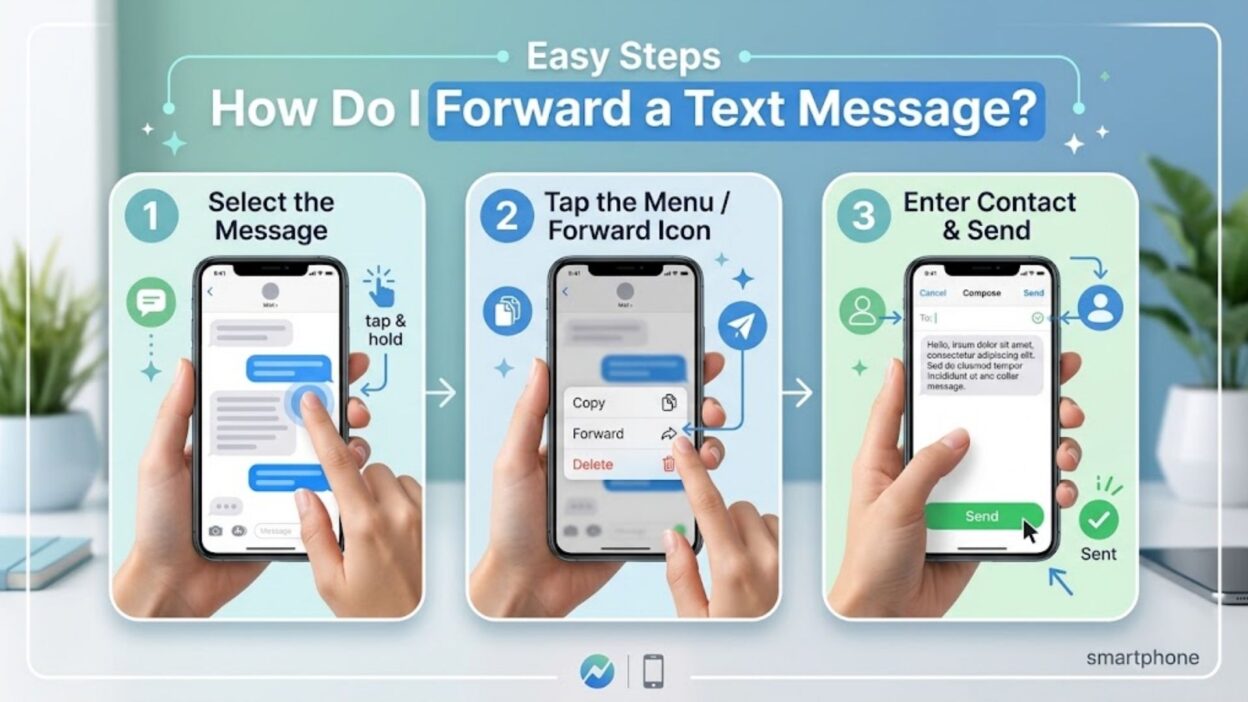
If you’re asking, how do I forward a text message, the exact steps depend on your messaging app. However, the basic process remains simple: select the message, choose the forward option, pick a contact, and send it.
In this guide, you’ll learn how to forward individual messages on popular phones, what to do when the option does not appear, and how forwarding works with group conversations. You’ll also find a few useful tips to help you avoid sending a message to the wrong person.
How Do I Forward a Text Message on iPhone?
On an iPhone, the Messages app lets you forward individual text messages without copying and pasting them manually. The option sits inside the message menu, so you may need to open a few controls first.
Forward a Text Message on iPhone
Follow these steps:
- Open the Messages app on your iPhone.
- Open the conversation that contains the text you want to forward.
- Find the specific message you want to share.
- Press and hold the message.
- Tap More from the menu that appears.
- A checkmark will appear beside the selected message.
- Tap the Forward button in the lower-right corner.
- Enter the name or phone number of the person you want to contact.
- Tap the Send button.
You can also select more than one message before tapping Forward. This helps when you want to share a short section of a conversation instead of sending each message separately.
Forwarding Multiple Messages on iPhone
Sometimes one message does not provide enough context. In that case, you can select several messages from the same conversation and forward them together.
After you press and hold one message, choose More. Then select the additional messages you want to include. Finally, tap the Forward icon, choose your recipient, and send the selected messages.
However, check the selected messages carefully before sending them. A conversation can contain private details that you may not intend to share.
How Do I Forward a Text Message on Android?
Android phones can use different messaging apps, so the exact buttons may vary slightly. Google Messages remains one of the most common options, and its forwarding process follows a straightforward pattern.
Forward a Message in Google Messages
To forward a text in Google Messages:
- Open the Google Messages app.
- Select the conversation containing the message.
- Find the message you want to forward.
- Press and hold that message.
- Tap the three-dot menu or the available message options.
- Select Forward.
- Choose an existing contact or enter a phone number.
- Review the message and recipient.
- Tap Send.
Depending on your Android phone and app version, you might see Forward directly in the menu after pressing and holding the message.
Forwarding Messages in Other Android Apps
Samsung Messages and other Android messaging apps may use slightly different menus. Nevertheless, the process usually starts with a long press on the message.
Look for options such as Forward, Share, or a three-dot menu. If you cannot find Forward immediately, open the additional message options rather than copying the text right away.
That approach can save time because the forwarding feature may preserve the original message more cleanly.
How to Forward a Text Message to Another Person
You do not need to recreate a message manually when you want to send it to a different person. Instead, use your phone’s built-in forwarding feature whenever the messaging app supports it.
Choose the Correct Recipient
Before you tap Send, confirm the recipient’s name or phone number. This small check matters, especially when several contacts have similar names.
Also, review the message itself. If the original conversation includes sensitive information, remove anything that the new recipient does not need to see.
Add Context When Needed
A forwarded message can sometimes look confusing without an explanation. For example, you might add a short sentence such as:
- “Sharing this with you because I thought you should see it.”
- “Here’s the message I mentioned earlier.”
- “This is the update I was talking about.”
- “Forwarding this so you have the same information.”
- “I thought this would be useful for you.”
A brief introduction makes the forwarded text easier to understand. In addition, it helps the recipient know why you sent it.
How to Forward a Text Message in a Group Chat
Forwarding a message from a group chat works much like forwarding a message from a one-to-one conversation. First, press and hold the message you want to share, then look for the Forward option.
After that, select the person or conversation that should receive the message. Before sending it, check whether the original text contains comments, names, phone numbers, or other information that only belonged in the group.
Keep Group Messages Private
Group conversations often contain information that participants shared with the expectation of privacy. Therefore, avoid forwarding personal comments or sensitive details without permission.
If the message contains useful information but also includes private content, consider copying only the relevant portion instead. That way, you can share what matters without exposing unnecessary details.
What If the Forward Option Is Missing?
Sometimes you may press and hold a message and see options such as copy, react, or delete, but no Forward button. This does not necessarily mean your phone cannot forward texts.
First, check which messaging app you use. Different apps organize their controls differently. Next, look under a three-dot menu or More option for additional actions.
If the feature still does not appear, copying the message and pasting it into a new conversation provides a simple alternative. Just remember that manual copying may not preserve the original formatting or attachments.
When Copy and Paste Works Better
Copying a message makes sense when you want to edit the wording before sending it. It also helps when the forwarding feature behaves differently across messaging apps.
For example, you can press and hold the text, select Copy, open a new conversation, press the message field, and choose Paste. Then review the text before sending it.
Most importantly, make sure you send the message to the intended person. A quick recipient check can prevent an awkward mistake.
Quick Tips Before You Forward a Text
A few simple habits can make message forwarding safer and easier:
- Check the recipient before tapping Send.
- Read the forwarded text once before sharing it.
- Remove private information when necessary.
- Add a short explanation if the message lacks context.
- Avoid forwarding sensitive group-chat content without permission.
- Use copy and paste when you need to edit the original text.
- Check attachments separately if the message includes photos or files.
These steps take only a few seconds. However, they can make a big difference when the original message contains personal or important information.
Forwarding Photos, Videos, and Other Attachments
Forwarding a text message does not always mean sharing plain words. Many conversations also contain photos, videos, links, documents, contact cards, or other attachments. Fortunately, most modern messaging apps let you share these items directly.
The process can vary depending on your phone and messaging app. Therefore, if the Forward option does not appear for an attachment, use the Share option or save the file and send it through a new conversation.
Forward a Photo or Video
If someone sends you a photo or video and you want another person to see it, open the conversation and press and hold the attachment. Then look for Forward, Share, or a similar option.
Before sending it, check the recipient and make sure the media contains nothing private. For example, a screenshot might show another person’s phone number or part of a private conversation.
How to Forward a Text Message With Context
A forwarded message does not always explain itself. If the recipient did not see the original conversation, they may not understand who sent it or why you shared it.
For that reason, add a short note when the situation needs context. You can introduce the forwarded message naturally without writing a long explanation.
Simple Introductory Lines
- “I’m forwarding this so you have the latest update.”
- “Here’s the message I was telling you about.”
- “Thought you might want to see this.”
- “Sharing this because it relates to what we discussed.”
- “This came through earlier, so I wanted to pass it along.”
- “Here’s the information you were asking about.”
- “I received this and thought it would help.”
- “Sending this your way for reference.”
These short lines work well for everyday conversations. Moreover, they make the purpose of the forwarded message immediately clear.
How to Forward a Text Message Without Showing the Original Sender
Sometimes you want to share the information inside a text without revealing the sender or the surrounding conversation. In that situation, regular forwarding may not provide enough control.
Instead, copy the relevant text and paste it into a new message. Then remove names, phone numbers, timestamps, or other details that the recipient does not need.
Why Copying Can Be Better
Forwarding preserves the original message more directly, while copying gives you more control over what you share. As a result, copy and paste can work better for sensitive or edited information.
For example, suppose someone sends you an address along with several personal comments. You can copy only the address and send that information separately.
This approach also works when you want to correct a typo or add your own explanation before sharing the information.
How to Forward Multiple Text Messages
You may occasionally need to send several related messages instead of one. Most popular messaging apps allow you to select multiple messages, although the controls differ between devices.
On an iPhone, press and hold one message and select More. Then choose the other messages you want to include before selecting the Forward option.
On Android, press and hold the first message and look for an option that lets you select additional messages. Once you finish selecting them, open the available menu and choose Forward if your app provides that option.
When Multiple Messages Make Sense
Forward several messages when the conversation needs context or when different parts contain important information. However, avoid sending an entire conversation when only one or two messages matter.
A smaller selection keeps the recipient focused. It also reduces the chance of accidentally sharing unrelated private information.
Can I Forward a Text Message to Email?
Yes, but the exact method depends on your phone, messaging app, and what you want to send. You can often copy the text and paste it into an email, while some devices also provide sharing options for messages or attachments.
For a simple text, copy the message, open your email app, create a new email, and paste the text into the body. Then add any context the recipient needs.
If you want to preserve a screenshot of the conversation, take a screenshot and attach it to the email instead. However, review the image first because screenshots may include more information than you intended to share.
Can I Forward a Text Message to WhatsApp?
You can share the content of a regular SMS or iMessage through WhatsApp, but the process usually involves copying the text or using your phone’s sharing options.
For plain text, press and hold the original message, choose Copy, open WhatsApp, select the contact or group, and paste the text into the message field. Then review it and tap Send.
If you want to share a photo or video, use the phone’s Share option when available. Select WhatsApp as the destination and then choose the person or group.
SMS and WhatsApp Work Differently
An SMS or iMessage belongs to your phone’s messaging system, while WhatsApp uses its own platform. Therefore, forwarding between them does not always work like forwarding within the same app.
Still, copy and paste provides a reliable workaround for text. For media, the Share option usually offers the easiest route.
What Happens When You Forward a Text?
When you forward a text through your messaging app, the recipient receives the selected message in a new conversation with you. The app may not preserve every detail from the original conversation.
For instance, the recipient may not see the original chat history or know exactly when the sender wrote the message. Depending on the app, attachments and formatting may also behave differently.
Does the Original Sender Know?
Generally, forwarding a text does not automatically notify the original sender that you shared it. However, the recipient can still see the forwarded content and may recognize where it came from.
For that reason, treat forwarded messages carefully. If the original message contains personal information, ask yourself whether the sender would expect you to share it.
Common Problems When Forwarding Text Messages
Message forwarding usually takes only a few seconds, but certain issues can make the process confusing. Fortunately, most problems have simple solutions.
The Forward Button Does Not Appear
First, press and hold the message again and check the additional options. If you still cannot find Forward, your messaging app may use a different sharing method.
Try the three-dot menu, More option, or Share button. If none of these provide forwarding, copy the text and paste it into a new message.
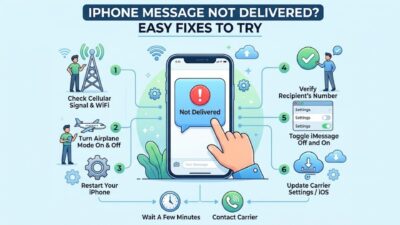
The Message Will Not Send
If the forwarded message stays pending, check your mobile signal or Wi-Fi connection. A temporary network problem can prevent the message from leaving your phone.
Also, verify that the recipient’s number remains correct. If other messages also fail to send, restart the messaging app or your phone and try again.
The Attachment Does Not Forward
Large videos, unsupported file types, or connection problems can interfere with attachments. In that case, save the media to your phone and send it as a new attachment.
You can also try the Share feature instead of the Forward option. As a result, you may avoid limitations within the messaging app itself.
Forwarding Texts on Different Devices
The basic idea remains the same across most smartphones: select the message, open its available actions, choose Forward or Share, select the recipient, and send it.
Still, menus can change after an app update. Therefore, do not worry if your screen looks slightly different from another person’s phone.
iPhone
The Messages app generally uses a long press followed by More and the Forward option. You can also select multiple messages before forwarding them.
Android
Android phones can use Google Messages, Samsung Messages, or another messaging app. Because each app can use a different interface, look for Forward under the long-press menu or three-dot options.
Older Phones
Older devices may not provide the same forwarding controls as modern smartphones. In those cases, copying the message into a new text often provides the simplest solution.
A Simple Way to Remember the Process
If you often forget how to forward a message, remember this basic sequence:
Open → Select → Forward → Choose → Check → Send
First, open the conversation and select the message. Next, choose Forward and select the recipient. Finally, check both the message and recipient before you send it.
That simple habit works across many messaging apps, even when the buttons look slightly different
Best Practices When Forwarding Text Messages
Knowing how to forward a text message solves the technical part. However, good forwarding habits help you avoid privacy problems, misunderstandings, and accidental messages.
Before you share anything, consider who originally sent the message and who will receive it. If the text contains private information, ask for permission when appropriate. Also, remove details that the new recipient does not need.
Check the Message Before Sending
A quick review can prevent many mistakes. Read the selected text, check any attachments, and confirm the recipient’s name or number.
In addition, consider whether the message needs context. A single sentence may seem confusing when someone reads it outside the original conversation.
Avoid Forwarding Private Conversations
Private conversations deserve extra care. If someone shared personal information with you, do not assume that you can automatically pass it to someone else.
Instead, share only the part that matters. If necessary, copy the relevant sentence into a new message rather than forwarding the entire conversation.
Short Texts You Can Add Before Forwarding
Sometimes you only need a few words to explain why you’re sharing a message. These short lines work well in personal, family, school, and work conversations.
- “Just passing this along for you.”
- “Here’s the update I received.”
- “Thought you should see this.”
- “Sharing this for your reference.”
- “This might be helpful to you.”
- “Here’s the information we discussed.”
- “Sending this over so you have it.”
- “I wanted to make sure you saw this.”
- “This message explains the situation.”
- “Forwarding the details you requested.”
Copy-Paste Ready Messages
If your messaging app does not show a Forward button, copying the original text provides an easy alternative. These examples can also help when you want to explain a forwarded message naturally.
- “I couldn’t forward the original, so I copied the important part here.”
- “I’m sending you the text directly so you have the details.”
- “Here’s the message without the unrelated conversation.”
- “I copied the information you needed and sent it below.”
- “Sharing the exact details here for convenience.”
- “I’ve included the relevant part of the message below.”
- “Here’s what they said about the update.”
- “I copied this so you can keep the information handy.”
One-Line Text Forwarding Messages
For quick conversations, you do not need a long introduction. A single line can give the recipient enough context.
- “FYI, this is the message I mentioned.”
- “Here’s the latest update.”
- “Sharing this with you now.”
- “This should answer your question.”
- “Here’s the information you needed.”
- “Take a look at this when you can.”
- “Passing this along for reference.”
- “This came in earlier today.”
How to Forward a Text Message Safely
The question how do I forward a text message usually focuses on the button to press. Yet safe forwarding matters just as much as the technical steps.
Start by checking the recipient. Then review the complete message, especially if you selected several texts at once. If the conversation contains private names, numbers, photos, or other details, remove anything unnecessary.
Protect Personal Information
Be particularly careful with addresses, passwords, verification codes, financial information, and private photos. Even when a message seems harmless, the surrounding conversation might reveal information that you did not intend to share.
Therefore, use copy and paste when you need more control over the content. This method lets you remove unwanted details before sending anything.
Watch for Scams and Suspicious Messages
Forwarding can spread misleading information quickly. If someone sends you an alarming claim, suspicious link, or request for money, do not automatically pass it along.
Instead, verify the information first. That small pause can help prevent scams and misinformation from reaching more people.
Frequently Asked Questions
How do I forward a text message on an iPhone?
Open the Messages app, find the conversation, and press and hold the message. Tap More, select the message if needed, choose the Forward option, select a recipient, and tap Send.
How do I forward a text message on Android?
Open your messaging app and locate the conversation. Press and hold the message, open the available options, choose Forward, select a recipient, and send it.
Can I forward several text messages at once?
Yes, many messaging apps let you select multiple messages before forwarding them. On iPhone, use More after pressing and holding a message, then select the additional texts you want to share.
Can I forward a text message to someone who uses a different phone?
Yes. The recipient can usually receive a forwarded SMS regardless of whether they use an iPhone or Android phone. However, features such as media, reactions, and formatting may work differently.
What should I do if my phone has no Forward option?
Look under the three-dot menu, More, or Share options first. If forwarding remains unavailable, copy the message and paste it into a new conversation.
Conclusion
If you were wondering how do I forward a text message, the process is usually easier than it first appears. On an iPhone, press and hold the message, choose More, select Forward, pick your recipient, and send it. On Android, the same basic process usually starts with a long press and an option such as Forward or Share.
However, forwarding is not only about finding the right button. Always check the recipient, review the selected content, and consider whether the original sender expected you to share it. When you need more control, copying only the relevant text can work better than forwarding the entire conversation.
If the Forward option does not appear, do not worry. Your messaging app may simply use a different menu, and copy-and-paste gives you a practical backup.
A quick review before you tap Send can make every forwarded message safer, clearer, and easier to understand.

Awais Bilal is the author of Messagesfy, sharing simple and meaningful messages, quotes, and wishes to help people express their feelings easily.