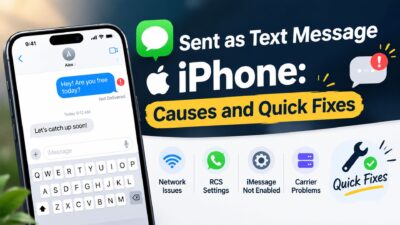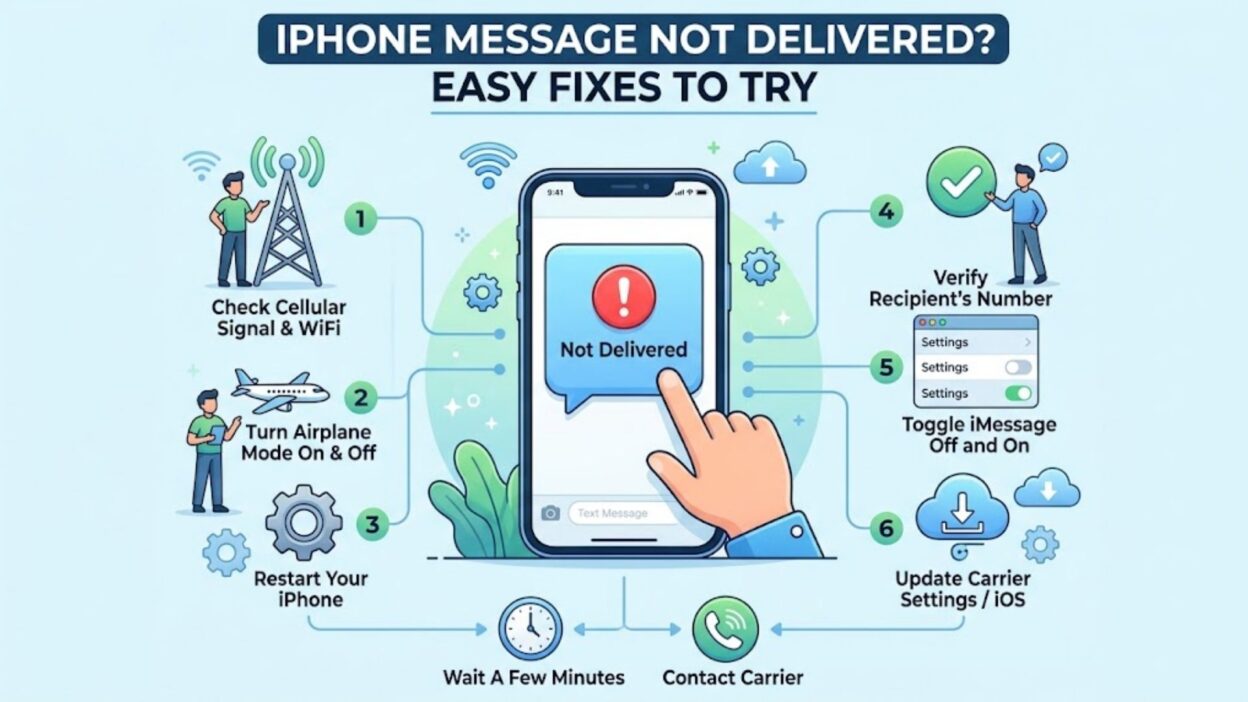
Seeing “Not Delivered” under an iPhone message can be frustrating, especially when you need to reach someone quickly. You may tap the red exclamation mark, try sending the text again, and still get the same result.
An iPhone message not delivered alert usually means your phone could not successfully send the message. The cause might involve your cellular connection, Wi-Fi, iMessage settings, the recipient’s number, or a temporary service problem.
Fortunately, you can check several things before assuming something serious has happened. This guide explains what the error means, why it appears, and which fixes you should try first. You’ll also learn how to tell the difference between an iMessage problem and a regular SMS issue.
What Does “Not Delivered” Mean on iPhone?
When your iPhone displays “Not Delivered,” the message did not successfully reach the intended recipient. A red exclamation mark usually appears beside the failed message.
However, the message can fail for different reasons. Your phone might have a weak connection, iMessage could have a temporary problem, or the recipient’s phone number might not work correctly.
iMessage vs. SMS Messages
The color of your message bubble provides a useful clue.
Blue bubbles usually indicate iMessage. Apple sends these messages through an internet connection using Wi-Fi or mobile data.
Green bubbles indicate messages sent through SMS/MMS or, on newer systems, RCS in supported circumstances. These messages depend on your carrier’s messaging service and network connection.
Therefore, identifying the bubble color can help you narrow down the problem.
Why Is My iPhone Message Not Delivered?
Several issues can trigger a failed message. Some take only a few seconds to fix, while others require you to check your settings or carrier service.
Weak or Missing Internet Connection
If you use iMessage, your iPhone needs an internet connection. A weak Wi-Fi signal or unavailable mobile data can prevent the message from sending.
First, check whether Safari or another internet-dependent app works. If webpages also fail to load, reconnect to Wi-Fi or check your cellular data.
Poor Cellular Service
Regular SMS and MMS messages rely on your carrier’s network. If your iPhone shows No Service, SOS, or very weak signal strength, the message may fail.
Move to an area with better reception if possible. Alternatively, turn Airplane Mode on for a few seconds and then turn it off.
iMessage Could Have a Temporary Problem
Sometimes the issue involves iMessage rather than your phone. If iMessage cannot connect correctly, blue messages may remain unsent.
In that situation, checking your iMessage settings can help. You can also test another internet connection to see whether the problem continues.
Check Your Internet Connection First
Before changing settings, start with the simplest possibility: your connection. This step can quickly tell you whether the problem affects your entire phone or only messaging.
Test Wi-Fi
Open Safari and visit a website you normally use. If the page loads quickly, your Wi-Fi connection probably works.
If Safari cannot connect, open Settings → Wi-Fi and check your current network. You can disconnect and reconnect to the network, or try another available Wi-Fi connection.
Test Cellular Data
If you are away from Wi-Fi, check your mobile data connection. Open another app that needs internet access and see whether it connects.
If mobile data does not work, the issue may involve your carrier, account, coverage, or cellular settings. Meanwhile, connecting to reliable Wi-Fi can help you determine whether iMessage starts working again.
Turn Airplane Mode On and Off
Airplane Mode provides a quick way to refresh your phone’s wireless connections. It can sometimes resolve a temporary connection problem without requiring a restart.
Open Control Center and turn Airplane Mode on. Wait about 10 seconds, then turn it off again.
After your cellular or Wi-Fi connection returns, try sending the failed message again. If the message goes through, the problem likely came from a temporary connection issue.
Try Sending the Message Again
If your connection looks normal, retry the failed message. On an iPhone, tap the red exclamation mark beside the message and choose Try Again.
If that works, you do not need to change any additional settings. However, if the same message fails repeatedly, continue with the next troubleshooting steps.
Check the Recipient
Take a moment to verify the recipient’s phone number or email address. A small typo can prevent delivery, especially when you start a new conversation.
If the person recently changed their phone number, ask them to confirm their current contact information. Similarly, check whether you accidentally selected an old contact entry.
Restart Your iPhone
A restart can clear temporary software and connection problems. It also gives your messaging services a fresh start.
Turn off your iPhone, wait briefly, and then turn it back on. Once the device reconnects to your network, open Messages and try again.
If other apps and services work normally after the restart but one particular conversation still shows “Not Delivered,” the problem may involve that conversation or recipient rather than your overall connection.
Check Whether iMessage Is Turned On
If your blue messages consistently fail, check your iMessage setting.
Open:
Settings → Apps → Messages
Then look for iMessage and make sure it is turned on. Depending on your iOS version, the Messages settings may appear directly under Settings → Messages instead.
Check Send & Receive
You should also review the addresses connected to iMessage. Under the Messages settings, open Send & Receive and check the phone number or email addresses available for sending and receiving iMessages.
Make sure your correct phone number appears there. If you recently changed your SIM, eSIM, phone number, or Apple Account settings, this check becomes especially useful.
Turn Send as Text Message On
If iMessage cannot send, your iPhone may offer an SMS fallback when the appropriate setting is enabled.
Go to Settings → Apps → Messages and look for Send as Text Message. Turn it on if you want your iPhone to attempt an SMS when iMessage cannot deliver the message.
However, SMS availability depends on your carrier and plan. Therefore, this option cannot solve every failed iMessage.
When the Problem Affects Only One Person
A useful clue appears when messages work normally with everyone except one contact. In that case, your iPhone and internet connection may not be the main problem.
The other person’s phone could have no service, their number could have changed, or their device might have an issue. For example, if your messages reach other contacts immediately, focus your troubleshooting on that specific conversation and contact information.
This distinction can save you time. Instead of changing several settings unnecessarily, test another contact first and compare the results.
Fix an iPhone Message Not Delivered Error
If the basic connection checks did not solve the problem, move on to a few settings and messaging fixes. These steps can help when your iPhone connects to the internet but Messages still refuses to send.
Check Your Cellular Connection
For green-bubble messages, your carrier connection plays an important role. Look at the signal indicator and check whether your iPhone shows SOS, No Service, or unusually weak reception.
If the signal looks poor, move outdoors or to another location with better coverage. You can also toggle Airplane Mode briefly to refresh the cellular connection.
If calls also fail, the issue may involve your carrier rather than the Messages app. In that case, checking your carrier account or contacting its support team makes more sense than repeatedly retrying the message.
Check Your SIM or eSIM
A physical SIM or eSIM problem can affect regular text messages and cellular service. If you recently changed carriers, switched phones, or activated a new eSIM, verify that your cellular line remains active.
Open Settings → Cellular and check whether your expected line appears. If you use multiple lines, make sure the correct number handles your messaging.
Check iMessage Settings
If the failed message has a blue bubble, review your iMessage settings. An incorrect configuration can prevent your iPhone from sending messages through Apple’s messaging service.
Open Settings → Apps → Messages and make sure iMessage remains enabled. Then open Send & Receive and verify that your phone number or Apple Account address appears correctly.
Sign In Again When Necessary
If iMessage shows an activation or sign-in problem, your Apple Account connection may need attention. Follow the prompts shown in your Messages settings and make sure your account information remains current.
However, avoid changing several account settings at once. Check one thing, test the message, and then move to the next step if the problem continues.
Check Date and Time Settings
Your iPhone relies on accurate date and time information for several network services. An incorrect setting can sometimes cause unexpected connection or activation problems.
Go to Settings → General → Date & Time. Turn on Set Automatically if the option appears.
Afterward, close Messages and open it again. Try sending the failed message once more.
Update Your iPhone
An outdated iOS version can sometimes create compatibility or messaging problems. Apple regularly releases updates that address bugs, security issues, and system behavior.
Open Settings → General → Software Update. If an update appears, review the available information and install it when convenient.
After the update finishes, test Messages again. If the problem came from a software issue, the update may resolve it without further troubleshooting.
Check for a Carrier Settings Update
Your carrier can also provide updates that improve cellular connectivity and messaging support. iPhones may install these updates automatically, but you can still check for an available update.
Open Settings → General → About and wait briefly. If your iPhone detects a carrier settings update, follow the on-screen instructions.
This step can help after switching carriers, replacing a SIM, or setting up a new cellular plan. It may also help when calls and data behave differently than expected.
Reset Network Settings
If your iPhone still shows Not Delivered, resetting network settings can provide a deeper fix. This option removes saved Wi-Fi networks, VPN configurations, and other network-related settings.
Go to:
Settings → General → Transfer or Reset iPhone → Reset → Reset Network Settings
Your iPhone will restart the network configuration. Afterward, reconnect to Wi-Fi and test your message again.
What Does a Network Reset Remove?
A network reset does not erase your photos, apps, messages, or other personal content. However, it removes saved network information.
Therefore, make sure you know your Wi-Fi password before using this option. You will need to reconnect to your wireless networks afterward.
Try a New Message Instead
Sometimes one conversation behaves differently from every other conversation. If that happens, start a new message to the same contact instead of repeatedly retrying the old one.
Enter the person’s phone number manually or select the contact from your address book. Then send a short test message.
If the new message works, the original conversation may have a temporary issue. As a result, starting a fresh conversation can sometimes solve the problem without changing your iPhone’s settings.
What If Your Messages Turn Green?
Many iPhone users become concerned when a message bubble suddenly changes from blue to green. However, a green bubble does not automatically mean something is wrong.
A green message generally means your iPhone sent the message using a carrier-based messaging service rather than iMessage. This can happen when iMessage is unavailable or when the recipient does not use iMessage.
Green Does Not Always Mean Failed
If the green message sends successfully, you do not need to fix anything. The important detail is whether Messages shows Delivered or Not Delivered.
If the green message fails, check your cellular service first. Unlike iMessage, regular SMS messaging depends on your carrier’s network.
What If Only Blue Messages Fail?
If green messages work but blue messages repeatedly show Not Delivered, focus on iMessage.
Check your internet connection first. Then review iMessage, Send & Receive, and your Apple Account settings.
You can also try sending an iMessage to another contact who normally uses iMessage. If that message works, the problem may relate specifically to the original recipient or conversation.
Test More Than One Contact
Testing another contact gives you a useful comparison. If messages fail for everyone, your iPhone or iMessage connection likely needs attention.
On the other hand, if messages fail only with one person, check that person’s contact details and messaging setup before making major changes to your phone.
What If Messages Fail After Changing Phones?
Switching from one iPhone to another can sometimes create messaging confusion, particularly when you change your phone number, SIM, or eSIM at the same time.
Make sure your new iPhone has an active cellular line. Then check Settings → Apps → Messages → Send & Receive and confirm that your current number appears.
If you moved from another phone platform, iMessage registration can also affect incoming messages from other iPhone users. In that situation, check your messaging setup carefully before assuming the recipient has blocked you.
Could Someone Have Blocked Your Number?
An iPhone message not delivered alert does not prove that someone blocked you. Several ordinary connection and service problems can produce the same result.
You should not use the error alone as evidence that another person blocked your number. Instead, look at the broader situation.
For example, if calls, iMessages, and other forms of contact suddenly stop working with one person, blocking becomes one possibility among several. Still, Apple does not provide a direct notification that confirms someone blocked you.
Check Apple’s System Status
If your internet connection works and your iPhone settings look correct, a temporary Apple service problem could affect iMessage.
Check Apple’s system status page for current service issues. If iMessage has a widespread outage, changing settings on your phone may not help.
In that situation, wait for the service to recover and try again later. Meanwhile, you can use another available communication method if the message needs immediate attention.
When You Should Contact Your Carrier
Your carrier can help when regular SMS or MMS messages fail even though your iPhone has a good signal. This becomes especially important if calls and cellular data also show unusual behavior.
Contact your carrier if:
- SMS messages fail with multiple contacts.
- Your iPhone repeatedly shows SOS or No Service.
- Calls also fail unexpectedly.
- You recently changed your SIM or eSIM.
- Your cellular account has a suspected service problem.
- Network troubleshooting has not restored texting.
Your carrier can check your line, network coverage, account status, and messaging service.
More Ways to Fix an iPhone Message Not Delivered
If your messages still fail after checking the connection and basic settings, a few final checks can help narrow down the cause. At this stage, focus on whether the problem affects one contact, every contact, iMessage, or regular texting.
Check Your Storage
Low iPhone storage usually does not directly cause an SMS delivery failure. However, keeping enough free space helps your device run smoothly and prevents unrelated app problems.
Open Settings → General → iPhone Storage and check how much space remains. If your storage is nearly full, remove unnecessary downloads, videos, or apps.
Reopen the Messages App
A temporary app glitch can sometimes affect sending. Close the Messages app, reopen it, and try the message again.
If the issue continues, restart your iPhone before changing more settings. This simple step often takes less time than troubleshooting individual app behaviors.
What If an iPhone Says “Not Delivered” but the Message Goes Through?
Occasionally, the Messages app may display an error even though the recipient eventually receives the text. This can happen when the connection changes while the message travels through the network.
Ask the recipient whether they received the message before sending it repeatedly. Otherwise, you could accidentally send the same text several times.
Avoid Repeated Taps
If you see a red exclamation mark, wait a moment before trying again. First, check your connection and confirm whether the message actually reached the other person.
This matters most for important texts. For example, repeatedly sending a payment instruction or appointment detail could create unnecessary confusion.
What If Messages Fail Only on Wi-Fi?
If your iPhone sends messages through cellular data but fails while connected to one particular Wi-Fi network, test another network.
Move temporarily to cellular data or connect to a different Wi-Fi network. If iMessage works immediately, your original network may have a connectivity or configuration issue.
Restart Your Wi-Fi Connection
Open Settings → Wi-Fi, tap the information button beside your network, and use the available options to disconnect or forget the network if necessary.
Then reconnect using the Wi-Fi password. Afterward, open Messages and test the conversation again.
What If SMS Works but MMS Does Not?
Text messages and multimedia messages do not always follow exactly the same path. If plain texts work but photos or group messages fail, check your carrier service and messaging settings.
Make sure your cellular connection works properly, especially when you send media without Wi-Fi. Also, confirm that your carrier supports the type of MMS messaging you want to use.
If the problem continues across different conversations, your carrier can check whether MMS support works correctly on your line.
What If Group Messages Are Not Delivered?
Group conversations can involve multiple messaging technologies. Depending on the participants’ devices and settings, your iPhone may use iMessage, SMS/MMS, or another supported messaging system.
First, check whether individual messages work. If they do, but a particular group conversation fails, create a new group conversation and test it.
Check the Group Members
A group can behave differently when someone changes their phone number, switches devices, or leaves the messaging service. Therefore, check whether the problem started after someone changed their contact information.
If necessary, ask the group members whether they receive other messages normally. Their answers can help identify whether the issue affects everyone or only your device.
What If Your iPhone Cannot Send to One Contact?
When every other message works normally, the recipient’s contact information becomes an important place to check.
Open the person’s contact card and verify the phone number. If the contact has several numbers or email addresses, make sure you selected the correct one.
You can also start a completely new conversation by entering the number manually. If the new conversation works, the original thread may have encountered a temporary issue.
Should You Delete the Failed Message?
You do not need to delete a failed message immediately. First, decide whether you want to retry it or investigate the problem.
If the message contains sensitive information, deleting it from your conversation may help keep your chat organized, but deletion does not necessarily undo a message that already reached another device.
Therefore, always check the delivery status before assuming that deleting a message cancels it.
When Should You Contact Apple Support?
If iMessage continues to fail after you check your internet connection, settings, software, and account information, Apple Support may help identify an account or service problem.
Contact Apple when:
- iMessage fails with multiple contacts.
- Your internet connection works normally.
- Your iPhone uses the latest available iOS version.
- Your Messages settings look correct.
- Restarting and network troubleshooting do not help.
- The problem continues for an extended period.
Before contacting support, note what happens with blue and green messages. Also, mention whether calls, cellular data, and other internet services work.
Quick iPhone Message Troubleshooting Checklist
When you see iPhone message not delivered, work through this checklist before making major changes:
- Check Wi-Fi or cellular data.
- Look for SOS or No Service.
- Turn Airplane Mode on and off.
- Tap the red exclamation mark and try again.
- Confirm the recipient’s number.
- Restart your iPhone.
- Check whether iMessage remains enabled.
- Review Send & Receive settings.
- Check for an iOS update.
- Look for a carrier settings update.
- Test another contact.
- Reset network settings if necessary.
- Check Apple’s service status.
- Contact your carrier for SMS or MMS problems.
- Contact Apple Support for persistent iMessage issues.
This approach helps you move from the simplest fixes to more advanced troubleshooting without changing unnecessary settings.
Frequently Asked Questions
Why does my iPhone say “Not Delivered” when texting?
Your iPhone may show “Not Delivered” because of a weak internet connection, poor cellular service, an iMessage issue, incorrect contact details, or a temporary service problem. Start by checking your connection and retrying the message.
Does “Not Delivered” mean I have been blocked?
No. The error does not confirm that someone blocked you. Connection problems, service interruptions, and recipient-side issues can produce the same result.
Why are my iMessages not sending but regular texts work?
If green messages work while blue iMessages fail, focus on your internet connection and iMessage settings. Check iMessage under your Messages settings and review Send & Receive.
Why won’t my iPhone send messages to one person?
If messages reach everyone else, check that person’s phone number and start a new conversation. The recipient may also have a service, device, or messaging issue.
Will resetting network settings delete my messages?
No. A network reset does not erase your text conversations, photos, or apps. However, it removes saved Wi-Fi networks and other network configurations, so you will need to reconnect afterward.
Conclusion
An iPhone message not delivered alert can come from something as simple as a weak connection, but several other factors can cause the same problem. Start with the basics: check Wi-Fi or cellular service, verify the recipient, retry the message, and restart your iPhone.
Next, look at iMessage settings, Send & Receive, software updates, and carrier settings. If regular texts fail, your carrier may need to investigate the cellular service. On the other hand, persistent blue-message failures may point toward iMessage or your Apple Account.
Most importantly, do not assume that “Not Delivered” means someone blocked you. Test another contact and identify whether the problem affects iMessage, SMS, MMS, or only one conversation.
Once you narrow down the cause, the right fix usually becomes much clearer. A few careful checks can get your messages moving again without unnecessary changes to your iPhone.

Awais Bilal is the author of Messagesfy, sharing simple and meaningful messages, quotes, and wishes to help people express their feelings easily.