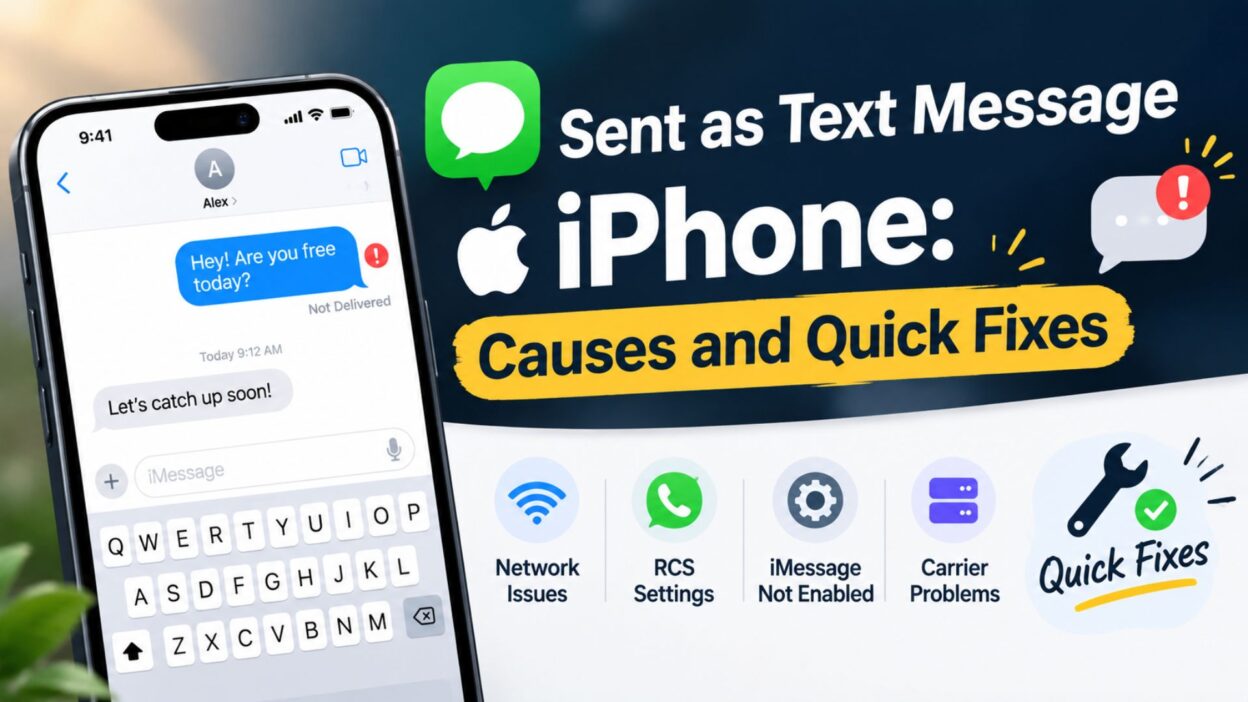
You send a message on your iPhone, expecting the familiar blue bubble, but it suddenly turns green with a note below reading “sent as text message.” This subtle shift often leaves users wondering whether the recipient blocked them or if their device encountered a technical glitch. Understanding why your device switches from iMessage to traditional SMS can save you plenty of frustration.
Apple designs iOS to maintain communication even when its primary messaging network encounters an obstacle. Consequently, your phone automatically redirects your message through your mobile carrier’s cellular network when data services drop. Therefore, seeing this status update usually indicates a temporary connection change rather than a permanent problem.
This complete guide breaks down the technical reasons behind SMS fallback on iOS devices. Additionally, you will discover simple troubleshooting steps to restore blue bubbles and manage your messaging preferences effectively.
What Does Sent as Text Message Mean on iPhone?
When your iPhone displays this alert, it means your device transmitted the communication using standard SMS/MMS protocols rather than Apple’s proprietary iMessage server network.
Blue Bubbles vs. Green Bubbles
Apple uses distinct visual cues to show how your device delivers data. Blue speech bubbles represent iMessages, which travel securely over Wi-Fi or cellular data networks. On the other hand, green speech bubbles represent traditional SMS or MMS text messages processed directly by your wireless carrier.
How the Fallback Mechanism Works
Your iPhone continuously checks for an active internet connection before sending any message. If iMessage servers remain unreachable, iOS automatically routes the text through your regular cellular signal. As a result, your text arrives safely, though it lacks iMessage features like typing indicators and read receipts.
Primary Reasons Your iPhone Sends Text Messages Instead of iMessages
Several common factors can trigger your device to switch messaging protocols unexpectedly. Identifying the exact cause helps you resolve the issue much faster.
Poor Internet or Cellular Data Connection
iMessage relies entirely on an active internet connection to transmit data. If you enter an area with weak Wi-Fi or unstable cellular data, your iPhone cannot reach Apple servers. Consequently, the operating system defaults to standard SMS to ensure your contact receives the message promptly.
Recipient Device Compatibility and Settings
Your iPhone can only send iMessages if the recipient also uses an active Apple device signed into iMessage. For example, sending a message to an Android user will always result in a green SMS bubble. Moreover, if your contact turned off their device or disabled iMessage in their settings, your phone will fall back to SMS.
Apple iMessage Server Outages
Occasionally, the issue lies completely outside your personal device or network. Apple iMessage servers experience temporary downtime or maintenance periods once in a while. During these systemic outages, all outgoing messages temporarily convert to standard carrier text messages worldwide.
Quick Fixes When Messages Send as SMS Unexpectedly
If your device continues sending green text messages to other iPhone users, trying a few standard troubleshooting fixes usually resolves the underlying connection error quickly.
Toggle iMessage Off and On Again
- Open the Settings app on your iOS device.
- Scroll down and tap on Messages.
- Toggle the iMessage switch off, wait ten seconds, and turn it back on.
- Wait a few moments for your device to re-activate iMessage with your Apple ID.
Verify Your Network Connection
- Swipe down from the top right corner of your screen to open Control Center.
- Check that Wi-Fi or Cellular Data remains active and connected.
- Turn Airplane Mode on for five seconds, then turn it off to refresh wireless bands.
- Try loading a webpage in Safari to confirm internet access works properly.
Advanced Troubleshooting for Sent as Text Message Issues
When basic toggles fail to restore iMessage functionality, underlying system or network configurations often require deeper attention. Resolving persistent fallback issues ensures your device sends messages smoothly across all available networks.
Reset Network Settings
Resetting your network configurations often solves persistent connectivity errors that cause iMessage to fail. This process clears saved Wi-Fi networks, cellular preferences, and Bluetooth pairings without deleting personal files.
- Open the Settings app on your iPhone.
- Select General and scroll down to Transfer or Reset iPhone.
- Tap Reset and select Reset Network Settings from the pop-up menu.
- Enter your device passcode to confirm the action.
- Reconnect to your primary Wi-Fi network once your phone restarts.
Check Date and Time Settings
Incorrect system date or time settings frequently prevent your iPhone from communicating with Apple verification servers. As a result, iMessage authentication fails, forcing your phone to send standard text messages instead.
- Navigate to the Settings app and tap General.
- Select Date & Time from the menu list.
- Ensure the toggle for Set Automatically remains enabled.
- If the time zone appears incorrect, toggle the setting off and back on to refresh your location.
How to Manually Force a Message as SMS
Sometimes sending a standard SMS proves necessary, especially when iMessage hangs on a weak connection. You can force your device to deliver an urgent message via your cellular network immediately.
Using the Hold-to-Send Gesture
When an iMessage shows a slow progress bar or takes too long to send, you can manually convert it before it fails.
- Tap and hold the specific blue message bubble while it attempts to send.
- Select Send as Text Message from the pop-up options menu.
- Watch the bubble color change from blue to green as your carrier delivers the SMS.
Disabling Smart Fallback in Settings
iOS includes an automatic feature called Send as SMS, which takes over when iMessage service drops. However, users who prefer avoiding unexpected carrier SMS charges can disable this fallback behavior entirely.
- Open the Settings application on your home screen.
- Scroll down the menu and choose Messages.
- Locate the Send as SMS switch below the iMessage toggle.
- Turn off the switch to prevent your phone from automatically sending green bubble texts when iMessage stays offline.
Understanding SMS Charges and Carrier Limitations
Switching from iMessage to standard text messaging impacts both your mobile phone plan and message delivery features. Knowing these differences helps manage potential fees and unexpected delivery delays.
International Messaging Rates
iMessage uses internet data, allowing users to send messages globally without additional messaging fees. On the other hand, traditional SMS relies on your wireless carrier’s network infrastructure. Therefore, sending a text message internationally can incur significant charges depending on your mobile plan.
Feature Differences Between iMessage and SMS
- iMessage supports high-resolution photos and videos, whereas SMS compresses media severely.
- Blue bubbles offer end-to-end encryption, while green SMS messages lack full encryption security.
- Typing indicators and live read receipts only function over active iMessage connections.
- Group chats stay organized on iMessage, while SMS group texts often separate replies into individual threads.
Best Messages for Captions
These concise captions are ideal for social media posts, tech updates, or sharing quick status updates about messaging fixes.
- Mastering the shift between blue and green bubbles.
- Keeping connections clear, even when iMessage goes offline.
- Smooth messaging starts with knowing your settings.
- Staying connected through every signal drop and network switch.
- When data drops, traditional text messages save the day.
- Understanding your device settings makes troubleshooting simple.
- Navigating network updates and seamless message delivery.
- Keeping communications open across all mobile networks.
Copy-Paste Ready Messages
You can easily copy and share these helpful troubleshooting tips with friends or family experiencing iMessage issues.
- If your iPhone unexpectedly sends green text messages, try toggling iMessage off and on again in your Settings app to refresh the connection.
- Seeing “sent as text message” usually means your internet connection dropped, prompting your device to send a standard SMS instead.
- Check your Date and Time settings if iMessage stops working, as automatic time synchronization keeps verification servers running smoothly.
- You can prevent unexpected carrier charges by disabling the “Send as SMS” fallback option in your iPhone’s Messages settings.
- Resetting your network settings clears corrupt connection data and frequently restores missing blue bubbles on your iPhone.
- Remember that sending messages to non-Apple devices always results in green bubbles, as those phones use standard SMS networks.
- When iMessage hangs on a slow connection, tap and hold the blue bubble to send it manually as a regular text message.
- Always check Apple’s System Status page during widespread message delivery issues to see if iMessage servers are temporarily down.
FAQ
Why did my message say sent as text message to another iPhone?
Your iPhone sent the message as a regular text because your device or the recipient’s phone lacked an active internet connection at that moment.
Does sent as text message mean I am blocked?
No, seeing “sent as text message” does not mean someone blocked you; it simply indicates that iMessage failed and used your cellular SMS network instead.
Will I get charged when a message sends as a text message?
Standard SMS charges may apply depending on your mobile carrier plan, especially if you send international messages without an active unlimited texting package.
How do I turn off sent as text message on my iPhone?
Navigate to Settings, select Messages, and switch off the toggle labeled “Send as SMS” to prevent automatic conversion to standard text messages.
Conclusion
Encountering the sent as text message iphone notification can feel confusing at first, but understanding the underlying technology makes resolving it straightforward. This automatic fallback ensures your communications reach their destination even when internet access drops or Apple servers face temporary maintenance. By learning how iOS handles network shifts, you can easily troubleshoot delivery issues and manage your preferences effectively.
Fixing persistent green bubble issues usually takes just a few quick setting adjustments, such as toggling iMessage or refreshing network configurations. Whether you need to force an urgent text through or prevent unexpected carrier fees, having control over your messaging options keeps your conversations running smoothly. Simple checks ensure you stay connected without unnecessary disruption.
Feel free to save this guide or share these quick troubleshooting tips with friends facing messaging glitches. Keeping these simple solutions handy will help you maintain seamless communication across all your devices.

Awais Bilal is the author of Messagesfy, sharing simple and meaningful messages, quotes, and wishes to help people express their feelings easily.