Seeing a lock screen notification telling you that your tablet cannot be used feels alarming. Fortunately, this situation happens to almost every Apple user at least once. Usually, entering an incorrect passcode multiple times triggers this security feature.
When this screen appears, your device locks itself to protect personal data from unauthorized access. However, Apple provides simple recovery methods so you can unlock your device and regain control.
This comprehensive guide explains why your device shows this alert and how to fix it quickly. We will cover built-in options, computer resets, and essential steps to protect your data.
Understanding the Screen Notification
Apple designed this security screen to shield your personal details after several failed passcode entries. Initially, the tablet locks you out for a short period, such as one minute or five minutes.
If someone continues to enter wrong codes, the delay increases significantly. Eventually, the tablet disables passcode entry entirely and demands a full system reset.
Why Your Device Locks You Out
- Someone entered the wrong passcode too many times in a row.
- A malfunctioning touch screen registered accidental touches while in a bag or pocket.
- Young children tapped the screen randomly while playing with the device.
- System glitches temporarily froze the lock screen interface.
What Happens to Your Data
- Your stored photos, files, and personal account settings remain safe on the encrypted drive.
- The system prevents anyone from viewing sensitive content without authenticating first.
- Resetting the device erases local files unless you backed them up to iCloud previously.
- Restoring from a backup brings back all your saved information effortlessly.
Quick Methods to Resolve the Lock Out
Facing a locked screen can feel frustrating, but several direct solutions exist. You can choose the method that best matches your current setup and available tools.
Using the On-Screen Erase Option
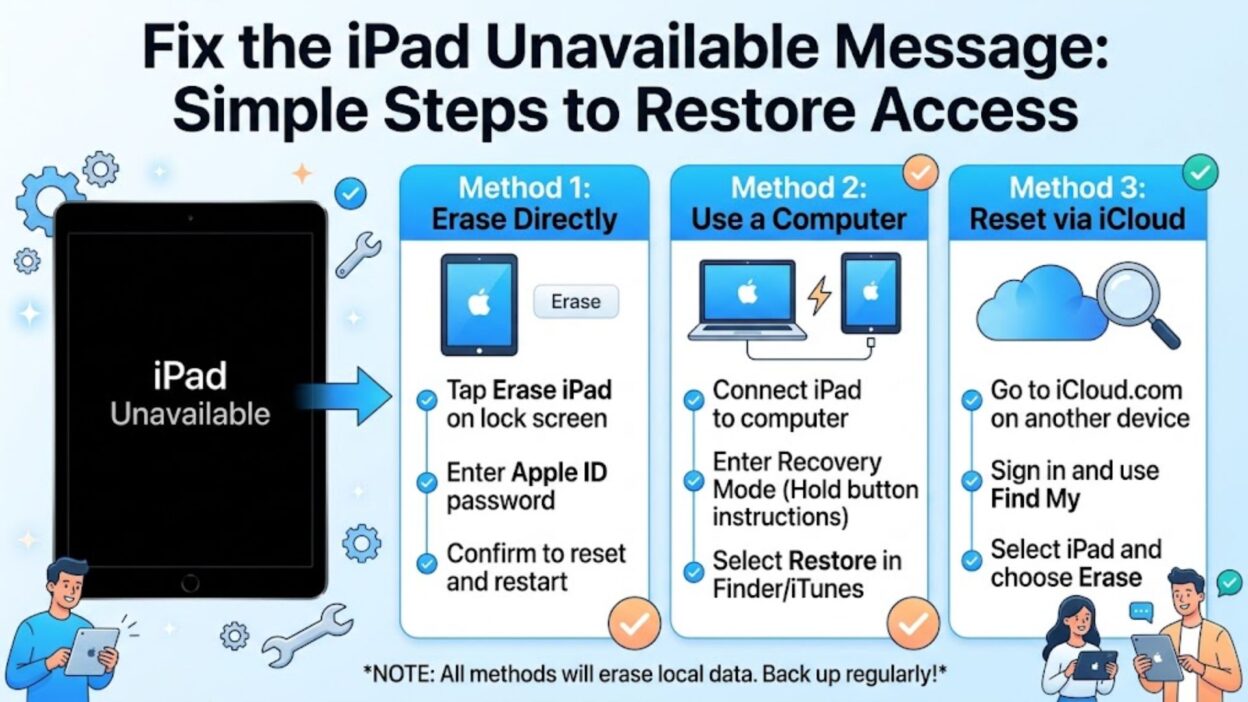
If your device runs modern software, you might see a direct option at the bottom corner of the lock screen. This feature lets you reset the device without connecting it to a computer.
- Ensure your tablet connects to a active Wi-Fi or cellular network.
- Tap the clear reset option located at the bottom of the screen.
- Enter your Apple Account password to log out of your personal profile.
- Confirm the action to begin wiping the tablet and restoring factory settings.
Resetting via Finder or iTunes
When the on-screen option does not appear, using a computer offers the most reliable alternative. Both Mac and Windows computers can perform a complete system recovery.
- Connect your device to a computer using a reliable USB cable.
- Put the tablet into Recovery Mode using the hardware button combination.
- Open Finder on Mac or iTunes on Windows to detect the connected device.
- Select the option to restore the operating system completely.
Preparing Your Device for Recovery
Before jumping into complex technical steps, preparing your environment saves valuable time. A smooth process depends heavily on simple prerequisites.
What You Need Before Starting
- Your Apple Account login credentials and master password.
- A stable high-speed internet connection for downloading recovery files.
- A working USB cable that supports both data transfer and power delivery.
- Access to a computer running the latest system updates.
Checking Device Compatibility
- Devices running updated software show direct reset buttons on the screen.
- Older software versions require a direct computer connection for system resets.
- Active iCloud accounts ensure your data returns safely after the factory wipe.
- Stable power levels prevent the tablet from turning off during critical updates.
Managing System Reset Options Without a Computer
When you lack access to a Mac or PC, online tools allow you to restore access remotely. Apple includes powerful cloud tools specifically for managing lost or locked hardware.
Using iCloud Find My Page
- Open a browser on any smartphone or tablet and navigate to the official cloud portal.
- Sign in with the primary Apple Account associated with your disabled device.
- Select the locked tablet from the complete list of linked hardware.
- Choose the remote wipe command to initiate an immediate factory reset.
Using the Find My Application
- Borrow an iOS device from a friend or family member.
- Launch the pre-installed location application and select the profile tab.
- Help a friend by logging in with your personal account details.
- Select your locked hardware and trigger the remote wipe process immediately.
Step-by-Step Computer Recovery Process
Using a computer provides a reliable fallback when cloud tools fail or wireless connections drop. This approach reinstalls fresh software directly onto your system.
Entering Recovery Mode on Modern Models
- Turn off your device completely using the power and volume buttons.
- Press and hold the top power button while connecting the USB cable to your computer.
- Keep holding the top button until the computer connection screen appears.
- Release the button once the system confirms recovery state.
Entering Recovery Mode on Home Button Models
- Power down the tablet entirely by holding the top power button.
- Press and hold the physical home button on the front bezel.
- Plug the USB cable into the computer while maintaining your press.
- Let go of the home button only after the computer icon displays.
Restoring System Software
- Look for the pop-up notification inside Finder or iTunes on your computer screen.
- Select the restore option rather than the standard update choice.
- Wait patiently while your computer downloads the latest firmware files.
- Allow the automatic installation process to finish without disconnecting cables.
Setting Up Your Device After a Wipe
Once the system completes the restore process, your tablet restarts like a new device. Following proper setup steps ensures you regain all your apps and settings smoothly.
Reactivating Your Hardware
- Select your preferred language, region, and local wireless network.
- Enter your Apple Account credentials to bypass Activation Lock.
- Create a brand new passcode that you can remember easily.
- Set up Touch ID or Face ID for fast secure access.
Restoring Personal Backups
- Choose the option to restore from an iCloud backup during initial setup.
- Select the most recent backup date from the available list.
- Keep the device connected to Wi-Fi while apps and data download.
- Verify that your important documents and photos reappear correctly.
Troubleshooting Common Setup Issues
Even after a successful system restore, you might run into minor hurdles during initial setup or daily use. Addressing these potential roadblocks early helps keep your tablet secure and running smoothly.
Resolving Activation Lock Problems
- Verify that you are entering the original Apple Account details used on the device.
- Reset your password on another device if the system rejects your current credentials.
- Check your internet connection to ensure the activation servers can verify your account.
- Contact Apple Support with proof of purchase if you cannot remember your account login.
Preventing Future Lockouts
- Write down your passcode and store it in a secure location at home.
- Configure Touch ID or Face ID to reduce the need for manual passcode entries.
- Enable automatic iCloud backups so your latest data stays protected against accidental resets.
- Turn off tap-to-wake settings if accidental touches in your bag trigger passcode attempts.
Helpful Solutions for Common Lockout Questions
Can I unlock my device without losing my personal data?
No, you cannot bypass the security screen without erasing local data unless you remember the passcode before the final lockout. However, restoring a previous iCloud or computer backup brings back your files immediately after the reset.
Why does the reset option not appear on my screen?
The on-screen erase option requires an active Wi-Fi or cellular network connection and modern system software. If your tablet lacks internet access or runs an older software version, you must use a computer to restore it.
How long does the software restoration process take?
The entire process usually takes between 20 to 45 minutes. The duration depends primarily on your internet speed when downloading the firmware file and the time required to restore your backup.
Will resetting the tablet remove Activation Lock?
No, resetting the system does not remove Activation Lock. You must enter the original Apple Account password during initial setup to reactivate and use the hardware.
Restoring Access to Your Device Smoothly
Dealing with a locked screen can interrupt your day, but Apple’s built-in recovery tools make the fix straightforward. Whether you choose the on-screen erase feature, cloud management tools, or a standard computer restoration, following the correct steps guarantees success. Always ensure your device stays backed up regularly to protect your photos, documents, and personal settings from future lockouts.

Awais Bilal is the author of Messagesfy, sharing simple and meaningful messages, quotes, and wishes to help people express their feelings easily.