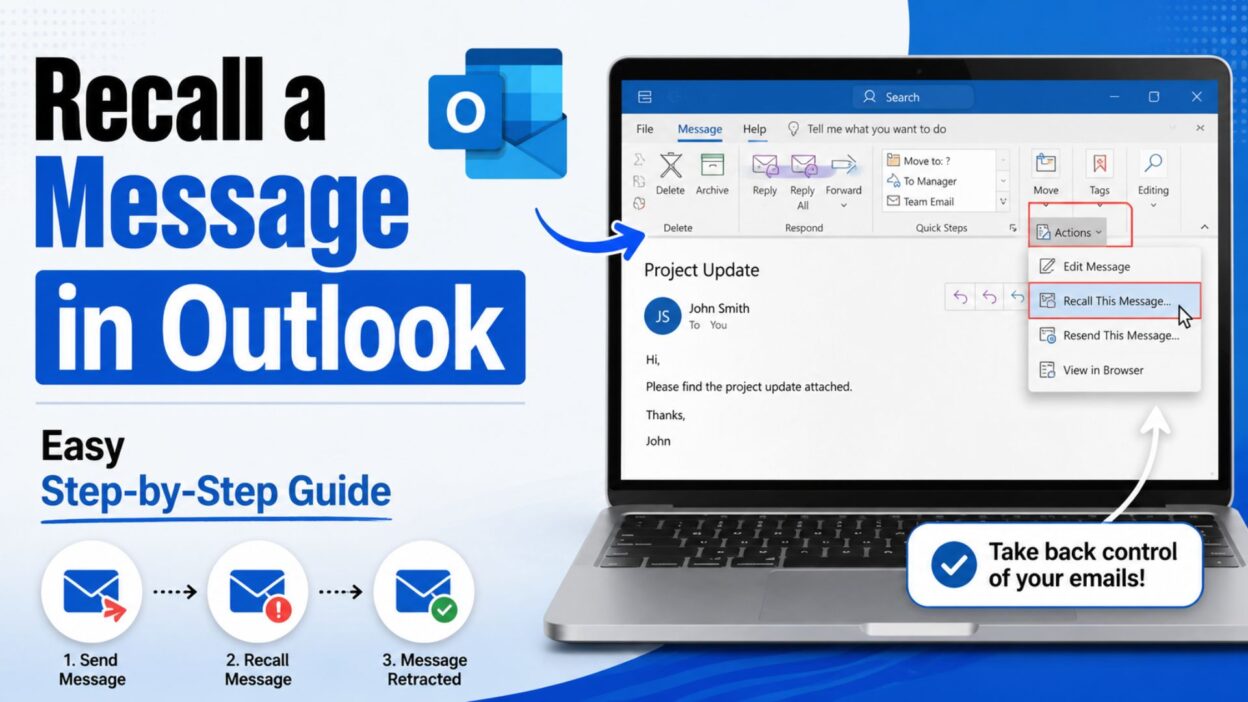
Sending an email by mistake can be stressful. Perhaps you noticed a spelling error after clicking Send, forgot to attach an important document, or accidentally sent the message to the wrong recipient. Fortunately, Microsoft Outlook offers a feature that may help you fix the mistake. If you’re searching for recall a message in Outlook, you’ve come to the right place.
However, it’s important to understand that the Message Recall feature doesn’t work in every situation. Instead, it succeeds only when specific conditions are met. For example, both the sender and recipient typically need to use Microsoft Outlook with a Microsoft Exchange or Microsoft 365 account within the same organization. Moreover, the recipient must not have opened the original email before the recall request is processed.
Therefore, learning how the recall feature works can save you time and help you avoid unnecessary frustration. In this guide, you’ll discover when Outlook message recall works, how to use it correctly, and what to do if the recall isn’t successful.
What Is Outlook Message Recall?
Before attempting to recall an email, it’s helpful to understand what the feature actually does.
Outlook Message Recall allows you to remove an unread email from the recipient’s inbox or replace it with a corrected version. Nevertheless, the feature isn’t guaranteed to work because several conditions determine whether the recall request succeeds.
When Can You Recall a Message in Outlook?
Although Message Recall is useful, it only works under certain circumstances.
- The email must still be unread.
- Both sender and recipient should use Microsoft Outlook.
- Both accounts are usually within the same Microsoft Exchange or Microsoft 365 organization.
- The original email should remain in the recipient’s Inbox.
- Company policies shouldn’t block the recall process.
Top Ways to Recall a Message in Outlook
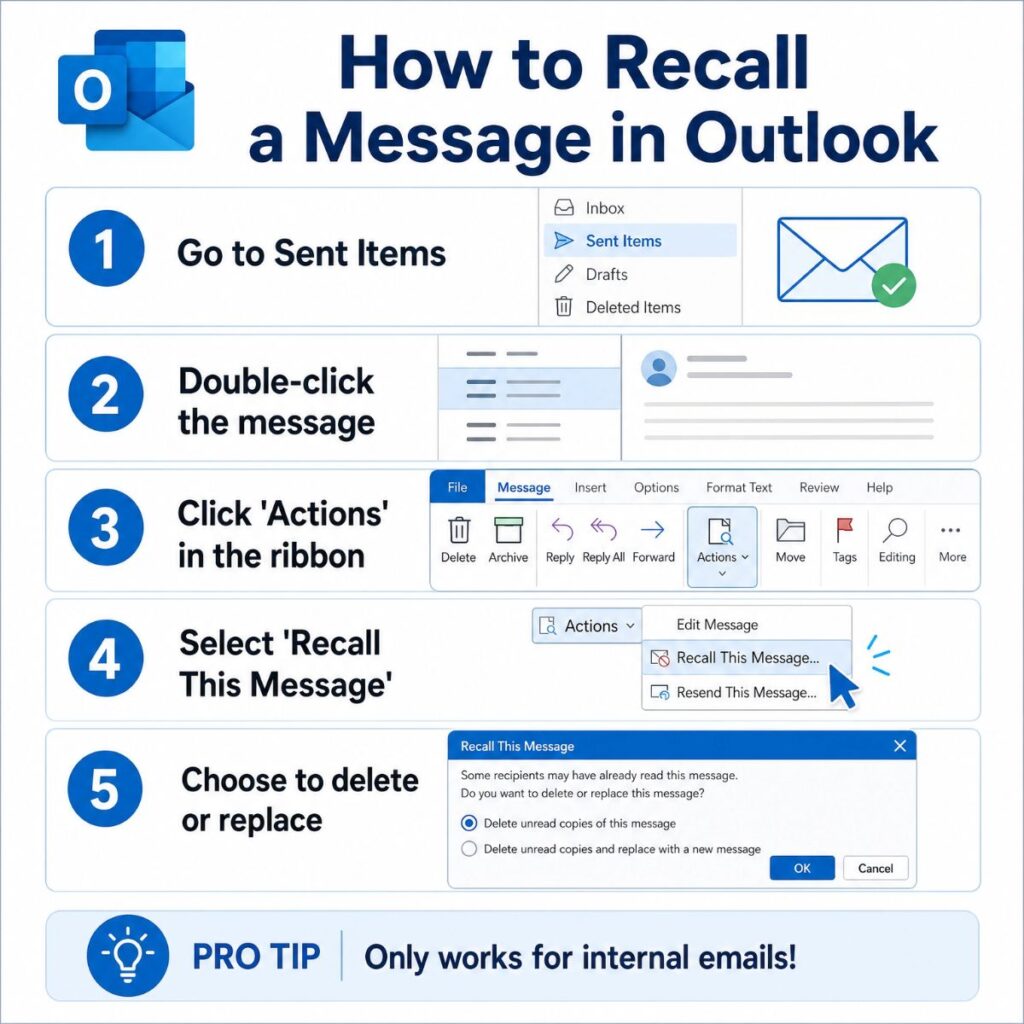
Follow these steps carefully to maximize your chances of recalling an email successfully.
- Open Microsoft Outlook on your desktop.
- Next, go to the Sent Items folder.
- Double-click the email you want to recall.
- Select the Message tab.
- Then click Actions.
- Choose Recall This Message.
- Select Delete unread copies of this message.
- Alternatively, choose Delete unread copies and replace with a new message.
- Check the option to receive a notification about the recall status.
- Click OK to submit your request.
- If replacing the message, edit the email carefully.
- Send the corrected version immediately.
- Wait while Outlook processes the recall request.
- Afterwards, review the success or failure notification.
- Confirm whether the recipient opened the original email.
- Act quickly because timing greatly affects the outcome.
- Keep your replacement message short and accurate.
- Finally, follow up with a correction if the recall doesn’t succeed.
Short Recall a Message in Outlook Tips
These quick tips can help improve your chances of success.
- Recall the message immediately.
- Always use Outlook Desktop.
- Check the Sent Items folder first.
- Make sure the email is unread.
- Replace the email if needed.
- Furthermore, proofread before sending again.
- Verify your recipients carefully.
- Review the recall notification.
- Keep your correction concise.
- Don’t rely on recall every time.
- Use delayed delivery for important emails.
- Learn Outlook’s recall limitations.
- Stay professional throughout the process.
- Finally, send a follow-up email if necessary.
Recall a Message in Outlook: Easy Step-by-Step Guide
Sending an email by mistake can be stressful. Perhaps you noticed a spelling error after clicking Send, forgot to attach an important document, or accidentally sent the message to the wrong recipient. Fortunately, Microsoft Outlook offers a feature that may help you fix the mistake. If you’re searching for recall a message in Outlook, you’ve come to the right place.
However, it’s important to understand that the Message Recall feature doesn’t work in every situation. Instead, it succeeds only when specific conditions are met. For example, both the sender and recipient typically need to use Microsoft Outlook with a Microsoft Exchange or Microsoft 365 account within the same organization. Moreover, the recipient must not have opened the original email before the recall request is processed.
Therefore, learning how the recall feature works can save you time and help you avoid unnecessary frustration. In this guide, you’ll discover when Outlook message recall works, how to use it correctly, and what to do if the recall isn’t successful.
What Is Outlook Message Recall?
Before attempting to recall an email, it’s helpful to understand what the feature actually does.
Outlook Message Recall allows you to remove an unread email from the recipient’s inbox or replace it with a corrected version. Nevertheless, the feature isn’t guaranteed to work because several conditions determine whether the recall request succeeds.
When Can You Recall a Message in Outlook?
Although Message Recall is useful, it only works under certain circumstances.
- The email must still be unread.
- Both sender and recipient should use Microsoft Outlook.
- Both accounts are usually within the same Microsoft Exchange or Microsoft 365 organization.
- The original email should remain in the recipient’s Inbox.
- Company policies shouldn’t block the recall process.
Top Ways to Recall a Message in Outlook
Follow these steps carefully to maximize your chances of recalling an email successfully.
- Open Microsoft Outlook on your desktop.
- Next, go to the Sent Items folder.
- Double-click the email you want to recall.
- Select the Message tab.
- Then click Actions.
- Choose Recall This Message.
- Select Delete unread copies of this message.
- Alternatively, choose Delete unread copies and replace with a new message.
- Check the option to receive a notification about the recall status.
- Click OK to submit your request.
- If replacing the message, edit the email carefully.
- Send the corrected version immediately.
- Wait while Outlook processes the recall request.
- Afterwards, review the success or failure notification.
- Confirm whether the recipient opened the original email.
- Act quickly because timing greatly affects the outcome.
- Keep your replacement message short and accurate.
- Finally, follow up with a correction if the recall doesn’t succeed.
Short Recall a Message in Outlook Tips
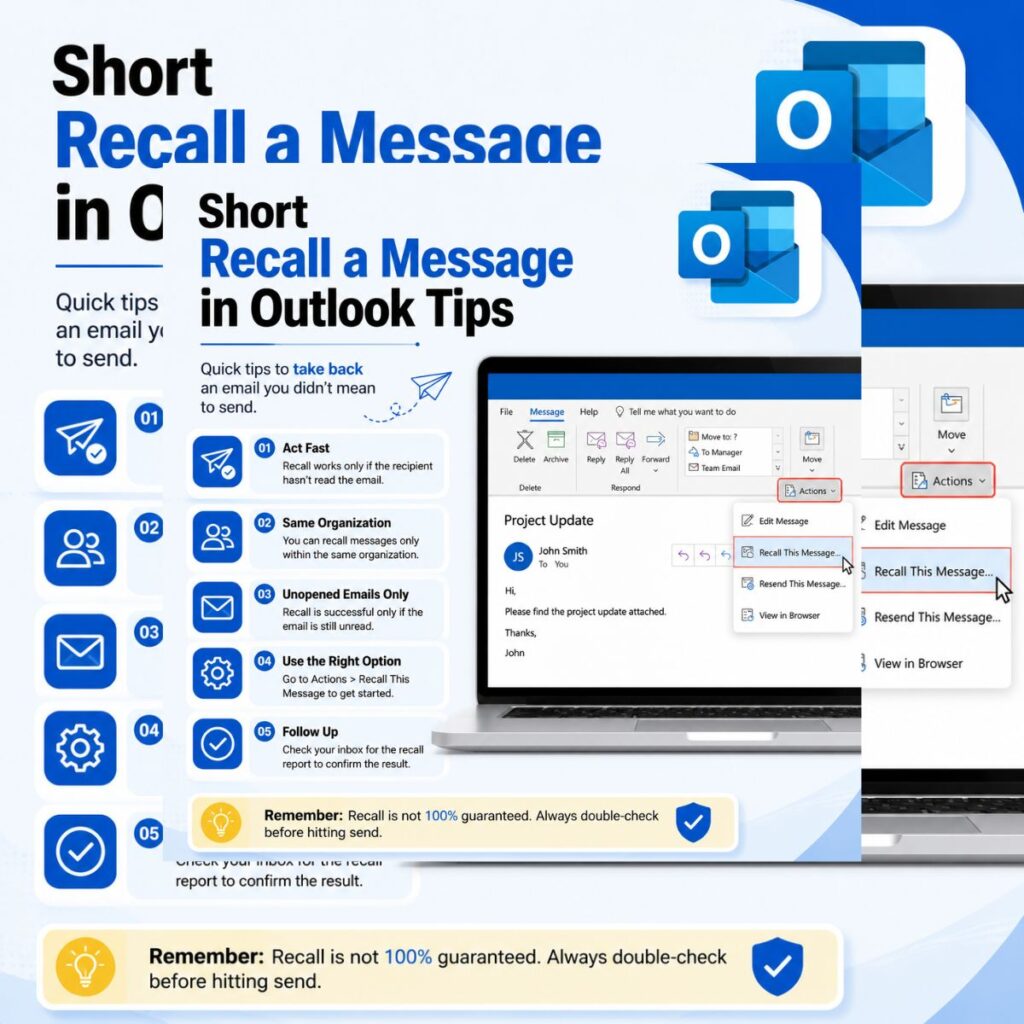
These quick tips can help improve your chances of success.
- Recall the message immediately.
- Always use Outlook Desktop.
- Check the Sent Items folder first.
- Make sure the email is unread.
- Replace the email if needed.
- Furthermore, proofread before sending again.
- Verify your recipients carefully.
- Review the recall notification.
- Keep your correction concise.
- Don’t rely on recall every time.
- Use delayed delivery for important emails.
- Learn Outlook’s recall limitations.
- Stay professional throughout the process.
- Finally, send a follow-up email if necessary.
ble skill that can save both time and unnecessary stress.
Best Practices Before Sending an Email
Although Outlook’s Message Recall feature can be helpful, preventing mistakes is always the better option. By developing good email habits, you can reduce the need to recall messages in the first place.
- Proofread every email before clicking Send.
- Double-check the recipient list carefully.
- Confirm that all attachments are included.
- Review links to make sure they work correctly.
- Keep your subject line clear and accurate.
- Use delayed delivery for important emails.
- Read your email one final time before sending.
- Avoid sending emails when you’re rushed or distracted.
- Verify names and email addresses.
- Save important drafts before sending them.
Frequently Asked Questions
Can I recall a message in Outlook after it has been read?
No. In most cases, once the recipient opens the email, the recall request will fail. Therefore, it’s important to act as quickly as possible after sending the message.
Does Outlook Message Recall work with Gmail?
No. Outlook Message Recall generally works only when both the sender and recipient use Microsoft Exchange or Microsoft 365 within the same organization. Consequently, it doesn’t work with Gmail, Yahoo Mail, or most other external email providers.
Can I replace an email instead of deleting it?
Yes. Outlook allows you to choose Delete unread copies and replace with a new message. As a result, you can immediately send a corrected version if the recall conditions are met.
Why did my message recall fail?
There are several possible reasons. For example, the recipient may have already opened the email, moved it to another folder, or used a different email service. Additionally, company policies can prevent recalls from succeeding.
Is Message Recall available in every version of Outlook?
No. The feature is mainly available in the Outlook desktop application using Microsoft Exchange or Microsoft 365 accounts. Therefore, availability depends on your Outlook version and your organization’s email setup.
Conclusion
Knowing how to recall a message in Outlook can save you from embarrassing mistakes, missing attachments, or sending incorrect information. However, it’s equally important to remember that Message Recall has several limitations. It works only under specific conditions, and unfortunately, it cannot guarantee that an email will be removed from the recipient’s inbox.
Fortunately, by understanding how the feature works, acting quickly, and following the correct steps, you can significantly improve your chances of a successful recall. Furthermore, using helpful practices such as proofreading emails, verifying recipients, checking attachments, and enabling delayed delivery can prevent many common email mistakes before they happen.
If a recall doesn’t succeed, don’t panic. Instead, send a polite correction email explaining the situation and providing the updated information. In many professional environments, a clear and respectful follow-up is the most effective solution.
We hope this guide has helped you understand how to recall a message in Outlook with confidence. Save this article for future reference, and share it with coworkers, friends, or anyone who uses Outlook regularly. After all, knowing how to fix an email mistake quickly is a valuable skill that can save both time and unnecessary stress.

Awais Bilal is the author of Messagesfy, sharing simple and meaningful messages, quotes, and wishes to help people express their feelings easily.