Sending a message to the wrong person can create an instant wave of panic. Maybe you noticed a typo, sent a private message to the wrong chat, or simply changed your mind seconds after tapping Send. Thankfully, if you use iMessage, your iPhone gives you a short window to take that message back.
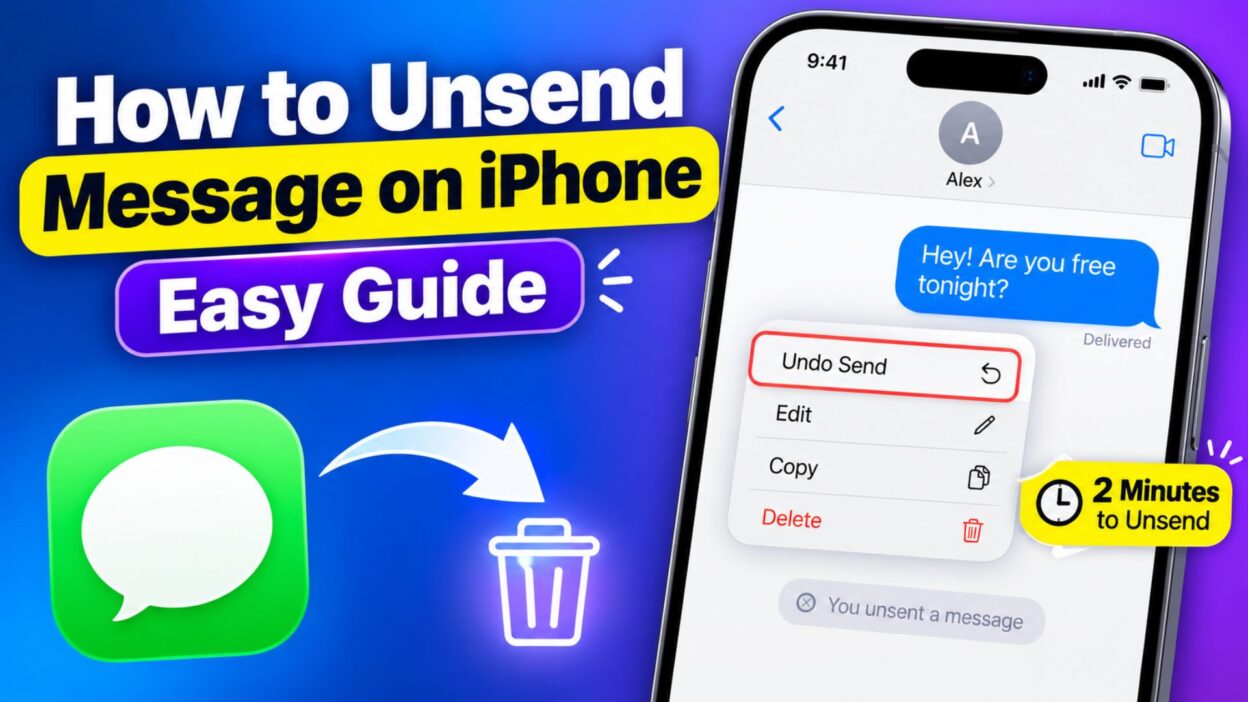
If you’re wondering how to unsend message on iPhone, the process is surprisingly simple. With iOS 16 or later, you can touch and hold a recently sent iMessage and choose Undo Send. However, there is an important catch: you generally have only 2 minutes after sending it.
The feature can save you from an awkward moment, but it does not work for every type of text. SMS, MMS, and RCS messages cannot normally be unsent through Apple’s Messages app. Also, if the recipient uses an older Apple operating system, they may still be able to see the original message.
Top How to Unsend Message on iPhone Tips
Before you panic over a mistakenly sent text, check whether the message qualifies for Apple’s Undo Send feature. These quick tips can help you act before the short window closes.
- Open the Messages app and go to the conversation containing the message.
- Find the message you sent accidentally.
- Touch and hold the message bubble to open the available actions.
- Tap Undo Send to retract the recently sent iMessage.
- Remember that Apple currently allows an iMessage to be unsent for up to 2 minutes after sending.
- The message should disappear from the conversation after you successfully unsend it.
- A notice confirming that you unsent a message will appear in the conversation.
- You and the recipient can see an indication that a message was unsent.
- Make sure you’re dealing with an iMessage, because SMS, MMS, and RCS messages cannot normally be unsent.
- If the Undo Send option does not appear, check whether more than 2 minutes have passed.
- If you’re sending an iMessage, the conversation usually has a blue message bubble.
- If you accidentally sent something sensitive, act immediately instead of waiting to see whether the person reads it.
- Don’t confuse Delete with Undo Send. Deleting a message from your own iPhone does not remove it from the recipient’s device.
- Undo Send is designed for recently sent messages, so it is not a way to remove old messages from another person’s conversation.
- If you missed the 2-minute window, consider editing the message instead if the situation is simply a typo or wording mistake.
- Apple allows eligible iMessages to be edited up to five times within 15 minutes of sending.
- When you edit a message, the conversation shows that it was edited.
- Recipients can also view previous versions of an edited message in supported versions of Apple’s software.
Short How to Unsend Message on iPhone Guide
If you’re in a hurry, these are the essential steps. You don’t need to change a setting first; simply act within the available time.
- Open Messages.
- Open the conversation.
- Find the recently sent iMessage.
- Touch and hold the message bubble.
- Tap Undo Send.
- Check the conversation to confirm that the message was unsent.
- Act within 2 minutes of sending.
- Remember that the feature requires compatible iMessage software on both sides.
- If the option is missing, check whether you’re using SMS, MMS, or RCS.
- If the message was sent more than 2 minutes ago, try Edit instead when available.
- For a simple typo, editing may be better than sending another correction message.
- For a message sent to the wrong person, use Undo Send as quickly as possible.
- If you cannot unsend it, avoid repeatedly deleting the conversation because that will not remove the message from the recipient’s device.
Best How to Unsend Message on iPhone Methods
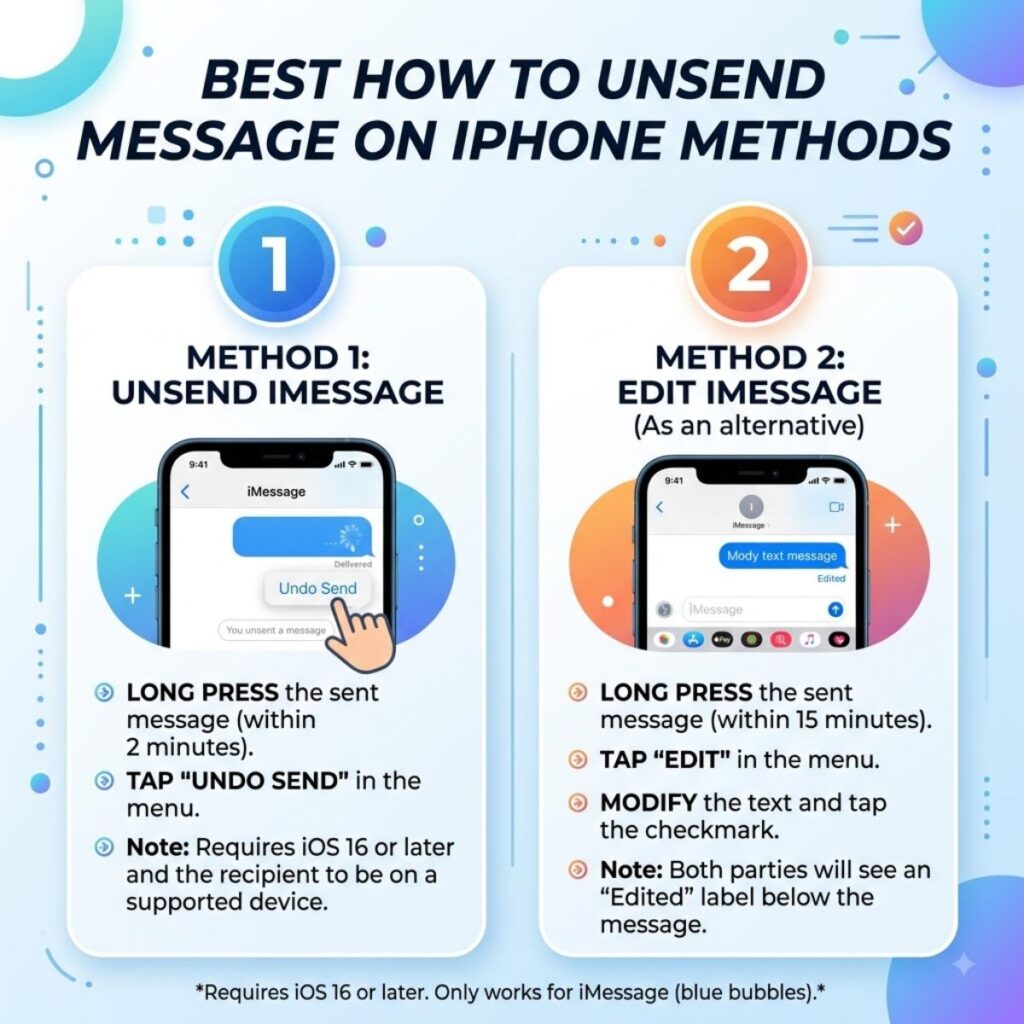
Knowing the correct method matters because several options inside Messages can look similar. The right choice depends on whether you want to completely retract the message or simply correct it.
- Use Undo Send when you want to pull back a recently sent iMessage.
- Use Edit when the message is mostly correct but contains a typo or mistake.
- Use Delete when you only want to remove the message from your own conversation.
- Use Undo Send immediately if you sent the message to the wrong person.
- Use Edit within 15 minutes when you missed the 2-minute unsend period but still want to correct the wording.
- Check the message color before assuming Undo Send will work.
- Blue bubbles generally indicate iMessage conversations, where Apple’s unsend feature is supported.
- Green-bubble texts can involve SMS, MMS, or RCS, which do not normally support Undo Send in Apple’s Messages app.
- Check your iOS version if the feature is missing.
- Update compatible Apple devices when possible so newer Messages features work as intended.
- Don’t rely on deleting the chat as a substitute for unsending.
- Don’t wait for a read receipt before deciding what to do.
- Act first, explain later when a message was clearly sent to the wrong conversation.
- Use editing for harmless mistakes instead of sending several correction texts.
- Remember the recipient may still see the message if they use an older supported operating system.
- Treat Undo Send as a short safety window, not a permanent guarantee that nobody saw the message.
- Keep your Messages app updated if you want access to the latest messaging features.
- Check whether you’re using iMessage before troubleshooting the missing Undo Send button.
- Use Apple’s built-in feature instead of relying on third-party apps that claim they can remotely remove regular texts.
- If privacy matters, act immediately, because the 2-minute window passes quickly.
- Remember that unsending leaves an indication in the conversation rather than silently erasing every trace.
A Quick Reminder Before You Unsend
The biggest mistake people make is assuming that deleting a message and unsending it are the same thing. They are not.
Delete removes the selected message from your own Messages history, while Undo Send is the feature designed to retract a recently sent iMessage from the conversation. Apple specifically notes that deleting messages does not affect what recipients see.
So, if you just sent something embarrassing, don’t tap Delete and assume the problem is solved. Instead, touch and hold the message and look for Undo Send immediately.
How to Unsend Message on iPhone: What Happens Next
Once you know how to unsend message on iPhone, the next question is usually what happens after you tap Undo Send. The answer depends on the message type, timing, and software used by you and the recipient.
When an eligible iMessage is successfully unsent, the original message disappears from the conversation. However, Messages shows an indication that a message was unsent, so the action is not completely invisible.
This matters because many people expect the message to vanish without any sign. In reality, the recipient can know that you removed something, even though they cannot normally read the original message after a successful unsend.
How to Unsend Message on iPhone After Sending
If you have just sent an iMessage and immediately regret it, speed matters. Follow these simple steps before the 2-minute window expires.
- Open the Messages app on your iPhone.
- Select the conversation where you sent the message.
- Find the message you want to retract.
- Touch and hold the message bubble.
- Look through the menu that appears.
- Tap Undo Send.
- Wait for the message to disappear from the conversation.
- Check for the unsent-message indication to confirm that the action worked.
- If you don’t see Undo Send, check how much time has passed since you sent the message.
- Make sure the message is an iMessage rather than a standard SMS, MMS, or RCS text.
- If the message is no longer eligible, consider using Edit when the option is available.
- Avoid tapping Delete if your goal is to remove the message from the recipient’s conversation.
- If you sent several messages by mistake, handle each eligible message separately.
- If the message contains sensitive information, take action immediately rather than assuming you can remove it later.
- Remember that a successful unsend does not necessarily mean the recipient never saw the message.
What If Undo Send Is Missing on iPhone?
Seeing no Undo Send option can be frustrating, especially when you are trying to correct an embarrassing mistake. Fortunately, several common reasons can explain why the option is unavailable.
- More than 2 minutes may have passed since you sent the message.
- The message may not be an iMessage.
- The conversation may use SMS, MMS, or RCS instead.
- Your iPhone may not have a compatible version of iOS.
- The recipient may be using an older Apple operating system.
- You may have selected a message that is outside Apple’s unsend window.
- The message may already have been edited or otherwise changed.
- The feature may not apply to the type of message you sent.
- If you’re unsure, check whether the conversation uses blue iMessage bubbles.
- Update your iPhone if it is running an outdated version of iOS.
- If you missed the unsend window, check whether Edit is still available.
- Don’t repeatedly delete and recreate the conversation expecting the recipient’s copy to disappear.
- If the message was sent as a regular text, you generally cannot remotely pull it back through Apple’s Messages app.
Can You Unsend a Text Message on iPhone?
This is one of the most important distinctions to understand. Apple’s Undo Send feature is intended for eligible iMessages, not ordinary SMS, MMS, or RCS messages.
A green message bubble does not work the same way as a blue iMessage bubble. Therefore, if you accidentally send a regular text, you should not expect the same unsend option to appear.
- iMessage: Supports Undo Send when the message meets Apple’s requirements.
- SMS: Cannot normally be unsent through Apple’s Messages app.
- MMS: Cannot normally be unsent through Apple’s Messages app.
- RCS: Cannot normally be unsent through Apple’s Messages app.
- Blue bubble: Usually indicates an iMessage conversation.
- Green bubble: Indicates a non-iMessage messaging method, which may include SMS, MMS, or RCS.
- If you’re unsure which type you sent, check the color and conversation details before troubleshooting.
- Don’t assume every message sent from an iPhone can be pulled back.
- If Undo Send is unavailable, consider whether correcting the message is a better option.
What Happens When You Unsend an iMessage?
Unsending a message does not work like secretly erasing a message from someone’s phone. Instead, Apple removes the eligible message and places an indication in the conversation showing that a message was unsent.
That small detail can make a big difference in an awkward situation. You may remove the original words, but the recipient can still notice that something was withdrawn.
- The original eligible iMessage is removed from the conversation.
- The conversation shows that a message was unsent.
- The recipient may notice that you retracted something.
- The action does not guarantee that the recipient never saw the message.
- A recipient may have already read the message before you unsent it.
- A notification or preview could potentially have exposed part of the message before you retracted it.
- Unsending is therefore best viewed as a quick correction tool rather than a guarantee of complete privacy.
- If the message was sent seconds ago, using Undo Send quickly gives you the best chance of retracting it before it is read.
- If someone already responded to the message, unsending it will not erase the fact that they may have seen it.
- If the message contained something important, consider communicating clearly after correcting the mistake.
Can You Unsend an iMessage After 2 Minutes?
In general, no. Apple’s current Messages feature gives you a 2-minute window to unsend an eligible iMessage.
Once that period has passed, the Undo Send option is no longer available for that message. At that point, you may still have another option if the message qualifies for editing.
- Within 2 minutes: Undo Send may be available.
- After 2 minutes: Undo Send is generally unavailable.
- Within 15 minutes: Edit may still be available for eligible iMessages.
- After the editing period: you may need to send a correction message instead.
- If the mistake is minor, editing can be more practical than trying to retract the entire conversation.
- If the message went to the wrong person, a short and honest explanation may be better than sending multiple confusing messages.
- Always check the available options directly on the message because eligibility can depend on the message type and software version.
How to Unsend Message on iPhone Without the Other Person Knowing
Unfortunately, there is no reliable way to guarantee that the other person will not know you unsent a message. Apple’s Messages app indicates that a message was unsent.
This means the feature is useful for retracting the actual message content, but it is not designed to erase every indication that you sent something.
- Use Undo Send as quickly as possible.
- Don’t expect the conversation to look completely untouched.
- Remember that an unsent-message notice can appear in the chat.
- If the recipient already saw the message, unsending cannot undo that moment.
- If the message appeared in a notification preview, the recipient may have already read some or all of it.
- If the situation is awkward, avoid making it worse with several rushed follow-up messages.
- A simple explanation can sometimes be more effective than trying to hide the mistake.
- For an accidental message, a calm response such as “Sorry, that was meant for someone else” can quickly clear things up.
How to Unsend Message on iPhone After Reading It
You can unsend your own eligible iMessage even if you have already opened the conversation and read the message yourself. What matters most is whether the message is still within the available unsend period.
- Open the conversation.
- Locate your recently sent message.
- Touch and hold it.
- Tap Undo Send if the option appears.
- Confirm that the original message has been removed.
- If the option does not appear, check the message’s age and type.
- Reading your own sent message does not automatically prevent you from using Undo Send.
- However, reading it does not extend the 2-minute limit either.
Copy-Paste Ready Messages After an Accidental Text
Sometimes the message cannot be unsent. In that situation, a simple follow-up can make the moment much less awkward.
- “Sorry, that message was meant for someone else.”
- “Oops, wrong conversation. Please ignore that.”
- “Sorry about that! I sent that to the wrong person.”
- “That was definitely not meant for this chat. My mistake!”
- “Please ignore my last message. Wrong person!”
- “Oops, I tapped send too quickly. Sorry about that.”
- “Sorry, that message was sent by mistake.”
- “Wrong chat! Please disregard my last message.”
- “My apologies, I meant to send that somewhere else.”
- “That was an accidental send. Sorry for the confusion.”
- “Oops, that wasn’t meant for you. My mistake.”
- “Sorry about the random message. Wrong conversation!”
- “Please ignore the message above. I sent it accidentally.”
- “That was intended for another chat. Sorry!”
- “I definitely chose the wrong conversation there. Sorry about that.”
Best Captions About Unsent Messages
These short captions work well for social posts, status updates, or relatable content about texting mistakes.
- “Some messages are better left unsent.”
- “Two minutes can save a whole lot of explaining.”
- “The panic after pressing Send is real.”
- “Wrong chat, instant regret.”
- “Sent it. Regretted it. Unsended it.”
- “When Undo Send becomes your best friend.”
- “A tiny button can save a big conversation.”
- “That moment when you wish messages came with a rewind button.”
- “Sometimes the best message is the one you take back.”
- “One accidental tap, one very fast reaction.”
- “Texting mistakes happen. At least iPhone gives you a chance.”
- “The fastest fingers are not always the safest.”
- “Sent too soon? Stay calm and check Undo Send.”
- “Because everyone deserves a second chance after a wrong text.”
- “Wrong person. Wrong chat. Right time to unsend.”
Quick Things to Remember
If you’re learning how to unsend message on iPhone, keep these points in mind whenever you send something by mistake.
- Act within 2 minutes for an eligible iMessage.
- Use Undo Send, not Delete, when you want to retract a sent message.
- SMS, MMS, and RCS messages generally cannot be unsent through Apple’s Messages app.
- An unsent-message indication can remain visible in the conversation.
- The recipient may have already seen the message.
- Editing can be an alternative when the unsend window has passed.
- Don’t assume deleting a conversation removes it from someone else’s phone.
- When in doubt, check the message options immediately.
How to Unsend Message on iPhone: More Useful Tips
Knowing the basic steps is helpful, but a few extra details can save you from confusion when the feature does not work as expected. The key is to understand what Apple can remove and what remains outside your control.
- Undo Send only works during a short window. If you notice the mistake, act immediately rather than waiting.
- Deleting is different from unsending. Delete only manages your copy of the conversation, while Undo Send is designed to retract an eligible iMessage.
- The recipient may already have seen the message. Unsending cannot erase something they have already read or remembered.
- Notifications can matter. Depending on the recipient’s notification settings and timing, they may have seen a preview before you retracted the message.
- Editing can help with small mistakes. If you only need to fix a spelling error, editing may be easier than sending another message.
- Check the message type. The feature is designed for iMessage rather than ordinary SMS, MMS, or RCS messages.
- Keep iOS updated. Compatible software helps ensure that current Messages features work as intended.
- Don’t panic if the message disappears but a notice remains. That indication is part of how Apple’s unsend feature works.
- Don’t send another message immediately unless necessary. Sometimes a quick correction creates more confusion than the original mistake.
- For serious mistakes, communicate clearly. A short explanation can be more useful than trying to pretend nothing happened.
What to Do If You Cannot Unsend a Message
Sometimes you discover the mistake too late. Other times, the message simply does not qualify for Apple’s Undo Send feature. In either case, there are still practical ways to handle the situation.
- Check whether the message was sent more than 2 minutes ago.
- Check whether the message is an iMessage.
- Look for the Edit option if the message is still within the editing period.
- If editing is unavailable, send a brief correction.
- If you sent the message to the wrong person, acknowledge the mistake instead of creating a complicated explanation.
- If the message contains incorrect information, send the correct information clearly.
- If you accidentally shared something private, avoid sending additional sensitive details while trying to explain the situation.
- If the recipient has already responded, focus on resolving the conversation rather than repeatedly trying to remove the original message.
- If you simply made a typo, correct it naturally and move on.
- Remember that deleting the message from your iPhone will not normally remove the recipient’s copy.
- Use the experience as a reminder to double-check the conversation before sending sensitive messages.
How to Avoid Sending the Wrong Message on iPhone
Accidental messages often happen because people reply quickly, switch between conversations, or press Send without checking the recipient. A few small habits can prevent many of these situations.
- Check the recipient’s name before sending a private message.
- Pause for a second before tapping Send when the message contains sensitive information.
- Review photos and attachments before sending them.
- Be especially careful when several conversations have similar names.
- Avoid composing emotional messages while distracted or angry.
- Read the first line of the conversation before replying quickly.
- Double-check group chats before sending personal comments.
- Keep important information in the correct conversation.
- If you frequently switch between chats, slow down when sending messages to multiple people.
- Use editing when you notice a simple typo shortly after sending.
- Learn where Undo Send is located so you can react quickly if you make a mistake.
- Keep your iPhone updated so you can use supported Messages features.
- Before sending a message you may regret, read it once from the recipient’s perspective.
- When something feels risky to send, waiting a few seconds can prevent a much bigger problem.
One-Line How to Unsend Message on iPhone Reminders
These quick reminders are useful when you need an answer without reading a long guide.
- Touch and hold the recent iMessage, then tap Undo Send.
- You generally have 2 minutes to unsend an eligible iMessage.
- Delete and Undo Send are two different features.
- Regular SMS, MMS, and RCS messages cannot normally be unsent through Apple’s Messages app.
- A message can be unsent even though the conversation shows that something was retracted.
- If Undo Send is gone, check whether the 2-minute window has expired.
- If you missed the window, check whether Edit is available.
- Unsending cannot guarantee that nobody saw the message.
- A notification preview may have revealed the message before you retracted it.
- When the message cannot be unsent, a short correction is often the simplest solution.
- Always check the recipient before sending a sensitive message.
- Don’t rely on deleting the conversation to remove a message from someone else’s phone.
Frequently Asked Questions
Can I unsend a message on iPhone after 2 minutes?
Generally, no. Apple’s Undo Send feature gives you a short period of up to 2 minutes to retract an eligible iMessage. After that, the Undo Send option is normally unavailable. If the message is still eligible for editing, you may be able to modify it instead.
Why can’t I see Undo Send on my iPhone?
The most common reasons are that more than 2 minutes have passed or the message is not an iMessage. SMS, MMS, and RCS messages do not normally support Apple’s Undo Send feature. An incompatible or outdated software version can also affect availability.
Does deleting a message unsend it?
No. Deleting a message from your iPhone is not the same as using Undo Send. Deleting manages your copy of the conversation, while Undo Send is designed to retract an eligible recently sent iMessage.
Will someone know if I unsend an iMessage?
They can see that a message was unsent because Messages can display an indication in the conversation. However, the original message content is removed when the unsend action works successfully.
Can I unsend a green text message on iPhone?
Not through Apple’s standard Undo Send feature. Green-bubble conversations can use SMS, MMS, or RCS, and these message types do not normally support the same unsend function available for iMessage.
Final Thoughts
A wrong message can turn an ordinary conversation into an instant moment of panic. Fortunately, knowing how to unsend message on iPhone gives you a useful safety net when you catch the mistake quickly.
The most important thing to remember is simple: act fast. For an eligible iMessage, Apple provides a short 2-minute window to use Undo Send. If you miss that window, check whether you can edit the message instead. And if neither option works, don’t panic. A short, honest correction is often enough to move past an accidental text.
It is also worth remembering that unsending is not a magic eraser. The recipient may have already seen the message, and the conversation can show that something was retracted. Therefore, use the feature as a helpful second chance rather than a guarantee that the message was never noticed.
Keep this guide saved for the next time a message goes to the wrong person, contains an embarrassing typo, or simply gets sent too soon. Sometimes a few seconds and the right button can save you from a much longer explanation.

Awais Bilal is the author of Messagesfy, sharing simple and meaningful messages, quotes, and wishes to help people express their feelings easily.