- Ever thought, “I’ll send this later,” and then completely forgot? Maybe you want to wish someone a happy birthday at midnight, remind a friend about an important plan, or send a work-related message at the right time without setting a separate reminder. That’s where scheduled texting can make life much easier.
- So, can you schedule a text message on iPhone? Yes. Modern iPhones include a built-in scheduling feature in the Messages app, allowing you to prepare a message now and have it sent later. You don’t need to rely on a complicated third-party texting app for the basic feature.
- The best part is that scheduling a message can feel almost exactly like sending a normal text. You choose the conversation, write your message, select when you want it delivered, and let your iPhone handle the timing.
- Whether you’re planning a birthday wish, sending a gentle reminder, or simply trying to stay organized, scheduled messages can save you from forgetting those small but important moments.
Can You Schedule a Text Message on iPhone?
- Yes, iPhone users can schedule messages directly through the Messages app when using a supported version of iOS. The feature is designed to let you write a message ahead of time and choose a future delivery time.
- This is especially useful when you know exactly what you want to say but don’t want to send it immediately.
How to Schedule a Text Message on iPhone
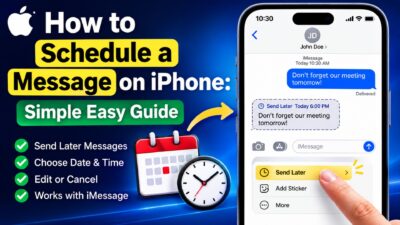
- Open the Messages app on your iPhone and select the conversation where you want to send the message.
- Write your message in the text field as you normally would. You can take your time and make sure everything looks right before scheduling it.
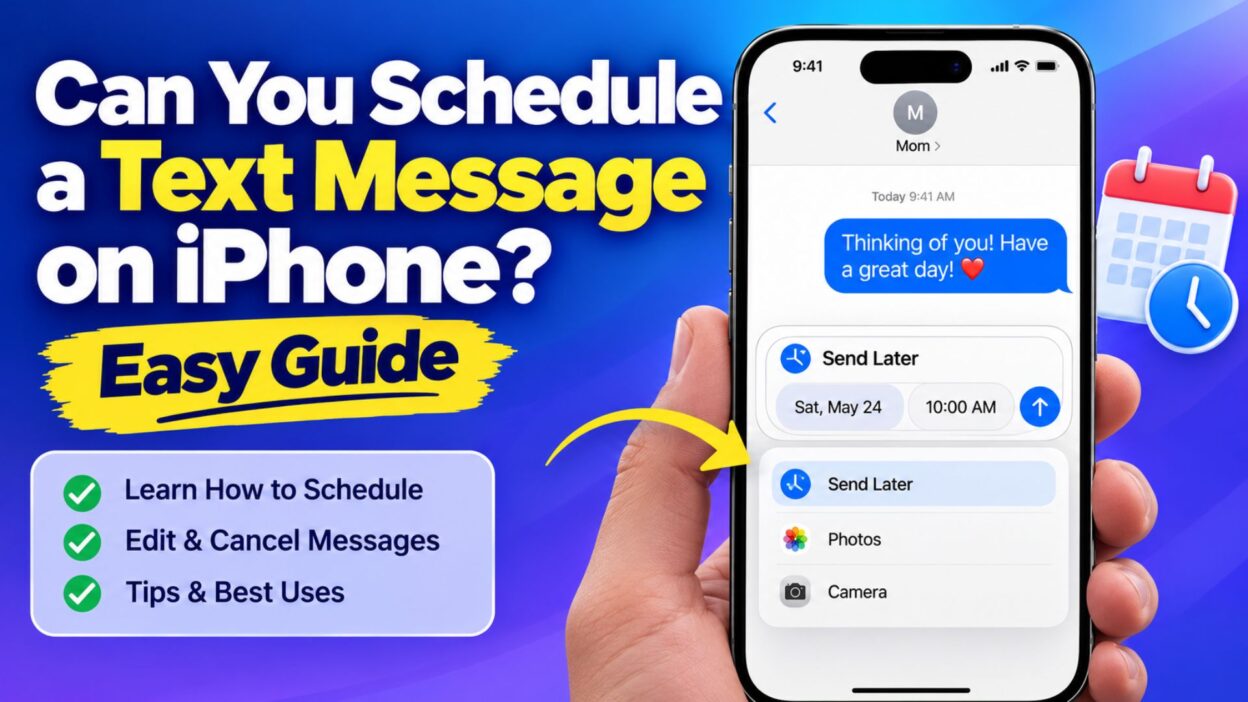
- Look for the + button beside the message field. Tap it to open the additional Messages options.
- Select Send Later from the available options. If you don’t see it, make sure your iPhone is running a compatible iOS version.
- Choose the date and time when you want your message to be sent.
- Tap the send button to schedule the message. The message will remain scheduled until the selected delivery time.
- This simple process is helpful when you want to prepare a message in advance instead of relying on your memory later.
Top Scheduled Text Message Ideas for iPhone
- Scheduled messages are useful for more than reminders. You can also use them to make everyday communication feel more thoughtful.
- Here are some natural messages you can prepare ahead of time.
- “Good morning! Hope your day starts with a smile and gets even better from there. ☀️”
- “Just a little reminder that you’ve got this. Take a deep breath and keep going.”
- “Happy birthday! I hope today brings you everything you’ve been hoping for. 🎂”
- “Don’t forget about our plans today. Looking forward to seeing you!”
- “Good luck today! You’ve worked hard for this, so trust yourself.”
- “Just wanted to remind you that I’m thinking about you. Have a beautiful day. ❤️”
- “Hope you’re having a great morning. Don’t forget to take some time for yourself.”
- “Reminder: You have an important day ahead. Stay focused and believe in yourself.”
- “Happy anniversary! Another beautiful chapter of your story begins today. ❤️”
- “I hope this message reaches you at the perfect time. Keep smiling!”
Short Scheduled Text Messages
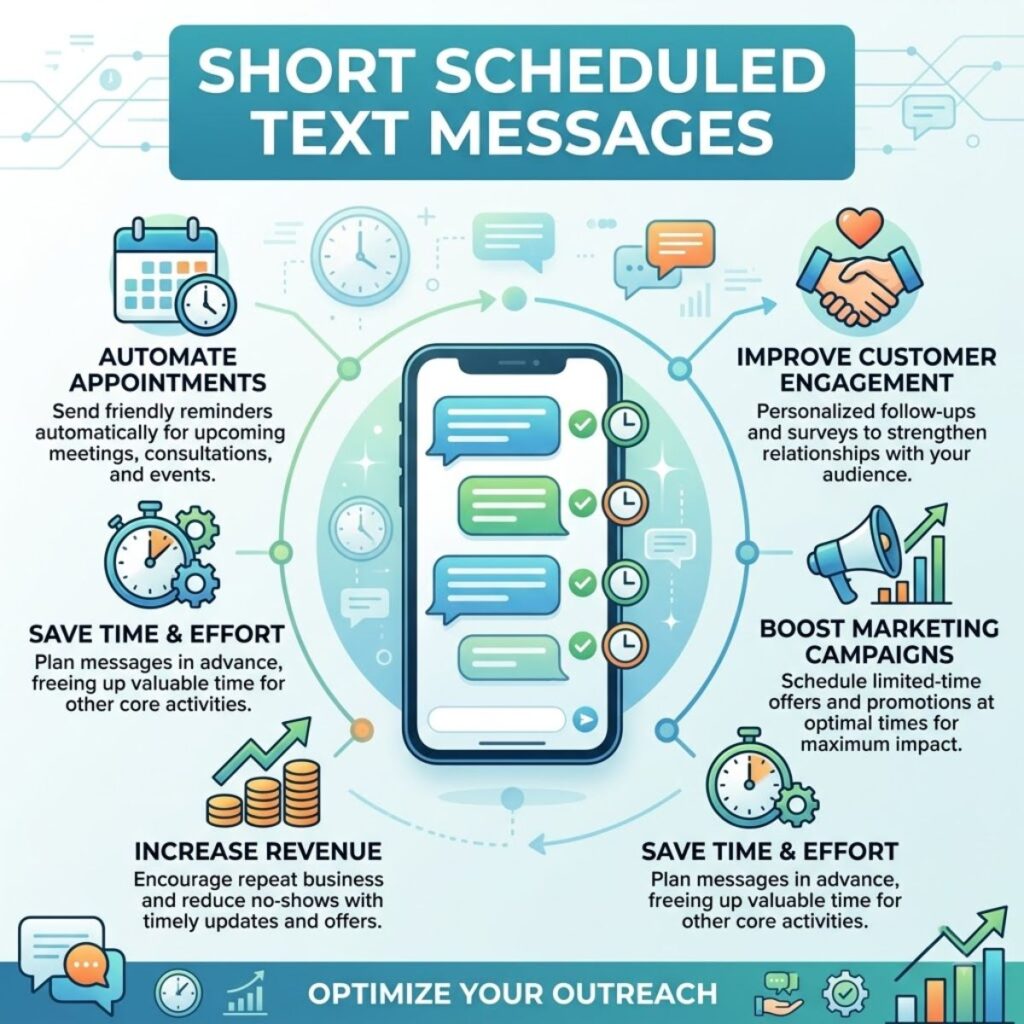
- Short messages work particularly well when you simply want to send a quick reminder, greeting, or thoughtful note.
- “Good morning! Have an amazing day. ☀️”
- “Don’t forget—you’ve got this!”
- “Happy birthday! Enjoy your special day! 🎉”
- “Thinking of you today. ❤️”
- “Good luck! Go make it happen.”
- “See you soon!”
- “Have a safe trip!”
- “Remember our plans for tonight.”
- “Hope your day is going well!”
- “Sleep well and wake up smiling. 🌙”
- “You’re doing better than you think.”
- “Just checking in. Hope everything is okay.”
- “Have a wonderful weekend!”
- “Don’t forget to take a break.”
- “Proud of you. Keep going!”
Best Scheduled Text Messages for Sharing
- A scheduled message can be especially meaningful when timing matters. Instead of rushing to type something at the last minute, you can prepare your words when you have a quiet moment.
- “I wanted to make sure you started your birthday knowing how special you are. Happy birthday! 🎂❤️”
- “No matter how busy today gets, remember to take a moment to breathe and enjoy it.”
- “You’ve been working toward this moment for a long time. Believe in yourself and give it your best.”
- “I hope today reminds you how many people care about you. You deserve a beautiful day.”
- “Just a reminder that tomorrow is a fresh start. Leave today’s worries behind and rest well.”
- “Whatever happens today, remember that one difficult moment doesn’t define your entire journey.”
- “Sending you a little encouragement for the day ahead. You’re stronger than you realize.”
- “I hope everything goes smoothly today. Take things one step at a time.”
- “Your reminder has arrived: drink some water, take a breath, and keep moving forward. 😊”
- “I hope this message catches you at a moment when you need a little extra encouragement.”
- “Sometimes the smallest reminder can make the biggest difference. I’m cheering for you!”
- “Wishing you a peaceful morning, a productive afternoon, and a relaxing evening.”
- “Whatever is on your schedule today, I hope you find at least one reason to smile.”
- “Just wanted to send some positive energy your way before your busy day begins.”
One-Line Scheduled Text Messages
- If you prefer something quick and natural, these one-line messages are easy to prepare and schedule.
- “Hope today gives you plenty of reasons to smile. 😊”
- “You’ve got this—trust yourself!”
- “Thinking of you and wishing you a beautiful day.”
- “Happy birthday to someone truly unforgettable! 🎉”
- “Good luck today; go show them what you can do!”
- “A little reminder: you are capable of more than you think.”
- “Hope your day is peaceful, productive, and happy.”
- “Don’t forget how far you’ve already come.”
- “Sending you a little love and encouragement today. ❤️”
- “Make today count, even in the smallest way.”
- “Remember to smile—you’re doing great.”
- “Wishing you good news and good moments today.”
- “Take a breath, trust yourself, and keep going.”
- “Hope everything works out better than you imagined.”
- “You deserve a day filled with good things.”
- “Just checking in with a little reminder that you matter.”
- “Have a beautiful day and an even better evening.”
- “Keep going; your effort will be worth it.”
- “Here’s your reminder to slow down and enjoy the moment.”
Best Messages for Captions
- If you want to pair a scheduled message with a social caption, keep the wording natural, short, and easy to relate to. These options work well for birthdays, reminders, milestones, and everyday moments.
- “Some moments are worth planning for, especially the ones that make someone smile. ❤️”
- “A little message at the right time can turn an ordinary day into a memorable one.”
- “Sometimes, it’s not about sending a lot of words. It’s about sending them at the right moment.”
- “Good things are worth remembering, and meaningful messages are worth sending.”
- “Making time for the people who matter, even when life gets busy.”
- “A simple message can carry more meaning when it arrives exactly when it’s needed.”
- “Planning the message today so tomorrow starts with a little extra kindness.”
- “The right words at the right time can make an ordinary moment feel special.”
- “Because some reminders deserve more than a notification on your calendar. 💬”
- “Sending a little happiness your way, right when you need it most.”
- “Thoughtful messages don’t always need a reason. Sometimes, someone simply deserves one.”
- “A message may take seconds to write, but the feeling behind it can last much longer.”
- “Keeping important moments close, even when the days get busy.”
- “Sometimes the smallest gesture is the one people remember.”
Copy-Paste Ready Messages
- These messages are ready to copy into your iPhone Messages app. You can schedule them for birthdays, reminders, encouragement, plans, or simple check-ins.
- “Good morning! I hope you wake up feeling refreshed and ready for a beautiful day.”
- “Just a reminder that you have everything you need to handle today. Believe in yourself.”
- “Happy birthday! I hope your day is filled with laughter, love, and unforgettable moments. 🎂”
- “Don’t forget about our plans later. I’m really looking forward to seeing you!”
- “Good luck today! Stay confident, trust your preparation, and give it your best.”
- “I hope your day is going well. Just wanted to send a little reminder that I’m thinking of you.”
- “Before the day gets too busy, remember to take a breath and enjoy the little things.”
- “You’ve come so far already. Don’t let one difficult moment make you forget that.”
- “Hope you have a safe trip! Enjoy every moment and let me know when you arrive.”
- “Just checking in to see how you’re doing. I hope everything is going smoothly.”
- “Good night! Leave today behind, get some rest, and wake up ready for a fresh start. 🌙”
- “Tomorrow is another chance to try again, do better, and create something beautiful.”
- “Congratulations! You worked for this moment, and you deserve to enjoy every second of it. 🎉”
- “I hope this little message gives you a reason to smile today.”
- “Remember, you don’t have to figure everything out at once. Take it one step at a time.”
- “Have an amazing day! I hope something unexpectedly wonderful happens for you.”
- “Just wanted to remind you that you’re appreciated more than you probably realize.”
- “Whatever today brings, I hope you handle it with confidence and finish the day proud of yourself.”
Why Schedule Text Messages on iPhone?
- Scheduling messages can make everyday communication easier because you don’t have to depend entirely on memory.
- You can prepare an important message while you’re thinking about it and choose a more appropriate time for delivery.
- For example, you might write a birthday message the night before instead of worrying about remembering it at midnight.
- You can also prepare reminders for appointments, plans, meetings, school events, travel, or other commitments.
- Another benefit is that scheduling can help you avoid sending messages at inconvenient hours. If you think of something late at night, you can prepare it for a more suitable time instead.
- This can be especially helpful when communicating with people who live in different time zones. You can choose a delivery time that works better for them.
- Scheduled texting also helps when your day is packed. Instead of stopping what you’re doing later, you can prepare messages when you have a free moment.
Can You Edit a Scheduled Text Message on iPhone?
- Yes, scheduled messages can generally be managed from the conversation where you created them, provided your iPhone and iOS version support the feature.
- If you notice a spelling mistake, changed plan, or incorrect delivery time, open the relevant conversation and look for the scheduled message.
- From there, available message-management options can allow you to adjust the message or its scheduled delivery details.
- It’s a good idea to check the message before its delivery time, especially when the text contains a date, appointment time, address, or other important information.
Can You Cancel a Scheduled Text Message?
- Yes, you can cancel a scheduled message before it is delivered when using the supported scheduling feature in Messages.
- This can be useful when plans change or you realize that you no longer need to send the message.
- Open the conversation containing the scheduled message and select the available options for managing it.
- If you frequently schedule messages, checking your upcoming scheduled texts can help you avoid sending outdated reminders or messages after plans have changed.
What If You Don’t See “Send Later” on iPhone?
- If you’re wondering, “Can you schedule a text message on iPhone?” but don’t see the Send Later option, there are a few things worth checking.
- First, check whether your iPhone is running a version of iOS that supports message scheduling.
- Go to your iPhone’s Settings, open General, and select Software Update to see whether an update is available.
- Also make sure you’re using the Messages app correctly and that you’re looking at the options available from the + button beside the message field.
- If the feature still doesn’t appear, your iPhone model, iOS version, message type, or current setup may affect which Messages features are available.
- Updating your software can also provide access to newer Messages features and improvements.
Scheduled Messages vs. Regular Messages
- A regular text message is sent as soon as you tap the send button. A scheduled message, however, waits until the delivery time you choose.
- Regular messages are ideal when the conversation is happening right now and there’s no reason to delay the message.
- Scheduled messages are more useful when timing matters or when you want to prepare something in advance.
- For instance, you might send “I’m outside” immediately, while you could schedule “Happy birthday!” for the morning of someone’s birthday.
- Both options have their place. The main difference is simply when you want the recipient to receive your message.
Smart Ways to Use Scheduled Texts
- Birthday wishes: Prepare your message in advance so you don’t forget an important birthday.
- Daily reminders: Schedule reminders for routines, plans, or tasks you need to remember.
- Travel updates: Prepare a message for someone you’ll need to contact after reaching your destination.
- Work communication: Schedule a professional reminder for an appropriate working hour.
- Encouragement: Send a motivational message when you know someone has an important event coming up.
- Family check-ins: Schedule a quick message to remind a loved one that you’re thinking about them.
- Special occasions: Prepare anniversary, graduation, congratulations, or celebration messages ahead of time.
- Different time zones: Choose a more suitable delivery time when your recipient lives somewhere else.
- Personal organization: Use scheduled messages as a simple way to stay consistent with certain reminders without relying entirely on memory.
- Late-night thoughts: Write the message when you think of it, then schedule it for a reasonable daytime hour.
Tips for Writing Better Scheduled Messages
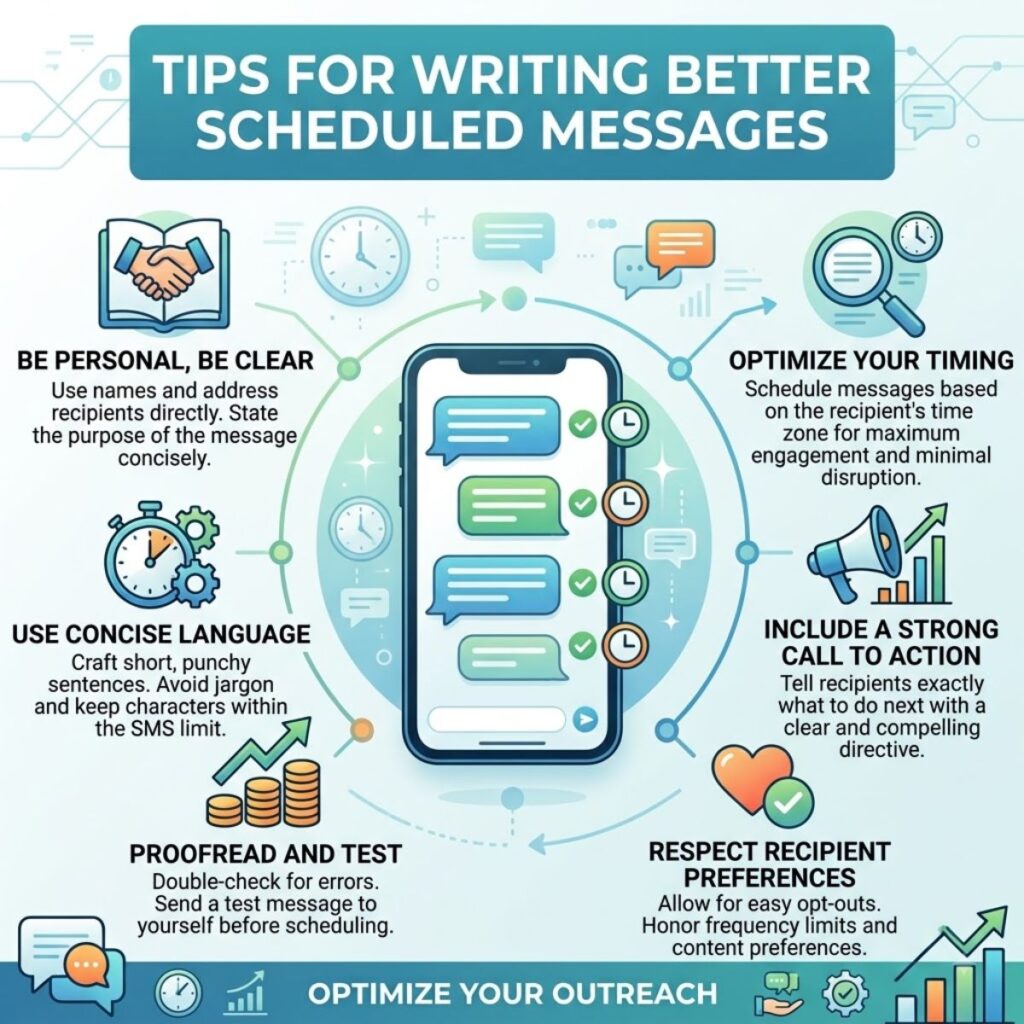
- Keep the message clear so the recipient immediately understands why you’re contacting them.
- Double-check the date and time before scheduling anything important.
- Read the message once more after writing it. A quick review can catch typos or missing details.
- Consider the recipient’s local time, especially if they live in another region or country.
- Avoid scheduling sensitive or emotional messages when you’re upset. Give yourself time to reconsider before setting a delivery time.
- For birthdays and special occasions, prepare messages early rather than waiting until the last minute.
- If plans change, review your scheduled messages so an old reminder doesn’t arrive at the wrong time.
- Keep professional messages polite and schedule them during reasonable working hours whenever possible.
Frequently Asked Questions
Can you schedule a text message on iPhone?
- Yes. On supported iOS versions, you can schedule a message directly through the Messages app using the Send Later option. You can choose a future date and time instead of sending the message immediately.
How far in advance can you schedule a text on iPhone?
- The available scheduling window depends on the iOS version and Messages features on your device. When you select Send Later, your iPhone shows the dates and times available for scheduling.
Can you edit a scheduled text message on iPhone?
- Yes, scheduled messages can be managed before their delivery time. Open the conversation containing the scheduled message and use the available options to change the message or its scheduled delivery details.
Can you cancel a scheduled text message?
- Yes. If you no longer want the message to be sent, open the scheduled message before its delivery time and use the available message controls to cancel or remove it.
Why don’t I have the Send Later option on my iPhone?
- The feature may depend on your iOS version and the Messages setup on your device. Check Settings > General > Software Update and install an available update if appropriate. Also make sure you are using the current Messages interface.
Final Thoughts
- If you’ve ever wondered, can you schedule a text message on iPhone, the answer is yes when your device supports the feature. Apple’s built-in Messages scheduling option makes it much easier to prepare texts ahead of time without depending on your memory.
- You can use scheduled messages for birthdays, reminders, appointments, encouragement, family check-ins, travel plans, and countless everyday situations. Instead of waiting for the perfect moment to remember, you can write your message when it comes to mind and choose when you want it delivered.
- The feature is also helpful when timing matters. A message sent too early can be inconvenient, while one sent too late can lose its purpose. Scheduling gives you more control over when your words reach someone.
- Before scheduling an important text, always check the wording, recipient, date, and delivery time. If circumstances change, review your scheduled messages and make adjustments before they are sent.
- Whether you’re organizing your day or trying to make someone smile at exactly the right moment, scheduled texting can turn a simple iPhone feature into a genuinely useful communication tool.
- The right message at the right time can make all the difference—write it today, schedule it wisely, and let your words arrive when they matter most.
Quick Takeaways
- Can you schedule a text message on iPhone? Yes, supported iPhones can schedule messages through the Messages app.
- Where is the scheduling option? Look for Send Later through the + menu beside the message field.
- Can you change a scheduled message? You can manage a scheduled message before its delivery time.
- Can you cancel it? Yes, a scheduled message can be removed before it is sent.
- What if Send Later is missing? Check your iOS version and install available software updates.

Awais Bilal is the author of Messagesfy, sharing simple and meaningful messages, quotes, and wishes to help people express their feelings easily.