Have you ever wanted to send someone a message at a specific time but worried you might forget? Maybe you want to send a birthday wish at midnight, remind someone about an appointment in the morning, or send a work message during business hours without setting an alarm for yourself. That is exactly where scheduled messages can help.
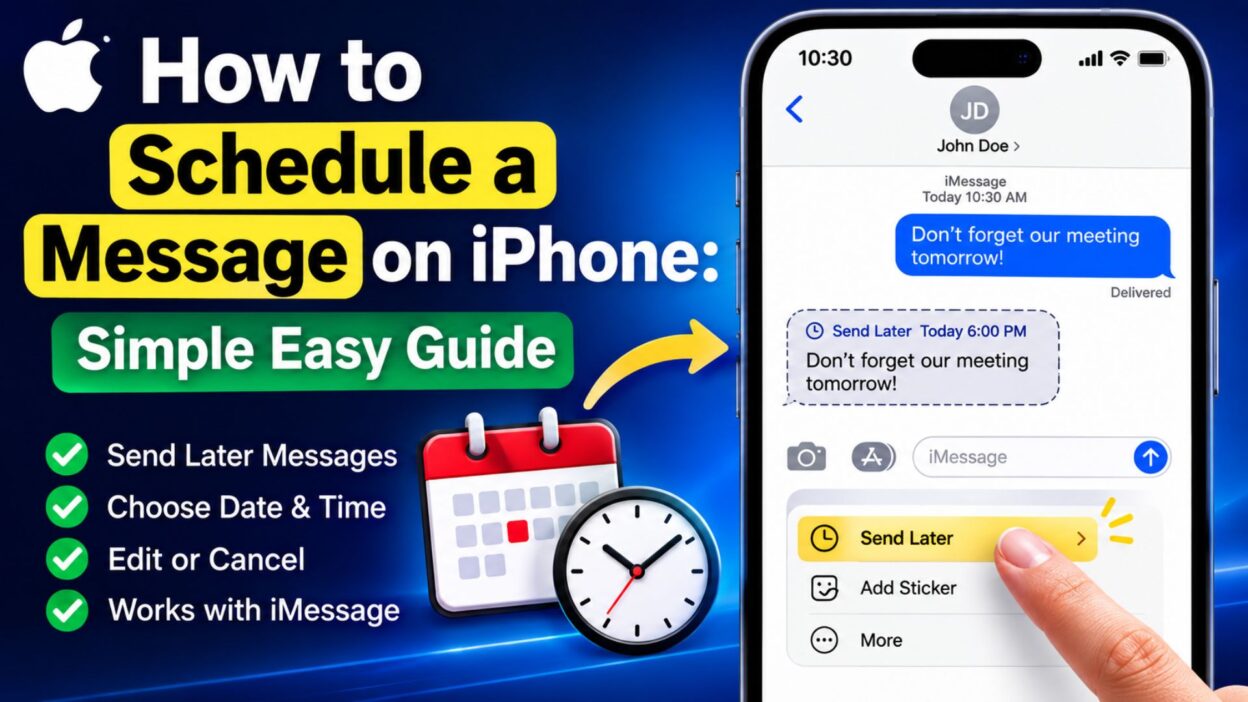
If you are wondering how to schedule a message on iPhone, Apple gives you a built-in Send Later option in the Messages app. You can choose a future date and time, write your message, and let your iPhone handle the timing for you. Apple currently allows scheduled messages up to 14 days ahead, and the feature works with iMessage.
The process is simple once you know where to find the option. In this guide, we will walk through the steps, explain what happens after you schedule a message, and cover useful situations where this feature can save you time.
How to Schedule a Message on iPhone
If you have never used Send Later before, the option can be easy to miss inside the Messages app. Here is the basic process you can follow.
- Open the Messages app on your iPhone.
- Open the conversation where you want to schedule the message.
- If you are starting a new conversation, create a new message and choose the recipient.
- Tap the Add (+) button next to the text field.
- Select Send Later from the available options.
- Tap the displayed time to open the scheduling controls.
- Choose the date and time when you want the message to be delivered.
- Type the message you want to send.
- Tap the Send button.
- Your message will remain scheduled until the selected delivery time.
The scheduled message appears differently from an ordinary sent message. Apple shows a dashed outline around it, along with the scheduled delivery time, so you can easily recognize that it has not been sent yet.
What You Need to Schedule a Message on iPhone
Before looking for the Send Later option, it helps to know the main requirement.
- You need to use iMessage for Apple’s built-in scheduled-message feature.
- The recipient can use any device, according to Apple’s current guidance.
- Your iPhone should have the appropriate current Messages features available.
- You can schedule a message up to 14 days into the future.
- You need to be online if you want to reschedule, edit, or delete a scheduled message.
- Once scheduled, the message can be delivered even if your Apple devices are offline at the scheduled time.
This means you do not have to keep your iPhone open or watch the clock when the delivery time arrives. The scheduled message stays pending until Apple sends it.
Top Reasons to Schedule a Message on iPhone
Scheduling is useful for more than just remembering to send a text. It can help you communicate at the right moment without interrupting your day.
- Birthday wishes: Schedule a birthday message so you do not forget to send it.
- Morning reminders: Prepare a reminder the night before and have it arrive in the morning.
- Work communication: Write a message when you have time and schedule it for an appropriate work hour.
- Travel updates: Prepare an arrival or departure message ahead of time.
- Special occasions: Schedule holiday greetings or anniversary wishes in advance.
- Study reminders: Send yourself or someone else a reminder about an upcoming task.
- Family updates: Prepare an important family message without needing to remember the exact time.
- Daily routines: Use scheduled messages when timing matters but you do not want to manually send the text.
Short Messages to Schedule on iPhone
A scheduled message does not need to be long. Short, natural texts are often perfect when you simply want to remind someone or show that you are thinking about them.
- Good morning! Hope you have a wonderful day.
- Don’t forget about our meeting today.
- Happy birthday! Hope your day is amazing.
- Good luck with everything today!
- Remember to call me when you’re free.
- Have a safe trip and let me know when you arrive.
- Hope everything goes well today.
- Just wanted to remind you about tonight.
- Have a great morning!
- Don’t forget to take care of yourself today.
- Wishing you a peaceful evening.
- I hope your day goes exactly the way you want.
- Remember, you’ve got this!
- Let me know when you get there.
- Sleep well and have a beautiful tomorrow.
Best Messages to Schedule in Advance
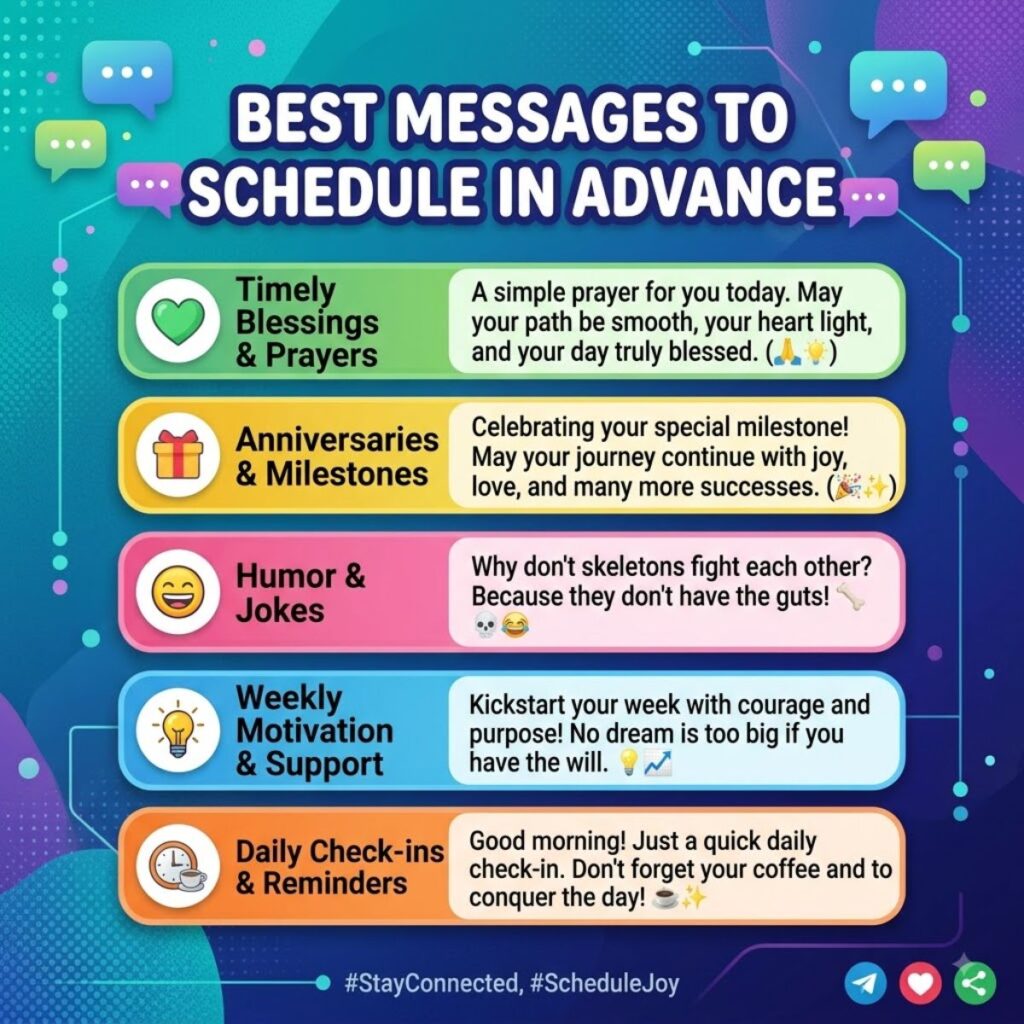
Some messages are especially useful when you can prepare them ahead of time. Instead of waiting until the exact moment, you can write them whenever the thought comes to you.
- “Happy birthday! I hope this new year of your life brings you plenty of happiness and unforgettable moments.”
- “Good morning! Just wanted to remind you that today is a fresh start. Make it a good one.”
- “Good luck with your presentation today. You’ve prepared for this, so trust yourself!”
- “Have a safe journey today. Text me when you arrive so I know you made it safely.”
- “Don’t forget about your appointment this afternoon. Hope everything goes smoothly.”
- “Happy anniversary! I hope today gives you another beautiful memory to look back on.”
- “Good morning! I hope you wake up feeling refreshed and ready for a great day.”
- “Just a little reminder that you have an important meeting tomorrow morning.”
- “Have a wonderful evening. You deserve some time to relax after such a busy day.”
- “Wishing you the best of luck today. I’ll be cheering you on from here.”
How to Know a Message Is Scheduled
After you schedule a message, it does not immediately look like a normal delivered text.
Instead, Apple displays the scheduled message with a dashed-line appearance, and the scheduled delivery time appears above the message. This gives you a visual reminder that the message is waiting to be sent.
You can also return to the conversation later if you want to make changes before the delivery time.
This is helpful when you schedule something several days ahead because you do not have to remember exactly what you planned. The scheduled message remains visible in the conversation until it is sent or canceled.
Can You Schedule a Message 14 Days Ahead?
Yes. Apple’s current iPhone Messages guide says you can schedule a message up to 14 days into the future.
That gives you plenty of flexibility for messages that need to go out later in the week or during the following two weeks.
For example, you could prepare:
- A birthday message for next week.
- A reminder for an upcoming appointment.
- A work-related message for a future business day.
- A holiday greeting that you do not want to forget.
- A personal message that needs to arrive at a specific time.
The 14-day limit means the feature is designed for relatively near-term scheduling rather than long-term message planning.
Why Schedule a Message Instead of Setting a Reminder?
A reminder tells you to send something. A scheduled message handles the sending for you.
That difference can make scheduled messages much more convenient when the timing is important.
- A reminder requires you to open Messages later.
- A scheduled message is already prepared.
- A reminder can be forgotten.
- A scheduled message stays ready for its selected delivery time.
- A reminder interrupts your routine.
- A scheduled message lets you continue with your day.
For simple time-sensitive texts, scheduling can therefore be easier than relying on memory.
A Simple Example
Imagine your friend’s birthday is tomorrow, but you know you will be busy in the morning.
Instead of setting an alarm and hoping you remember, you can open Messages tonight, write your birthday wish, choose the desired delivery time, and schedule it.
At the selected time, the message is sent automatically.
That small feature can make communication feel more thoughtful because you can plan ahead without worrying about forgetting the moment.
What Happens After You Schedule a Message?
Once the message is scheduled, it remains visible in the conversation with its scheduled time.
- The message is not immediately delivered.
- A dashed line indicates that it is scheduled.
- The scheduled time appears above the message.
- You can change the scheduled time before delivery.
- You can edit the message before delivery.
- You can delete the scheduled message to cancel it.
- When the scheduled time arrives, the message is sent.
Apple says scheduled messages are encrypted and stored on Apple’s servers only until they are sent. After delivery, the message is removed from those servers and appears as a normal sent message.
This makes the feature useful when you want to prepare a message now but have it arrive later.
Best Times to Use Send Later
The Send Later feature can fit naturally into everyday routines.
- Late-night birthday messages
- Early-morning reminders
- Workday communication
- Appointment reminders
- Travel updates
- Holiday greetings
- Anniversary messages
- School or study reminders
- Family check-ins
- Important personal messages
- Friendly good-morning texts
- Good-night messages prepared earlier in the evening
The biggest benefit is simple: you decide when the message should arrive without needing to be available at that exact moment.
A Quick Tip Before Scheduling
Always check the selected date and time before tapping Send.
A scheduled message is meant to take care of the timing automatically, so choosing the wrong day or hour can lead to an awkward moment.
It is especially worth checking whether you selected AM or PM correctly and whether the date is the one you intended.
A quick review takes only a few seconds and can prevent an unnecessary mistake.
How to Reschedule a Message on iPhone
Plans can change, so you do not have to keep the original delivery time. Apple lets you reschedule a scheduled message before it is sent.
- Open the Messages app on your iPhone.
- Open the conversation containing the scheduled message.
- Scroll to the bottom of the conversation if you cannot immediately see the scheduled message.
- Tap Edit next to the date shown above the scheduled message.
- Choose Edit Time.
- Select the new date and time you want.
- Tap outside the scheduling area to confirm the new delivery time.
- The message will remain scheduled for the new time.
This is useful when your plans change after you have already scheduled a text. You can adjust the timing without deleting the message and creating it again.
How to Send a Scheduled Message Immediately
Sometimes you schedule a message for later and then realize there is no reason to wait.
In that situation, you can send it immediately instead of keeping the original schedule. Apple provides a Send Message option when you edit the scheduled delivery time.
- Open Messages.
- Go to the conversation with your scheduled message.
- Find the scheduled message near the bottom of the conversation.
- Tap Edit next to its scheduled date.
- Select Send Message.
- The message will be sent immediately instead of waiting for the scheduled time.
This option is handy when the information becomes urgent or your plans change unexpectedly.
How to Edit a Scheduled Message on iPhone
You can also change the actual wording of a scheduled message before it is delivered.
This can save you from deleting the original message and starting over. Apple allows scheduled messages to be edited until their delivery time.
- Open the Messages app.
- Open the conversation containing the scheduled message.
- Scroll down if necessary to locate the scheduled message.
- Touch and hold the scheduled message bubble.
- Tap Edit.
- Make the changes you want.
- Tap the option to send the edited version.
- The updated message remains scheduled for its existing delivery time.
Before confirming the edit, read the message once more. A quick review can help you catch a wrong name, date, time, or missing detail.
How to Cancel a Scheduled Message on iPhone
If you no longer want a scheduled text to be sent, you can delete it before its delivery time.
When you delete a scheduled message before it is sent, Apple says the message is canceled and is not delivered to the recipient.
- Open Messages.
- Go to the conversation containing the scheduled message.
- Find the scheduled message.
- Touch and hold the message bubble.
- Tap Delete.
- Confirm the deletion if your iPhone asks you to do so.
Once the scheduled message is deleted before its delivery time, it will not be sent.
Can You Schedule a Message to Any Phone?
Apple’s current guidance says the recipient can use any device, but the scheduled-message feature itself requires you to use iMessage.
That means you should focus on the messaging method used by your iPhone rather than assuming the recipient must have an iPhone.
- You need to use iMessage.
- The recipient can use any device according to Apple’s current guidance.
- The recipient does not receive a special notification saying that you scheduled the message.
- The message appears to the recipient like a normal message when it arrives.
This makes scheduling useful when you want to prepare a message without revealing that you wrote it in advance.
Can You Schedule a Message Without Wi-Fi?
You do not necessarily need to keep your iPhone online when the scheduled delivery time arrives.
Apple says a scheduled message can be delivered even when all of your devices are offline. However, you do need an internet connection to reschedule, edit, or delete a scheduled message.
- Schedule the message while using iMessage.
- Choose your future delivery time.
- Keep the scheduled message in the conversation.
- You do not need to stay online just to make the scheduled delivery happen.
- You need to be online if you later want to change, edit, or delete the scheduled message.
This distinction is important because people often assume the iPhone must remain connected at the exact delivery time.
What Does a Scheduled Message Look Like?
A scheduled message has a different appearance from a message that has already been sent.
Apple shows the scheduled message with a dashed-line border, and the planned delivery time appears above it.
- A dashed border indicates that the message is still scheduled.
- The delivery time appears above the message.
- The message stays in the conversation while it is waiting.
- After it is sent, the dashed appearance disappears.
- The message then looks like a normal sent message.
This visual difference makes it easier to check whether an important message is still waiting to be delivered.
Can You Schedule Multiple Messages on iPhone?
You can use the scheduling feature for messages in different conversations and prepare messages for different times, as long as they meet Apple’s scheduling requirements.
This can be helpful when you have several reminders or personal messages to send during the week.
- Schedule a morning reminder.
- Prepare a birthday message.
- Schedule a work-related text.
- Prepare a travel update.
- Schedule a family check-in.
- Set up a message for an upcoming event.
- Review your scheduled messages before important dates.
Using scheduled messages this way can reduce the number of things you need to remember throughout a busy week.
How to Schedule a Birthday Message on iPhone
Birthday messages are one of the easiest reasons to use Send Later.
You can write your message whenever you have a quiet moment and schedule it for the birthday.
- Open Messages.
- Open the person’s conversation.
- Tap the Add (+) button.
- Tap Send Later.
- Choose the desired date and time.
- Write your birthday message.
- Tap Send.
- Check the scheduled message to make sure the timing is correct.
A scheduled birthday message can be especially useful when you want to send a greeting at a specific time but know you may be asleep, traveling, or busy when the moment arrives.
Birthday Messages You Can Schedule
A thoughtful message does not have to be complicated. These options are easy to prepare ahead of time.
- Happy birthday! I hope your day is filled with happiness, laughter, and everything you love.
- Wishing you the happiest birthday and a year full of beautiful moments.
- Happy birthday! I hope today gives you plenty of reasons to smile.
- Sending you the warmest birthday wishes for an amazing year ahead.
- Happy birthday! Enjoy your special day and make some wonderful memories.
- Wishing you a beautiful birthday filled with good people and even better moments.
- Happy birthday! I hope this next chapter brings you everything you have been hoping for.
- Have an incredible birthday! You deserve a day that feels as special as you are.
How to Schedule a Good Morning Message
Scheduling a good-morning message can be useful when you want someone to receive it early without waking up just to send it.
You can prepare the message the night before and choose a suitable morning delivery time.
- Open the conversation in Messages.
- Tap Add (+).
- Choose Send Later.
- Select your preferred morning time.
- Write your message.
- Tap Send.
- Check the scheduled time before closing Messages.
This can work well for a partner, friend, family member, or anyone you want to greet at the start of their day.
Good Morning Messages to Schedule
A scheduled morning text can be simple, warm, and natural.
- Good morning! I hope today brings you something wonderful.
- Morning! Wishing you a peaceful start and a beautiful day ahead.
- Good morning! Take a deep breath and make today count.
- Hope you woke up feeling refreshed. Have an amazing day!
- Good morning! Just wanted to send a little positivity your way.
- Wishing you a fresh start and plenty of reasons to smile today.
- Good morning! I hope everything goes smoothly for you today.
- Rise and shine! Have a great day ahead.
How to Schedule a Reminder Message
You can also use scheduled texts for simple reminders.
Instead of writing the message when the reminder becomes necessary, prepare it in advance and choose the time when it should arrive.
- Schedule a reminder about an appointment.
- Prepare a message about a meeting.
- Schedule a reminder to bring something important.
- Send yourself or someone else a timely reminder.
- Prepare a reminder about an upcoming event.
- Schedule a message before a trip.
- Remind a family member about an important task.
The feature works particularly well for reminders because the message reaches the recipient without you having to remember to send it manually.
Reminder Messages You Can Schedule
- Don’t forget about our appointment this afternoon.
- Just a quick reminder about our meeting today.
- Remember to bring the documents with you.
- Don’t forget to call me when you have a chance.
- Just reminding you about our plans for tonight.
- Please remember to check the schedule before you leave.
- Don’t forget your appointment tomorrow morning.
- Remember to send me the details when you get a chance.
How to Schedule a Work Message on iPhone
Scheduled messages can also help when you want to prepare work communication outside normal hours but send it during an appropriate time.
For example, you might write a message late at night but schedule it for the next morning.
- Open the Messages conversation.
- Tap Add (+).
- Select Send Later.
- Choose an appropriate work-hour delivery time.
- Write your message.
- Review the wording.
- Tap Send.
- Check the scheduled time before leaving the conversation.
This approach lets you prepare messages when ideas are fresh without necessarily sending work texts late at night.
Professional Messages to Schedule
- Good morning. I wanted to follow up on the information we discussed.
- Just checking in regarding our meeting scheduled for today.
- I’ll send the remaining details shortly. Thank you for your patience.
- Good morning. Please let me know if the schedule has changed.
- I wanted to confirm that we are still on for this afternoon.
- Thank you for the update. I’ll review everything and follow up soon.
- Just a quick reminder about our meeting today.
- I hope you’re doing well. I wanted to follow up on my previous message.
What If You Cannot Find Send Later?
If you do not see Send Later, check that you are using the Messages app and an iMessage conversation. Apple’s current instructions specifically require iMessage for this feature.
You can also check the following:
- Open the Messages app rather than another texting app.
- Open the conversation where you want to send the message.
- Tap the Add (+) button next to the text field.
- Look for Send Later in the available options.
- Make sure iMessage is being used.
- Check that your iPhone software supports the feature.
- Remember that some Messages features can vary by carrier, country, or region.
If the option still does not appear, updating your iPhone and checking Apple’s current Messages requirements may help.
Quick Tips for Scheduling Messages
A little preparation can make scheduled texts more reliable and useful.
- Double-check the recipient before scheduling.
- Review the date carefully.
- Check the exact delivery time.
- Pay attention to AM and PM.
- Read the message once before sending it.
- Avoid scheduling sensitive information without considering privacy.
- Keep important messages clear and direct.
- Reschedule the message if your plans change.
- Delete the message if you no longer want it sent.
- Check scheduled messages before an important event.
The goal is to make messaging easier, not create another thing to worry about.
Best Messages to Schedule on iPhone
Once you know how to schedule a message on iPhone, you can use the feature for almost any situation where timing matters. A short, thoughtful message can be prepared ahead of time and delivered when you want it to arrive.
- Good morning! I hope today brings you plenty of reasons to smile.
- Happy birthday! I hope your special day is everything you wished for.
- Good luck today! Trust yourself and give it your best.
- Don’t forget our plans tonight. I’m looking forward to seeing you.
- Have a safe trip! Let me know when you arrive.
- Just wanted to remind you about your appointment tomorrow.
- I hope your meeting goes really well today.
- Thinking of you and hoping you’re having a beautiful day.
- Good morning! Take things one step at a time and enjoy your day.
- Have a peaceful evening and get some well-deserved rest.
- Remember to take a break today. You’ve been working hard.
- Wishing you a great start to the week!
- Just checking in to see how everything is going.
- Hope you have an amazing weekend ahead.
- Thank you for everything. I really appreciate you.
Short Messages for Scheduled Texts
Short messages are perfect when you want to communicate something quickly. They are also easy to prepare in advance without making the conversation feel overly formal.
- Good morning!
- Happy birthday!
- Call me when you can.
- See you soon!
- Have a great day!
- Don’t forget!
- I’m thinking of you.
- Good luck today!
- Talk to you later.
- Have a safe trip!
- I’ll see you tonight.
- Let me know when you arrive.
- Hope everything goes well.
- Take care!
- Sleep well tonight.
- Have a wonderful weekend!
- Thanks for everything.
- I’ll call you later.
- Just checking in.
- See you tomorrow!
Best Scheduled Messages for Captions
If you are preparing social media content, short scheduled messages can also inspire captions or status updates. Keep them natural and easy to read.
- Make today worth remembering.
- Small steps still move you forward.
- Good things take time.
- Choose peace over pressure.
- Keep going, even when progress feels slow.
- Let today be a fresh start.
- Enjoy the moment you are in.
- Make room for the things that make you happy.
- Stay focused on what truly matters.
- A new day brings a new opportunity.
- Keep your heart light and your goals clear.
- Be present, be patient, and keep moving.
- The little moments often become the best memories.
- Give yourself permission to slow down.
- Today is another chance to begin again.
Copy-Paste Ready Messages for iPhone
Sometimes you already know when a message should arrive but do not know what to write. These copy-paste options make the process faster.
- Good morning! I hope you slept well and have a wonderful day ahead.
- Happy birthday! Wishing you happiness, success, laughter, and countless beautiful memories.
- Just a quick reminder about our plans today. Looking forward to seeing you!
- I hope everything goes smoothly today. You’ve got this!
- Have a safe journey, and please let me know when you arrive.
- I wanted to wish you a peaceful evening and a relaxing night.
- Good morning! Remember that you are capable of handling whatever today brings.
- Just checking in to see how you’re doing. Hope everything is okay.
- Don’t forget about our appointment tomorrow. See you then!
- I hope your day is going well. Take some time to relax when you can.
- Thank you for always being there. I appreciate you more than you know.
- Wishing you a great weekend filled with good memories and plenty of rest.
- I’ll be thinking of you today. Hope everything works out beautifully.
- Good luck with everything today. I know you’re going to do great.
- Just wanted to remind you that I’m here if you need anything.
How to Schedule a Message on iPhone for a Specific Time
When timing matters, choosing the exact delivery time is the most important part of scheduling.
- Open Messages.
- Select the conversation.
- Tap Add (+).
- Choose Send Later.
- Tap the displayed date or time.
- Select the date you want.
- Select the exact delivery time.
- Write your message.
- Tap Send.
- Review the scheduled message before leaving the conversation.
You can schedule a message up to 14 days ahead according to Apple’s current iPhone user guide. (support.apple.com)
This is useful when you know exactly when someone should receive a message but you do not want to rely on memory.
How to Schedule a Message for Tomorrow
Scheduling a message for tomorrow is helpful for reminders, work communication, birthday wishes, and morning greetings.
- Open the Messages app.
- Choose the recipient.
- Tap Add (+) beside the text field.
- Select Send Later.
- Choose tomorrow’s date.
- Pick the delivery time.
- Write your message.
- Tap Send.
- Check the scheduled message to make sure tomorrow’s date and the correct time are selected.
Once scheduled, you can leave it alone. The message will remain pending until its chosen delivery time.
How to Schedule a Message for a Birthday
A birthday is one of the easiest occasions to plan ahead.
Instead of waiting until the day arrives, prepare your message early and schedule it for the time you prefer.
- Open the person’s conversation in Messages.
- Tap Add (+).
- Select Send Later.
- Choose the birthday date.
- Select the delivery time.
- Write your birthday wish.
- Review the message carefully.
- Tap Send.
- Check the scheduled message before closing the conversation.
Scheduling ahead can be particularly helpful when the birthday falls during a busy day or when you want the message to arrive at a specific time.
How to Schedule a Good Night Message
A good-night message can be prepared earlier in the evening if you know you may fall asleep before you want it delivered.
- Open the conversation.
- Tap Add (+).
- Choose Send Later.
- Select the date and time.
- Write your message.
- Tap Send.
- Confirm the scheduled time.
Simple messages work especially well for this purpose.
- Good night! Sleep well and wake up refreshed.
- Hope you have a peaceful night and beautiful dreams.
- Rest well tonight. Tomorrow is a new day.
- Good night! Take care of yourself and get some good rest.
- Wishing you a calm evening and a peaceful night.
Common Problems With Scheduled Messages
Although the feature is straightforward, you may occasionally run into an issue. Most problems relate to the messaging method, software version, or the way the feature is being accessed.
Send Later Is Missing
If Send Later does not appear, make sure you are using Apple’s Messages app and an iMessage conversation. Apple’s current documentation says the feature requires iMessage. (support.apple.com)
The Message Will Not Schedule
Check that you have selected a valid future date and time. You should also make sure your iPhone is connected to the internet while setting up the scheduled message.
You Need to Change the Message
Open the conversation, find the scheduled message, and use the available editing controls before the scheduled delivery time. (support.apple.com)
You No Longer Want to Send It
Delete the scheduled message before its delivery time. Apple says deleting it before delivery cancels the scheduled message. (support.apple.com)
You Chose the Wrong Time
You can change the scheduled delivery time before the message is sent. Use the editing controls beside the scheduled date and select the new time. (support.apple.com)
FAQ About Scheduling Messages on iPhone
Can I schedule a text message on iPhone?
Yes. Apple’s Messages app includes a Send Later feature that allows you to schedule an iMessage for a future date and time. Apple currently supports scheduling up to 14 days ahead. (support.apple.com)
Can I edit a scheduled message?
Yes. You can edit a scheduled message before it is delivered. You can also change its scheduled delivery time or send it immediately if needed. (support.apple.com)
Can I cancel a scheduled message?
Yes. You can delete the scheduled message before its delivery time, which cancels it and prevents it from being sent. (support.apple.com)
Does my iPhone need to be online when the message sends?
Apple says scheduled messages can be delivered even when all of your devices are offline. However, you need an internet connection to reschedule, edit, or delete a scheduled message. (support.apple.com)
Can I schedule an SMS on iPhone?
Apple’s built-in Send Later feature requires iMessage. Therefore, it is not a general scheduling tool for traditional SMS messages. (support.apple.com)
Final Thoughts
Learning how to schedule a message on iPhone can make everyday communication much easier. Instead of keeping a reminder in your head or setting an alarm just to send a text, you can prepare the message when it is convenient and let your iPhone handle the timing.
Whether you want to schedule a birthday wish, morning greeting, work update, appointment reminder, or simple check-in, the Send Later feature gives you a practical way to plan ahead. You can also edit, reschedule, send immediately, or cancel a scheduled message before it is delivered.
The best part is that the process does not require complicated settings. Once you know where Send Later appears in Messages, scheduling becomes a quick part of your normal texting routine.
So, if you often remember important messages at the wrong time, try scheduling them instead. A few seconds of planning today can help you communicate at exactly the right moment tomorrow.

Awais Bilal is the author of Messagesfy, sharing simple and meaningful messages, quotes, and wishes to help people express their feelings easily.