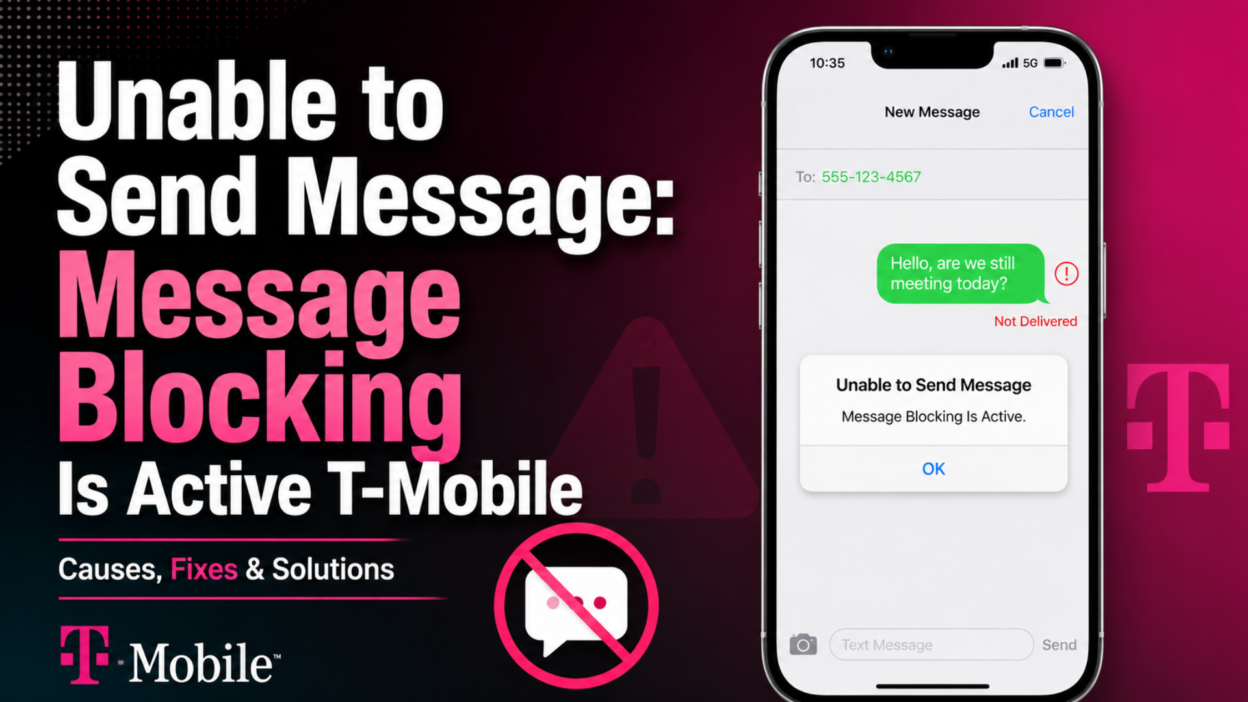
Getting an “Unable to send message – Message Blocking Is Active” alert on T-Mobile can be frustrating, especially when you need to send an important text. You may have a working phone, mobile data, and a strong signal, yet your message still refuses to go through. In many cases, the problem does not mean your phone is broken. Instead, a restriction on the account, messaging service, recipient, or device settings may be preventing the text from being delivered.
The good news is that this issue is often fixable with a few simple checks. Whether you are using an iPhone or Android phone, you can work through the possible causes without immediately resetting your entire device. This guide explains what unable to send message – message blocking is active T-Mobile means and walks you through practical solutions. So, if your texts suddenly stopped working, start with the checks below and work your way toward the more advanced fixes.
What Does “Message Blocking Is Active” Mean on T-Mobile?
The message usually means that a text message is being blocked somewhere between your phone, T-Mobile’s messaging service, your account, or the recipient.
It can happen because of account restrictions, blocked numbers, messaging settings, service issues, or problems with the specific message you are trying to send.
- Your T-Mobile line may have a messaging restriction.
- The recipient’s number may be blocked.
- Your phone may have incorrect messaging settings.
- Your account may have an issue with SMS or MMS service.
- The recipient may be unable to receive messages.
- A temporary carrier or network problem may be affecting texting.
- Your SIM or eSIM connection may not be registering correctly.
- Your account may need attention from T-Mobile support.
Common Reasons Message Blocking Is Active on T-Mobile
Before changing several settings at once, it helps to understand what may be causing the error.
Your Account Has a Messaging Restriction
One common reason is an account-level restriction. If texting has been disabled on your line, your phone may display a message-blocking error whenever you try to send an SMS.
This can sometimes happen after an account change, service issue, or restriction being placed on the line.
The Number Is Blocked
If the problem happens with only one person, check whether that contact or phone number has been blocked.
For example, if you can text other people normally but one specific contact always produces the error, the issue may be related to that number rather than your entire T-Mobile service.
Your Phone Has a Messaging Setting Problem
A software update, SIM change, or accidental settings change can sometimes interfere with texting.
Restarting the phone and checking its messaging settings can resolve temporary problems without requiring more complicated troubleshooting.
SMS or MMS Service Is Not Working Correctly
SMS handles traditional text messages, while MMS is commonly used for pictures and group messages.
Therefore, you might notice that regular texts work while picture messages or group texts fail. That difference can help identify where the problem is occurring.
Your SIM or eSIM Is Having Trouble
Your phone needs to connect properly to T-Mobile’s network to send traditional carrier-based text messages.
If the SIM or eSIM connection is temporarily disrupted, texting can stop working even though the phone appears connected.
The Recipient Has a Problem
Sometimes the issue is on the other end.
If you can send messages to most contacts but cannot reach one particular number, the recipient’s carrier, account, phone settings, or number status could be involved.
How to Fix “Unable to Send Message – Message Blocking Is Active” T-Mobile
Start with the easiest solutions first. There is no need to reset your phone immediately.
Restart Your Phone
A simple restart can clear temporary network and messaging problems.
- Turn off your iPhone or Android phone.
- Wait a few seconds.
- Turn the phone back on.
- Wait for the T-Mobile network connection to return.
- Try sending the message again.
If the error disappears after restarting, the problem was likely temporary.
Check Your T-Mobile Signal
Look at the signal indicator before trying another message.
If your phone has little or no cellular service, move to an area with better coverage and try again. Remember that Wi-Fi alone does not necessarily mean traditional SMS will work.
For a quick test, send a short text such as “Hi” to a contact who normally receives your messages.
Try Sending a Message to Another Contact
This is one of the most useful troubleshooting steps.
Send a simple SMS to a different person.
- If the second message works, the original recipient may be the problem.
- If every message fails, your phone or T-Mobile line may be experiencing a broader issue.
- If only picture messages fail, investigate MMS or mobile-data-related settings.
This test can quickly narrow down the cause.
Check Whether the Recipient Is Blocked
Your phone may prevent communication with a number that has been blocked.
Open your phone’s blocked contacts or blocked numbers settings and look for the recipient.
If the number is listed there and you want to receive or send messages to that person, remove the block and test the conversation again.
Check Airplane Mode
Airplane Mode can interfere with cellular messaging when it remains enabled.
Open your quick settings or Control Center and make sure Airplane Mode is turned off. Then give the phone a moment to reconnect to the cellular network.
If Airplane Mode was already off, you can briefly turn it on and then off again. This forces the phone to reconnect to the network.
Check Your Cellular Connection
If your phone shows unusual network behavior, temporarily switch your cellular connection off and back on.
On many phones, you can do this through the cellular or mobile-network settings.
After reconnecting, wait a few moments before sending another text.
Make Sure Your T-Mobile Line Is Active
If your line has an account-related restriction, changing phone settings may not solve the problem.
Check your T-Mobile account and confirm that your line is active and able to use messaging services.
If you recently changed plans, transferred a number, replaced a SIM, or made another account change, this check becomes especially important.
Check Your Phone’s Date and Time
Incorrect date or time settings can occasionally cause unexpected communication problems.
Set your phone to automatically determine the date and time when that option is available.
After changing the setting, restart the messaging app and try again.
What If the Error Happens With Only One Person?
When message blocking is active on T-Mobile appears for one contact but other messages work, the problem is probably more specific than a complete messaging outage.
Start by checking the contact’s number carefully.
A recently changed number, incorrect country or area code, blocked contact, or recipient-side issue can all affect messaging.
Try these simple checks:
- Confirm that the phone number is correct.
- Delete and recreate the contact if necessary.
- Check whether the number is blocked.
- Start a new conversation instead of using the existing message thread.
- Send a short plain-text message.
- Ask the recipient whether they can receive texts from other people.
- Try contacting the person through another communication method.
If other T-Mobile messages send successfully, avoid changing major network settings until you have ruled out the individual recipient as the cause.
Fixes for T-Mobile Message Blocking on iPhone
If you use an iPhone and keep seeing “unable to send message – message blocking is active T-Mobile,” a few iPhone-specific checks can help.
Check Send as SMS
Your iPhone may rely on iMessage when communicating with another Apple device. However, SMS can still be needed when iMessage is unavailable.
- Open Settings.
- Tap Messages.
- Make sure Send as SMS is enabled.
- Return to the Messages app.
- Try sending the text again.
If the recipient does not have an active iMessage connection, this setting can help your iPhone fall back to traditional SMS.
Turn iMessage Off and On
A temporary messaging registration issue can sometimes make texts behave unexpectedly.
- Open Settings.
- Tap Messages.
- Turn iMessage off.
- Wait several seconds.
- Turn iMessage back on.
- Try sending the message again.
If you are texting an Android user, pay particular attention to whether the message is being sent as SMS rather than iMessage.
Check Blocked Contacts
An accidentally blocked contact can prevent normal communication.
Open your iPhone’s blocked contacts settings and check whether the recipient’s number appears there. If it does and you want to communicate with that person, unblock the number and test the conversation again.
Reset Network Settings
If other troubleshooting methods fail, resetting network settings can help with persistent connection problems.
Keep in mind that this step removes saved Wi-Fi networks and related network settings, so you will need to reconnect to Wi-Fi afterward.
Use this option only after simpler solutions have failed.
Fixes for T-Mobile Message Blocking on iPhone
If you use an iPhone and see “unable to send message – message blocking is active T-Mobile,” start with the basic messaging settings. A few quick checks can often identify the problem without changing your entire phone setup.
Check Send as SMS
Your iPhone may use iMessage when you contact another Apple user. However, SMS can still matter when iMessage does not work.
- Open Settings.
- Tap Messages.
- Look for Send as SMS.
- Turn the option on if it is disabled.
- Return to Messages and try sending a short text.
This setting gives your iPhone another way to send a message when iMessage cannot complete the conversation.
Turn iMessage Off and On
A temporary iMessage registration problem can sometimes interfere with messaging.
- Open Settings.
- Select Messages.
- Turn iMessage off.
- Wait a few seconds.
- Turn iMessage back on.
- Open your conversation and send another message.
For Android contacts, pay attention to whether your iPhone sends the message as a regular SMS.
Check Blocked Contacts
A blocked number can stop communication with a specific person.
Open the blocked contacts section on your iPhone and look for the recipient’s number. Remove the number from the blocked list if you want to communicate with that person.
Afterward, create a new message and test the number again.
Reset Network Settings
Persistent connection problems may require a network reset.
Keep this step for later because your iPhone will remove saved Wi-Fi networks and other network-related settings. You will need to reconnect to your Wi-Fi networks afterward.
Use the reset only after simpler troubleshooting steps fail.
Fixes for T-Mobile Message Blocking on Android
Android phones use different menus depending on the manufacturer and software version. Even so, the basic troubleshooting process remains similar across most devices.
Restart the Messaging App
A temporary messaging-app problem can prevent a text from leaving your phone.
- Close the messaging app.
- Open it again.
- Start a new conversation.
- Type a short message.
- Tap Send and check the result.
If the error continues, restart your Android phone before trying another message.
Clear the Messaging App Cache
A large or corrupted cache can sometimes cause unexpected app behavior.
Open your phone’s app settings and select the messaging application. Find its storage options, then choose Clear Cache.
Avoid clearing all app data unless you understand what that option will remove. After clearing the cache, reopen the messaging app and test SMS again.
Check the Default SMS App
Android phones can have more than one messaging application installed.
Open your phone’s default-app settings and confirm that your preferred messaging app handles SMS. A recent app change may have switched the default messaging service without you noticing.
Once you select the correct app, send a new text to test the connection.
Check Mobile Network Settings
Your T-Mobile SIM or eSIM needs an active cellular connection for traditional SMS.
Open the mobile-network settings and confirm that your T-Mobile line remains active. Dual-SIM users should also verify that the correct line handles outgoing SMS.
This check matters even more if you recently added another SIM, changed phones, or moved your number to a new device.
If Picture Messages Are Not Sending
Sometimes normal texts work while photos, videos, or group messages fail. In that situation, focus on MMS-related settings instead of treating the issue as a complete SMS failure.
Try these checks:
- Turn on cellular data.
- Confirm that your T-Mobile line has service.
- Send a smaller image.
- Restart your phone.
- Test a plain text message.
- Check your MMS settings.
- Try another recipient.
- Test a different group conversation.
A successful plain SMS test can help separate an MMS problem from a broader messaging issue.
What If Group Messages Are Not Working?
Group conversations can use different messaging features from regular one-to-one texts.
If individual SMS messages work but group conversations fail, review your messaging settings. On iPhone, check the available MMS Messaging and Group Messaging options. Android users should review similar options inside their messaging app.
Try creating a new group conversation as well. If the new group works, the original conversation may have a temporary messaging issue.
Check for a T-Mobile Service Problem
Your phone may not be responsible for the problem at all. A temporary T-Mobile service issue can affect texting even when some other cellular features continue working.
Check your cellular signal first. Then test a phone call and mobile data connection.
If calls, data, and SMS all stop working around the same time, the cellular network or your account deserves closer attention.
Contact T-Mobile if the Problem Continues
After trying the basic fixes, contact T-Mobile if every outgoing text still fails.
Tell the support representative exactly what appears on your screen. Mention whether the error affects one contact or every number you try.
You should also mention any recent changes, such as:
- A new phone.
- A SIM or eSIM change.
- A recently transferred number.
- A new T-Mobile plan.
- A recent software update.
- A sudden loss of SMS service.
- Problems with calls or mobile data.
These details can help T-Mobile identify whether your line has a messaging restriction or another account-related problem.
Quick Checklist for T-Mobile Message Blocking
Before contacting support, run through these simple checks.
- Restart your phone.
- Turn Airplane Mode off.
- Check your cellular signal.
- Test another contact.
- Confirm the recipient’s number.
- Review your blocked contacts.
- Send a plain SMS without an attachment.
- Check your SIM or eSIM.
- Confirm that your T-Mobile line remains active.
- Review your SMS and MMS settings.
- Create a new conversation.
- Test calls and mobile data.
- Check for a temporary T-Mobile service problem.
- Contact T-Mobile if the error continues.
How to Find the Source of the Problem
A few simple comparisons can reveal where the problem starts.
When only one contact causes the error, check that person’s number and your blocked-contact settings first.
When every recipient produces the same error, your phone, SIM, eSIM, account, or T-Mobile service may need attention.
When photos and group texts fail but normal SMS works, focus on MMS and group-message settings.
When calls and mobile data also stop working, investigate your cellular connection or T-Mobile account.
This approach saves time because you can test each possibility without changing multiple settings at once.
Why T-Mobile Message Blocking Can Start Suddenly
It can feel confusing when texting works normally and then suddenly stops.
Several things can trigger a new messaging problem. A software update, account change, SIM replacement, network registration issue, or messaging restriction can affect your ability to send SMS.
For that reason, do not assume that your phone needs a factory reset.
Instead, begin with the simplest tests. Send a message to another contact, check your signal, restart the phone, and review your messaging settings.
If those steps do not help, move toward account and carrier troubleshooting.
A Simple Way to Test Your T-Mobile Line
You can narrow down the problem with three quick tests.
First, send a short SMS to someone else. Next, make a normal phone call. Finally, check whether mobile data works.
The results can tell you a lot.
If SMS fails but calls and data work, focus on messaging settings or your T-Mobile messaging service.
If SMS and calls both fail, check your cellular connection and account.
If everything works except one recipient, investigate that specific number instead.
When Should You Contact T-Mobile?
Contact T-Mobile when basic troubleshooting does not restore messaging.
You should especially reach out when every outgoing text fails, the error appears immediately after you tap Send, or your account recently underwent a major change.
Support can also help when your SIM or eSIM works for other services but SMS remains unavailable.
Before contacting them, keep the exact error message handy. Also note whether the issue affects one contact, several contacts, or every recipient.
That information can make the troubleshooting process much easier.
Keep These Fixes Handy
The next time you see “unable to send message – message blocking is active T-Mobile,” do not panic. Start with the easiest checks and work through them one at a time.
Restart the phone, test another contact, check your signal, review blocked numbers, and confirm that your T-Mobile line remains active.
If those steps fail, investigate SMS and MMS settings, SIM or eSIM connectivity, and your T-Mobile account.
A methodical approach can help you find the actual cause without making unnecessary changes to your phone.
Best Ways to Fix T-Mobile Message Blocking
When your T-Mobile phone refuses to send a text, the right solution depends on where the problem starts. A quick test can usually help you narrow it down.
- Restart your phone and test SMS again.
- Check whether your T-Mobile signal works normally.
- Send a short message to another contact.
- Review your blocked numbers.
- Check your SIM or eSIM connection.
- Confirm that your T-Mobile line remains active.
- Review SMS, MMS, and messaging settings.
- Test calls and mobile data.
- Contact T-Mobile if every text continues to fail.
These steps cover the most common causes without requiring complicated changes.
Best Messages for Captions
If you want to explain your texting problem in a social media caption, keep the wording short and natural.
- “My texts decided to stop cooperating today. 📱”
- “When your phone says message blocking is active, but you have no idea why.”
- “T-Mobile texting problems were not on my schedule today.”
- “Just trying to send one simple text…”
- “When the message refuses to leave your phone.”
- “My phone has signal, but my texts have other plans.”
- “Apparently, sending a text is too much to ask today.”
- “Message blocking is active, and now I need answers.”
- “One text should not be this complicated.”
- “When your message keeps failing for no obvious reason.”
Copy-Paste Ready Messages
Use these short messages when you need to tell someone that you are having trouble sending texts.
- “My T-Mobile messages are not going through right now. I’ll try again soon.”
- “I’m having a texting issue on my phone, so my messages may not reach you.”
- “My phone keeps showing a message-blocking error. I’ll contact you another way.”
- “Texts are failing on my T-Mobile line at the moment.”
- “I’m troubleshooting a messaging problem. Please call me if you need me.”
- “My SMS is not working right now, so I may be slow to respond.”
- “I cannot send regular texts at the moment. I’ll get back to you when it works.”
- “My phone is showing ‘message blocking is active.’ I’m working on the issue.”
- “If you do not receive my text, please try calling me.”
- “My T-Mobile texting service seems to be having trouble today.”
FAQ About Unable to Send Message – Message Blocking Is Active T-Mobile
Why does T-Mobile say message blocking is active?
The message usually indicates that something is preventing your phone from sending the SMS. The cause may involve your T-Mobile account, messaging settings, blocked numbers, SIM or eSIM connection, or a temporary network problem.
Why can I text some people but not one person?
A problem with one recipient often points to that specific number or conversation. Check the number carefully and make sure you have not blocked the contact.
You can also start a new conversation and send a short message as a test.
Why can I receive texts but not send them?
Receiving SMS while outgoing messages fail can indicate an issue with outgoing messaging, account restrictions, device settings, or network registration.
Try restarting your phone and testing another recipient. If every outgoing text fails, contact T-Mobile for an account check.
Does restarting the phone fix message blocking?
Sometimes it does. A restart can refresh the phone’s network connection and clear temporary software problems.
However, a restart will not remove an account-level messaging restriction. If the error returns after restarting, continue with the other troubleshooting steps.
Do I need to reset my phone?
Usually, you should not begin with a factory reset.
A factory reset removes personal information, applications, and many device settings. Try simpler solutions first, such as checking your signal, restarting the phone, testing another contact, reviewing messaging settings, and checking your T-Mobile account.
What to Do If Nothing Fixes the Problem
Sometimes the usual phone-based fixes do not solve the issue. In that situation, the problem may exist outside the device.
Your T-Mobile line could have a messaging restriction, an account problem, or a network-related issue. A SIM or eSIM activation problem can also interfere with carrier messaging.
At that point, contacting T-Mobile is the most practical next step.
Before you contact support, gather a few useful details:
- The exact error message.
- Your phone model.
- Whether you use iPhone or Android.
- Whether calls work.
- Whether mobile data works.
- Whether incoming texts work.
- Whether outgoing texts fail for everyone.
- Whether the problem affects only one contact.
- Whether you recently changed your SIM or eSIM.
- Whether you recently changed your T-Mobile plan.
Providing these details can help support narrow down the problem more quickly.
Final Thoughts on T-Mobile Message Blocking
Seeing “unable to send message – message blocking is active T-Mobile” can be frustrating, especially when you need to send an important text right away. However, this error does not automatically mean that your phone has a serious problem.
Start with the basics. Restart your device, check the cellular connection, test another contact, and review your blocked numbers. Next, check the SMS and MMS settings on your iPhone or Android phone. If you recently changed devices, moved your number, or switched between SIM and eSIM, pay extra attention to your cellular connection.
The results of these tests can help you determine whether the problem affects one contact, your phone, or the entire T-Mobile line. When every outgoing message continues to fail, T-Mobile support can check your account and messaging service.
Most importantly, do not jump straight to a factory reset. A careful troubleshooting process can save your data and help you find the real cause.
Save this guide so you can quickly return to it whenever unable to send message – message blocking is active T-Mobile appears again.

Awais Bilal is the author of Messagesfy, sharing simple and meaningful messages, quotes, and wishes to help people express their feelings easily.