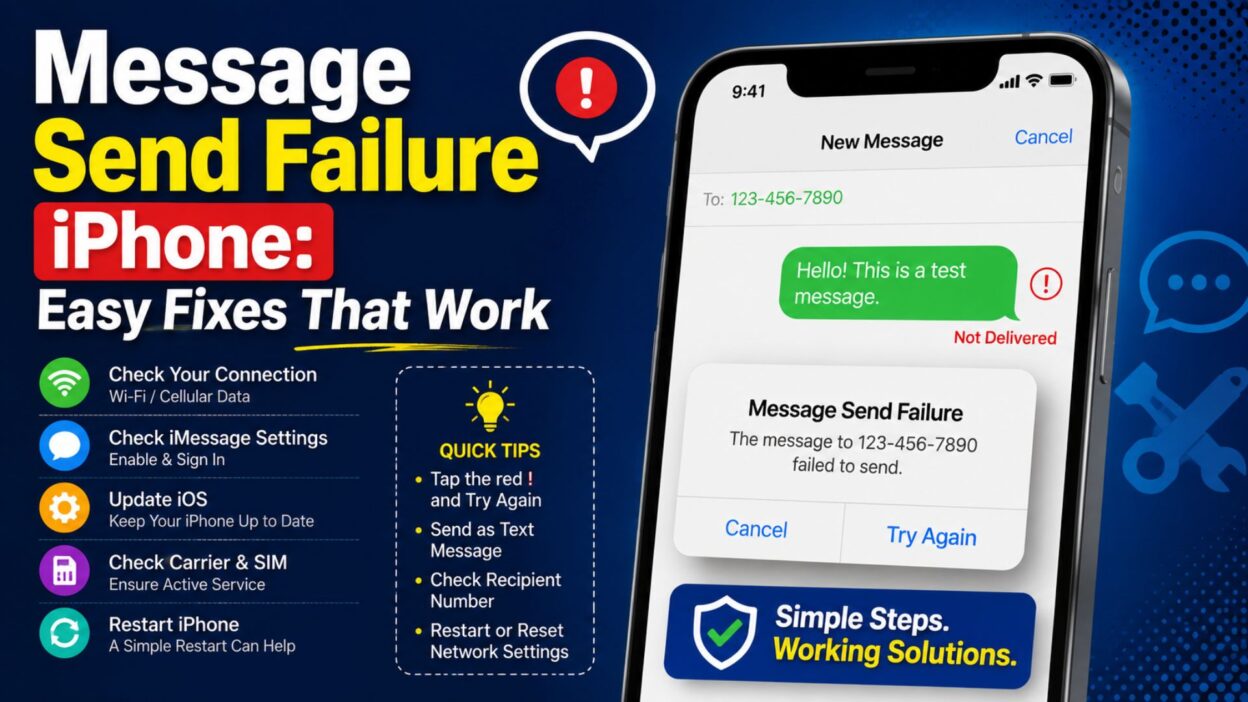
You tap the send button, but instead of seeing your message go through, your iPhone shows “Not Delivered” or a red exclamation mark. It can be frustrating, especially when everything else on your phone seems to work normally.
A message send failure iPhone problem usually points to an issue with your connection, iMessage, SMS/RCS service, recipient details, or carrier settings. Fortunately, you can check several common causes before contacting Apple or your mobile carrier.
First, look at the message bubble and the error that appears. Blue bubbles normally indicate iMessage, while green bubbles use SMS, MMS, or RCS. Therefore, knowing which messaging service failed can help you choose the right fix.
This guide walks through the most practical solutions, starting with the easiest checks. You can work through them one at a time until your messages start sending normally.
What Does Message Send Failure Mean on iPhone?
A message send failure means your iPhone could not successfully send the message to the recipient. Apple shows a red exclamation mark and a Not Delivered alert when a message fails to go through.
The exact cause can vary. For instance, iMessage needs Wi-Fi or cellular data, while traditional SMS requires a cellular network connection. RCS and MMS also depend on network connectivity and carrier support.
Common Reasons a Message Fails
Several issues can trigger the error:
- Weak or unavailable internet connection
- Poor cellular coverage
- iMessage temporarily unavailable
- SMS or MMS service problems
- RCS connection issues
- Incorrect recipient number or email address
- iMessage settings that need adjustment
- Carrier restrictions or service problems
- An inactive phone line
- Problems after changing or activating a SIM
- An outdated iOS version
Because several services can handle messages on an iPhone, one failed message does not always mean your phone has a serious problem.
Check Your Internet or Cellular Connection
Start with the simplest possibility: your connection.
If you are sending an iMessage, RCS message, or MMS, your iPhone needs a cellular data or Wi-Fi connection. Traditional SMS messages rely on the cellular network, although Wi-Fi Calling can allow SMS over Wi-Fi in supported situations.
Try a Quick Connection Test
Open Safari and load a website. If the page does not load over Wi-Fi, switch to cellular data and try again.
Likewise, if cellular service appears weak, connect to a reliable Wi-Fi network and retry the message.
You can also toggle Airplane Mode on for a few seconds and then turn it off. This can help your iPhone reconnect to available networks.
If the message still fails, move to the next check instead of repeatedly tapping Send.
Tap the Red Exclamation Mark
When an iPhone displays a red exclamation mark beside a failed message, Apple recommends checking the connection first. After that, tap the red exclamation mark and choose Try Again.
Sometimes the failure happens because the connection briefly dropped. In that situation, another attempt may work immediately.
Try Sending as a Text Message
If an iMessage continues to fail, your iPhone may offer Send as Text Message.
Tap the red exclamation mark and select that option if it appears. Apple notes that messaging rates may apply, depending on your plan.
This option can help when iMessage cannot reach the recipient but your cellular SMS service still works.
Turn On Send as Text Message
If you regularly experience failed iMessages, check whether your iPhone can automatically fall back to SMS when iMessage is unavailable.
Open:
Settings → Apps → Messages
Then look for Send as Text Message and turn it on.
Apple provides this option so the iPhone can try SMS when iMessage cannot send a message. However, SMS availability still depends on your cellular service and carrier.
When This Fix Helps
This setting can help when:
- iMessage is temporarily unavailable
- The recipient cannot receive iMessage
- Your internet connection is unreliable
- You still have working cellular service
However, it will not solve every messaging problem. If your carrier does not support the required messaging service, you may need to contact them.
Check the Recipient’s Number
Sometimes the problem has nothing to do with your iPhone.
Check the recipient’s phone number or email address carefully. Apple specifically recommends making sure you entered the correct phone number or email address when troubleshooting failed messages.
Try a Fresh Conversation
If you suspect that an old conversation has a problem, create a new message instead.
Open Messages, tap the compose button, enter the contact again, and send a short test message.
This approach can help determine whether the issue affects one conversation or your messaging service more broadly.
Check iMessage Settings
If your messages normally appear blue but suddenly fail, check your iMessage settings.
Go to:
Settings → Apps → Messages
Make sure iMessage is turned on.
Then tap Send & Receive and check that your correct phone number or email address appears there. Apple recommends checking these settings when messages do not work correctly across devices.
Make Sure Your Phone Number Is Selected
Your iPhone can use either your phone number or Apple Account email address for Messages. If the wrong option is selected, your conversations may behave differently than expected.
Apple also recommends selecting the phone number you want to use under Send & Receive.
This check becomes especially important after setting up a new iPhone, changing SIMs, or moving your number between devices.
Restart Your iPhone
If the settings look correct, restart the device.
A restart can clear temporary software or connection glitches. Apple includes restarting the iPhone among its recommended troubleshooting steps for Messages problems.
After the restart, open Messages and send a simple test message.
If the message still fails, continue with the next part of the troubleshooting process.
Turn Off and Re-enable iMessage
If restarting the iPhone did not fix the message send failure iPhone issue, the next step is to refresh iMessage. A temporary activation or connection problem can sometimes stop messages from leaving your device.
Refresh iMessage
Go to:
Settings → Apps → Messages
Turn iMessage off. Wait a few seconds, then turn it back on.
Afterward, open Send & Receive and confirm that your phone number appears correctly. If your number does not show up or cannot receive messages, the problem may involve activation or your carrier service.
Give iMessage Time to Activate
After switching iMessage back on, activation may take some time. Keep your iPhone connected to Wi-Fi or cellular data while you wait.
Apple notes that your iPhone needs SMS messaging capability to activate your phone number with iMessage and FaceTime. Carrier charges may apply for the activation SMS.
Check Your Cellular Service
Sometimes the problem comes from your mobile network rather than Messages.
Look at the signal indicator near the top of your screen. If your iPhone shows No Service, Searching, or very weak reception, try moving to an area with better coverage.
Test a Regular Phone Call
Make a quick phone call to confirm that your cellular service works.
If the call also fails, the issue may involve your SIM, eSIM, carrier account, or network coverage. In that situation, changing Messages settings probably will not solve the problem.
Check Cellular Data
For iMessage, RCS, and MMS, make sure your iPhone has an internet connection.
Go to:
Settings → Cellular
Then check whether Cellular Data is enabled.
If you recently changed your SIM or eSIM, also make sure the correct line remains active.
Check Whether Only One Contact Has the Problem
Does the message fail with everyone, or just one person?
That difference can provide an important clue.
If One Contact Cannot Receive Your Messages
First, verify the person’s number.
Then start a new conversation and enter the number manually. If the new message works, the original conversation may have been affected by an old iMessage address or contact detail.
If Every Message Fails
When messages fail for multiple contacts, focus on your iPhone settings, internet connection, cellular service, and carrier.
For example, if both blue and green messages fail, the problem may extend beyond iMessage itself.
Check Whether the Recipient Uses an iPhone
Message behavior can change depending on the recipient’s device and available services.
If the other person recently switched from an iPhone to Android, their phone number may still remain registered with iMessage. Apple provides a process for deregistering a phone number from iMessage after switching to a non-Apple phone.
After Switching Phones
If someone recently moved away from iPhone, ask them whether they can receive regular SMS messages.
You can also try sending a green-bubble text if your cellular service supports SMS.
This test can help determine whether the issue affects iMessage specifically or your general texting service.
Check RCS Messaging Settings
Newer iPhone versions support RCS messaging with compatible carriers and regions. RCS can provide features that traditional SMS does not, but availability depends on your carrier and location.
If you are trying to message an Android user and the conversation behaves unexpectedly, check your RCS settings.
Go to:
Settings → Apps → Messages → RCS Messaging
If the option appears, review whether RCS is enabled.
Why RCS Matters
A green message bubble does not always mean traditional SMS anymore.
Depending on your iPhone, carrier, and recipient, a green conversation may use SMS, MMS, or RCS. Therefore, the exact troubleshooting step can vary.
If RCS does not work, try a regular SMS if your carrier supports it. You can also check your carrier’s current service status.
Check Your Carrier Settings
Carrier settings help your iPhone connect correctly to your mobile network.
When your carrier releases an update, your iPhone may prompt you to install it. Apple says carrier settings updates can improve cellular connectivity and add support for features such as 5G and Wi-Fi Calling.
Look for a Carrier Update
Connect your iPhone to Wi-Fi, then open:
Settings → General → About
Wait for a few seconds.
If a carrier update appears, follow the on-screen instructions to install it.
Afterward, try sending the message again.
Update Your iPhone
An outdated iOS version can sometimes cause compatibility or messaging problems.
Open:
Settings → General → Software Update
If an update appears, review the available version and install it when convenient.
Before updating, make sure your iPhone has enough battery or connect it to a charger.
Why Updates Can Help
Software updates can include bug fixes, security improvements, and changes to communication features.
Therefore, keeping iOS current can reduce problems caused by outdated software. Still, an update is not always necessary for a single failed message, so try the simpler troubleshooting steps first.
Check Date and Time Settings
Your iPhone normally manages date and time automatically.
However, incorrect time settings can interfere with certain online services.
Go to:
Settings → General → Date & Time
Turn on Set Automatically if the option is available.
Then reconnect to your network and test Messages again.
Check Screen Time Restrictions
If Messages works for some contacts but not others, review any restrictions that may affect communication.
Open:
Settings → Screen Time → Communication Limits
Check whether the relevant contact or communication setting restricts messaging.
This step matters particularly when the iPhone uses Screen Time settings managed for a child or family member.
Try a Different Connection
A simple connection test can reveal whether your network causes the failure.
If you currently use Wi-Fi, turn Wi-Fi off temporarily and try cellular data. If you use cellular data, connect to a reliable Wi-Fi network instead.
Compare the Results
If messages work on Wi-Fi but fail on cellular data, your mobile network may need attention.
On the other hand, if messages work on cellular data but fail on one Wi-Fi network, the Wi-Fi connection may cause the problem.
This comparison can save time because it helps narrow down the source before you change more settings.
Reset Network Settings as a Last Resort
If basic connection checks fail, you can consider resetting your network settings.
Go to:
Settings → General → Transfer or Reset iPhone → Reset → Reset Network Settings
This action removes saved Wi-Fi networks and passwords, cellular settings, VPN settings, and other network-related information. Therefore, use it only after simpler fixes fail.
Before You Reset
Make sure you know your important Wi-Fi passwords.
After the reset, reconnect to your Wi-Fi network and test Messages again.
Do not choose Erase All Content and Settings for a messaging problem. That option performs a much more extensive reset and is not necessary for ordinary message troubleshooting.
What to Do If Message Send Failure Still Appears
If you have tried the earlier fixes and your iPhone still shows Not Delivered, do not worry. At this point, the problem may involve your carrier, account, SIM, eSIM, or Apple’s messaging service.
Start by checking whether the failure affects one contact or every conversation. That simple test can quickly narrow down the cause.
Check Apple’s System Status
Sometimes the problem does not come from your iPhone at all.
Apple can experience temporary service interruptions that affect iMessage. Therefore, check Apple’s System Status page if several people are reporting similar problems.
If iMessage has an outage, changing your settings repeatedly will not solve the issue. In that case, wait for the service to recover and try again later.
Contact Your Mobile Carrier
If regular SMS messages fail even though your iPhone has cellular service, contact your carrier.
Your carrier can check whether:
- Your account has an active messaging service
- SMS or MMS works on your plan
- Your SIM or eSIM has a problem
- Your number has a messaging restriction
- Your account needs activation
- A local network outage affects your area
This step becomes especially important when calls and mobile data also behave strangely.
Ask the Carrier to Check SMS Service
When contacting support, explain exactly what happens.
For example, tell them that your iPhone displays Not Delivered when you send a text. Also mention whether the problem affects every contact or only one person.
That information can help the carrier identify the issue faster.
Check Your SIM or eSIM
A recent SIM change can sometimes create messaging problems.
If you recently moved your number to a new iPhone, replaced a physical SIM, or activated an eSIM, check that the correct cellular line appears in your settings.
Open:
Settings → Cellular
Review the available lines and confirm that your primary number remains active.
After a SIM Change
Restart the iPhone after confirming the correct line.
Then check Settings → Apps → Messages → Send & Receive and make sure your phone number appears correctly.
Apple also provides troubleshooting guidance for phone-number activation with iMessage when users move to a new device or change their setup.
Try Sending a Simple Text
Long messages, photos, links, or group conversations can sometimes make troubleshooting harder.
Instead, send a simple message such as:
- Hi
- Test
- Can you receive this?
- Just checking my messages.
If a short text works, the issue may relate to the original conversation, attachment, group message, or messaging service being used.
Test a Photo Separately
If text messages work but photos fail, check MMS or RCS support and your cellular connection.
A successful text does not always mean every type of message will work. Different messaging services can handle text, photos, videos, and group conversations differently.
Troubleshoot Group Messages
If individual messages work but a group conversation fails, the group itself may provide an important clue.
Check whether:
- The group contains Android and iPhone users
- Someone recently changed their phone number
- A participant left the conversation
- MMS or RCS settings changed
- Your cellular or internet connection is unstable
Create a new group conversation only if necessary. First, try sending individual messages to the people involved.
Why Group Chats Can Behave Differently
Group conversations may use different messaging technologies depending on the participants and available services.
Therefore, a problem with one group does not automatically mean your entire Messages app has stopped working.
Sign Out and Back Into Your Apple Account Carefully
If iMessage continues to behave strangely, check your Apple Account settings.
However, do not sign out unnecessarily. First confirm that your Apple Account information and phone number appear correctly under Messages → Send & Receive.
If the account appears normal, continue with simpler troubleshooting rather than changing multiple settings at once.
This approach makes it easier to identify what actually fixed the problem.
Make Sure Your iPhone Has Enough Storage
Low storage usually does not cause every message failure, but it can contribute to broader device problems.
Go to:
Settings → General → iPhone Storage
Check how much free space remains.
If your iPhone has almost no available storage, remove unnecessary videos, downloads, or apps. Then restart the device and test Messages again.
Try Apple’s Recommended Troubleshooting Steps
Apple’s official Messages troubleshooting guidance recommends checking your network connection, retrying the message, confirming the recipient’s contact information, and using Send as Text Message when the option appears.
Apple also recommends checking iMessage settings and your phone number under Send & Receive when iMessage does not work as expected.
These steps cover many of the most common causes, so work through them before performing more drastic changes.
When Should You Contact Apple Support?
If your carrier confirms that your cellular service works correctly but Messages still fails, Apple Support may be the next step.
Contact Apple when:
- iMessage repeatedly refuses to activate
- Your phone number does not activate with iMessage
- Messages fail after an iOS update
- The Messages app behaves unusually
- Several Apple messaging features stop working
- Basic network troubleshooting does not help
Before contacting support, note what you already tried.
For example, tell them whether you restarted the phone, checked iMessage, tested Wi-Fi and cellular data, and contacted your carrier. That information can make troubleshooting more efficient.
Quick Message Send Failure iPhone Checklist
If you want a quick reference, work through these checks:
- Check Wi-Fi or cellular data.
- Confirm that your iPhone has cellular service.
- Tap the red exclamation mark.
- Select Try Again.
- Use Send as Text Message if available.
- Check the recipient’s phone number.
- Restart your iPhone.
- Check iMessage under Settings → Apps → Messages.
- Review Send & Receive.
- Check RCS settings if applicable.
- Look for a carrier settings update.
- Install an available iOS update.
- Test another Wi-Fi or cellular connection.
- Check your SIM or eSIM.
- Contact your carrier if SMS still fails.
- Check Apple’s System Status during possible outages.
FAQ: Message Send Failure iPhone
Why does my iPhone say message send failure?
Your iPhone may show a message send failure because of a weak connection, iMessage problem, cellular service issue, incorrect recipient information, or carrier restriction. Start by checking your connection and tapping the red exclamation mark.
Why are my iMessages not sending but I have Wi-Fi?
Wi-Fi does not guarantee that iMessage will work correctly. Check whether iMessage is enabled, then review Send & Receive and confirm that your phone number or Apple Account email is selected.
Why can I receive texts but not send them?
Receiving messages while outgoing texts fail can point toward a carrier, account, network, or messaging-service issue. If the problem affects regular SMS, contact your mobile carrier for assistance.
Why does my iPhone show a red exclamation mark?
The red exclamation mark indicates that the message did not successfully send. Tap it to view available options, then try sending the message again or use Send as Text Message when available.
Should I reset my iPhone because messages will not send?
No. A full iPhone erase should not be your first solution. Try connection checks, iMessage settings, restarting the phone, carrier troubleshooting, and network settings first.
Final Thoughts on Message Send Failure iPhone
A message send failure iPhone problem can look complicated, but most troubleshooting starts with a few straightforward checks. First, confirm your internet or cellular connection. Then check iMessage, your phone number, recipient details, and available SMS or RCS options.
If those steps do not work, move toward carrier settings, SIM or eSIM checks, and network troubleshooting. Moreover, checking Apple’s service status can help you determine whether a temporary outage affects iMessage.
The important thing is to change one thing at a time. That way, you can identify the actual cause instead of changing several settings without knowing which solution worked.
If your messages still fail after these steps, your carrier or Apple Support can investigate account, activation, or device-specific problems.
With the right checks, a frustrating “Not Delivered” alert can often become a simple fix.

Awais Bilal is the author of Messagesfy, sharing simple and meaningful messages, quotes, and wishes to help people express their feelings easily.