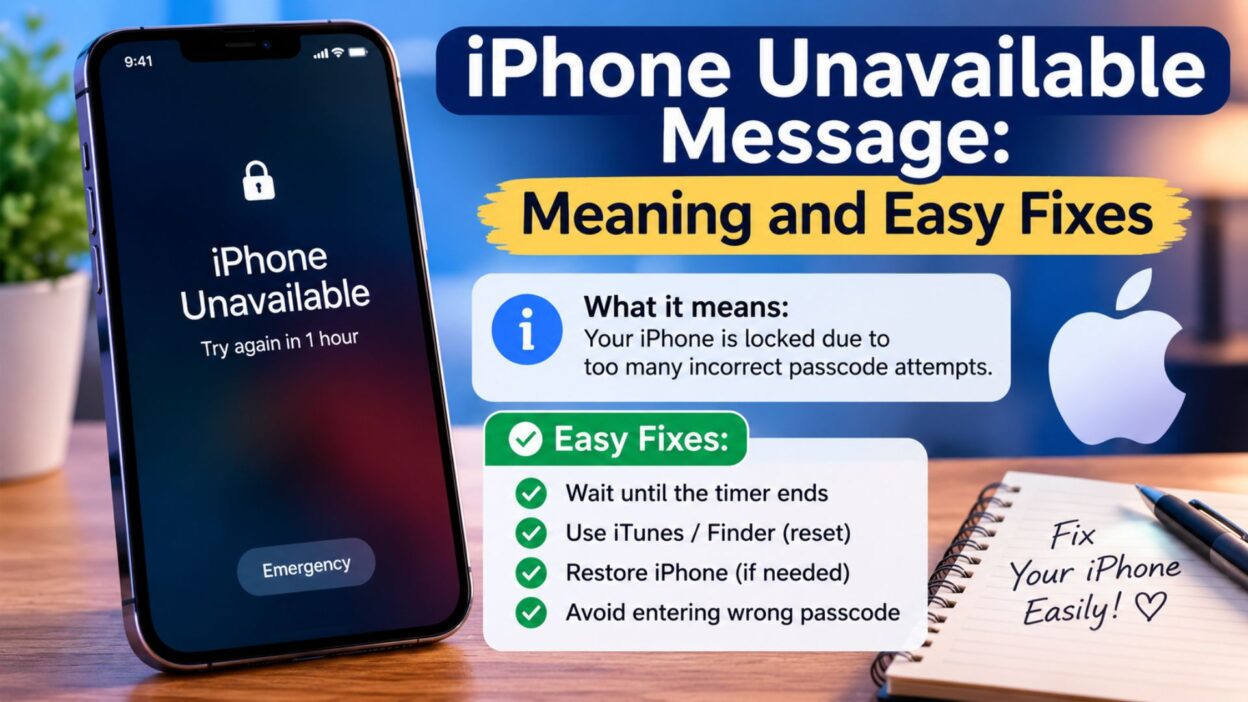
Seeing the iPhone Unavailable message on your screen can be stressful, especially when you need to access your phone quickly. Instead of showing your usual passcode screen, your iPhone may display a message saying that the device is unavailable. In most cases, this happens after several incorrect passcode attempts.
The message is a security feature designed to protect the information stored on your iPhone. It prevents someone from repeatedly guessing the passcode and gaining access to your personal data. Depending on the number of failed attempts and your iPhone’s settings, you may need to wait before trying again, or you may need to erase and reset the device.
Fortunately, the message does not always mean that your iPhone has suffered permanent damage. The right solution depends on what appears underneath the warning and whether you remember your passcode. This guide explains the meaning of the message, the common reasons it appears, and the safest ways to move forward.
What Does the iPhone Unavailable Message Mean?
The iPhone Unavailable message usually appears after too many incorrect passcode attempts. Your iPhone temporarily restricts access to protect your data.
If you accidentally enter the wrong passcode several times, the device increases the security delay. As a result, you may see an unavailable screen instead of the normal passcode screen.
The message can mean:
- Too many incorrect passcode attempts occurred.
- Your iPhone has temporarily disabled passcode entry.
- The device needs time before another attempt.
- You may need to use an available reset option.
- The iPhone may require an erase and setup process if you cannot regain access normally.
The exact screen can vary depending on the iPhone model, iOS version, and settings.
Why Does the iPhone Unavailable Message Appear?
The most common reason is an incorrect passcode. However, several situations can lead to repeated failed attempts.
Too Many Incorrect Passcodes
This is the most common cause. If you repeatedly enter a passcode that does not match the one stored on the device, iPhone security measures can temporarily block further attempts.
Accidental Touches
Your phone can sometimes register unintended touches while it sits in a pocket, bag, or another place where the screen may activate. Repeated incorrect inputs can eventually trigger the unavailable screen.
A Forgotten Passcode
If you recently changed your passcode and cannot remember the new one, repeated attempts can quickly lead to the iPhone Unavailable message.
Trying random combinations usually makes the situation worse because additional failed attempts can increase the restriction.
Someone Else Entered the Wrong Passcode
If another person tried to unlock your iPhone without knowing the correct passcode, their failed attempts may have caused the device to become unavailable.
What Should You Do When You See the Message?
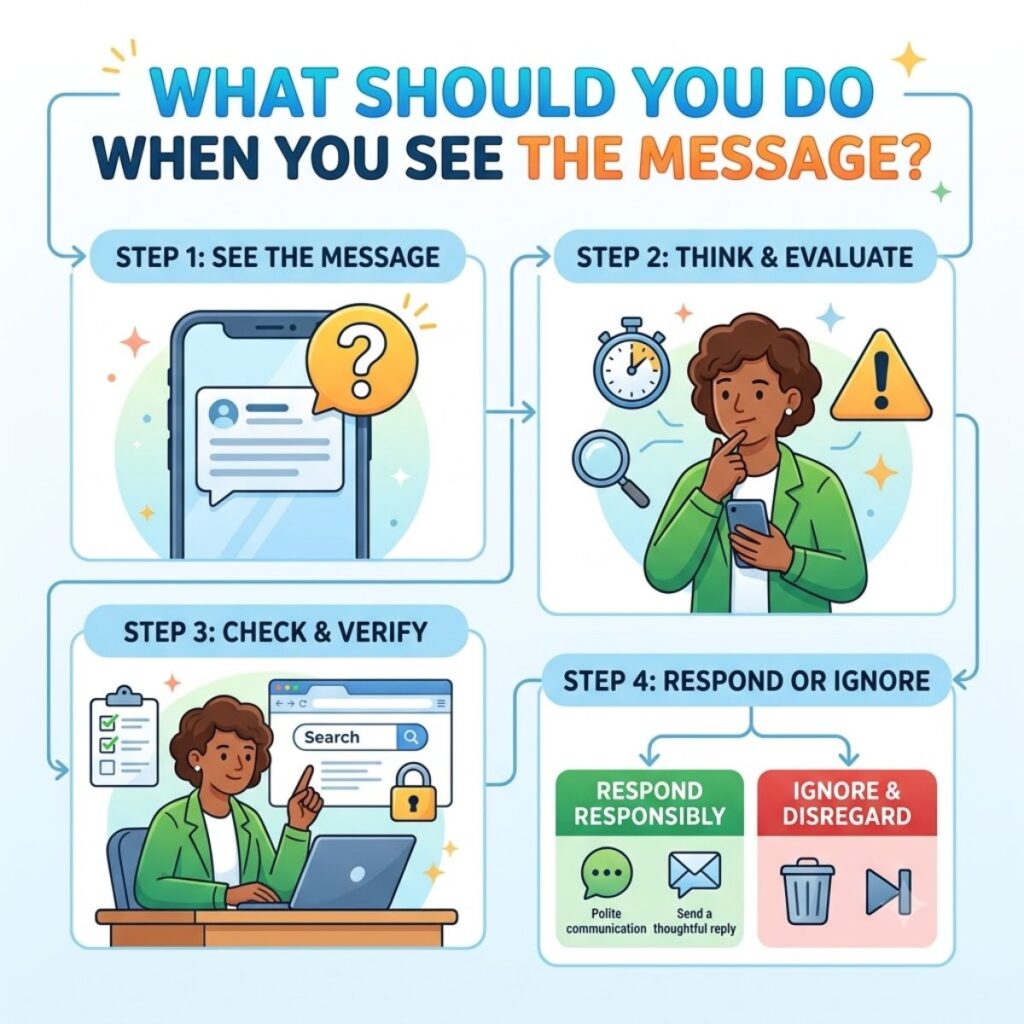
The first thing to do is stay calm and avoid repeatedly guessing the passcode.
Look carefully at the entire screen. Your iPhone may show a waiting period or another option that tells you what to do next.
Try these steps:
- Stop entering random passcodes.
- Read the message displayed on the screen.
- Check whether a countdown appears.
- Wait for the specified period if the screen provides one.
- Enter the correct passcode only when you are confident you know it.
- Look for an available reset or erase option if you cannot remember the passcode.
- Make sure you understand whether your data has a current backup before choosing an erase option.
Taking a moment to read the screen can help you avoid unnecessary steps.
Can You Wait for the iPhone Unavailable Message to Go Away?
In some situations, yes. If the screen displays a countdown, you can wait until the restriction ends and then try the passcode again.
The important point is to enter the correct passcode afterward. Do not use the waiting period to test multiple guesses.
If you know your passcode, waiting can be the simplest solution. However, if you have forgotten it, continuing to guess may cause additional restrictions.
What If You Forgot Your iPhone Passcode?
Forgetting the passcode changes the situation. Your iPhone security is designed to prevent someone from bypassing the lock screen simply by trying different combinations.
If you cannot remember the passcode, you may need to erase the iPhone and set it up again. Apple provides official recovery methods for this situation.
Before erasing the device, consider whether your important information exists in an iCloud or computer backup. After the reset, you may be able to restore your information from a backup.
Keep in mind that erasing an iPhone removes the data currently stored on the device unless that information exists in a backup or can otherwise be restored through your Apple account.
What Is the Difference Between iPhone Unavailable and Security Lockout?
You may see different wording depending on your iPhone and iOS version.
The message can communicate a similar security situation: the device has restricted access after repeated incorrect passcode attempts.
The wording may change because Apple updates iOS and its security interface over time. Therefore, focus on the instructions shown directly on your screen rather than relying only on screenshots from older guides.
If your screen provides a countdown, follow it. If it provides an option to erase or reset the device, review that option carefully before proceeding.
Does iPhone Unavailable Mean the iPhone Is Broken?
No. The iPhone Unavailable message does not normally mean that your iPhone has suffered physical damage.
Instead, it usually indicates that the security system has restricted access after failed passcode attempts.
Your phone may still function normally in other respects. The problem concerns access to the device rather than a damaged screen, battery, camera, or internal component.
Therefore, avoid assuming that you need a hardware repair simply because the unavailable message appears.
Can You Unlock an iPhone Without the Passcode?
If you do not know the passcode, you generally cannot simply bypass the iPhone lock screen and keep all the information stored on the device.
Apple’s security design intentionally makes unauthorized access difficult. If you have forgotten the passcode, the supported recovery process may require you to erase the iPhone.
Afterward, you can set up the device again and restore available backup data.
This protection helps prevent someone who finds or steals an iPhone from easily accessing the owner’s private information.
Important Things to Remember
When dealing with an iPhone Unavailable message, keep these points in mind:
- Do not keep guessing random passcodes.
- Read the instructions displayed on the screen.
- Wait if the device provides a countdown.
- Use the correct passcode when you know it.
- Consider your backup situation before erasing the iPhone.
- Use Apple’s supported recovery options when necessary.
- Avoid unreliable tools that promise to bypass iPhone security.
- Do not share your Apple Account password or verification codes with strangers.
The safest approach is to follow the instructions provided by Apple and your device rather than trying an unknown bypass method.
How to Fix the iPhone Unavailable Message
The right solution depends on what your iPhone shows on the screen. If it displays a timer, waiting may solve the problem. If you forgot the passcode and see a reset option, you may need to erase the device and set it up again.
Before taking action, check the exact message and available options.
Wait for the Timer to Finish
If your iPhone shows a countdown, the simplest option is to wait.
During this period:
- Do not repeatedly enter passcodes.
- Keep the iPhone powered on.
- Wait until the timer reaches zero.
- Enter your correct passcode afterward.
If you remember the passcode, this method can restore access without erasing your device.
Use the Available Reset Option
Some iPhones may show an option that allows you to begin the device reset process directly from the unavailable screen.
If you see an option such as Erase iPhone, read the instructions carefully before selecting it.
The process can remove the information currently stored on the iPhone. Therefore, make sure you understand what will happen before confirming the reset.
You may need your Apple Account credentials during setup afterward.
Erase and Restore the iPhone
If you cannot remember the passcode, erasing the device may become necessary.
After the erase process finishes, you can go through the setup process again. If you have a compatible backup, you may be able to restore your photos, contacts, apps, settings, and other information.
The exact recovery steps can vary based on your iPhone and iOS version, so follow the instructions shown by the device or Apple’s current support guidance.
What Happens When You Erase an Unavailable iPhone?
Erasing an iPhone removes the data stored on the device and returns it to a setup state.
This means you should think about your backup before choosing this option.
If your information already exists in a backup, you may be able to recover much of it after signing in and restoring the device. Without a backup, information that exists only on the iPhone may not be recoverable after the erase.
Before proceeding, consider:
- Whether you use iCloud for backups.
- When your most recent backup occurred.
- Whether important photos are synced.
- Whether your contacts are stored in your account.
- Whether you know your Apple Account credentials.
- Whether you have access to trusted verification methods.
This preparation can make the recovery process much smoother.
Can You Fix the iPhone Unavailable Message Without Losing Data?
If your iPhone displays a temporary timer and you remember the correct passcode, you may be able to regain access without erasing the device.
However, if you have forgotten the passcode and need to erase the iPhone, data stored only on that device may be lost.
That is why backups matter.
Cloud synchronization can also help protect certain information. For example, contacts, photos, notes, and other content may already exist in your account if you previously enabled the appropriate syncing features.
Therefore, do not assume that everything is permanently lost just because the iPhone needs to be erased.
What If the iPhone Unavailable Message Keeps Returning?
If you regain access but the problem happens repeatedly, think about what caused the incorrect attempts.
Possible causes include:
- A recently changed passcode that you keep forgetting.
- Accidental screen touches.
- A damaged or malfunctioning display.
- Someone else attempting to unlock the phone.
- A case or accessory interfering with the screen.
- Confusion between an old and new passcode.
If accidental touches appear to cause the issue, inspect the screen and accessories. If the display behaves unusually, consider having the device checked by an authorized service provider.
What If Your Screen Does Not Respond?
An unavailable message and an unresponsive screen are different problems.
If the screen displays the message but does not respond normally to touch, you may need to restart the iPhone using the appropriate button sequence for your model.
However, do not repeatedly enter passcodes while troubleshooting. An unresponsive screen can sometimes register unexpected touches when it begins working again.
If the display remains unresponsive after a restart, hardware or software troubleshooting may be necessary.
What If You Changed Your Passcode Recently?
A recently changed passcode can create confusion, especially if you automatically enter the previous one.
If you changed your passcode and remember the new one, wait until your iPhone allows another attempt. Then carefully enter the current passcode.
Avoid testing the old passcode repeatedly.
Some recent iOS versions may also provide a limited option related to a previous passcode under specific circumstances. Whether this appears depends on the device, software version, and how recently the passcode changed.
Always follow the exact options shown on your iPhone.
Can Apple Help With an iPhone Unavailable Message?
Apple can provide official troubleshooting and recovery information for iPhone passcode issues.
If you cannot resolve the problem using the options on your device, consult Apple’s current support resources or contact Apple Support.
Before contacting support, gather useful information such as:
- Your iPhone model.
- Your iOS version, if known.
- The exact message on the screen.
- Whether you remember the passcode.
- Whether you have an available backup.
- Whether you know your Apple Account credentials.
This information can help you understand which recovery options apply to your situation.
What Not to Do When Your iPhone Says Unavailable
When you see the iPhone Unavailable message, avoid shortcuts that promise to remove the lock without consequences.
Do not:
- Keep guessing random passcodes.
- Download unknown unlocking software.
- Give your Apple Account password to another person.
- Share verification codes with strangers.
- Follow suspicious instructions from unofficial websites.
- Assume that a paid bypass tool can safely recover your data.
- Erase the device without considering your backups.
Your iPhone’s passcode protection exists to keep your personal information secure. Trying to bypass that protection can create additional risks.
How to Prevent the iPhone Unavailable Message
You can take a few simple steps to reduce the chance of seeing the message again.
Remember Your Current Passcode
Choose a passcode that you can remember while keeping it difficult for other people to guess.
If you change it, give yourself time to memorize the new combination before relying on it.
Keep Your iPhone Updated
Software updates can include security improvements and changes to device behavior. Keeping iOS current can help you use the latest features and protections.
Maintain Regular Backups
A recent backup gives you a better recovery option if your iPhone ever needs to be erased.
Check your backup settings periodically so you know whether your important information is being protected.
Protect the Screen
Keep the display clean and inspect it if you notice unexpected touches. If the screen registers touches by itself, investigate the problem rather than ignoring it.
Keep Your Passcode Private
Never share your iPhone passcode casually. Someone who knows it may be able to access information stored on the device.
iPhone Unavailable Message on Different iPhone Models
The basic security principle applies across modern iPhone models, but the exact instructions can differ.
For example, the process may look different on:
- iPhone with Face ID.
- iPhone with a Home button.
- Newer iPhone models running recent iOS versions.
- Older iPhones using earlier iOS releases.
Therefore, avoid following instructions designed for a different iOS version without checking whether they apply to your device.
The wording on the screen is often the best starting point. If your iPhone provides a specific option, read that option carefully before continuing.
One-Line iPhone Unavailable Message Tips
If you need a quick reminder while troubleshooting, these short tips are easy to save or share.
- Wait if your iPhone shows a countdown.
- Do not guess the passcode repeatedly.
- Use your current passcode when you are certain of it.
- Check whether your iPhone offers a reset option.
- Think about your backups before erasing the device.
- Keep your Apple Account credentials available.
- Use official recovery methods whenever possible.
- Avoid unknown passcode-bypass tools.
- Protect your Apple Account verification information.
- Check your screen if accidental touches keep happening.
Best Messages for Captions
These short captions can work when sharing a quick troubleshooting reminder or technology tip.
- An unavailable iPhone does not always mean a broken iPhone.
- Stop guessing and check the message on your screen.
- A little patience can prevent a bigger problem.
- Your passcode protects more than just your screen.
- When your iPhone says unavailable, read before you react.
- Backups matter when device access becomes a problem.
- Protect your phone, protect your information.
- The safest fix starts with understanding the message.
- Do not rush into an erase without checking your backup.
- When technology feels confusing, start with the exact message.
Copy-Paste Ready iPhone Unavailable Message Explanations
These short explanations are useful when you want to tell someone what the warning means.
- “The iPhone Unavailable message usually appears after too many incorrect passcode attempts. If there is a timer, wait until it finishes before trying again.”
- “If you forgot your iPhone passcode, you may need to erase the device and set it up again. Check your backup before choosing that option.”
- “Do not keep entering random passcodes. Additional failed attempts can increase the security restriction.”
- “If your iPhone shows an erase or reset option, read the instructions carefully because the process can remove data stored on the device.”
- “An iPhone Unavailable message usually indicates a security lockout rather than physical damage to the phone.”
- “If the problem keeps happening because of accidental touches, check the screen, case, and accessories for possible causes.”
- “If you cannot resolve the issue, use Apple’s official support and recovery options instead of an unknown unlocking service.”
FAQ About the iPhone Unavailable Message
How long does an iPhone stay unavailable?
The waiting period can vary depending on the number of incorrect passcode attempts and the device’s security behavior. If your iPhone displays a countdown, wait for the period shown on the screen.
Can I unlock my iPhone if I remember the passcode?
If the device only shows a temporary restriction and you remember the correct passcode, you may be able to regain access after the waiting period ends. Enter the correct passcode carefully rather than trying multiple guesses.
Will an iPhone erase itself after too many attempts?
The exact behavior depends on your security settings and iOS version. Some devices can erase after repeated failed attempts if the appropriate setting has been enabled. Check your device settings and current Apple guidance for details.
Will I lose everything if I erase my iPhone?
Erasing the iPhone removes data stored on the device. However, information available through an iCloud or computer backup may be restored during setup. Your recovery options depend on what you backed up or synchronized before the erase.
Can I remove the iPhone Unavailable message without the passcode?
If you have forgotten the passcode, Apple’s supported recovery process may require you to erase the iPhone before setting it up again. There is no reliable method that simply bypasses the passcode while preserving protected device data.
Final Tips for Handling an iPhone Unavailable Message
The iPhone Unavailable message can look alarming, but it usually serves an important security purpose. Your iPhone uses this restriction to protect your personal information after repeated incorrect passcode attempts.
If you know your passcode and see a countdown, patience may solve the problem. Wait until the device allows another attempt, and then enter the correct passcode carefully.
If you forgot your passcode, the situation requires more caution. You may need to erase and reset the iPhone. Before doing so, think about your backups and make sure you know the Apple Account credentials needed during setup.
Most importantly, avoid random passcode guesses and questionable unlocking services. They can create additional problems and may put your personal information at risk.
Conclusion
Seeing the iPhone Unavailable message can be frustrating, but it does not automatically mean that your iPhone is damaged or permanently unusable. In many cases, the message simply indicates that the device has restricted access after too many incorrect passcode attempts.
If your screen shows a timer, wait for it to finish and then enter the correct passcode. If you cannot remember the passcode, you may need to erase and reset the iPhone. Before taking that step, check whether your important information exists in a backup or is already synchronized with your Apple Account.
The safest approach is to follow the instructions displayed by your iPhone and use official recovery options when necessary. Avoid repeatedly guessing passcodes or trusting unknown tools that promise an easy bypass.
A little patience and careful attention can make the recovery process much easier. Once you regain access, consider keeping regular backups and remembering your current passcode so you are better prepared if the warning appears again.

Awais Bilal is the author of Messagesfy, sharing simple and meaningful messages, quotes, and wishes to help people express their feelings easily.