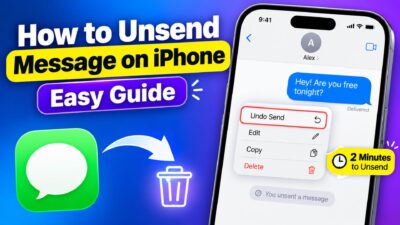
People searching for iPhone message tricks usually want simple ways to make texting faster, easier, more private, and more fun. They may be looking for hidden iPhone Messages features, useful texting shortcuts, formatting tricks, or smart ways to manage conversations without installing another app.
iPhone Message Tricks You Should Try
Your iPhone can do much more with messages than simply sending texts. Some features are easy to notice, while others stay hidden until you know the right gesture or setting.
The best part is that many iPhone message tricks take only a few seconds to learn. Once you get used to them, everyday texting can feel much smoother.
Top iPhone Message Tricks
These tricks can help you write, edit, react to, and manage messages with less effort.
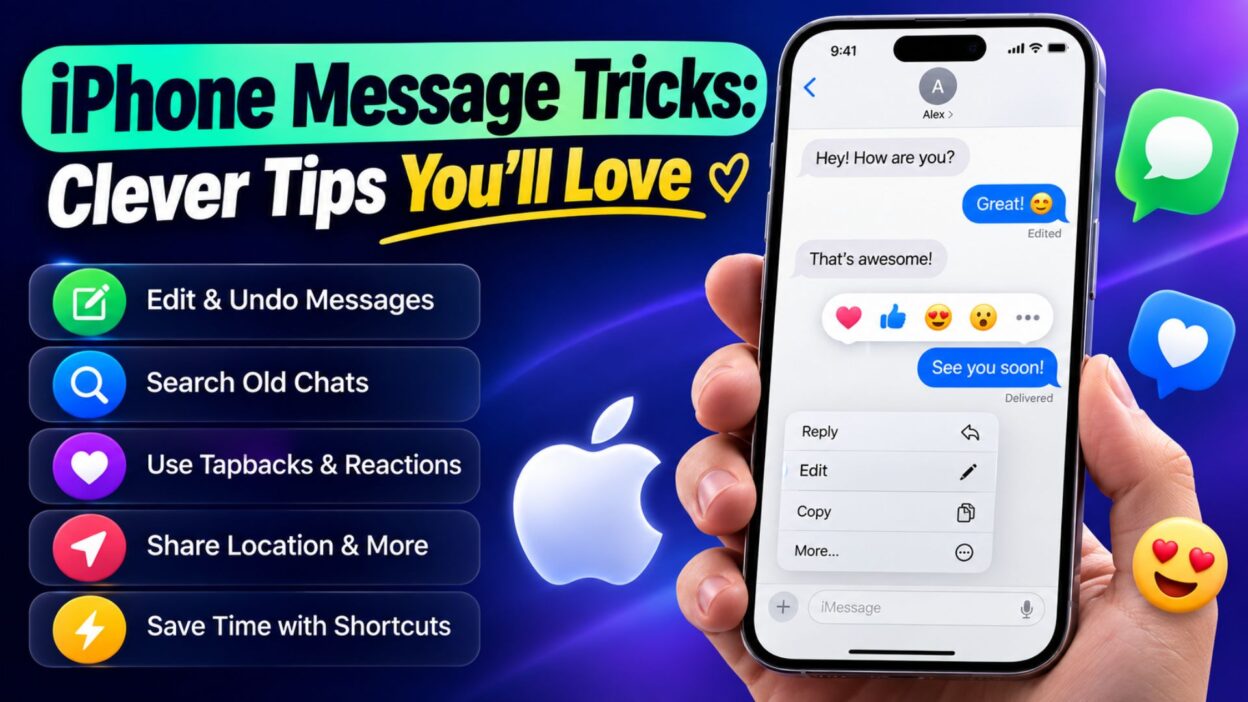
- Edit a sent message: If you spot a typo after sending a message, press and hold the message and choose the edit option when available.
- Undo a message: Need to correct something immediately? Use the available editing or undo options instead of sending another confusing correction.
- Reply to a specific message: Press and hold a message and choose the reply option. This keeps your response connected to the exact text you mean.
- React with Tapback: Press and hold a message to quickly add a reaction such as a heart, thumbs-up, or other available Tapback response.
- Pin important conversations: Keep your most-used chats near the top of the Messages app so you can reach them quickly.
- Search old conversations: Use the Messages search feature to find names, words, links, photos, or other details from previous conversations.
- Share your location: When meeting someone, you can share your location directly through Messages instead of opening another app.
- Send a voice message: When typing feels inconvenient, use the audio message option to send your voice instead.
- Use message effects: Add visual effects to certain messages when you want a simple text to feel more expressive.
- Mention someone in a group chat: Type the person’s name when supported to make sure they notice your message in a busy group conversation.
- Mark messages as unread: If you want to remember a conversation later, mark it unread instead of relying on memory.
- Use stickers: Add stickers to conversations for a more playful way to react without typing a full response.
- Send photos quickly: Open the camera or photo-sharing option from Messages to share a recent picture without switching between several apps.
- Share a link with a message: Paste a useful website link and add a short note so the recipient immediately understands why you sent it.
- Use Siri for messaging: When your hands are busy, Siri can help compose and send messages using voice commands.
- Reply from notifications: Depending on your iPhone settings, you can respond to a message directly from the notification without fully opening the conversation.
- Use dictation: Tap the microphone on the keyboard and speak your message instead of typing every word manually.
- Drag the cursor precisely: Press and hold the spacebar to turn the keyboard into a trackpad, making it easier to move the cursor and fix specific words.
- Shake to undo typing: On supported iPhone setups, shaking the device can provide an undo option while typing.
- Use text replacement: Create shortcuts for phrases you type frequently, such as your email address, greeting, or common response.
Short iPhone Message Tricks
Sometimes the smallest shortcuts make the biggest difference. These quick tricks are especially useful when you text throughout the day.
- Swipe on a conversation to quickly access available actions.
- Press and hold a message to reveal additional options.
- Double-check recipients before sending sensitive or personal information.
- Use dictation when your hands are occupied.
- Search by keyword when you cannot remember where a conversation appeared.
- Pin frequently used chats so important people stay easy to reach.
- Turn on message filtering if your inbox receives lots of unknown messages.
- Use reactions instead of sending a separate reply when a simple acknowledgment is enough.
- Edit carefully because edited messages may show that they were changed.
- Use text replacement for long phrases you repeat often.
- Save important information outside a chat when you need permanent access to it.
- Use group replies when several people are discussing different topics at once.
- Send audio messages when explaining something would take too long to type.
- Use emojis naturally to add emotion without making your message difficult to read.
- Review notification settings if message alerts are becoming distracting.
Best iPhone Message Tricks for Sharing
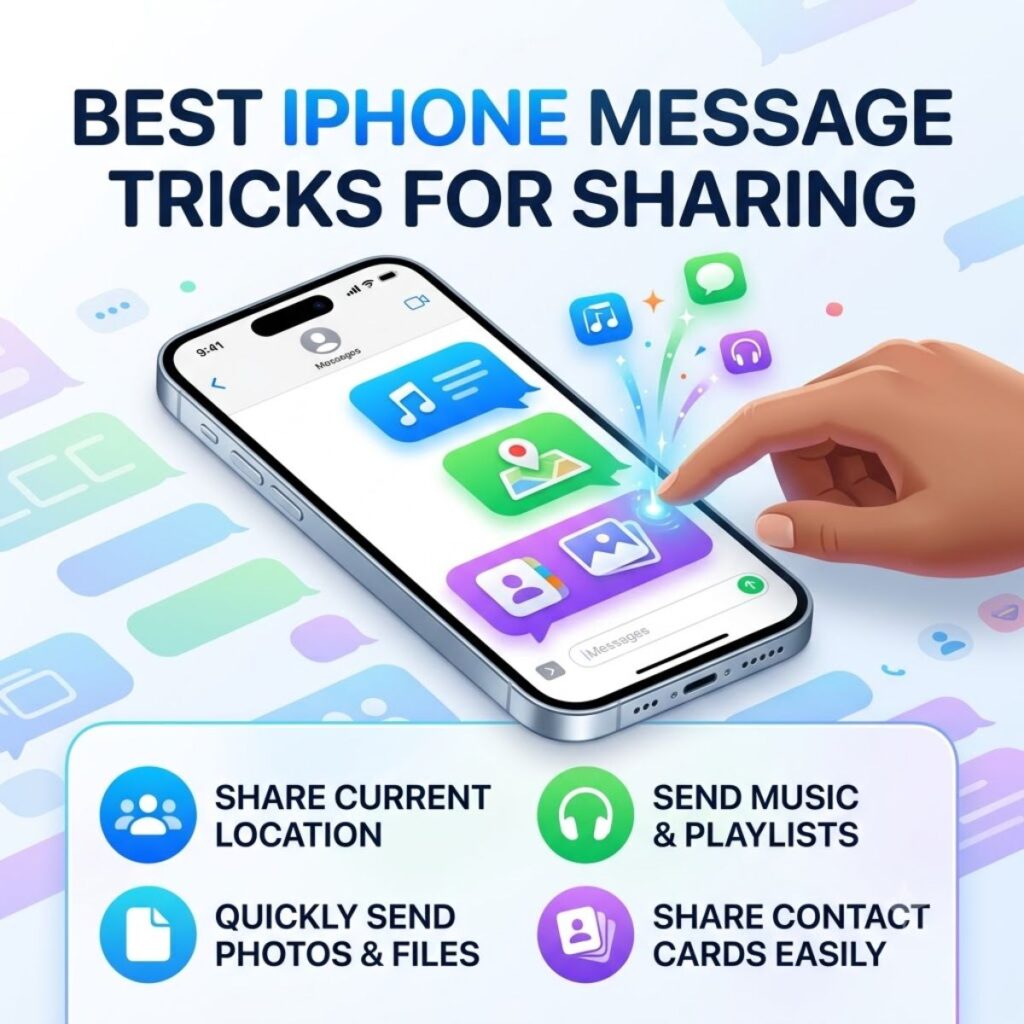
Texting is not only about sending words. Your iPhone also gives you convenient ways to share photos, links, locations, contacts, and other useful information.
- Share a contact: Send someone’s contact information directly through Messages instead of typing their details manually.
- Share a webpage: Send a useful article or website to a friend with a short personal note.
- Share a photo: Choose a picture from your library and send it directly inside the conversation.
- Share your location: Let someone know where you are when coordinating a meeting or pickup.
- Share a map location: Send a specific place when recommending a restaurant, store, event, or meeting point.
- Share a document: When supported, attach a file directly to a conversation so the recipient can access it quickly.
- Share multiple photos: Select several pictures together instead of sending them one at a time.
- Send a meaningful link: Add context before the link so the recipient knows what they are about to open.
- Send a voice message: Use audio when your message needs more personality or explanation.
- Share a memorable photo: A simple picture can sometimes communicate more than several paragraphs.
One-Line iPhone Message Tricks
These quick ideas are easy to remember and useful for everyday texting.
- Pin it when it matters.
- React when a reply isn’t necessary.
- Search instead of scrolling forever.
- Edit a typo before sending another correction.
- Use dictation when typing feels slow.
- Turn common phrases into text shortcuts.
- Reply directly to keep conversations clear.
- Use voice messages for longer explanations.
- Share your location when plans get confusing.
- Use message effects when ordinary text feels boring.
- Keep important chats close with pins.
- Use search to find old links quickly.
- Let Siri help when your hands are busy.
- Use reactions for quick acknowledgments.
- Keep your messages simple, clear, and personal.
These iPhone message tricks can make everyday conversations easier without requiring complicated settings or extra apps. In the next part, we’ll continue with more useful messaging ideas, including practical tricks for faster texting and better conversations.
iPhone Message Tricks: Clever Tips You’ll Love
More iPhone Message Tricks for Faster Texting
Once you know the basic Messages features, a few lesser-known shortcuts can make everyday texting even easier. These tricks are especially helpful when you send messages frequently or want to save time.
- Swipe down on the keyboard to dismiss it: When you need to see more of a conversation, swipe down on the keyboard instead of tapping around the screen.
- Use the spacebar as a trackpad: Press and hold the spacebar, then move your finger to place the cursor exactly where you need it.
- Select text quickly: Use touch gestures to select words or sections of text when you need to replace or copy something.
- Copy and paste between apps: Copy text from Notes, Safari, Mail, or another app and paste it directly into Messages.
- Use predictive text: Let the keyboard suggest words as you type, especially for common phrases.
- Turn on text replacement: Create shortcuts for frequently used phrases so a few characters can produce a complete sentence.
- Use punctuation shortcuts: Double-tap the spacebar to quickly add a period and a space when typing longer messages.
- Switch between keyboards: If you use multiple languages, press and hold the globe key to switch keyboards without leaving Messages.
- Use dictation for long replies: Speaking can be much faster than typing when you need to explain something in detail.
- Correct words with the keyboard: Tap or hold a suggested word when the keyboard offers alternatives.
- Use emoji suggestions: Type a word and check whether the keyboard suggests a matching emoji.
- Drag selected text: On supported iPhone versions, selected text can be moved between compatible areas using touch gestures.
- Use copy and paste wisely: Save yourself from repeatedly typing addresses, instructions, or frequently shared information.
- Start with a clear sentence: A direct opening makes longer text messages easier to understand.
- Break long messages into short paragraphs: Adding spacing makes detailed texts easier to read on a phone.
iPhone Message Tricks for Group Chats
Group conversations can quickly become messy when several people respond at once. A few simple features can help keep discussions organized.
- Reply to a specific message: Use an inline reply when several topics are being discussed at the same time.
- Mention a person: Mention the intended recipient when you need one specific person to notice your message.
- Name important group chats: A recognizable group name makes conversations easier to identify.
- Pin the group: Keep an active family, work, travel, or friend group near the top of Messages.
- Use reactions for simple responses: A quick reaction can reduce unnecessary messages in a busy conversation.
- Share one clear update: If several people need the same information, write one concise message instead of sending multiple separate texts.
- Avoid sending unrelated topics together: Separate subjects make group conversations easier to follow.
- Use photos when helpful: A picture can sometimes explain a location, item, or problem faster than several messages.
- Reply directly to questions: Address the specific question so other group members know what you are responding to.
- Mute distracting conversations when appropriate: If a group becomes too active, notification controls can help reduce interruptions.
iPhone Message Tricks for Privacy
Messages can contain personal conversations, photos, locations, and other information. Therefore, knowing a few privacy-focused features can make your texting experience more comfortable.
- Review notification previews: If you do not want message content appearing on your lock screen, adjust your notification settings.
- Check who can see shared information: Before sending a location, photo, or personal detail, make sure you are sharing it with the intended person.
- Be careful with unknown senders: Avoid opening suspicious links or sharing personal information with unfamiliar contacts.
- Use message filtering: Available filtering options can help separate messages from unknown senders from conversations with people you know.
- Review app permissions: Check which apps can access information that you may use when sharing through Messages.
- Remove sensitive details when unnecessary: Avoid sending passwords, financial information, or other highly sensitive data through ordinary text messages.
- Check attachments before sending: A quick review can prevent an unintended photo or document from reaching the wrong person.
- Lock your iPhone: A strong device passcode provides an important layer of protection for your conversations.
- Keep your software updated: iOS updates can include security improvements along with new features.
- Think before forwarding: A private message may contain information that the original sender did not intend for others to see.
Fun iPhone Message Tricks
Texting does not always have to be serious. Your iPhone includes several ways to make conversations feel more expressive and personal.
- Try message effects: Add an effect when a normal message needs a little extra personality.
- Use Tapbacks: A quick reaction can show appreciation, agreement, surprise, or another emotion.
- Send stickers: Stickers can turn a simple response into something more playful.
- Combine text with emojis: A well-placed emoji can make a short message feel warmer.
- Send a voice message: Your tone of voice can communicate emotion that plain text sometimes misses.
- Share a funny photo: A relevant image can create a more natural conversation than a generic reply.
- Use GIFs when available: A short animated reaction can be perfect for casual conversations.
- Create personalized replies: Instead of repeatedly sending the same response, add a small personal detail.
- Use expressive punctuation: A question mark, exclamation point, or carefully chosen emoji can change how a message feels.
- Reply with a reaction: Sometimes a heart or thumbs-up says exactly what you mean.
iPhone Message Tricks for Everyday Conversations
The best texting shortcuts are the ones that solve small problems you encounter every day. You do not need to use every feature; choose the ones that actually fit your routine.
- Send a quick “I’m on my way” message: Use text replacement if you send this phrase frequently.
- Save frequently used phrases: Turn repeated replies into keyboard shortcuts.
- Use location sharing for meetups: It can make finding each other much easier.
- Send photos instead of lengthy descriptions: Visual information is often faster to understand.
- Use audio for detailed explanations: A voice message can save time when typing becomes inconvenient.
- Search old messages for details: Look for a name, phrase, link, or other keyword rather than manually scrolling.
- Pin your most important conversations: Keep close friends, family, or essential chats within easy reach.
- React instead of replying: Use a Tapback when you only need to acknowledge a message.
- Edit obvious mistakes: Fix a typo when the feature is available instead of sending several correction messages.
- Use direct replies in busy conversations: This helps everyone understand which message you mean.
- Keep important information easy to find: Search features can save considerable time when you need an old detail.
- Use short paragraphs: Clear spacing makes longer messages easier to read.
Best iPhone Message Tricks for Captions
Messages and captions have something in common: short, natural wording usually works better than overly complicated text. These ideas can help when you want to share something through a conversation or social post.
- “Just a little moment worth sharing.”
- “This made my day.”
- “You had to see this.”
- “Sending this because it reminded me of you.”
- “A small update from my side.”
- “This one deserves a spot in the chat.”
- “Thought you’d appreciate this.”
- “Here’s something you might like.”
- “Couldn’t keep this one to myself.”
- “Sharing a little happiness today.”
- “This is exactly what I was talking about.”
- “Saving this moment in the chat.”
- “A picture says enough sometimes.”
- “You’ll understand why I sent this.”
- “Consider this your sign to smile.”
Copy-Paste Ready iPhone Messages
Sometimes you know what you want to say but do not want to spend time writing it. These simple messages work well for everyday conversations.
- “Hey! Just checking in. How’s everything going?”
- “I saw this and immediately thought of you.”
- “I’m running a little late, but I’ll be there soon.”
- “Can you send me the details when you get a chance?”
- “Thanks! I really appreciate it.”
- “No worries at all. Take your time.”
- “Just wanted to make sure you got my message.”
- “Let me know when you’re free.”
- “I’ll get back to you as soon as I can.”
- “That sounds good to me!”
- “Perfect, let’s go with that.”
- “Hope you’re having a great day.”
- “Sending this your way because I think you’ll like it.”
- “I’m free whenever you’re ready.”
- “Thanks for letting me know!”
- “Got it. I’ll keep that in mind.”
- “I’ll send everything over shortly.”
- “Sounds like a plan to me.”
- “Talk to you soon!”
- “Have a good one!”
Why These iPhone Message Tricks Are Useful
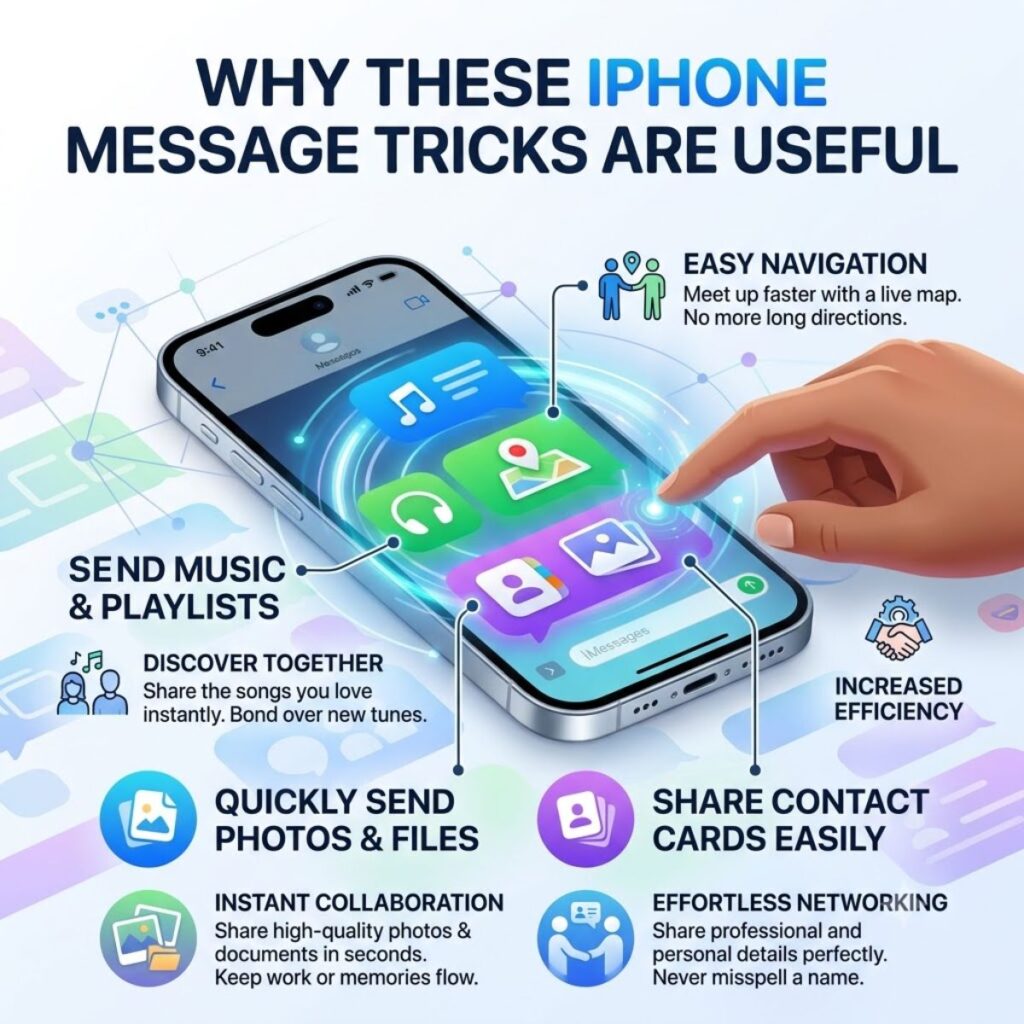
The goal is not to memorize dozens of features. Instead, find the shortcuts that remove the small frustrations you experience while texting.
For example, text replacement can save time if you frequently type the same sentence. Similarly, message search can save you from scrolling through months of conversations just to find one old detail.
Group-chat features are useful when several people are talking at once. Meanwhile, reactions and effects can make casual conversations feel more natural.
Most importantly, good messaging is not about using every available feature. It is about communicating clearly while spending less time fighting with the keyboard or searching through old conversations.
The next part will bring everything together with more practical ideas, common questions, and a complete conclusion for this iPhone message tricks guide.
iPhone Message Tricks: Clever Tips You’ll Love
More Smart iPhone Message Tricks
The most useful messaging features are often the ones that save a few seconds repeatedly. Over time, those small shortcuts can make texting feel much more convenient.
- Use Spotlight or Messages search: When you remember a word but not the conversation, search can help you locate the relevant message faster.
- Search for shared content: Look through conversations for photos, links, or other shared items instead of manually browsing the entire chat.
- Use keyboard shortcuts: Text replacement can turn short abbreviations into complete phrases.
- Keep replies conversational: Even when using shortcuts, personalize important messages so they do not feel automatic.
- Use voice input: Dictation works well when you have a longer thought but do not want to type it.
- Review before sending: A quick glance can catch an incorrect name, autocorrect mistake, or unintended attachment.
- Use direct replies in active chats: This keeps your response connected to the right part of the conversation.
- Pin useful conversations: Keep chats you frequently return to within easy reach.
- Use reactions for simple answers: A reaction can be enough when someone only needs acknowledgment.
- Use message effects selectively: They can add personality to special moments without making every conversation feel excessive.
- Share information directly: Send a location, photo, contact, or link through Messages when it is more convenient than explaining everything manually.
- Use short paragraphs: Breaking up longer messages makes them easier to read on a phone screen.
iPhone Message Tricks That Save Time
Time-saving features become especially useful when you text throughout the day. Instead of repeatedly performing the same action, let your iPhone handle some of the work.
- Create shortcuts for common replies: Save phrases such as “I’m on my way” or “I’ll call you later.”
- Use dictation for detailed messages: Speaking can be quicker than typing a long explanation.
- Search instead of scrolling: A keyword can help you find an old conversation much faster.
- Use copy and paste: Reuse information that you need to send to several people.
- Reply directly to messages: Keep responses connected to their original context.
- Pin frequently used chats: Avoid searching for the same conversations every day.
- Use reactions: A quick Tapback can replace a separate acknowledgment.
- Share photos directly: Send visual information without describing every detail.
- Use Siri when appropriate: Voice commands can help when your hands are occupied.
- Review your keyboard settings: Useful typing features can make everyday messages faster.
iPhone Message Tricks for Better Conversations
Technology can make messaging easier, but the way you communicate still matters. A few simple habits can make your conversations clearer and more enjoyable.
- Keep important messages clear: Say exactly what you need instead of making the recipient guess.
- Use the right tone: A short message can sound cold without context, so add warmth when the situation calls for it.
- Avoid unnecessary walls of text: If a message becomes too long, separate it into readable sections.
- Respond to the main point: When someone asks a question, answer it directly.
- Use emojis naturally: One well-chosen emoji can add emotion without overwhelming the message.
- Respect response times: Not everyone can reply immediately.
- Use voice messages thoughtfully: They are useful for longer explanations, but text may be better for information the recipient needs to reference later.
- Check the recipient: Before sending something private, make sure the conversation is going to the right person.
- Avoid forwarding private conversations without permission: A message can contain personal information that was meant only for you.
- Save important details elsewhere: Do not rely on an old text as the only copy of information you may need later.
Hidden-Feeling iPhone Message Tricks
Some of the most useful tricks are not really about buttons or gestures. They are about using Messages in a way that makes conversations feel more personal.
- Send a thoughtful follow-up: A simple “How did it go?” can show someone that you remembered what mattered to them.
- Use a photo to reconnect: Sending an old memory can naturally restart a conversation.
- Add context to shared links: Instead of dropping a link without explanation, tell the person why you think they will enjoy it.
- Use a voice message for emotional moments: Your voice can communicate warmth that text sometimes cannot.
- React to good news: A quick reaction can show excitement without interrupting the conversation.
- Keep important people easy to reach: Pinning a conversation can make staying connected more convenient.
- Use personal wording: A customized message usually feels more genuine than a generic response.
- Send a quick check-in: A short message can mean a lot when someone has had a difficult day.
- Use humor carefully: A funny reaction can brighten a conversation when the timing feels right.
- Make important messages easy to understand: Clear communication prevents unnecessary back-and-forth.
Quick iPhone Message Tricks Checklist
If you want to start using these ideas immediately, focus on the features that match your everyday texting habits.
- Pin your most important conversations.
- Learn how to search old messages.
- Try Tapbacks for quick reactions.
- Use direct replies in busy conversations.
- Create text replacements for repeated phrases.
- Try dictation for longer messages.
- Use the spacebar as a trackpad when editing text.
- Review notification previews for privacy.
- Share locations when meeting someone.
- Use message effects for special occasions.
- Check attachments before sending.
- Keep sensitive information out of ordinary texts when possible.
- Use short paragraphs for long messages.
- Personalize copied messages before sending them.
- Keep your iPhone and apps updated.
Frequently Asked Questions
What are the best iPhone message tricks?
Some of the most useful tricks include message search, text replacement, Tapbacks, direct replies, pinned conversations, dictation, voice messages, and keyboard shortcuts. The best options depend on how you normally use Messages.
How can I make texting faster on iPhone?
Text replacement, dictation, predictive text, copy and paste, and keyboard gestures can all reduce typing time. You can also pin frequently used conversations so they are easier to access.
Can I edit a message after sending it?
On supported iPhone and iOS versions, Messages allows users to edit recently sent messages within the available editing window. The exact options can depend on the software version and conversation type.
How do I search old iPhone messages?
Open the Messages app and use its search feature to look for keywords, names, conversations, or shared content. This can be much faster than scrolling through old chats manually.
How can I make iPhone messages more fun?
Try Tapbacks, stickers, emojis, message effects, photos, GIFs, and voice messages. Use them naturally so they add personality without making the conversation harder to follow.
Final Thoughts on iPhone Message Tricks
Your iPhone is capable of much more than sending simple text messages. Once you discover the right shortcuts, everyday conversations can become faster, clearer, and more enjoyable.
The most useful iPhone message tricks are often simple. Searching for an old message can save minutes of scrolling. Text replacement can turn a few characters into a complete phrase. Meanwhile, dictation, reactions, direct replies, and pinned chats can make regular conversations much easier to manage.
However, you do not need to use every feature at once. Start with two or three tricks that solve problems you actually experience. Then, as they become part of your routine, explore more features.
Whether you are texting friends, coordinating plans, sharing photos, or keeping up with family, small improvements can make a noticeable difference.
So, save this guide and try a few of these tricks the next time you open Messages. The smartest iPhone message trick is the one that makes your everyday conversations easier.

Awais Bilal is the author of Messagesfy, sharing simple and meaningful messages, quotes, and wishes to help people express their feelings easily.