Seeing a blocked message error can be frustrating, especially when you need your text to reach someone quickly. You may wonder whether the recipient blocked your number or if your phone has a technical problem. Fortunately, a blocked message doesn’t always mean someone intentionally blocked you. In many cases, network issues, incorrect settings, outdated software, or carrier restrictions cause the problem instead.
First, understanding what a blocked message means helps you identify the real cause. Then, you can apply the right solution instead of wasting time trying random fixes. For example, restarting your phone, updating your messaging app, or checking your network connection often resolves the issue within minutes. However, if the problem continues, you may need to review your messaging settings or contact your mobile carrier.
This guide explains the most common reasons behind a blocked message, the warning signs to watch for, and the easiest ways to restore normal messaging.
Common Reasons for a Blocked Message
First, identify the possible cause of the blocked message. Once you know the reason, fixing the problem becomes much easier.
- The recipient may have blocked your phone number.
- Your mobile carrier may temporarily restrict text messaging.
- Your phone may have a weak or unstable network connection.
- Airplane Mode may still be turned on.
- Your SIM card may not work properly.
- The recipient’s phone may be switched off or out of service.
- You may have entered an incorrect or inactive phone number.
- Your messaging app may have a temporary software glitch.
- SMS messaging may not be enabled on your device.
- RCS Chat settings may interfere with message delivery.
- iMessage settings may not be configured correctly on your iPhone.
- Your phone may need the latest software update.
- Your messaging app may need an update.
- Your carrier may have reached a temporary messaging limit.
- Carrier maintenance may interrupt message delivery.
- The recipient’s messaging service may be temporarily unavailable.
- Your carrier may have placed a temporary restriction on your account.
- Incorrect network or APN settings may prevent messages from sending.
- Large attachments or unsupported content may block message delivery.
- Temporary server synchronization issues may delay your messages.
How to Fix a Blocked Message
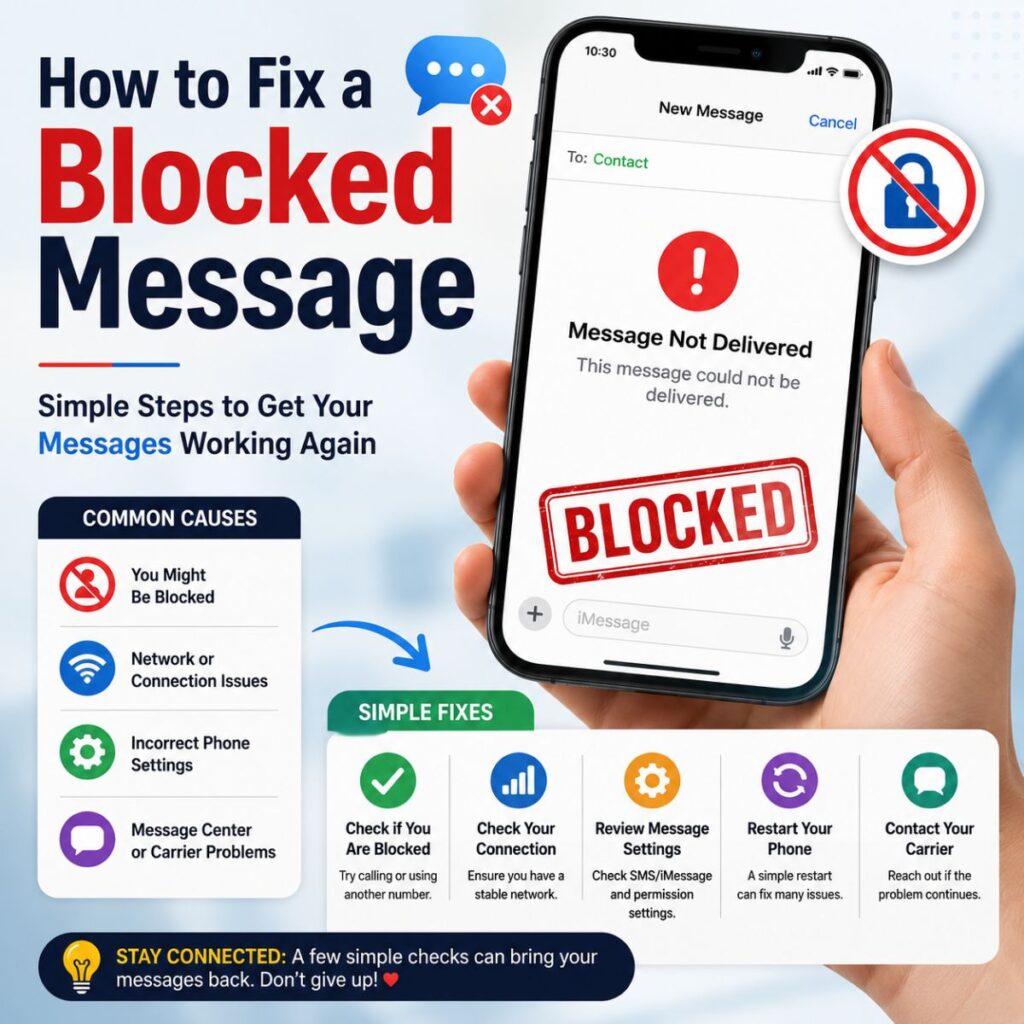
Next, try these troubleshooting steps one by one. In many cases, one simple change solves the problem.
- Restart your phone.
- Check your mobile signal or Wi-Fi connection.
- Turn off Airplane Mode.
- Confirm that you entered the correct phone number.
- Update your messaging app to the latest version.
- Install the newest software update available for your device.
- Remove and reinsert your SIM card.
- Enable SMS or RCS messaging if your device supports it.
- Turn iMessage off and back on if you use an iPhone.
- Clear the messaging app cache if you’re using Android.
- Reset your network settings.
- Send a simple text message without photos or attachments.
- Verify that your mobile account is active.
- Contact your mobile carrier if the problem continues.
- Wait a few minutes and try sending the message again.
Signs Your Messages May Be Blocked
If the issue continues, look for these common signs. Although these signs don’t guarantee that someone blocked you, they can help you narrow down the cause.
- Your messages never show a delivery confirmation.
- Your calls consistently go straight to voicemail.
- Your messages remain stuck in the sending state.
- You repeatedly receive message delivery errors.
- Your calls and text messages fail only for one contact.
- The recipient never responds despite multiple attempts.
- You receive a “Message Blocking Is Active” notification.
- Your SMS messages fail even though your internet connection works normally.
- Other contacts receive your messages without any issues.
- The problem affects only one specific conversation.
Blocked Message on iPhone: Causes and Solutions
If you use an iPhone, several factors can trigger a blocked message error. Fortunately, you can usually fix the problem by checking a few settings.
Common Reasons
First, review these possible causes before trying more advanced solutions.
- You sent the message as an SMS instead of an iMessage.
- iMessage is turned off on your iPhone.
- Your iPhone needs the latest iOS update.
- Your internet connection is weak or unstable.
- Apple temporarily interrupted iMessage services.
- The recipient blocked your phone number.
- Your Apple ID hasn’t synced correctly.
- Your carrier is experiencing network issues.
- Your SIM card isn’t working properly.
- Your network settings need a reset.
How to Fix It
Next, follow these steps one at a time. In most cases, one of them resolves the issue quickly.
- Turn iMessage off and then turn it back on.
- Connect to a stable Wi-Fi or cellular network.
- Update your iPhone to the latest version of iOS.
- Restart your iPhone.
- Verify that the message appears as a blue iMessage instead of a green SMS.
- Sign out of your Apple ID and sign back in.
- Reset your network settings if the issue continues.
- Contact your carrier if none of the steps work.
Blocked Message on Android: Causes and Fixes
Android devices use different messaging apps, so the cause of a blocked message may vary. However, most problems are easy to identify and fix.
Common Reasons
First, check whether one of these issues applies to your phone.
- RCS Chat isn’t enabled.
- Your messaging app needs an update.
- Your Android device needs a software update.
- Your carrier temporarily restricted messaging.
- Your SIM card has a connection problem.
- Your phone has a weak mobile signal.
- The recipient blocked your number.
- The message contains unsupported attachments.
- Your messaging app has temporary sync issues.
- Your network settings are incorrect.
How to Fix It
Then, work through these solutions.
- Update Google Messages or your preferred messaging app.
- Enable RCS Chat Features if your carrier supports them.
- Restart your Android phone.
- Check your mobile data or Wi-Fi connection.
- Remove and reinsert your SIM card.
- Clear the messaging app cache.
- Install the latest Android update.
- Reset your network settings if necessary.
- Send a plain text message without images or files.
- Contact your mobile carrier if the issue remains.
Blocked Message vs. Message Blocking Is Active
Many people confuse these two terms. However, they don’t always mean the same thing.
Blocked Message
A blocked message simply means your text didn’t go through. For example, a weak network, incorrect settings, or temporary carrier issues can prevent delivery.
Message Blocking Is Active
This notification usually appears when your carrier or device blocks outgoing messages. As a result, your texts won’t send until you fix the underlying issue.
Key Differences
- A blocked message may result from several technical issues.
- “Message Blocking Is Active” is a specific error notification.
- Carrier restrictions often trigger the “Message Blocking Is Active” error.
- Network problems can cause both issues.
- Device settings may also prevent successful message delivery.
Additional Tips to Prevent Blocked Messages
Finally, use these best practices to reduce the chances of messaging problems in the future.
- Keep your phone updated.
- Update your messaging apps regularly.
- Use a stable internet or cellular connection.
- Verify phone numbers before sending messages.
- Avoid sending oversized attachments.
- Enable iMessage or RCS when available.
- Restart your phone occasionally.
- Check your carrier’s service status during outages.
- Monitor your account for billing or service restrictions.
- Contact your carrier if blocked message errors happen frequently.
Frequently Asked Questions
What does a blocked message mean?
A blocked message means your text message couldn’t reach the recipient. In most cases, the issue relates to your network connection, messaging settings, carrier restrictions, or the recipient’s phone. However, it doesn’t always mean someone blocked your number.
Can someone block my text messages without blocking my calls?
Yes. Depending on the device or messaging app, someone may block your text messages while still allowing phone calls. Likewise, some apps let users block messages without affecting other forms of communication.
Why do I see “Message Blocking Is Active”?
You may see “Message Blocking Is Active” when your carrier, device, or messaging settings prevent you from sending text messages. For example, an inactive messaging plan, incorrect settings, or a temporary carrier restriction can trigger this error.
How can I fix a blocked message?
First, restart your phone and check your internet or cellular connection. Next, update your messaging app and operating system. If the problem persists, reset your network settings or contact your mobile carrier for assistance.
Does a blocked message always mean someone blocked me?
No. In fact, most blocked message errors result from technical issues rather than intentional blocking. Therefore, check your device, messaging app, and carrier settings before assuming someone blocked your number.
Quick Troubleshooting Checklist
Before contacting your carrier, go through this checklist. Often, one of these steps resolves the issue.
- Restart your phone.
- Check your mobile signal or Wi-Fi connection.
- Turn Airplane Mode off.
- Verify the recipient’s phone number.
- Update your messaging app.
- Install the latest software update.
- Enable SMS, RCS, or iMessage if needed.
- Reset your network settings.
- Send a simple text message without attachments.
- Contact your carrier if the problem continues.
Common Blocked Message Errors
Although blocked message errors vary by device and carrier, these are the ones users report most often.
- Message Blocking Is Active
- Message failed to send.
- Unable to send message.
- SMS delivery failed.
- Message not delivered.
- Waiting for connection.
- Network error while sending.
- iMessage activation failed.
- RCS message failed to send.
- Message sending unavailable.
Conclusion
A blocked message can interrupt an important conversation, but fortunately, you can solve most messaging problems with a few simple troubleshooting steps. Whether the issue stems from your network connection, messaging settings, outdated software, or a temporary carrier restriction, identifying the cause helps you restore normal messaging much faster.
Throughout this guide, you’ve learned the most common reasons behind blocked messages, practical fixes for both iPhone and Android devices, and useful tips to prevent the problem from happening again. In addition, you now know the difference between a general blocked message and the “Message Blocking Is Active” error, making it easier to troubleshoot future issues.
If your messages still won’t send after trying every solution, contact your mobile carrier to rule out account or network problems. Otherwise, keeping your phone updated, maintaining a stable connection, and reviewing your messaging settings regularly will help you avoid most blocked message errors in the future.

Awais Bilal is the author of Messagesfy, sharing simple and meaningful messages, quotes, and wishes to help people express their feelings easily.